Want to learn how to make a storyboard without spending a weekend drawing boxes? A storyboard is a comic-strip plan of your video: one panel per shot, with notes about the camera, the dialogue and the timing. Directors use it to catch problems before the shoot, and marketers use it to get a client’s “yes” before anyone spends money.
In this guide you’ll get the classic seven-step method (it works with paper and pencil too), a cheat sheet of shot types and camera notation, and a walkthrough of how to make a storyboard with AI in Easy-Peasy.AI’s Marky Agent. At the end, you’ll see how to turn your panels into a real video.
What Is a Storyboard?
A storyboard is a visual outline of a video, film, animation or presentation. Each panel shows one shot the way the viewer will see it on screen, with short notes underneath.
A typical storyboard panel includes:
- The picture: who and what is in the frame, and where they stand
- Shot type and camera move: a wide shot, a close-up, a pan, a push-in
- Action and dialogue: what happens, and what people say or the narrator reads
- Sound: music, sound effects or silence
- Timing and transition: how long the shot lasts and how it leads into the next one
A script says what happens. A shot list says how each moment will be filmed. A storyboard shows it. Walt Disney’s studio made storyboards standard practice in the 1930s, and today they’re used for everything from feature films to 15-second TikTok ads.
How to Make a Storyboard Step by Step (7 Steps)
These seven steps work with nothing but a pencil and paper. Each one ends with an AI shortcut that shows how an assistant such as Marky speeds it up.
1. Set the goal, length and format
Before you draw anything, decide what the video is for, who will watch it, how long it runs and where it will play. The last answer sets the shape of your frames: 16:9 for YouTube and TV, 9:16 for Reels, TikTok and Shorts, 1:1 for a square feed post.
AI shortcut: describe your idea in a sentence or two and ask the AI to suggest a length, a format and a one-line summary (a logline).
2. Break the script into scenes and key moments
Mark every change of place, time or action in your script: each one starts a new scene. Then circle the moments the viewer must not miss, such as the hook, the problem, the turning point and the payoff.
AI shortcut: paste the script and ask the AI to split it into numbered scenes and flag the moments that need their own shot.
3. Write a shot list
List every shot with its number, shot type, camera angle, camera movement, duration and a one-line description. This is where you decide, for example, that the product reveal is a slow push-in to a close-up rather than a static wide shot.
AI shortcut: ask for the shot list as a table with columns for shot, type, camera, duration, action and audio.
4. Draw one frame per shot
Draw a box for every shot in your chosen aspect ratio, with room underneath for notes. On paper, six to nine boxes per page keeps the panels readable.
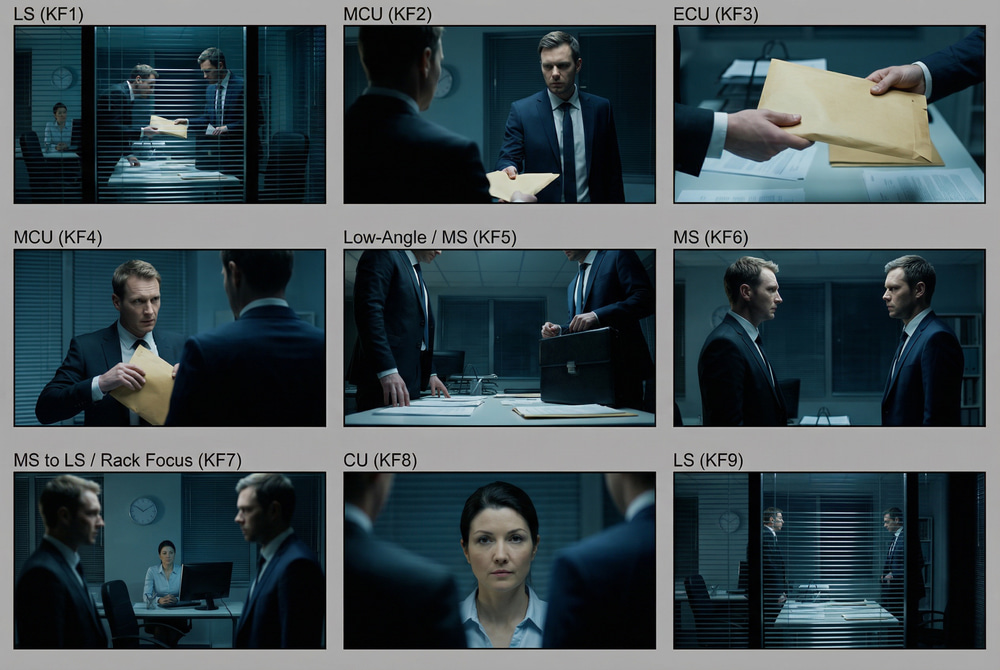
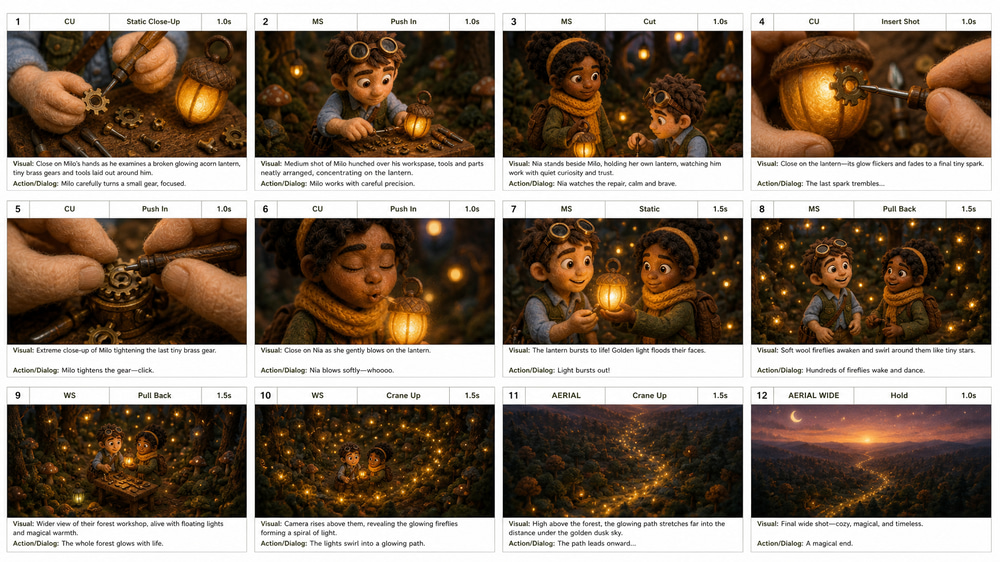
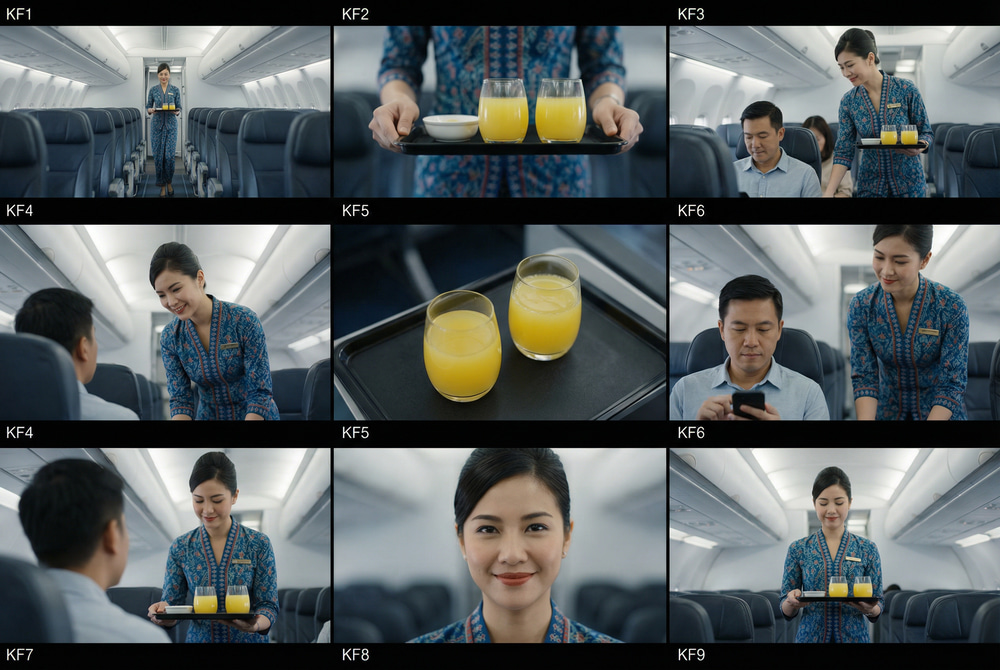
AI shortcut: image models draw each panel in the exact aspect ratio you ask for. Some can even draw a whole board as one image, like the nine-panel sheet at the top of this post.
5. Sketch the action (keep it simple)
Stick figures and simple shapes are fine. What matters is the composition: where the subject sits in the frame, what is in the foreground and background, and where people are looking.
AI shortcut: describe each panel in words and let an image model draw it. For the classic hand-drawn look, ask for a “rough pencil storyboard sketch” or try the Sketch style.
6. Add notes, dialogue and arrows
Under each panel, write the action, the dialogue or voiceover, any sound cue and the duration. Arrows outside or across the frame show the camera moving; arrows inside the frame show how people or objects move.
AI shortcut: ask the AI to write the notes for every panel in one fixed format (Action, Dialogue, Sound, Camera, Duration).
7. Number the panels, review and revise
Number every panel in order, for example “2.3” for scene 2, shot 3. Then read the board like a comic: add up the durations, check that every key moment has a shot, and look for jumps that would confuse a viewer. Share it, collect feedback and revise.
AI shortcut: ask the AI to review the board: “Do the durations add up to 30 seconds? Is a key message missing? Which two shots look too similar?”
Storyboard Shot Types and Notation Cheat Sheet
Storyboards use a short code that anyone on the team can read at a glance. These are the most common shot types:
| Label | Shot | What the viewer sees | Good for |
|---|---|---|---|
| EWS / ELS | Extreme wide shot | A huge space where people look tiny | Opening a scene, scale |
| WS / LS | Wide (long) shot | A full body plus the setting | Showing where we are |
| MS | Medium shot | A person from the waist up | Conversations, hand actions |
| MCU | Medium close-up | Head and shoulders | Talking heads, interviews |
| CU | Close-up | A face or a single object | Emotion, product details |
| ECU | Extreme close-up | Eyes, a fingertip, a logo | Tension, tiny details |
| OTS | Over-the-shoulder | One person seen past another’s shoulder | Dialogue scenes |
| POV | Point of view | What a character sees | Putting the viewer in the scene |
| INSERT | Insert shot | A detail cut into a scene | A key prop, a phone screen |
Angles matter too. A low angle (camera looking up) makes a subject feel powerful, a high angle makes it feel small, and an overhead shot looks straight down, which suits flat lays and recipes.
Camera moves are written as short labels and drawn as arrows:
| Note | Camera move | How to draw it |
|---|---|---|
| PAN L / PAN R | Turns left or right from one spot | Horizontal arrow across the frame |
| TILT UP / DOWN | Turns up or down | Vertical arrow beside the frame |
| PUSH IN / PULL OUT | Moves toward or away from the subject | Arrows into or out of the corners, or a smaller box for the final framing |
| TRACK | Travels alongside the subject | Long arrow outside the frame |
| CRANE UP / DOWN | Rises or drops | Vertical arrow plus the label |
| ZOOM | The lens zooms; the camera stays put | Box inside the frame marked ZOOM |
| STATIC / HOLD | No movement | Just the label |
A few more conventions:
- Movement arrows: draw character movement inside the frame, in a different color from camera arrows.
- Numbering: if you add a shot later, call it 4A or 4B instead of renumbering the whole board.
- Timing: write the duration (“3s”) or a timecode range under each panel.
- Transitions and sound: write CUT TO, DISSOLVE TO or FADE OUT between panels, and mark VO (voiceover), SFX (sound effects) and MUSIC.
How to Make a Storyboard with AI in Easy-Peasy.AI
Now let’s do the same job with AI. Easy-Peasy.AI’s Marky Agent can write the scene breakdown, ask you about the look, draw every panel and export the result. The guided route is the Storyboard Generator, a community agent built on Marky.
Step 1: Open Marky Agent and pick the Storyboard Generator
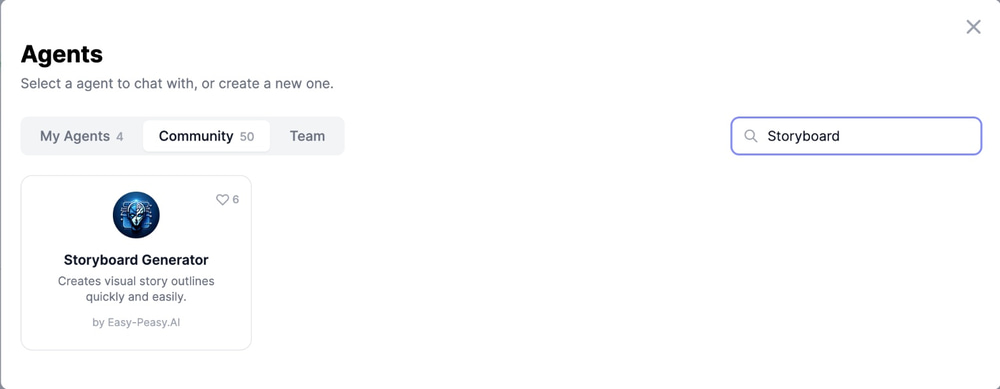
Go to Marky Agent and start a new chat. In the left sidebar, click Agents, switch to the Community tab and choose Storyboard Generator (if you see a search box, type “storyboard”). The heading changes to Chat with Storyboard Generator, and a badge with the agent’s name appears in the message box. To switch back to plain Marky, click the badge before you send your first message.
The Storyboard Generator runs on a premium AI model, so it needs a paid plan. On the Free plan, start a regular Marky chat and use the ready-made prompt below instead.
Prefer a ready-made prompt? Click Prompts in the sidebar, open the Video category and pick Video Storyboard Description. Fill in the brackets, and Marky writes a scene-by-scene storyboard you can then ask it to illustrate.
Step 2: Describe your video
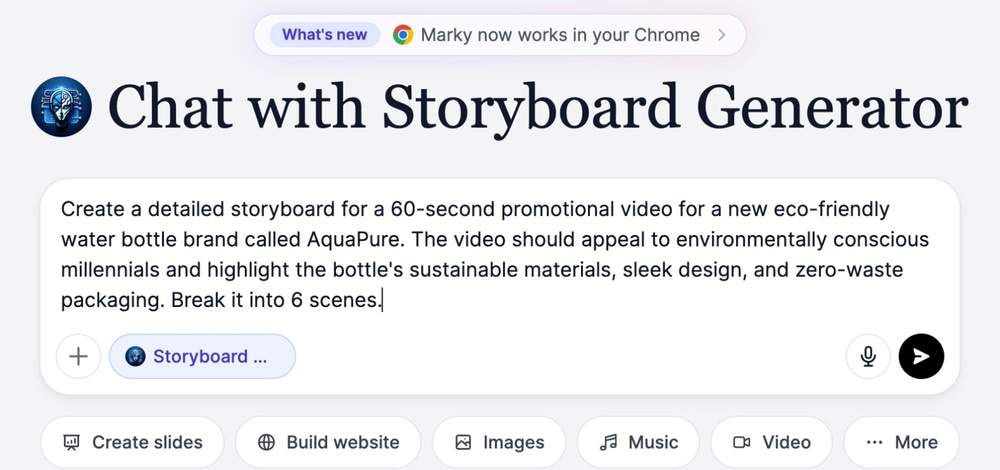
Type your idea into the message box with the length, topic, audience and key messages. The more context you give, the better the board. Here’s the prompt we used:
Create a detailed storyboard for a 60-second promotional video for a new eco-friendly water bottle brand called AquaPure. The video should appeal to environmentally conscious millennials and highlight the bottle's sustainable materials, sleek design, and zero-waste packaging. Break it into 6 scenes.
Step 3: Choose the style, cast and format
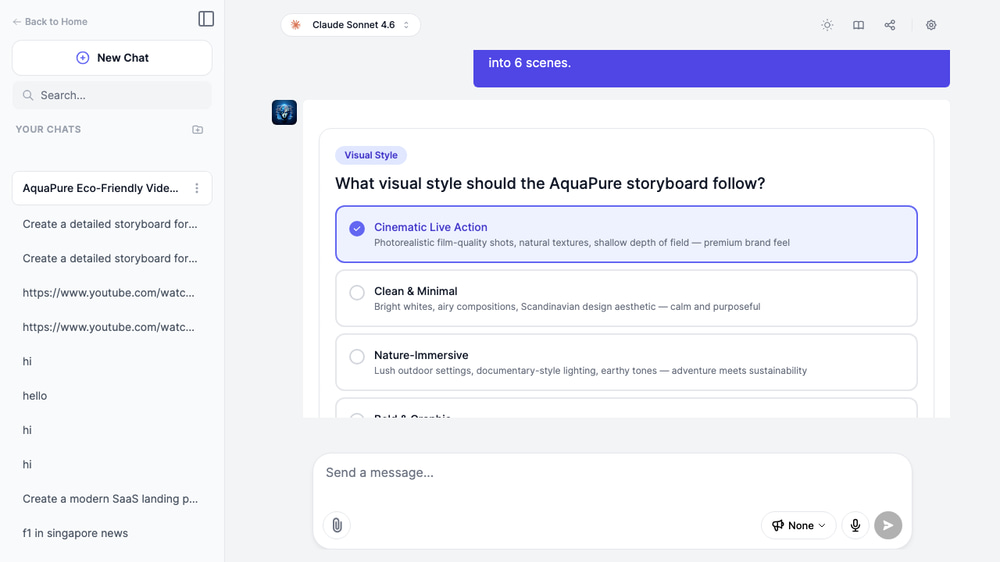
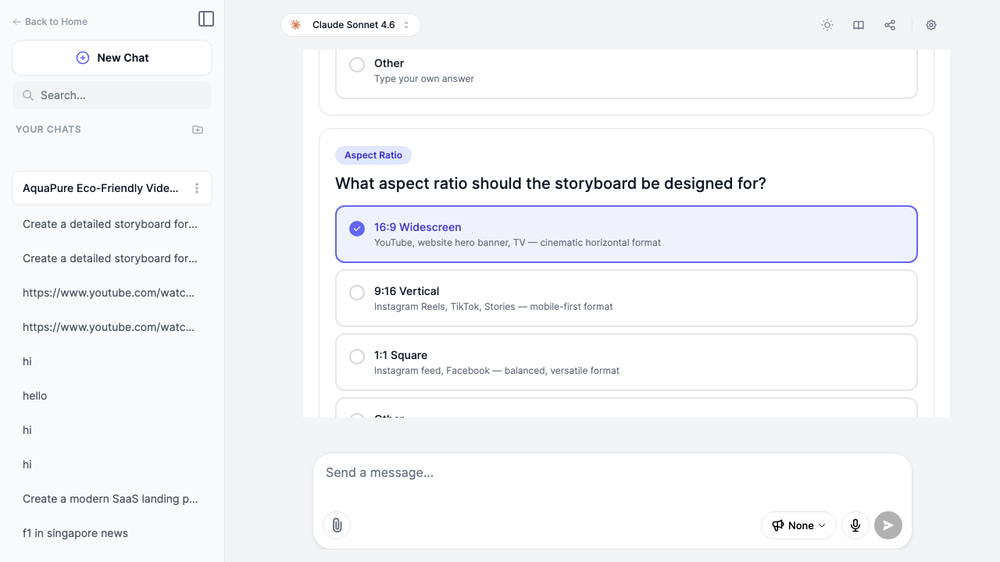
Instead of guessing, the agent asks a few quick questions as clickable choice cards. For our AquaPure video it asked about:
- Visual style: Cinematic Live Action, Clean & Minimal, Nature-Immersive or Bold & Graphic
- Color palette: options such as Ocean Blues & Greens or Earth & Forest Tones
- Cast: one main character, a group of friends, or product-only shots
- Aspect ratio: 16:9 for YouTube, 9:16 for Reels and TikTok, or 1:1 for a square feed
Click the answer that fits, or pick Other and type your own.
Step 4: Review the shot breakdown
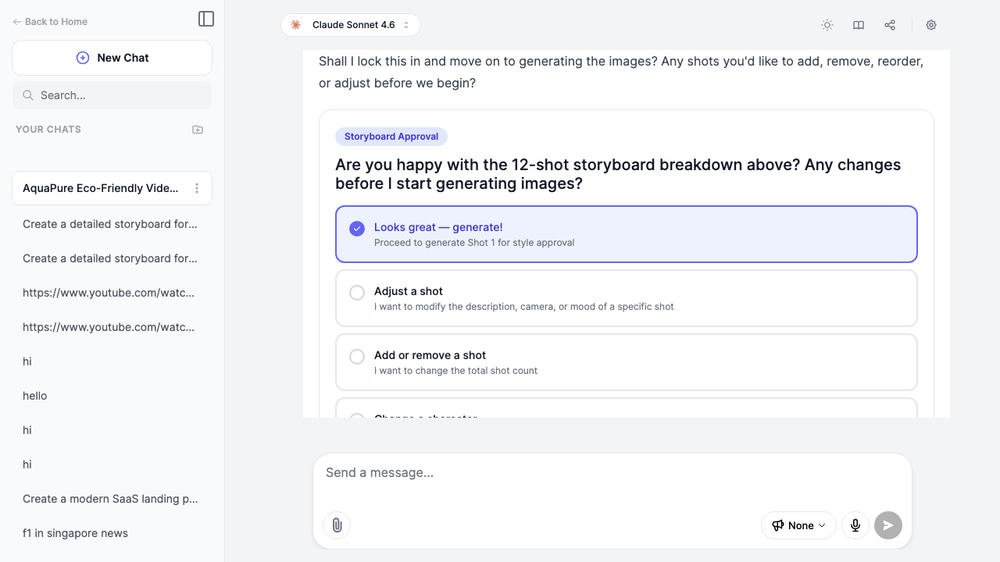
Next, the agent writes a full shot-by-shot breakdown. For AquaPure it planned 12 shots, each with a description, camera angle, character positions, lighting and transitions. Before it draws anything, it asks for approval: choose Looks great to move on, or Adjust a shot, Add or remove a shot or Change a character. This is the cheapest moment to fix the story.
Step 5: Generate the panel images
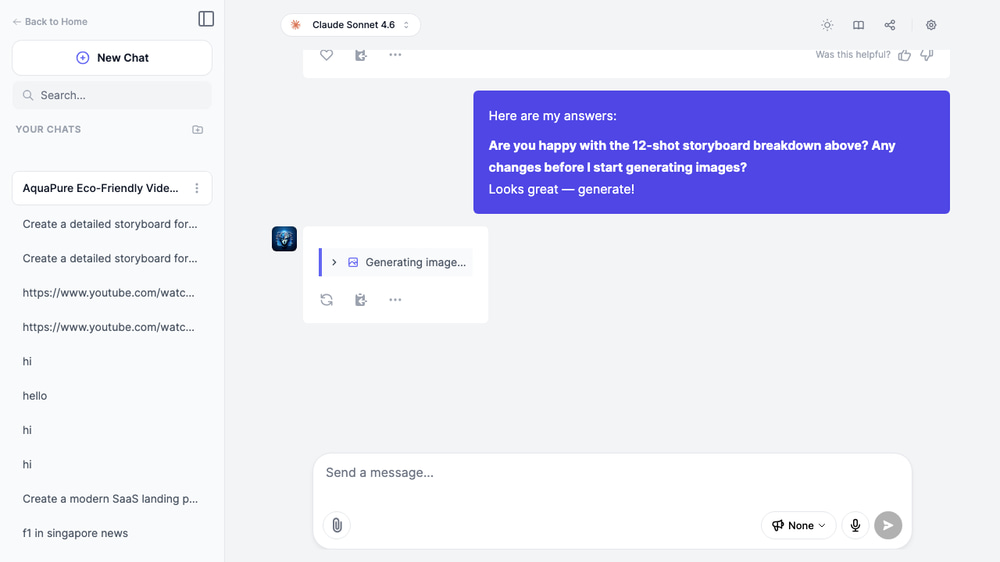
Once you approve, the agent draws the panels in the style and palette you picked. In our test it drew Shot 1 first, so we could approve the look before it made the rest. Each image uses image credits from your plan.
Step 6: Export and share your storyboard
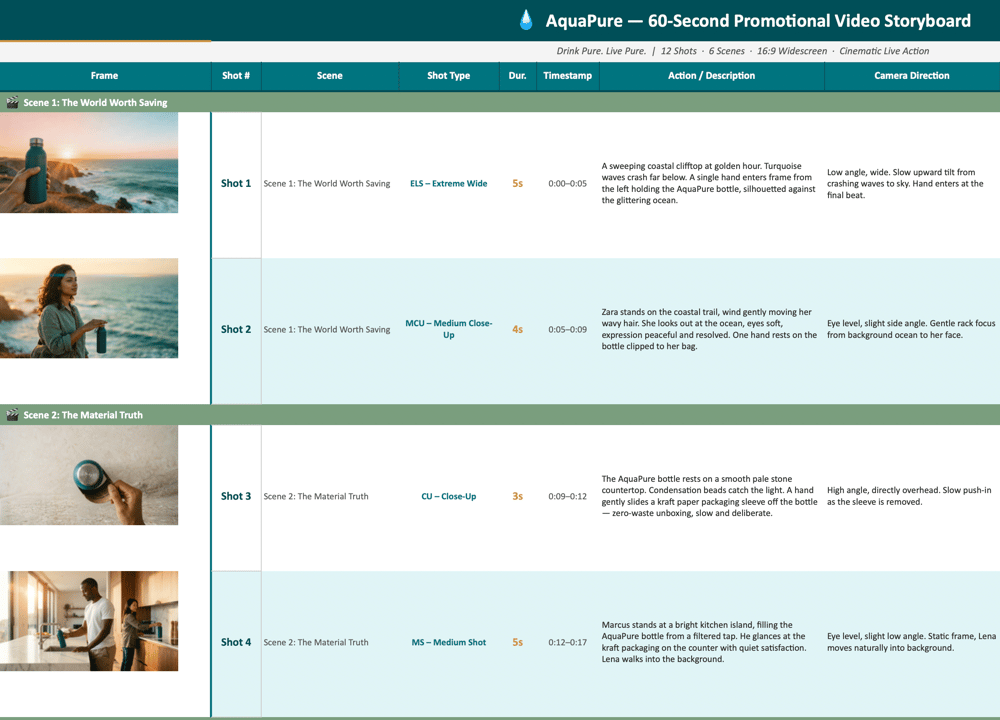
When the panels are ready, ask Marky to put everything into an Excel spreadsheet with one row per shot. You can also share the whole conversation with the Share chat button at the top of the page.
Example Storyboard Prompts to Try
Paste one of these into the Storyboard Generator and change the details to fit your project.
Product launch video
Create a storyboard for a 30-second product launch video for a new wireless earbuds brand. Show the unboxing experience, highlight noise-cancelling features, and end with lifestyle shots of people using the earbuds while commuting, working out, and relaxing. Target audience: tech-savvy 25-35 year olds.
Educational explainer
Create a storyboard for a 2-minute animated explainer video about how solar panels work. Start with the problem (rising energy costs), explain the science in simple terms with visual metaphors, and end with a call to action to get a free solar quote. Break it into 8 scenes.
For a documentary-style explainer, see our guide to making Vox-style videos with AI.
Short film scene
Create a storyboard for the opening scene of a mystery short film. A detective enters an abandoned warehouse at night. Build tension with lighting, shadow, and slow camera movements. Include 6 shots with specific camera angles (wide establishing shot, medium shot, close-up details, POV).
From Storyboard to Video
A storyboard is a plan, not the finished product. Once your panels look right, you can turn them into a rough timed version (an animatic) or a finished video without leaving Easy-Peasy.AI.
Animate one panel at a time in the AI Video Generator
Open the AI Video Generator. Under References (optional), upload a clean panel (no grid lines or labels) as the Start image, and the app switches to an image-to-video model for you. Describe the motion from your panel notes, for example “slow push-in as she turns toward the camera”.
Add the next panel as the End image and the AI creates a smooth transition between the two shots. Models such as Seedance 2.5 Image make takes of up to 30 seconds and can lock the closing frame. Video generation costs credits; the Generate button shows the price before you start.
Repeat for each shot, then put the clips in order in the Video Editor. On paid plans you can also ask Marky to animate a panel right in the chat, using one panel as the first frame or two panels as the first and last frame.
Turn the whole board into one take with reference images
In the same References area, click Add media and add your storyboard plus a character sheet. Reference models such as Seedance 2.5 Reference accept up to 30 reference images and use them to keep characters, products and style consistent across a single take of up to 30 seconds.
That’s how the film below was made: the AI Animated Short Film workflow gave the 12-panel storyboard from the cheat sheet above, plus two character sheets, to Seedance 2.0 Reference.
Let the Video Agent build a narrated video
Want a voiceover and music too? Use the Video Agent:
- In Your idea, describe the video and list your shots in order.
- Under Format & length, pick Portrait (9:16), Landscape (16:9) or Square (1:1) and a target duration.
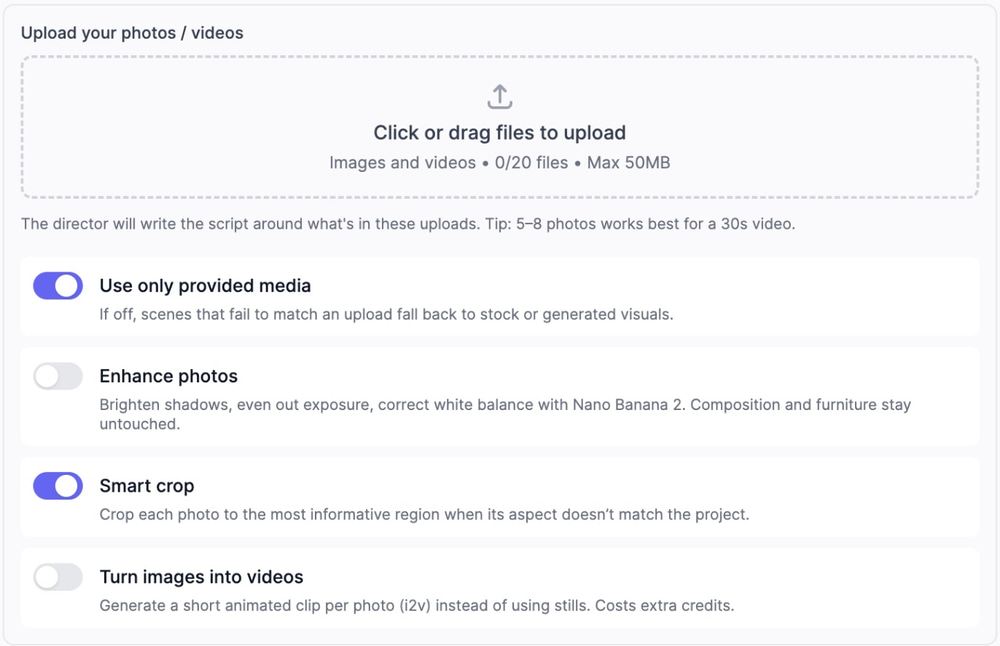
- Under Visuals, set Media type to Your own media and upload your panels (up to 20 files).
- Turn on Use only provided media. On paid plans, also turn on Turn images into videos to animate each panel; otherwise panels stay stills with a slow pan and zoom.
- Pick a voice and music under Audio, then click Generate video.
The agent plans one scene per upload when it can and writes the narration around your panels. For more narrated formats, see our guide to making explainer videos with AI.
Start from a ready-made storyboard workflow
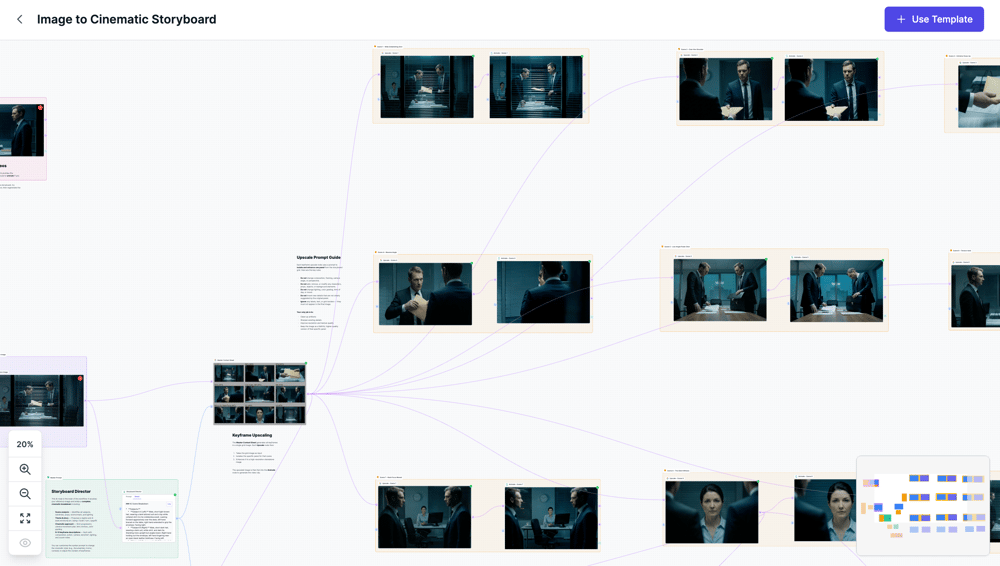
Prefer a visual canvas? Workflows chain AI steps together, and two templates are built around storyboards:
- Image to Cinematic Storyboard: upload one image. The workflow writes a cinematic breakdown, draws a contact sheet with 9 to 12 keyframes, upscales each keyframe, animates it into a 3 to 4 second clip and adds a music track. You assemble the clips in the Video Editor.
- AI Animated Short Film: upload character references and write a short story. The workflow makes the character sheets, a 12-panel storyboard and the final 15-second video.
Click Use Template to get your own copy. You can invite people to a workflow by email as editors or viewers, and on the Teams plan you can share it with your whole team.
How to Keep Characters Consistent Across Panels
Nothing breaks a storyboard faster than a hero who changes face, hair or jacket between panels. Three habits fix it.
Start with a character sheet
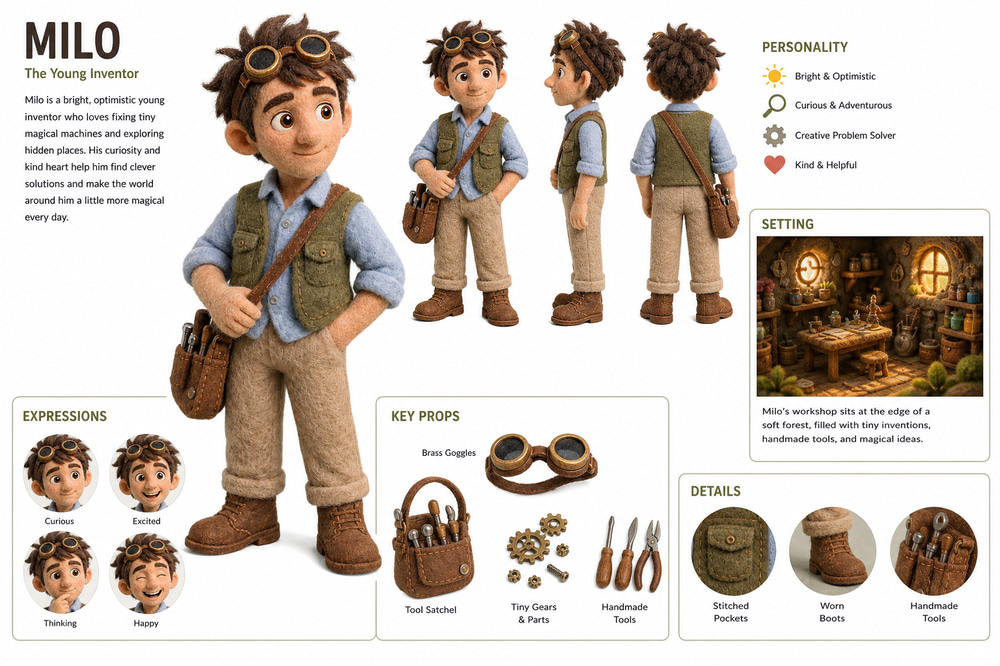
Before you draw any panel, make one reference image per character: front, side and back views, a few expressions and the key props. The AI Animated Short Film workflow starts the same way.
Reuse the same reference and the same words
Attach the character sheet in Marky and ask it to use it as the reference for every shot: Marky can generate and edit images from a set of reference images. Also paste the same short description into each panel prompt, for example Milo: messy brown hair, brass goggles, green felt vest, leather tool satchel, and keep one style and lighting description for the whole board.
Approve one panel before you make the rest
Generate the first panel, fix the look, then continue. Correcting one image is cheaper than correcting twelve. For a deeper dive, read our guide to consistent characters in AI image editing.
Tips for Better AI Storyboards
- Name your audience. “Environmentally conscious millennials” tells the AI which tone, pace and visuals to choose.
- List the key messages. Instead of “a video about our product”, write “highlight the zero-waste packaging and the 24-hour battery life”, so no selling point goes missing.
- Give the length and a shot count. A 15-second ad and a 3-minute explainer need very different structures. For fast social ads, two or three shots per 10 seconds is a good start.
Traditional vs. AI Storyboarding
| Traditional storyboarding | AI storyboarding | |
|---|---|---|
| Time | Hours to days | Minutes for a first draft |
| Drawing skills | Needed, or hire an illustrator | Not needed |
| Cost | An illustrator’s fee or your own time | Credits from your plan |
| Revisions | Redraw by hand | Ask for a change in the chat |
| Visuals | Rough sketches or mood boards | Finished-looking frames in your style |
| Next step | Shoot or animate from scratch | Animate the panels directly |
AI doesn’t replace the director; it just gets you to a strong first draft much faster.
Frequently Asked Questions
How to make a storyboard step by step?
Set the goal, length and format of your video, split the script into scenes and write a shot list. Then draw one frame per shot, sketch the action, add notes and arrows, and number, review and revise the board. An AI storyboard generator can draft the shot list and draw the panels for you.
What are the 7 steps in storyboarding?
Set the goal, length and format; break the script into scenes; write a shot list; draw one frame per shot; sketch the action; add notes, dialogue and arrows; and number, review and revise the panels. Each step is explained above with an AI shortcut.
How can I create my own storyboard?
Draw one on paper with a printed template, or describe your video to an AI and let it draft the shot list and panels. In Easy-Peasy.AI, open Marky Agent, pick the Storyboard Generator from the community agents and describe your idea.
Can ChatGPT create storyboards?
Partly. ChatGPT can write a script, a shot list and a description of every panel, and image models (including ChatGPT’s own) can draw the frames. Keeping characters consistent across many panels and turning panels into video usually takes extra tools, which Easy-Peasy.AI keeps in one place.
Which AI tool is best for storyboarding?
Look for one that covers the whole job: a text model for the shot list, an image model for consistent panels and a video model to animate them. Easy-Peasy.AI offers all three in one place.
Is Canva storyboard free?
Canva offers storyboard templates, and many work on its free plan, while some premium elements need a paid Canva plan. These templates are layouts you fill in by hand: you still add every image and write every note. An AI storyboard generator drafts the shots and draws the panels for you.
Is Easy-Peasy.AI’s storyboard tool free to use?
You can start on the Free plan, which includes a small monthly allowance of words and image credits. A long board can need more image credits than that, and some features, such as video generation inside the chat and some AI models, need a paid plan. See the pricing page for current plans.
Do I need drawing skills to make a storyboard?
No. On paper, stick figures and arrows are enough, because a storyboard only needs to show composition and action. With AI, you describe each shot in words and the image model draws it.
Can I use AI storyboards in commercial projects?
On Easy-Peasy.AI it depends on your plan. Content made on a paid subscription comes with full commercial rights, which you keep after the subscription ends; content made on the Free plan is for non-commercial use only. See the Terms of Use.
Start Your First Storyboard
A good storyboard saves you from expensive surprises later. Pick a small project, like a 30-second product video, and walk through the seven steps once.
Ready to skip the blank page? Open Marky Agent and make a storyboard with AI: describe your idea, approve the shot list and get your panels in minutes, no drawing skills required.