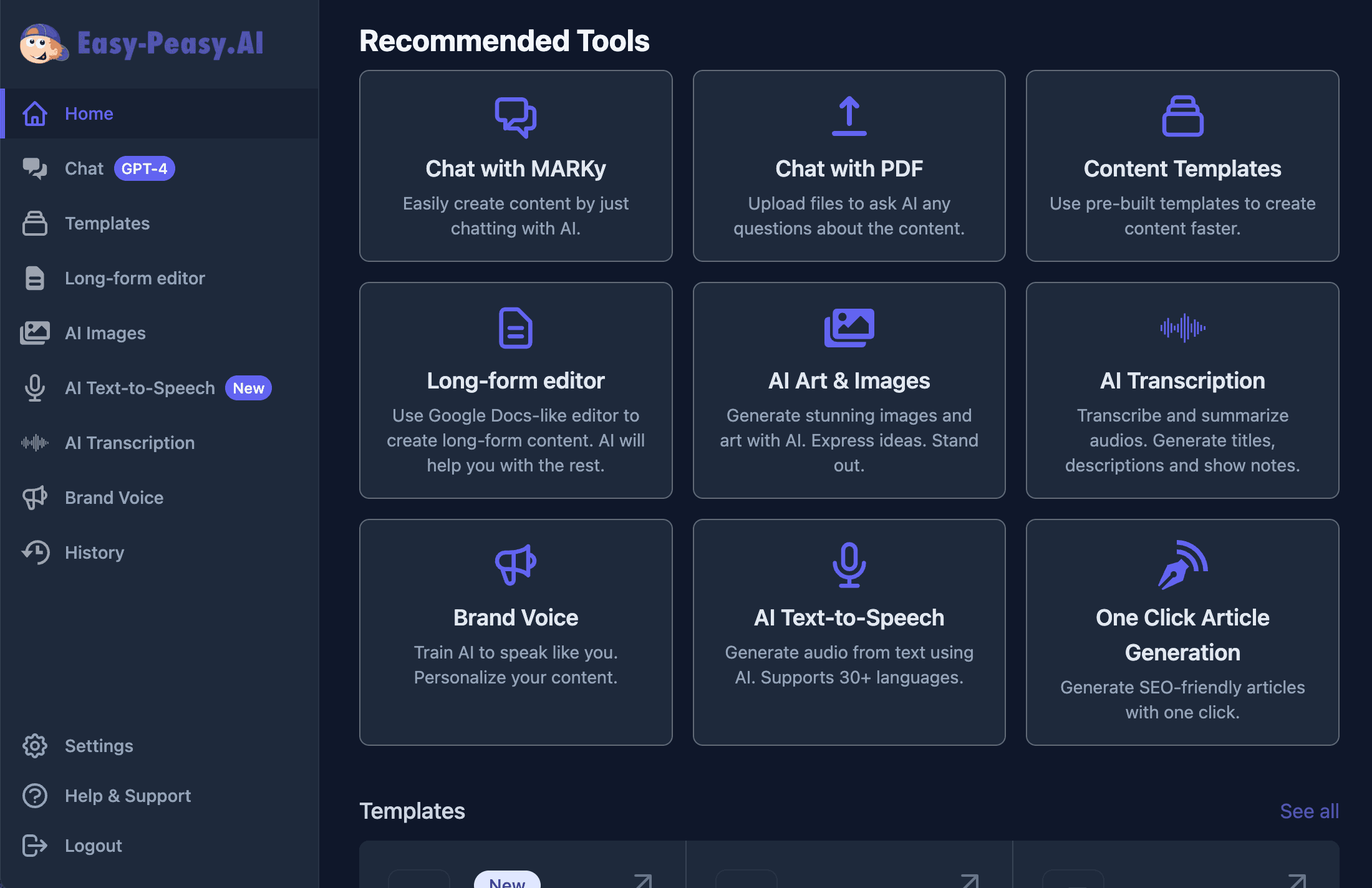
Listings with video get more attention, more saves, and more inquiries — but most agents don’t have a videographer on call, and hiring one for every listing adds up fast. The good news: if you have photos of a property, you already have everything you need. In this guide, we’ll walk through how to use Easy-Peasy.AI’s Real Estate Video Agent to turn a handful of listing photos into a complete real estate marketing video — script, voiceover, music, captions, and motion included — in a few minutes, with zero editing skills.
What Is the AI Video Agent?
The Video Agent is Easy-Peasy.AI’s automatic video creator. You describe the video you want and hand it your media, and an AI “director” does the rest: it writes a scene-by-scene script around your photos, records a natural-sounding voiceover, adds background music and word-synced captions, and assembles everything into a finished video at the length and aspect ratio you choose.
For realtors, the killer feature is the “Your own media” workflow: you upload the listing photos you already have, and the AI builds the entire video tour around them. Flip on “Turn images into videos” and each still photo becomes a short animated clip — a slow push into the kitchen, light shifting across the facade — so the final result feels like a filmed walkthrough, not a slideshow.
Why Use Video for Real Estate Marketing?
Real estate is a visual business, and video is the closest a buyer can get to a showing without booking one:
- Buyers linger longer. A 30-second tour holds attention in a way a photo grid never will — especially on Instagram, TikTok, and Facebook, where video is what the algorithm rewards.
- Sellers expect it. Video marketing has become a differentiator in listing presentations. Showing up with a video tour for every listing helps you win the next one.
- One shoot, many formats. The same photos become a widescreen YouTube/MLS tour, a vertical Reel, and a square feed post — without re-editing anything.
- It scales. A videographer visit costs hundreds per listing. An AI real estate video generator produces a polished tour from photos for a few dollars’ worth of credits.
What You Need Before You Start
Just 5–8 good photos of the property — the same ones you already shot for the MLS listing. Exterior, living room, kitchen, primary bedroom, and backyard is a great five-photo lineup for a 30-second video.
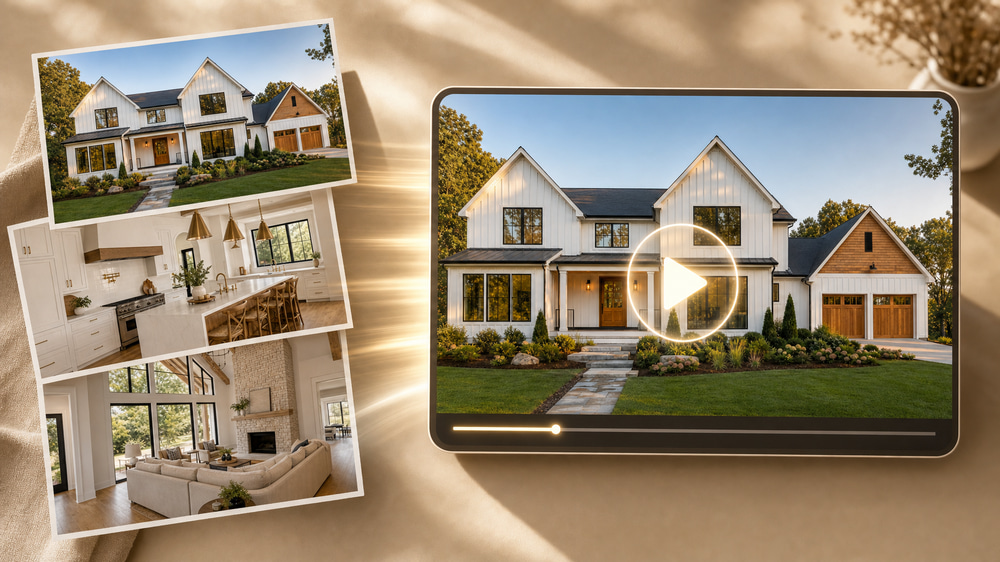
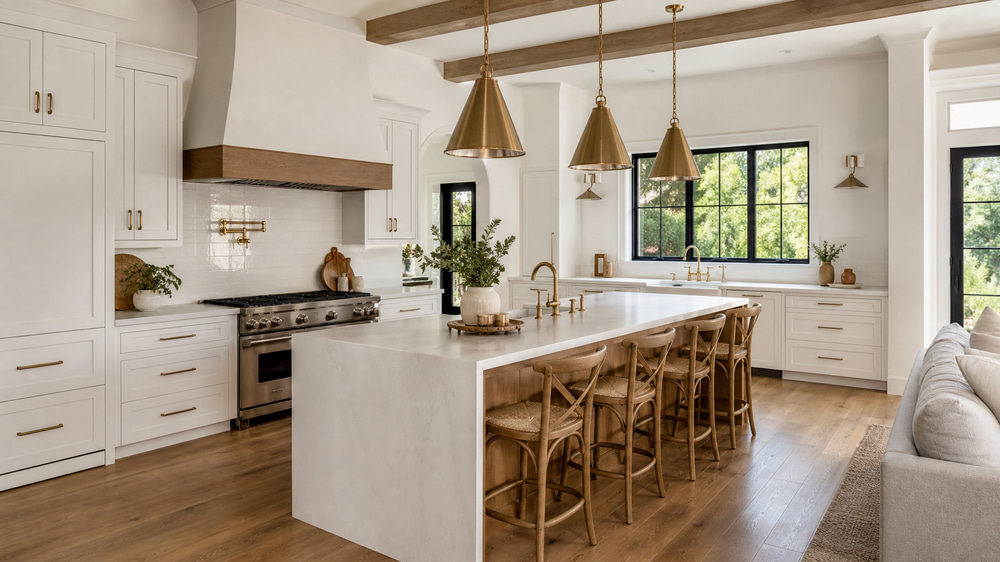
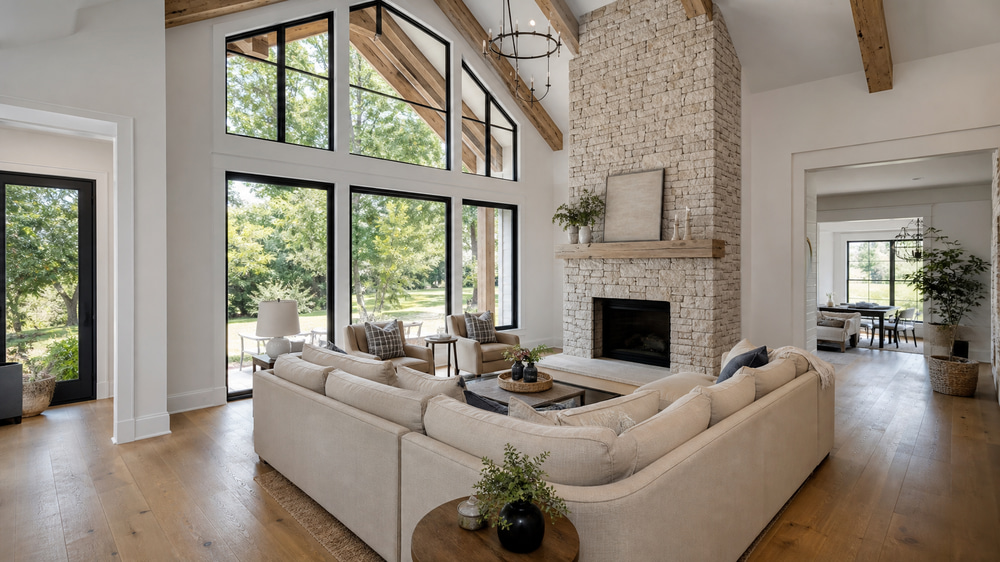
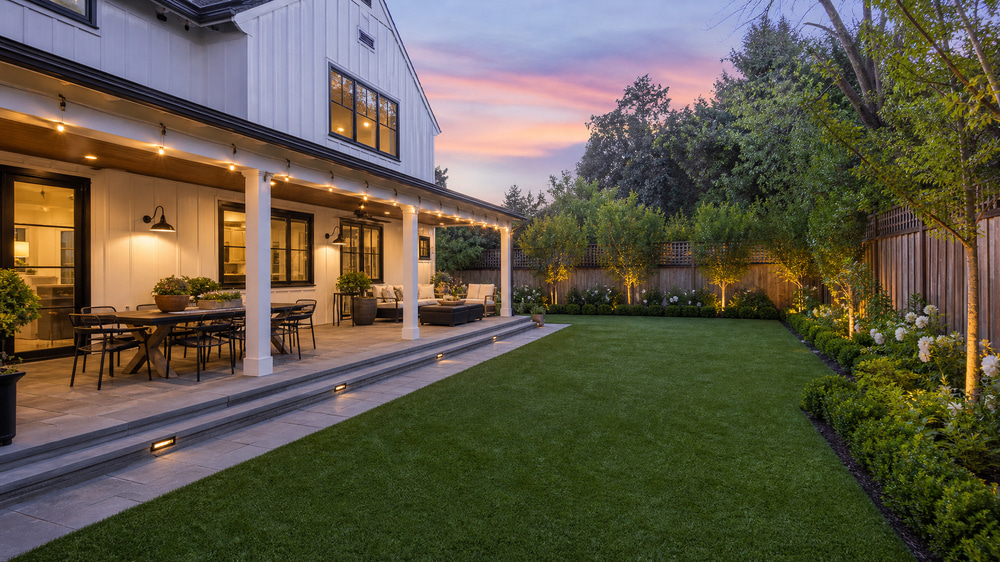
Don’t have photos yet? For pre-construction marketing, concept staging, or demo content, you can generate photorealistic property images with the AI Image Generator. That’s exactly what we did for this guide: we created a fictional listing — a modern farmhouse at 1847 Willow Creek Lane — using GPT Image 2 Medium (3 credits per image) with prompts describing each room.
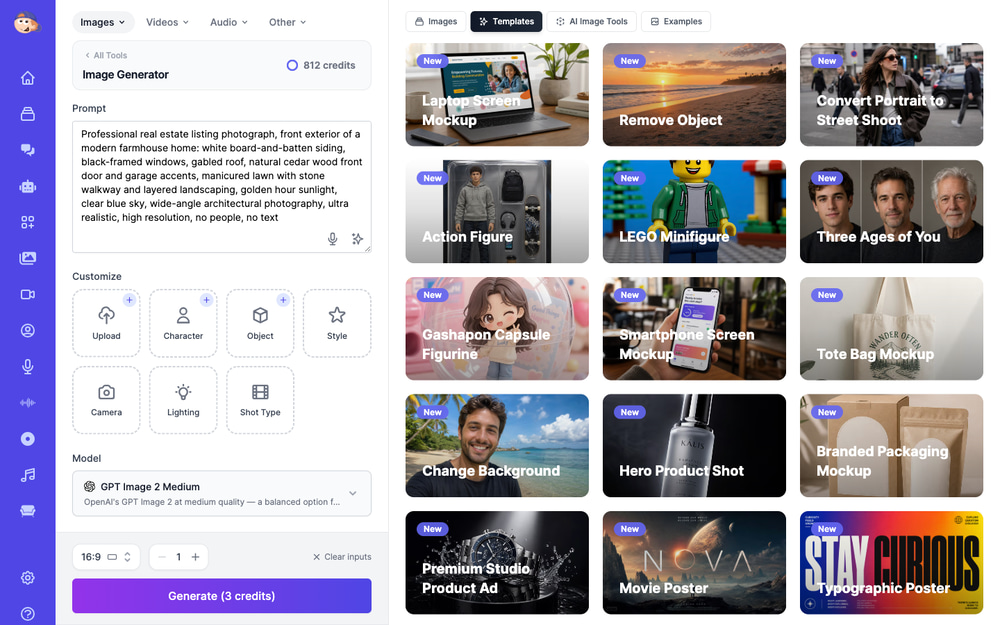
Here are four of the five “listing photos” the model produced — every image below was generated from a text prompt:
How to Turn Listing Photos into a Real Estate Video (Step-by-Step)
Here’s the exact flow we used to produce the video tour further down this page.
Step 1: Open the Real Estate Video template
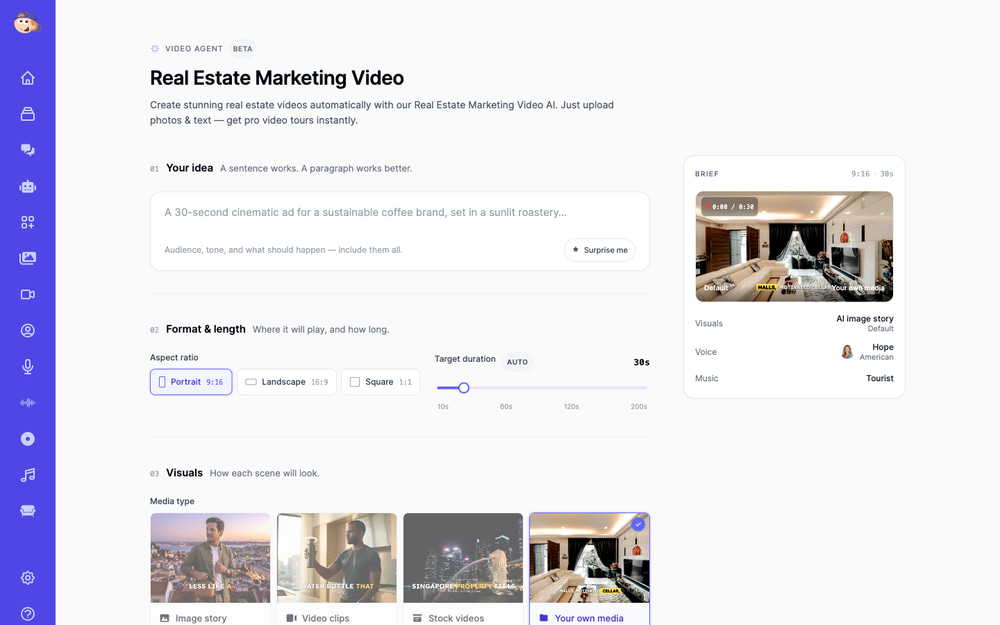
Go to the Real Estate Marketing Video page. It’s the same Video Agent that powers all of Easy-Peasy’s video workflows, pre-configured for property tours — the Your own media workflow is already selected.
Step 2: Describe the listing
Write one paragraph about the property, the tone you want, and what should happen in the video. Include the address, headline specs, price, and a call to action — the AI director works these into the narration. Here’s the prompt we used:
A 30-second real estate listing video for 1847 Willow Creek Lane, a 4-bedroom, 3-bath modern farmhouse with a chef’s kitchen, vaulted-ceiling living room, and covered patio backyard, listed at $875,000. Warm, aspirational tone for home buyers. Walk viewers through the exterior, living room, kitchen, primary bedroom, and backyard, ending with a call to schedule a private tour today.
Step 3: Pick the format and length
Choose Landscape 16:9 for YouTube, your website, and MLS links — or Portrait 9:16 for Reels, TikTok, and Stories. Set the target duration with the slider; 30 seconds is the sweet spot for a five-photo tour (the director paces roughly one scene per photo, plus an intro and outro).
Step 4: Upload your listing photos
In the Upload your photos / videos box, drop in your 5–8 listing photos. You can mix in video clips too — a phone walkthrough or drone clip slots right into the timeline alongside the photos.
Step 5: Set the media options
Four toggles control how the AI treats your uploads:
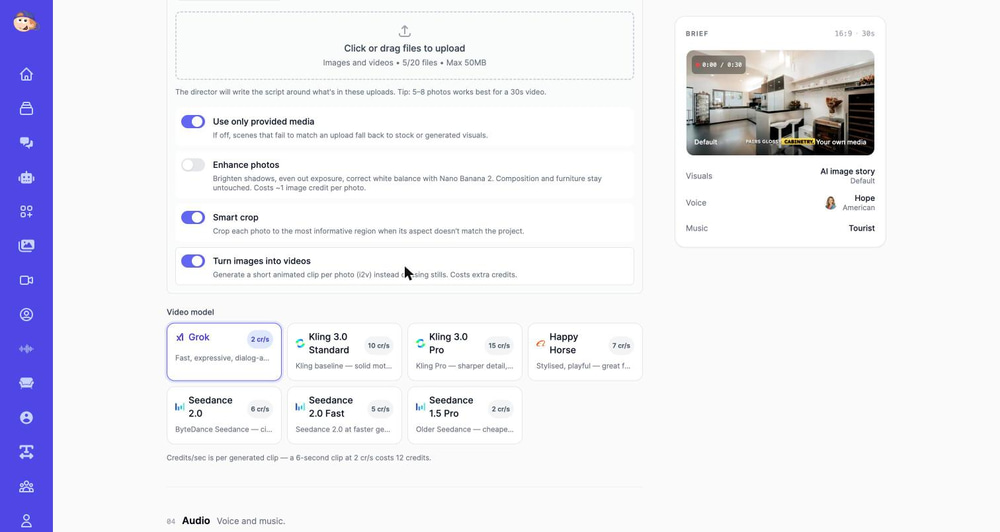
- Use only provided media — keep this ON for listings. It guarantees every frame shows the actual property, with no stock footage mixed in.
- Enhance photos — brightens shadows and corrects white balance with AI (about 1 credit per photo) while leaving composition and furniture untouched. Great for phone photos; unnecessary if your photos are already professionally shot.
- Smart crop — when a photo’s aspect doesn’t match the video (a landscape photo in a vertical Reel, say), the AI crops to the most informative region instead of the dead center.
- Turn images into videos — the showpiece. Each photo is animated into a short clip with camera motion (this is image-to-video generation, or i2v). It costs extra credits but makes the difference between a slideshow and something that feels professionally filmed.
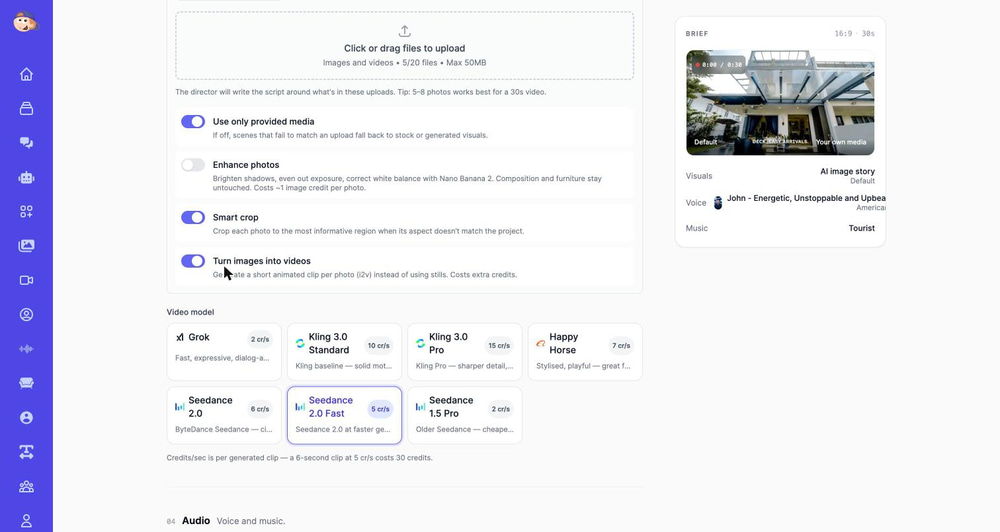
Step 6: Choose a video model
With “Turn images into videos” on, you pick which AI video model animates your photos. Pricing is per second of generated clip:
| Model | Credits/sec | Best for |
|---|---|---|
| Grok | 2 | Fast, expressive motion — the default |
| Seedance 1.5 Pro | 2 | Cheapest realistic option |
| Seedance 2.0 Fast | 5 | Cinematic realism at a mid price — what we used |
| Seedance 2.0 | 6 | Top-tier realism with native audio |
| Happy Horse | 7 | Stylised and playful looks |
| Kling 3.0 Standard | 10 | Solid motion, strong prompt adherence |
| Kling 3.0 Pro | 15 | Sharpest detail, smoothest motion |
For real estate, subtle camera moves matter more than dramatic motion — a slow push-in or gentle pan reads as “professional tour.” We picked Seedance 2.0 Fast for this example.
Step 7: Pick a voice and music
Choose a narrator from the voice library — you can search by style (try advertisement) and preview any voice before committing. We went with an energetic American male voice. For music, the Library tab has licensed tracks by mood (Cinematic, Chill, Inspirational…), or let Auto compose an instrumental bed matched to your prompt.
Step 8: Generate
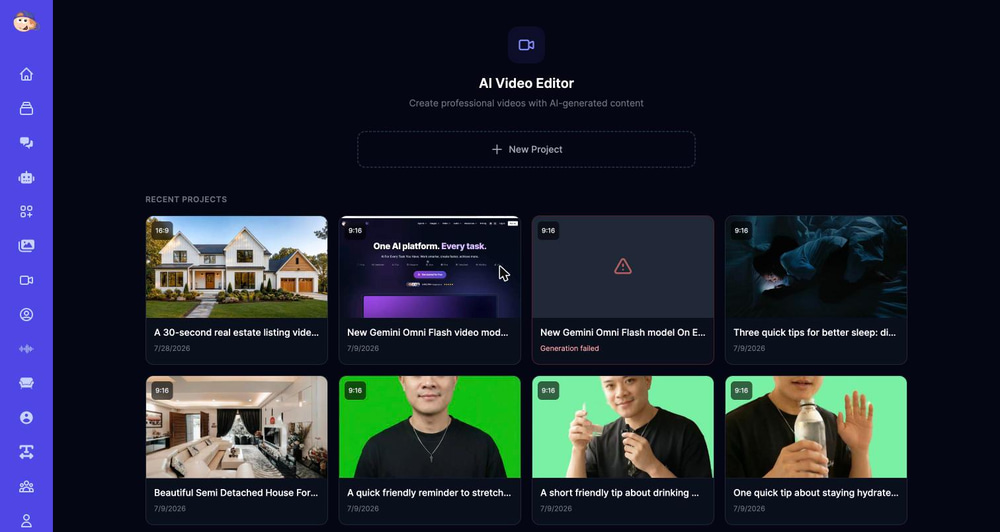
Click Generate video. The agent writes the script, animates each photo, records the voiceover, generates music, and assembles the timeline — typically in a few minutes. You’ll land in your AI Video Editor gallery where the project shows live progress.
The Result: From 5 Photos to a Listing Video
Here’s the video the agent produced from our five generated photos and one paragraph of direction — script, narration, captions, music, and camera motion were all created automatically:
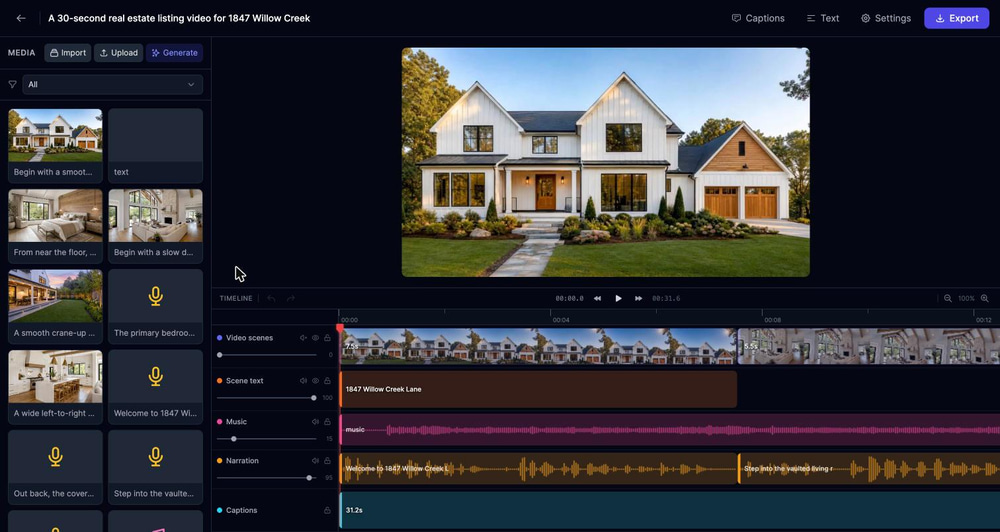
Every scene in the video is one of the photos we uploaded, animated by the video model. The narration walks through the home in the order we asked for and ends with the call to action — and the captions are synced word-by-word for sound-off viewing on social.
Fine-Tuning After Generation
The generated project opens in the full AI Video Editor, so nothing is locked in. You can rewrite or re-record any line of narration, swap a scene’s photo or regenerate its clip, change the music, restyle the captions, or trim timing on the timeline — then export in high definition.
Tips for Better Real Estate Videos
- Lead with the money shot. Put your best exterior or hero room first in the upload order — the director favors your first photos for the opening scene.
- Five to eight photos for 30 seconds. More photos than that and each room flashes by; fewer and scenes stretch. Scale up photos and duration together.
- Put specifics in the prompt. Address, beds/baths, standout features, price, and your CTA — the narration can only mention what you tell it.
- Make a vertical cut too. Re-run the same photos at 9:16 for Reels and TikTok; Smart crop reframes each photo for portrait automatically.
- Match the music to the price point. Warm acoustic for family homes, minimal cinematic for luxury listings.
What Does It Cost?
Video Agent projects are billed in credits, and the biggest variable is image-to-video generation. As a rule of thumb for a 30-second, five-scene video: five 6-second clips at Seedance 2.0 Fast’s 5 credits/sec is about 150 credits; the same video with Grok or Seedance 1.5 Pro (2 credits/sec) is about 60. Skip “Turn images into videos” entirely and your photos appear as elegantly moving stills for a fraction of that. Voiceover, music, and assembly are included. See pricing for plan details.
Frequently Asked Questions
Can I use my own MLS or phone photos?
Yes — that’s the intended workflow. Upload the photos you already have; the “Enhance photos” toggle can fix exposure and white balance on phone shots automatically.
How long does it take to generate a real estate video?
Usually a few minutes for a 30-second video. Image-to-video scenes are generated in parallel, so a five-scene tour doesn’t take five times as long as one clip.
Can I make a vertical video for Instagram Reels and TikTok?
Yes. Choose Portrait 9:16 in the Format step. With Smart crop enabled, your landscape listing photos are intelligently reframed for the vertical canvas.
Can the narration be in another language?
Yes — the Advanced section lets you set the output language, and the voice library includes native voices for dozens of languages, so you can produce the same tour in English and Spanish for different buyer audiences.
Do I need any video editing experience?
No. The agent produces a finished video on its own. If you want to tweak it, the AI Video Editor gives you a full timeline — but most listing videos are ready to post as generated.
Is the video really made from my photos, or does AI invent rooms?
With “Use only provided media” on, every scene is built from a photo you uploaded — the AI only adds camera motion, narration, captions, and music. Nothing about the property is fabricated.
Turn Your Next Listing into a Video Today
Your listing photos are already doing the hard work — the Real Estate Video Agent just turns them into the format buyers actually watch. Upload the photos, describe the property, and post the tour to YouTube, Reels, and your listing page before your coffee gets cold. Create your first real estate video free.