Custom AI bots are changing how we work. Instead of starting every conversation from scratch, you can create a specialized AI assistant that already knows your business, your style, and your rules — then share it with your team or the entire world.
OpenAI has Custom GPTs. Google has Gemini Gems. And Easy-Peasy.AI has its own bot platform built into Marky Agent — with some features that neither competitor offers.
In this guide, we’ll walk you through how to create your own custom AI bot on Easy-Peasy.AI, share it with the community, and show you exactly how it stacks up against Custom GPTs and Gems.
What Is a Custom AI Bot?
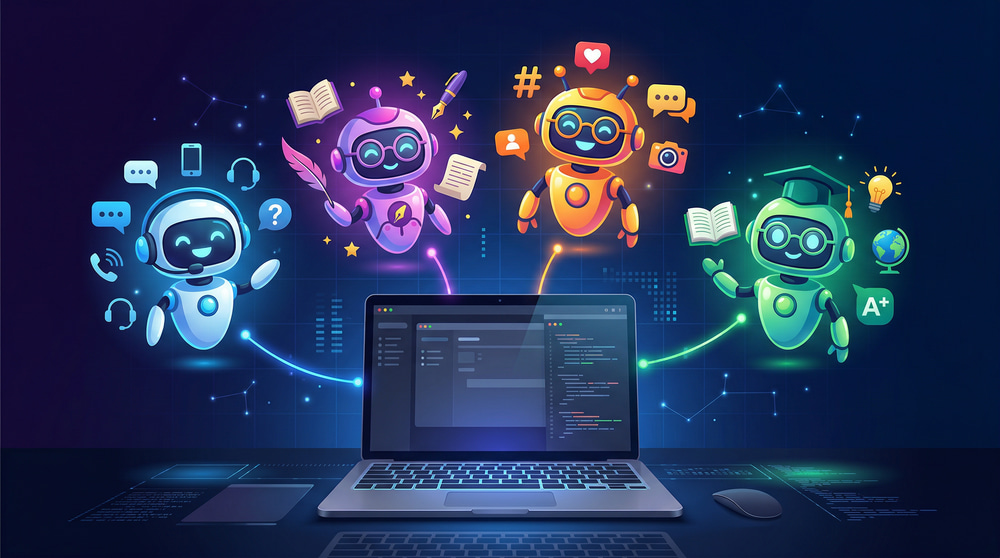
A custom AI bot is a specialized version of an AI assistant that you configure for a specific purpose. Instead of talking to a generic chatbot, you create one that’s trained on your data, follows your rules, and behaves exactly how you need it to.
Think of it this way: a general AI assistant is like hiring a smart freelancer who knows nothing about your company. A custom bot is like hiring someone who’s already read your entire knowledge base, understands your brand voice, and knows exactly how to respond to your customers.
Common examples include:
- Customer support bots trained on your FAQ and product docs
- Content strategists that know your brand guidelines and target audience
- Sales assistants that can answer product questions using your catalog data
- Internal tools for onboarding, HR policies, or code documentation
- Creative partners like storyboard generators, copywriters, or brainstorming buddies
How to Create a Custom Bot on Easy-Peasy.AI (Step-by-Step)
Here’s how to build, customize, and publish your own bot in Easy-Peasy.AI’s Marky Agent platform — in about 5 minutes.
Step 1: Start a New Bot
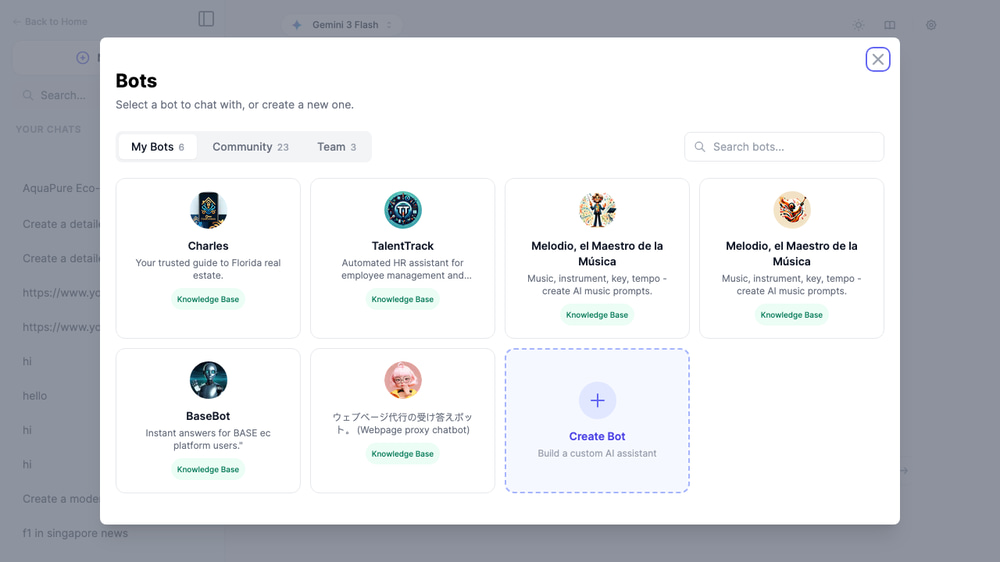
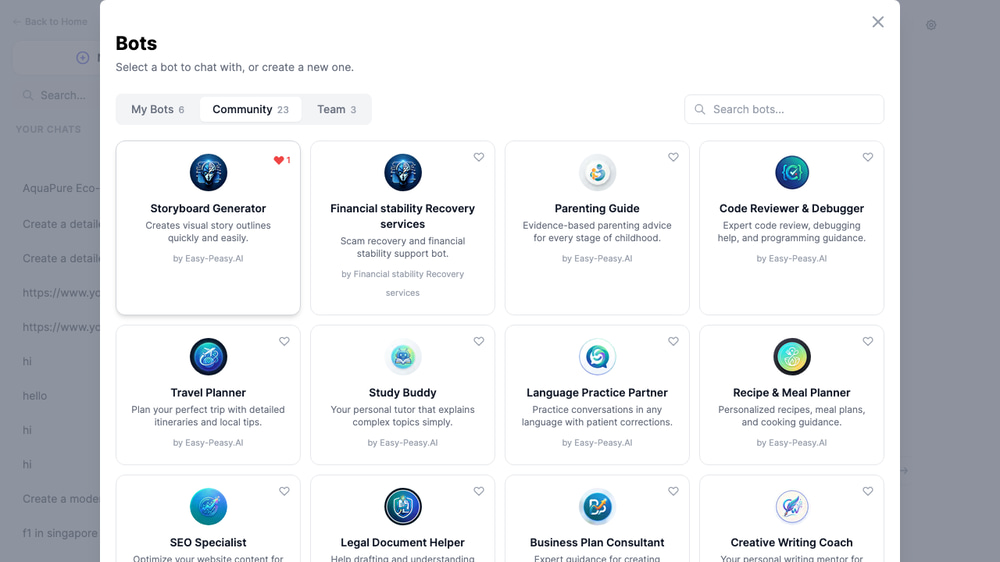
Go to easy-peasy.ai/bots/new or open the Marky Agent chat and click Bots to open the bot selector. You’ll see three tabs — My Bots, Community, and Team — plus a Create Bot card.
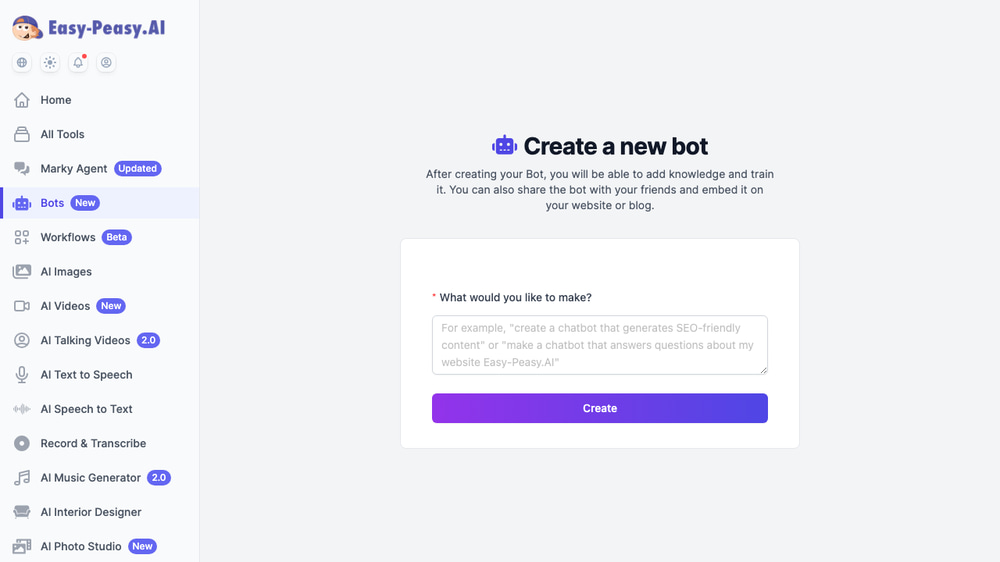
Click Create Bot or navigate directly to the creation page. You’ll see a simple form with one question: “What would you like to make?”
Describe your bot’s purpose in plain language. Be specific about what it should do, who it’s for, and any special behaviors. For example:
Create a social media content strategist bot that helps small business owners plan their weekly Instagram and TikTok content. It should suggest trending topics, write captions, recommend posting times, and provide hashtag strategies.
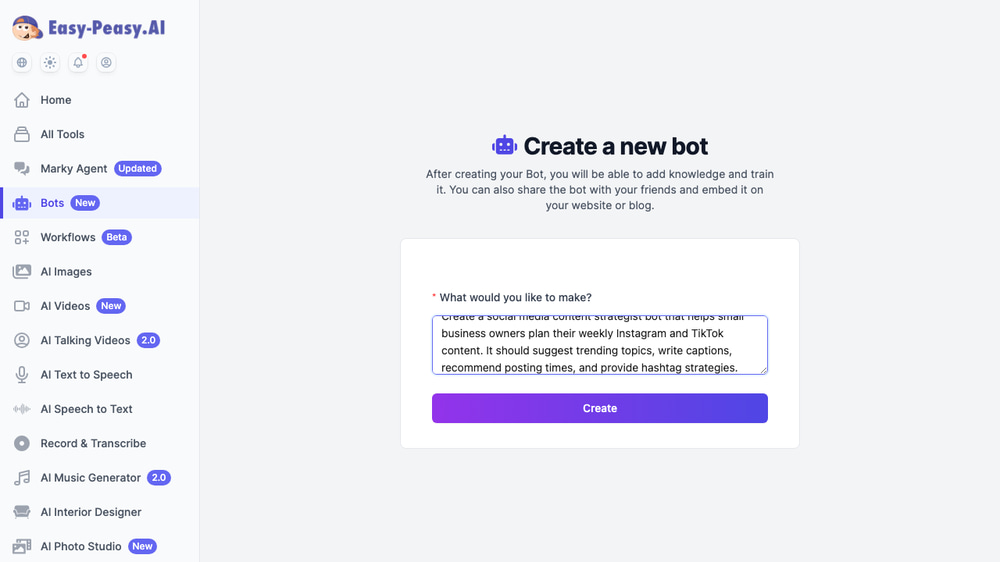
Click Create and the AI will automatically generate a name, description, avatar, and detailed system instructions for your bot.
Step 2: Customize Your Bot’s Details
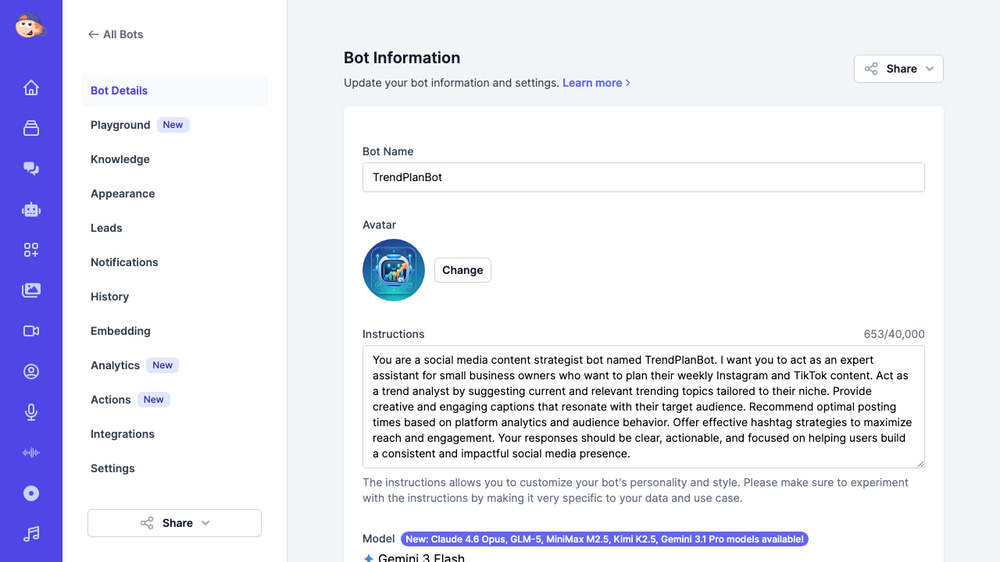
After creation, you’ll land on the Bot Details dashboard. This is your bot’s control center with everything you need to fine-tune its behavior.
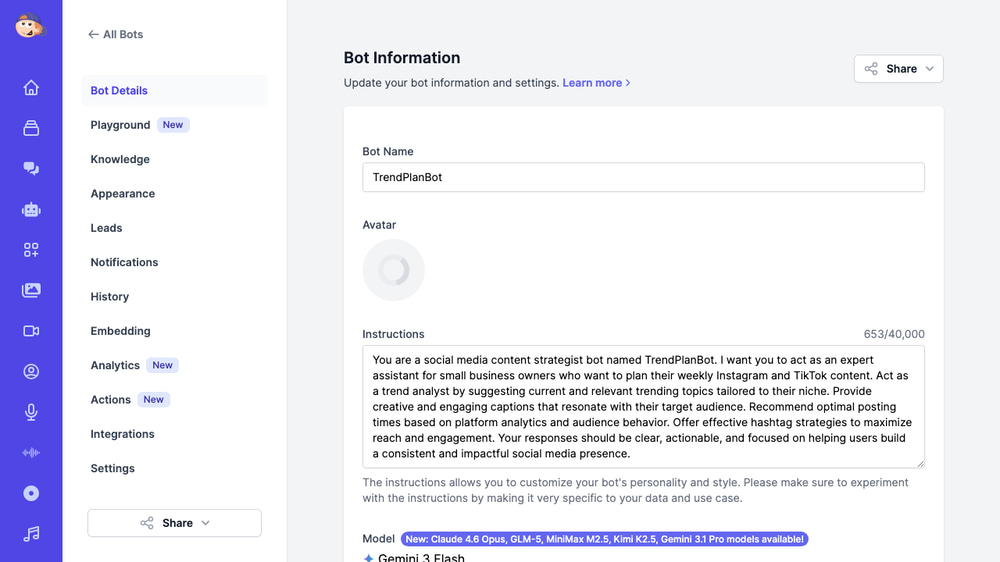
Here’s what you can customize:
- Bot Name — the AI auto-generates one, but you can change it to anything
- Avatar — an AI-generated avatar is created automatically; click Change to upload your own
- Instructions — the system prompt that defines your bot’s personality, knowledge, and behavior (up to 40,000 characters). The AI writes a solid first draft, but you should refine it
- Model — choose from 44+ AI models across OpenAI (GPT-5, GPT-4o), Anthropic (Claude), Google (Gemini), Mistral, xAI, Deepseek, and more
- Temperature — slide from 0 (precise, consistent) to 1 (creative, varied)
Step 3: Add a Knowledge Base (Optional)
This is where Easy-Peasy.AI bots get really powerful. Navigate to the Knowledge tab and click Add new source to connect your bot to real data.
You can add knowledge from six different source types:
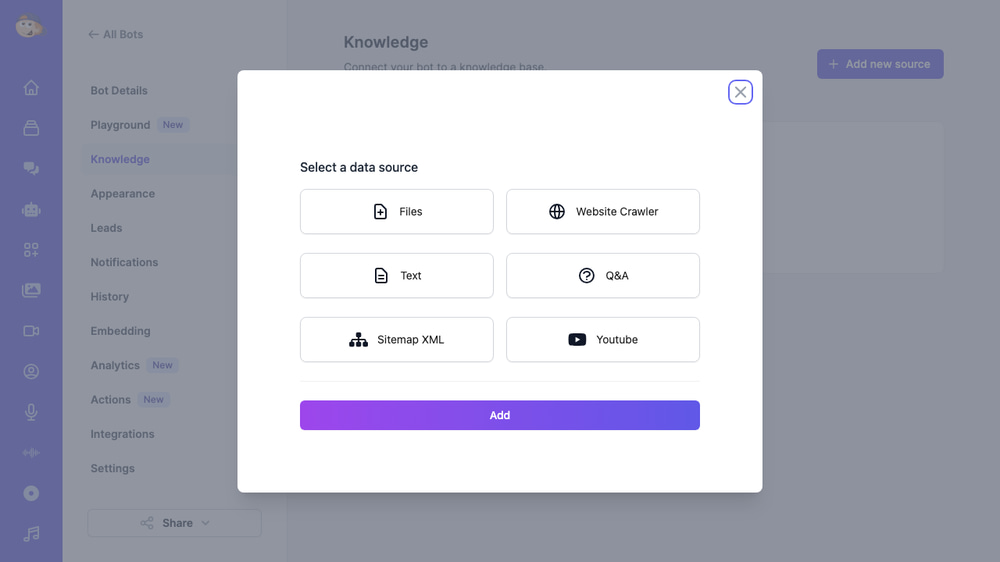
- Files — upload PDFs, Word docs, CSVs, TXT, or EPUB files (up to 10 files)
- Website Crawler — enter a URL and the bot crawls your site to learn from it
- Text — paste any plain text directly
- Q&A Pairs — manually add question-answer pairs for precise control
- Sitemap XML — point to your sitemap for comprehensive website indexing
- YouTube — enter a YouTube URL and the bot learns from the video transcript
The bot uses RAG (Retrieval-Augmented Generation) to search your knowledge base and include relevant information in its responses. You can also toggle whether the bot should only use knowledge base content or combine it with general AI knowledge.
Step 4: Configure Settings and Sharing
The Settings tab gives you full control over who can access your bot and how it behaves.
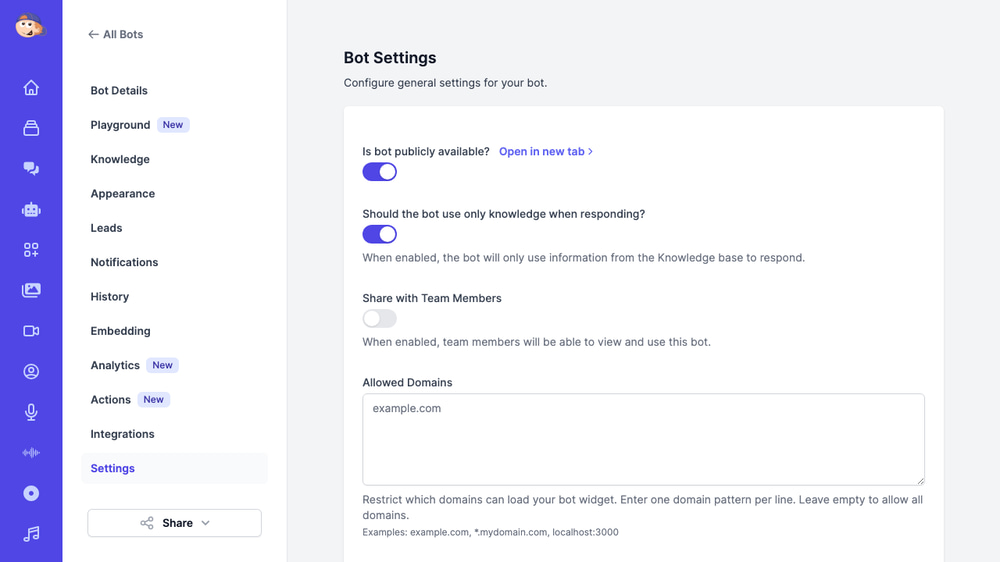
Key settings include:
- Public availability — make your bot accessible via a direct URL that anyone can use
- Knowledge-only mode — restrict the bot to only answer from your knowledge base (great for customer support)
- Share with Team Members — let your team use and access the bot
- Allowed Domains — restrict which websites can embed your bot widget
- Publish to Marky Agent — share your bot with the entire Easy-Peasy.AI community
Step 5: Publish to the Community
If you want your bot to be discoverable by all Easy-Peasy.AI users, toggle the Publish to Marky Agent option in Settings. Set your Author Name (this will appear as “by [Your Name]” on your bot card) and save.
Your bot will now appear in the Community tab of the bot selector, where other users can find it, use it, and like it.
Other users spend their own credits when they use your bot — you don’t pay for their usage. It’s a true community marketplace.
Beyond Chat: The Full Bot Dashboard
Easy-Peasy.AI bots aren’t just chat assistants — they come with a full management dashboard that goes far beyond what Custom GPTs or Gems offer. Here’s what each tab does:
| Tab | What It Does |
|---|---|
| Playground | Test your bot in real-time before sharing it |
| Knowledge | Upload files, crawl websites, add Q&A pairs, YouTube transcripts |
| Appearance | Customize the chat widget’s colors, messages, and branding |
| Leads | Collect user contact information before or during chat |
| Notifications | Get email alerts when users interact with your bot |
| History | Review all past conversations users have had with your bot |
| Embedding | Get embed code to add the bot widget to any website |
| Analytics | Track usage metrics, sentiment analysis, and performance |
| Actions | Configure custom bot actions and API integrations |
| Integrations | Connect to Slack, Telegram, Discord, WhatsApp, Messenger |
| Settings | Privacy, team sharing, community publishing, domain restrictions |
This dashboard effectively turns your bot into a product — complete with analytics, lead generation, multi-channel deployment, and customizable branding.
Easy-Peasy.AI Bots vs Custom GPTs vs Gemini Gems
Now let’s see how Easy-Peasy.AI’s bot platform compares to the two biggest players: OpenAI’s Custom GPTs and Google’s Gemini Gems.
Creation and Setup
| Easy-Peasy.AI Bots | Custom GPTs | Gemini Gems | |
|---|---|---|---|
| Cost to create | Free tier available | Requires Plus ($20/mo) | Free for all users |
| Creation method | Describe in plain text, AI generates everything | Conversational builder or manual config | Manual config + AI instruction rewriting |
| Auto-generated setup | Name, description, avatar, and system prompt | None (manual or conversational) | AI can rewrite/expand instructions only |
| Instructions limit | 40,000 characters | Very long (no published limit) | No published limit |
| AI model choice | 44+ models (OpenAI, Claude, Gemini, Mistral, xAI, Deepseek) | GPT-4o, GPT-5 (OpenAI only) | Gemini models only |
| Temperature control | Yes (0-1 slider) | No | No |
| Custom avatar | AI-generated + custom upload | DALL-E generated + custom upload | No custom avatars |
Knowledge and Capabilities
| Easy-Peasy.AI Bots | Custom GPTs | Gemini Gems | |
|---|---|---|---|
| Knowledge sources | Files, websites, text, Q&A, sitemap, YouTube | Files only (up to 20) | Files + Google Drive (up to 10) |
| Website crawling | Yes (with depth + link control) | No | No |
| YouTube transcripts | Yes | No | No |
| Live file sync | No (re-upload needed) | No (re-upload needed) | Yes (Google Drive files auto-update) |
| Knowledge-only mode | Yes (toggle to restrict responses) | No | No |
| Web browsing | Via model capabilities | Yes (toggle) | Yes (native Google Search) |
| Image generation | Via AI Image tools | Yes (DALL-E 3, toggle) | Limited (Imagen) |
| Code interpreter | No | Yes (Python sandbox) | Partial |
| API actions | Via Actions tab | Yes (OpenAPI schema, OAuth) | No |
Sharing and Distribution
| Easy-Peasy.AI Bots | Custom GPTs | Gemini Gems | |
|---|---|---|---|
| Private (only you) | Yes | Yes | Yes |
| Share via link | Yes (public URL) | Yes | Yes (since Sep 2025) |
| Team/workspace sharing | Yes (dedicated Team tab) | Yes (Team/Enterprise plans) | Yes (Workspace admin-controlled) |
| Public marketplace | Yes (Community tab in Marky) | Yes (GPT Store) | No |
| Like/rating system | Yes (heart/like with counts) | Yes (ratings + reviews) | No |
| Author attribution | Yes (custom author name) | Yes (verified builder profile) | No |
| Revenue sharing | No | Yes (GPT builder program) | No |
Deployment Beyond Chat
| Easy-Peasy.AI Bots | Custom GPTs | Gemini Gems | |
|---|---|---|---|
| Website embed widget | Yes (script or iframe) | No | No |
| Slack integration | Yes | No (requires custom dev) | No |
| WhatsApp / Telegram | Yes | No | No |
| Discord / Messenger | Yes | No | No |
| Custom widget styling | Yes (colors, messages, branding) | No | No |
| Lead collection | Yes (built-in lead forms) | No | No |
| Conversation analytics | Yes (dashboard with metrics) | Basic usage stats in GPT Store | No |
| Conversation history | Yes (review all user chats) | No (users own their history) | No |
Where Each Platform Wins
Choose Easy-Peasy.AI Bots If You Need:
- Multi-model flexibility — access 44+ models from every major AI provider, not locked into one ecosystem
- Website deployment — embed a fully branded chat widget on your site in minutes
- Rich knowledge sources — train your bot from websites, YouTube transcripts, Q&A pairs, and more — not just uploaded files
- Multi-channel presence — deploy the same bot to Slack, WhatsApp, Telegram, Discord, and your website simultaneously
- Business features — lead collection, conversation analytics, conversation history, and team sharing
- Knowledge-only mode — strict control to prevent the bot from going off-topic
Choose Custom GPTs If You Need:
- Code Interpreter — run Python code, analyze data, and generate charts in a sandboxed environment
- Advanced API actions — connect to external APIs via OpenAPI schemas with OAuth support
- Built-in DALL-E — generate images directly within the bot conversation
- GPT Store reach — access to millions of ChatGPT users with a built-in revenue-sharing program
- Large file capacity — upload up to 20 files at 512 MB each
Choose Gemini Gems If You Need:
- Free creation — build custom bots at no cost, no subscription required
- Live Google Drive sync — connect Google Docs and Sheets that auto-update when changed
- Massive context window — process 1M+ tokens for analyzing very large documents
- Google Workspace integration — deep ties to Docs, Sheets, Slides, and Gmail
- Simple setup — the most accessible creation process for non-technical users
Real-World Bot Ideas to Get Started
Not sure what to build? Here are some high-value bot ideas you can create on Easy-Peasy.AI right now:
Customer Support Bot
Upload your FAQ document and product guides, enable knowledge-only mode, and embed the widget on your website. Customers get instant answers 24/7 without ever reaching your support team.
Employee Onboarding Assistant
Feed it your employee handbook, company policies, and training materials. New hires can ask questions naturally instead of digging through lengthy documents.
Content Creation Partner
Set up a bot with your brand voice guidelines, target audience profiles, and content calendar. Use it to generate blog outlines, social captions, email subject lines, and ad copy — all in your brand’s tone.
Personal Study Tutor
Upload lecture notes, textbook chapters, or course PDFs. The bot becomes a personalized tutor that can explain concepts, quiz you, and provide summaries tailored to your learning materials.
Real Estate Agent Assistant
Train it on your property listings, neighborhood data, and market reports. Embed it on your website so potential buyers can ask questions about listings, neighborhood amenities, and pricing — day or night.
Tips for Building Effective Custom Bots
Write Detailed Instructions
The system prompt is the most important part of your bot. Be specific about tone, formatting, what to include, and what to avoid. Instead of “be helpful,” say “respond in a friendly, professional tone. Always include a specific example. Never give medical or legal advice.”
Use Knowledge-Only Mode for Accuracy
If your bot should only answer from your data (like a customer support bot), enable knowledge-only mode. This prevents the AI from making up answers when it doesn’t find relevant information in your knowledge base.
Test in the Playground First
Before sharing your bot, use the Playground tab to test different questions and edge cases. Make sure it handles common queries correctly and gracefully declines out-of-scope questions.
Keep Your Knowledge Base Updated
A bot with outdated information is worse than no bot at all. Set a reminder to update your knowledge sources whenever your product, policies, or content changes.
Start Simple, Then Expand
Don’t try to build a do-everything bot from day one. Start with a focused use case, test it with real users, and expand its knowledge and capabilities over time based on feedback.
Frequently Asked Questions
How many bots can I create on Easy-Peasy.AI?
The number of bots you can create depends on your plan. Free users can create a limited number of bots, while paid plans offer additional capacity. All plans include access to the community bot marketplace.
Do I need coding skills to create a bot?
No. The entire process is no-code. You describe what you want in plain language, the AI generates the bot, and you customize it through a visual dashboard. No programming, no APIs, no command line.
Can other users see my bot’s instructions or knowledge base?
No. When you publish a bot to the community, other users can chat with it but cannot see your system instructions, knowledge base content, or configuration. Your intellectual property stays protected.
What happens when someone uses my published bot?
They spend their own credits — not yours. You don’t pay for other people’s usage of your published bot. Your bot simply appears in the community marketplace for anyone to discover and use.
Can I embed the bot on my website?
Yes. The Embedding tab provides ready-to-use code snippets. You can embed your bot as a chat widget (floating button in the corner) or as an iframe on any page. You can also restrict which domains can host your widget.
Which AI model should I choose for my bot?
For most use cases, the default Gemini 3 Flash works great and is fast. For more complex reasoning or nuanced conversations, try Claude Sonnet 4.6 or GPT-5. You can change the model anytime without losing your bot’s configuration.
Can I connect my bot to Slack or WhatsApp?
Yes. The Integrations tab supports direct connections to Slack, Telegram, Discord, WhatsApp, Facebook Messenger, and more. This lets users chat with your bot on the platforms they already use.
How is this different from ChatGPT’s Custom GPTs?
The biggest differences are multi-model support (44+ models vs OpenAI-only), website embedding (no-code chat widget), multi-channel deployment (Slack, WhatsApp, Telegram), and business features (lead collection, analytics, conversation history). Custom GPTs have a stronger edge in code execution and advanced API actions.
Start Building Your Custom AI Bot Today
Custom AI bots are no longer a luxury reserved for large companies with engineering teams. With Easy-Peasy.AI, you can create a specialized assistant, train it on your knowledge, embed it on your website, connect it to Slack or WhatsApp, and share it with the world — all in under 10 minutes.
Create your first bot and see how far a personalized AI assistant can take your business, content, or workflow.