Why Is My Website Not Showing Up on Google? 6 Reasons and Fixes

You published your website, typed its name into Google and got nothing. If you’re asking “why is my website not showing up on Google?”, the answer is almost always one of six things, and each one has a fix you can make today. This checklist explains every reason, shows you how to check it in a couple of minutes and ends with the Google Search Console steps that get your pages indexed. It also covers the reason most AI website builders run into, a site that builds its pages in the visitor’s browser, and how we fixed it in Marky, the Easy-Peasy.AI website builder.
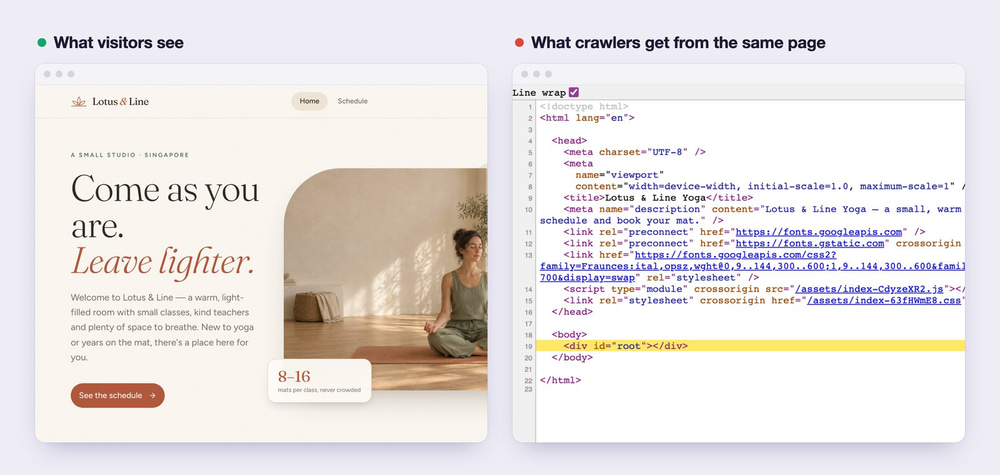
<div id="root"> and no text.First, Check Whether Google Has Your Site at All
Before you fix anything, find out what Google already knows about your site. Search Google for this, with your own address and no space after the colon:
site:yourdomain.com
- No results: Google hasn’t indexed your site yet. Work through the six reasons below.
- Some pages, but not all: Google found your site but not everything on it. A missing sitemap (reason 2) and duplicate addresses (reason 5) are the usual causes.
- All your pages, but you don’t appear when you search for your services: your site is indexed and the problem is ranking, not indexing. That’s a different job: clearer page titles, more useful content and links from other sites.
If you bought a domain that someone else owned before, also open Security & Manual Actions in Search Console. A penalty from the domain’s old life can keep it out of the results until you fix the problem and ask Google to review it.
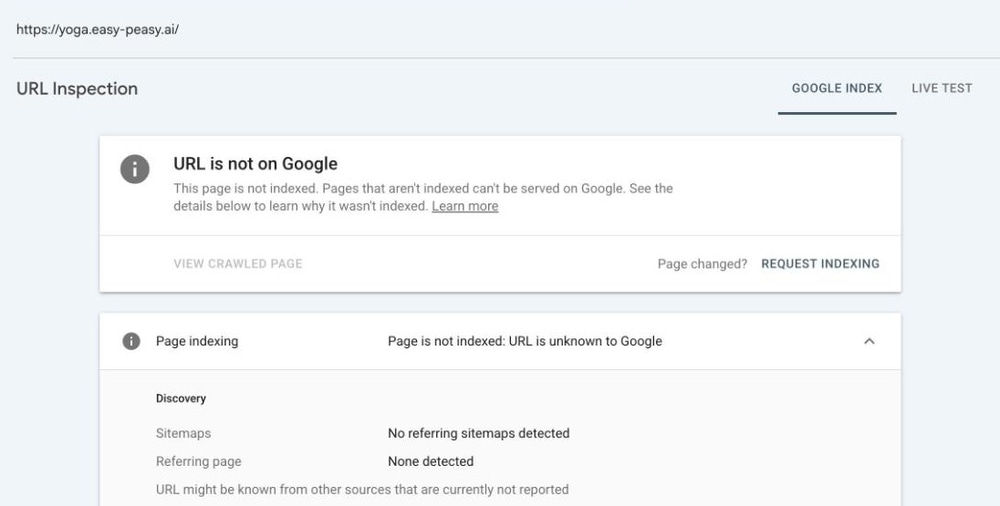
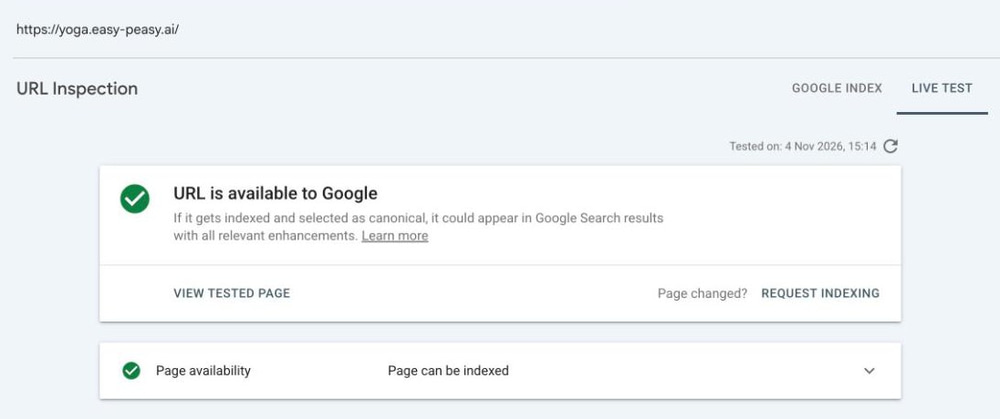
For a single page, Google Search Console’s URL Inspection tool gives you an exact answer. Paste the page address into the search bar at the top and it tells you whether the page is on Google, and if not, why. This is what it says about a brand-new demo site of ours that nobody had told Google about yet:
1. You Haven’t Added Your Site to Google Search Console
Google finds new sites by following links, and a new site has no links pointing to it yet. Google Search Console is the free tool where you tell Google your site exists. It’s also the only place where Google tells you what’s wrong with your pages.
How to check: open Search Console with your Google account. If your site isn’t in the property menu at the top left, you haven’t added it.
How to fix it:
- Click Add property.
- Choose Domain to cover every version of your site: with and without www, http and https, and every subdomain. Google gives you a TXT record to add to your domain’s DNS settings, wherever you bought the domain.
- Choose URL prefix instead if you can’t change your DNS. It covers one exact address and can be verified with an HTML tag in your home page. On a Marky site, ask Marky to add the tag for you.
- Click Verify. DNS changes can take a while to spread, so if it fails the first time, try again later.
2. Google Has No Sitemap to Follow
A sitemap is a file, usually at yourdomain.com/sitemap.xml, that lists every page you want in Google. Without one, Google has to find your pages by following links, which is slow for a new site and can miss pages completely.
How to check: open yourdomain.com/sitemap.xml in your browser. You should see a list of your page addresses. If you get your home page, an error or a blank page, you don’t have a working sitemap.
Getting your home page back is more common than it sounds. The old version of our Lotus & Line demo site answered /sitemap.xml and /robots.txt with its home page, because its server sent the same file for every address. Google can’t read a sitemap like that, so it has to find every page on its own.
How to fix it: most website builders and content management systems make a sitemap for you. WordPress has one at /wp-sitemap.xml (since version 5.5), and SEO plugins add their own. If yours doesn’t, a sitemap generator or your developer can make one. Then submit it in Search Console: the steps are at the end of this post.
3. A noindex Tag or robots.txt Is Blocking Google
Two small settings can hide a whole site. A noindex tag tells Google not to show a page in its results, and a robots.txt rule tells crawlers not to visit pages at all. Both are often left over from when a site was still being built.
How to check for noindex: open your page, view its source (Ctrl+U on Windows, Cmd+Option+U on a Mac) and search for “noindex”. A line like <meta name="robots" content="noindex"> means Google is told to leave the page out. URL Inspection shows the same thing under Indexing allowed?, including a noindex sent as an X-Robots-Tag HTTP header, which view source can’t show.
How to check robots.txt: open yourdomain.com/robots.txt. These two lines block your entire site:
User-agent: *
Disallow: /
How to fix it: remove the noindex tag from every page you want found, and delete the Disallow: / line. In WordPress, go to Settings → Reading and untick Discourage search engines from indexing this site. Website builders have a similar switch in their SEO or privacy settings, and pages behind a password are never indexed.
One trap: don’t use robots.txt to keep a page out of Google. A blocked page can still appear in results (without a description) when other sites link to it, and Google can’t see a noindex tag on a page it isn’t allowed to visit. Use noindex for that, and let Google crawl the page.
4. Your Domain Is New and Google Hasn’t Crawled It Yet
Google says a new site can take anywhere from a day or two to a few weeks to appear. Until it finds a link to your site, or you tell it about the site, it may not know you exist.
How to check: in Search Console, open Indexing → Pages. Two statuses are normal for a new site:
- Discovered – currently not indexed: Google knows the address but hasn’t visited it yet.
- Crawled – currently not indexed: Google visited the page and decided not to index it for now. Thin pages, near-duplicates and pages with little text often end up here.
How to fix it: submit your sitemap, request indexing for your home page and a few key pages, and get a handful of real links: your Google Business Profile, your social profiles, directories in your industry, partners and local press. Then wait at least a week before you worry. If pages stay in “Crawled – currently not indexed”, make them more useful: more original text, and one clear purpose per page.
5. The Same Page Lives at Several Addresses
Your home page might answer at http:// and https://, with and without www, and at a free subdomain from your website builder as well as at your own domain. To Google those are different pages with the same content. It picks one version to show, the canonical one, and it may not pick the one you want, or it may split your links between the copies.
How to check: type each version of your address into the browser and see whether they all end up at one. In URL Inspection, compare User-declared canonical with Google-selected canonical. If they differ, Google treats your page as a copy of another one.
How to fix it: pick one address and send every other version to it with a permanent (301) redirect. Add a <link rel="canonical"> tag to each page that names its preferred address, and list only those addresses in your sitemap. Server-rendered Marky sites do the redirect for you: once your own domain is connected and live, the free easy-peasy.site address sends visitors and Google to it with a 301.
6. Your Site Builds Its Pages in the Visitor’s Browser
This is the reason most AI website builders run into, and you can’t see it from the outside. Many of them make client-side rendered sites, often called single-page apps. The server sends every visitor the same nearly empty HTML file, and JavaScript then builds the page in the browser. People see a finished website. Anything that reads the HTML without running JavaScript sees an empty page.
That matters for three kinds of visitors:
- Google reads the empty HTML first and queues the page to run its JavaScript later. Google says a page may stay in that queue “for a few seconds, but it can take longer than that”, and if the script fails along the way, there’s nothing to index.
- AI assistants such as ChatGPT, Claude and Perplexity send crawlers that don’t run JavaScript at all, according to Vercel’s study of AI crawler traffic. They can’t quote or recommend a page they can’t read.
- Link previews in WhatsApp, Slack, LinkedIn, Facebook and X read the title, description and share image from the HTML. A browser-built site often shows the same title on every link, with no image.
There are quieter problems too. Because the server sends the same file for every address, every page carries the same title and description in its HTML. A made-up address like /this-page-does-not-exist answers “200 OK” instead of a real 404, which Google reports as a soft 404.
How to Check What Google Sees: View the Page Source
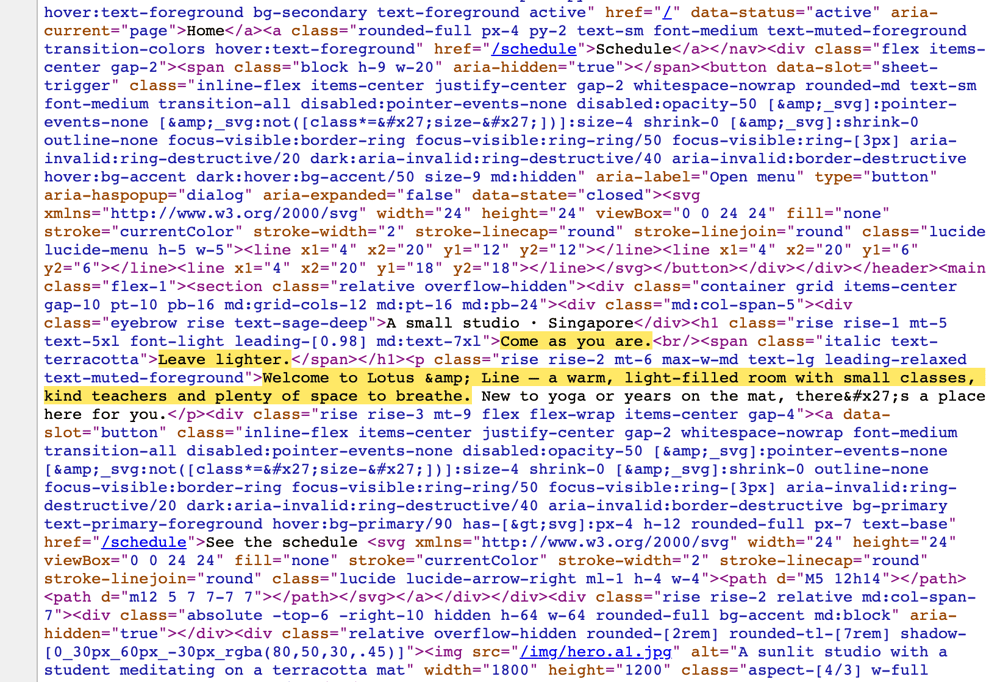
Open your site in Chrome, Edge or Firefox and press Ctrl+U on Windows or Cmd+Option+U on a Mac, or type view-source: in front of the address. (In Safari, turn on the Develop menu first.) This shows the raw HTML your server sends, before any JavaScript runs. Press Ctrl+F or Cmd+F and search for a sentence you can see on the page.
Here is the source of the old version of Lotus & Line, a demo yoga studio site we built with Marky before server rendering. The whole page body is one empty line:
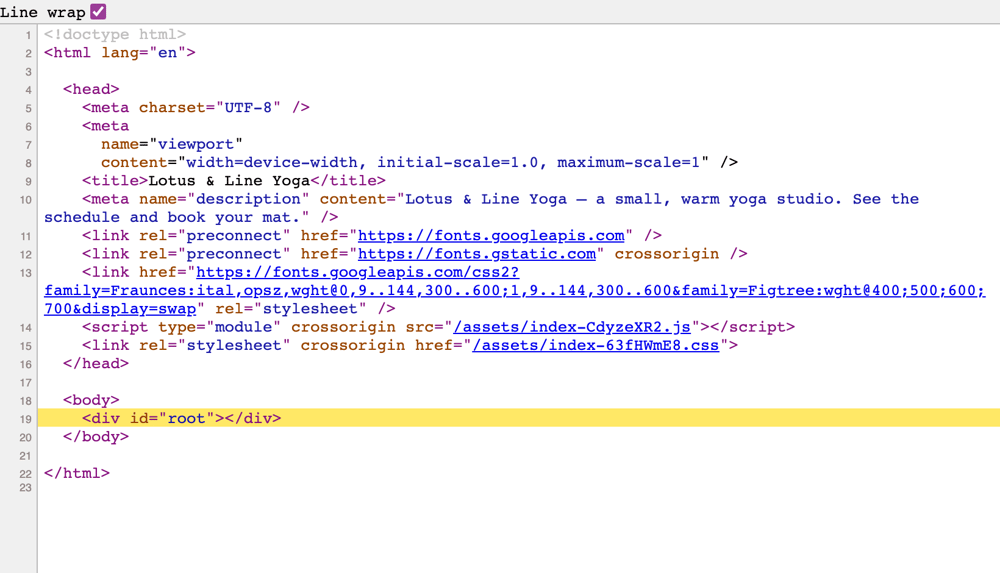
<div id="root">. Zero words of page text.If you can find your sentence, you’re fine. If you see an empty <div id="root"> or <div id="app"> next to a script tag, your pages are built in the browser. Don’t use Inspect for this check: it shows the page after JavaScript has run, so it always looks complete.
Then Check It with URL Inspection in Search Console
View source shows what every crawler gets first. URL Inspection shows what Google made of it. Paste your address into the search bar at the top of Search Console, click Test live URL and then View tested page. The HTML tab holds the page as Google rendered it, and its search icon finds your sentence. Screenshot shows what Google’s browser saw, and More info lists files that didn’t load and JavaScript errors.
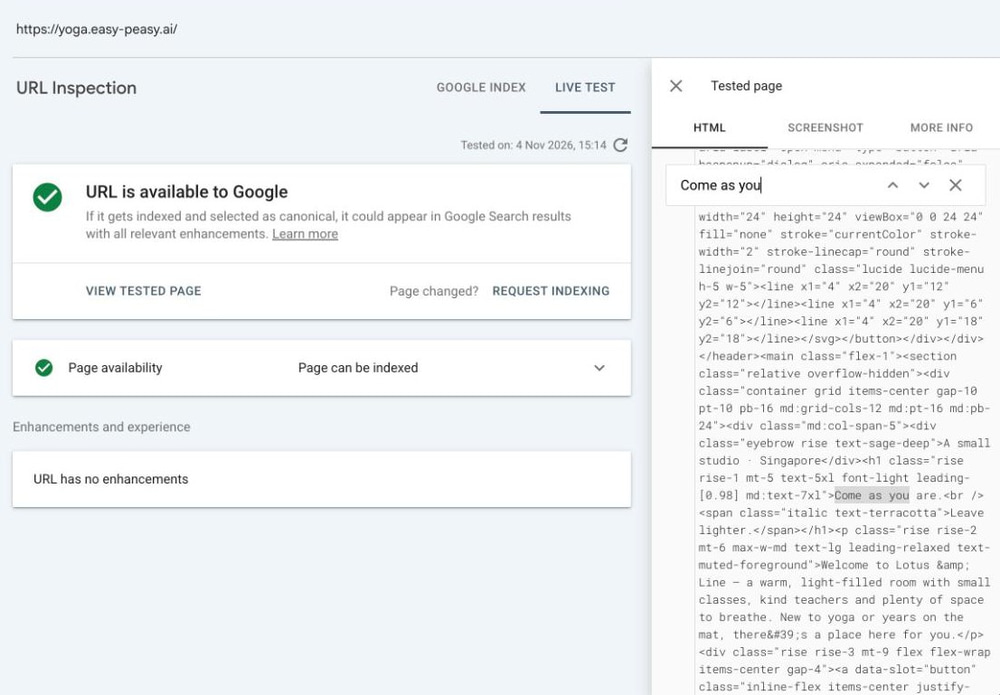
If your text is here but not in view source, Google can read your page, but only after rendering it, and AI crawlers and link previews still can’t. If it’s missing here too, Google can’t read the page at all.
The Fix: A Server-Rendered Site
A server-rendered or prerendered site sends each page with its text already in the HTML, along with its own title and description. Google can index it on the first visit, AI crawlers can read it, and link previews show the right title and image. If you build sites yourself, frameworks like Next.js, Nuxt, Astro and TanStack Start do this. If you use a website builder, check view source on your own site before you trust its SEO claims.
Marky now builds new websites this way, so every page arrives with its words. If you haven’t built one yet, our guide on how to build a website with AI walks you through it. Most older Marky projects build their pages in the browser, and each one can be upgraded from its chat.
How to Upgrade an Older Marky Site
- Open the project’s chat. On an older project, an Upgrade available chip appears next to Publish.
- Click it. The card shows how many words Google reads on your live home page today. On a site built in the browser, that number is 0.
- Click Upgrade with Marky. Marky rebuilds the site as a server-rendered app in the same chat, in about 20 minutes, and keeps your design, data, sign-ins and domains.
- Check the new version in the preview. Your live site doesn’t change until you click Publish upgrade, and you can switch back to the old version any time before that.
- After you publish, Marky shows how many words Google now reads, with buttons to Add to Google Search Console and Ask Marky for SEO extras: a title and description for each page, a share image for links and structured data that Google understands.
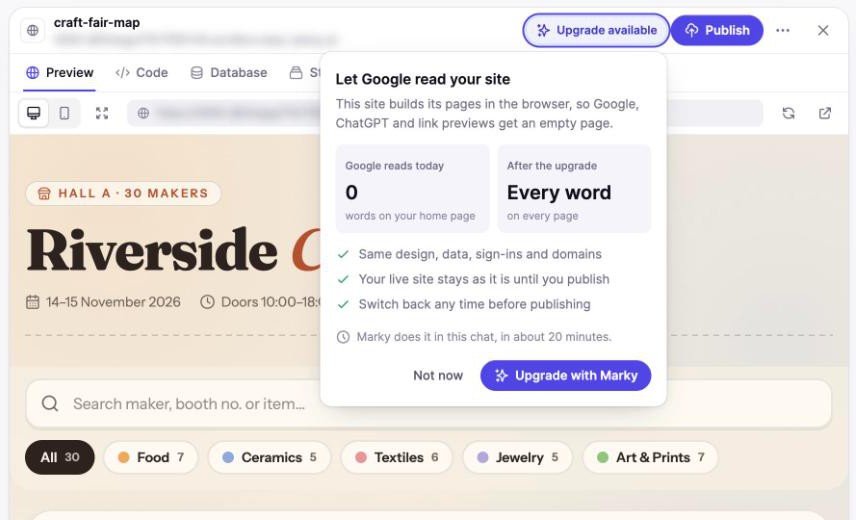
An upgrade is a big job, so it uses a good share of your monthly words: upgrading Lotus & Line took about 115,000 words with Claude Opus 5.5. If you’re running low, the card warns you before you start.
What Changed on Lotus & Line
Here is the demo site before and after the upgrade, measured the way a crawler reads it, without running JavaScript:
| What a crawler gets | Before: built in the browser | After: server-rendered |
|---|---|---|
| Words of text on the home page | 0 | 213 |
| Words of text on the schedule page | 0 | 78 |
| Page titles | The same on every page | Each page has its own |
| sitemap.xml | Answered with the home page | Lists both pages |
| A made-up address | 200 OK (a soft 404) | 404 Not Found |
The design didn’t change at all. Visitors see the same site, and now crawlers do too.
A Bigger Example: Our CEO’s Portfolio
Our CEO and co-founder, Marianna Olefyrenko, built her portfolio site with Marky before server rendering: case studies, articles and a gallery. Visitors saw all of it. Crawlers got the same empty shell on every page, with the same title, the same description and the same share image. After the upgrade, every page arrives with its own text:
| Page | Words a crawler read before | After the upgrade |
|---|---|---|
| Home page | 0 | 695 |
| Projects | 0 | 836 |
| A case study | 0 | 947 |
| An article | 0 | 1,241 |
Each page now also has its own title, description and share image, plus structured data that tells Google who she is and which pages are case studies and articles.
How to Get Your Website on Google: The Search Console Steps
Once the problems above are fixed, tell Google about your site. These four steps are how to make your website show up on Google as fast as Google allows.
Step 1: Add and Verify Your Site
Add a Domain or URL prefix property and verify it, as described in reason 1.
Step 2: Submit Your Sitemap
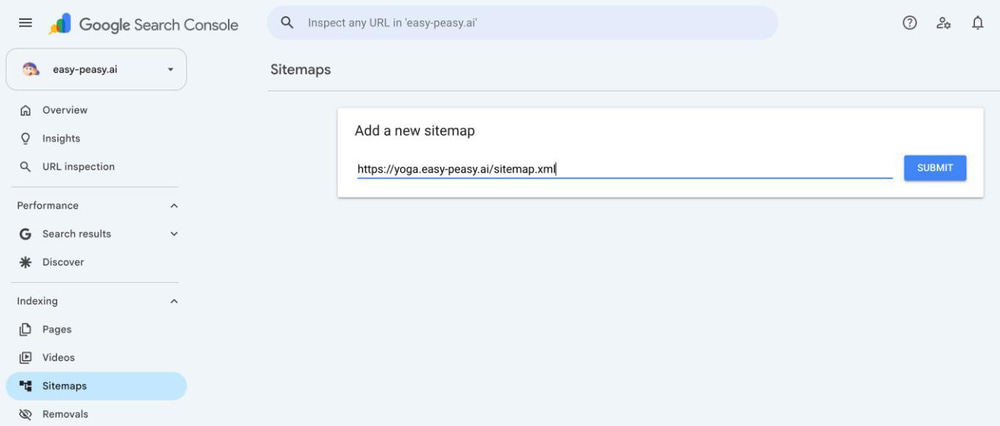
Open Indexing → Sitemaps, type your sitemap address (for most sites, https://yourdomain.com/sitemap.xml) into Add a new sitemap and click Submit. Come back in a day or two: the status should say Success, with the number of pages Google discovered.
Step 3: Request Indexing for Your Most Important Pages
Open URL Inspection, paste your home page address and press Enter. If it says URL is not on Google, click Test live URL to make sure Google can reach the page, then click Request indexing. Repeat this for your most important pages. There’s a daily limit, so don’t spend it on every page: your sitemap covers the rest.
Step 4: Check the Pages Report After a Week
Open Indexing → Pages to see how many of your pages are indexed and why the others aren’t. Each reason lists example pages you can inspect. When you’ve fixed a problem, click Validate fix so Google checks those pages again.
Quick Checklist: Why Is My Website Not Showing Up on Google?
| Reason | How to check | How to fix it |
|---|---|---|
| Not in Search Console | Your site isn’t in the property menu | Add a Domain or URL prefix property and verify it |
| No sitemap | Open yourdomain.com/sitemap.xml | Create one and submit it under Sitemaps |
| noindex or robots.txt | Search view source for “noindex”; open /robots.txt | Remove the tag and the Disallow: / rule |
| New domain | URL Inspection says “URL is unknown to Google” | Sitemap, Request indexing, a few real links and a week of patience |
| Duplicate addresses | Google-selected canonical differs from yours | 301 redirects to one address and canonical tags |
| Pages built in the browser | View source shows an empty div and no text | A server-rendered site (in Marky: Upgrade available) |
Frequently Asked Questions
How long does it take for a new website to show up on Google?
Google says it typically takes anywhere from a day or two to a few weeks. Submitting a sitemap and requesting indexing for your home page help Google find the site sooner, but nothing can force Google to index a page, so allow at least a week before you assume something is wrong.
Why is my website not showing up on Google even after I submitted it?
Submitting a sitemap or requesting indexing only asks Google to visit. If a page still isn’t indexed after a week, inspect it: a noindex tag, a robots.txt block, a different Google-selected canonical or a page with no text in its HTML (reasons 3, 5 and 6) are the usual causes. Pages listed as “Crawled – currently not indexed” need more useful content.
How do I get my website on Google for free?
Everything in this checklist is free. Add your site to Google Search Console, submit a sitemap and request indexing for your main pages. Google Ads put you on the results page right away, but they don’t get your site indexed or help it rank.
Why does my site show up for its name but not for my services?
Then your site is indexed and the problem is ranking. Give each service its own page with a clear title and useful detail, get links from other sites, and for a local business, set up a Google Business Profile.
What does “Sitemap could not be read” mean?
Google couldn’t fetch your sitemap: the address is wrong, robots.txt blocks it or your server returned an error. Open the sitemap address in your browser, fix what you see, and resubmit it. Google keeps retrying for a few days on its own.
Can Google read websites built with JavaScript?
Usually, but in a second step. Google renders the page later, and anything that breaks during rendering is lost. AI crawlers and link previews don’t run JavaScript at all, so a server-rendered site is the safe choice.
Will a server-rendered site help me show up in ChatGPT and other AI answers?
It’s the first requirement. AI crawlers only read the text that’s in your HTML, so a page built in the browser looks empty to them. Whether they then cite you depends on your content, just as it does on Google.
Will the Marky upgrade change my design or data?
No. Marky keeps your design, data, sign-ins and domains, and your live site stays as it is until you publish the upgrade. You can switch back to the old version any time before you publish.
Build a Site Google Can Read from Day One
Most of this checklist takes ten minutes in Search Console. The last reason, a site built in the browser, takes a rebuild, and that’s the part Marky now does for you. Build your website with Marky and every page arrives with its words already in place, or open an older project and click Upgrade available. Then submit your sitemap, request indexing and watch your pages show up on Google.