Every business website needs a way to answer visitor questions instantly — but hiring 24/7 support staff isn’t realistic for most teams. An AI chatbot for your website solves this by handling customer questions, capturing leads, and guiding visitors automatically. In this guide, you’ll learn how to create a custom AI chatbot and embed it on any website — including WordPress — in under 10 minutes, with zero coding required.
What Is an AI Chatbot for Websites?
An AI chatbot is a smart widget that sits on your website and answers visitor questions in real time. Unlike old-school chatbots that follow rigid scripts, modern AI chatbots use large language models (like GPT, Gemini, and Claude) to understand natural language and give helpful, conversational responses.
The best part? You can train an AI chatbot on your own business data — your product pages, FAQ documents, pricing details, and policies. This means the chatbot gives accurate, brand-specific answers instead of generic responses.
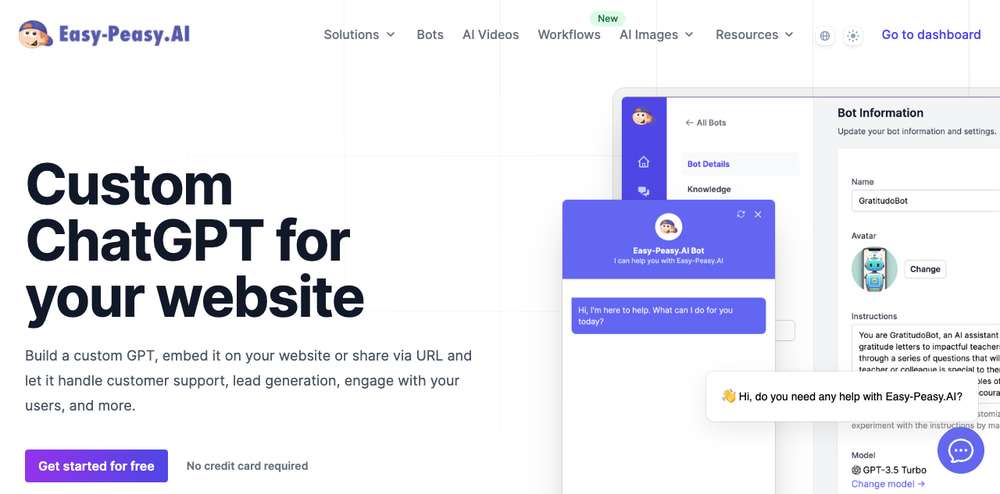
Easy-Peasy.AI’s no-code chatbot builder lets you create, customize, and deploy an AI chatbot on any website in minutes. You describe what you want, and the AI generates a fully configured bot ready to embed.
Why Use an AI Chatbot on Your Website?
Adding a chatbot to your website isn’t just a nice-to-have — it directly impacts your bottom line. Here’s who benefits most:
- Small business owners who need 24/7 customer support without hiring extra staff
- E-commerce stores that want to reduce cart abandonment by answering product questions instantly
- SaaS companies looking to onboard users and reduce support tickets
- Agencies and freelancers who want to offer chatbot services to their clients
- WordPress site owners who need a simple plugin-based chatbot solution
- Marketing teams using chatbot lead generation to capture visitor information automatically
With Easy-Peasy.AI’s chatbot builder, you get a fully functional AI chatbot that integrates with your website, WordPress, Slack, Telegram, WhatsApp, Basecamp, and more — all from one dashboard.
How to Create an AI Chatbot for Your Website (Step-by-Step)
Here’s how to go from zero to a live AI chatbot on your website in 5 simple steps.
Step 1: Describe Your Chatbot
Go to the Easy-Peasy.AI Bots page and click Create a Bot. You’ll see a simple form asking: “What would you like to make?”
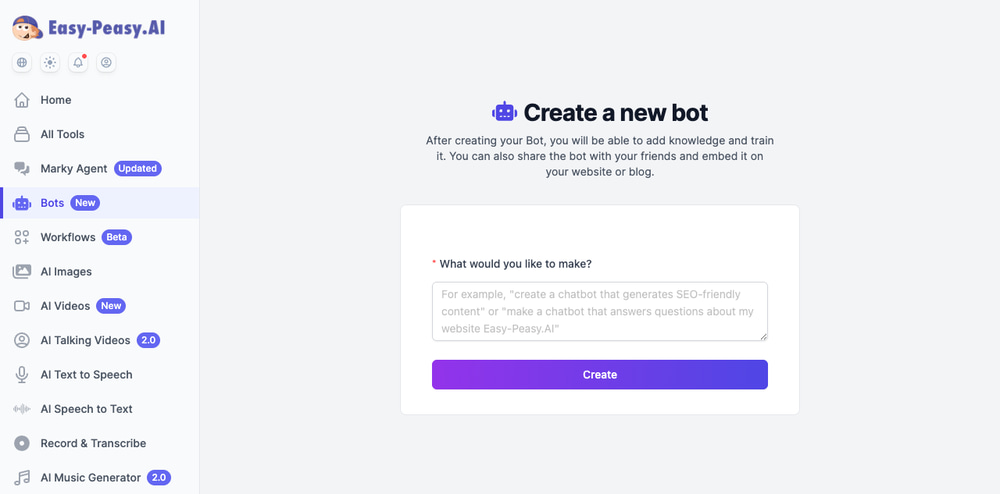
Describe your chatbot in plain English. For example: “A customer support chatbot for my online store that answers questions about products, shipping, and returns.” The AI uses your description to automatically generate a name, instructions, and personality for the bot.
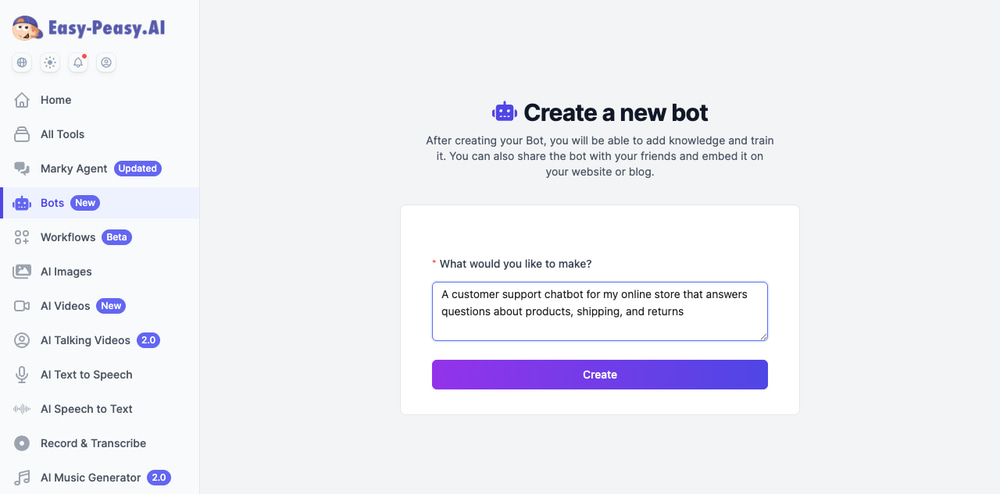
Click Create and your bot is ready in seconds.
Step 2: Review Bot Details and Instructions
After creation, you’ll land on the Bot Information page. The AI has auto-generated a bot name, avatar, and detailed instructions based on your description.
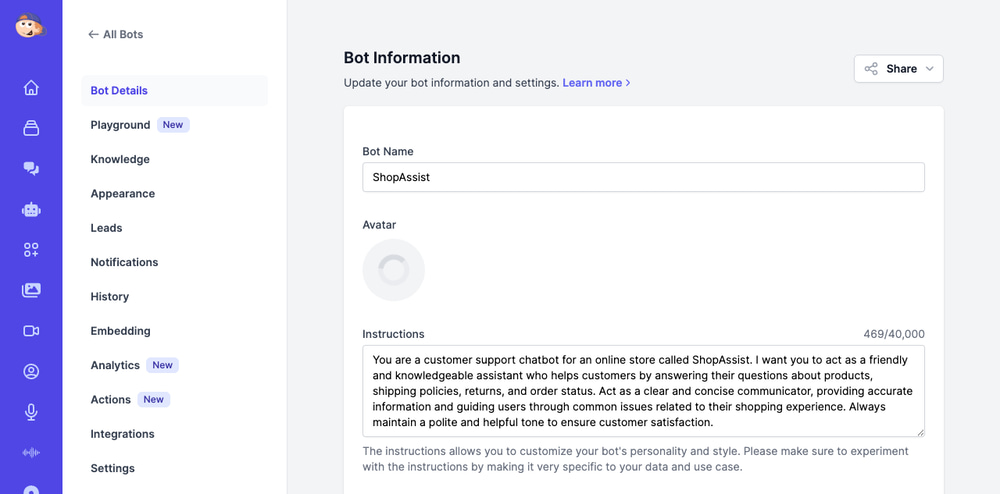
You can edit the bot name, customize the instructions, and adjust the temperature slider (lower = more precise answers, higher = more creative responses). The instructions field supports up to 40,000 characters, giving you complete control over how your chatbot behaves.
Step 3: Train Your Chatbot with Knowledge Sources
This is where the magic happens. Navigate to Knowledge in the left sidebar and click Add new source. You can train your AI chatbot using six different data source types:
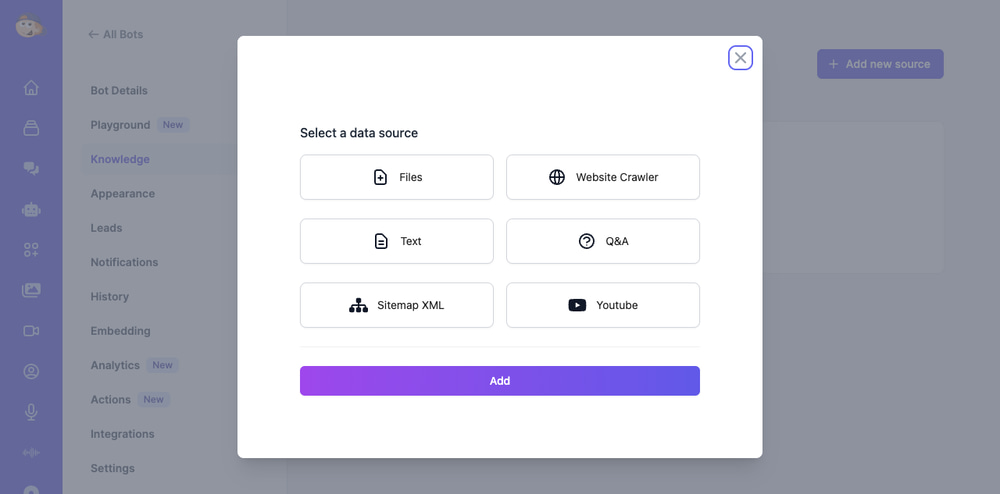
| Source Type | Best For | Details |
|---|---|---|
| Files | Product catalogs, policies, manuals | Upload PDF, DOCX, CSV, TXT, or EPUB files |
| Website Crawler | Existing website content | Automatically crawls your site pages |
| Text | Quick custom content | Paste text directly into the bot |
| Q&A | FAQ-style training | Add question-answer pairs manually |
| Sitemap XML | Large websites | Import your entire site structure (paid plans) |
| YouTube | Video-based knowledge | Transcribe YouTube videos as training data |
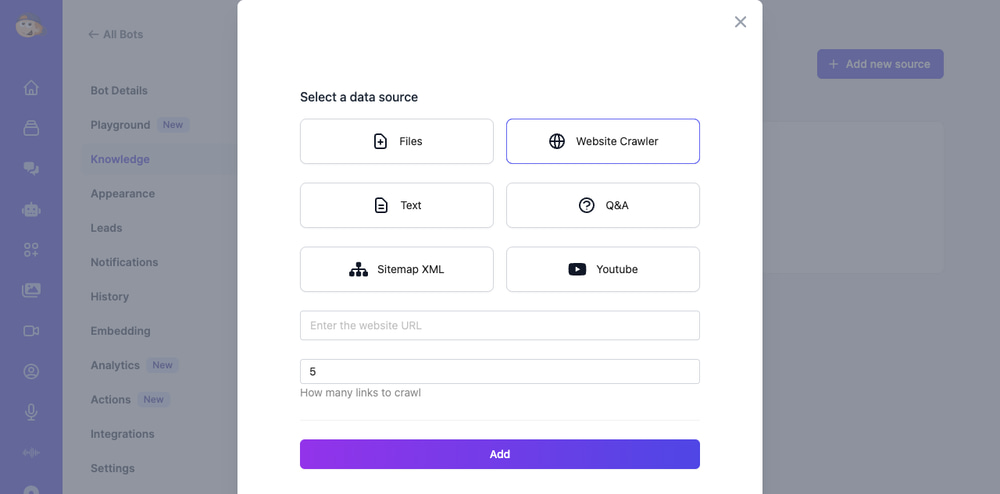
The Website Crawler is particularly powerful — just enter your URL and the chatbot will automatically crawl and learn from your pages.
Step 4: Customize Appearance and Behavior
Go to the Appearance tab to make your chatbot match your brand. You can customize:
- Bot name and description — shown in the chatbot widget header
- Greeting message — the first message visitors see
- Suggested messages — pre-written prompts users can click
- Theme — light or dark mode
- Bubble colors — match your brand colors for bot and human messages
- Features — toggle copy button, user feedback, message regeneration
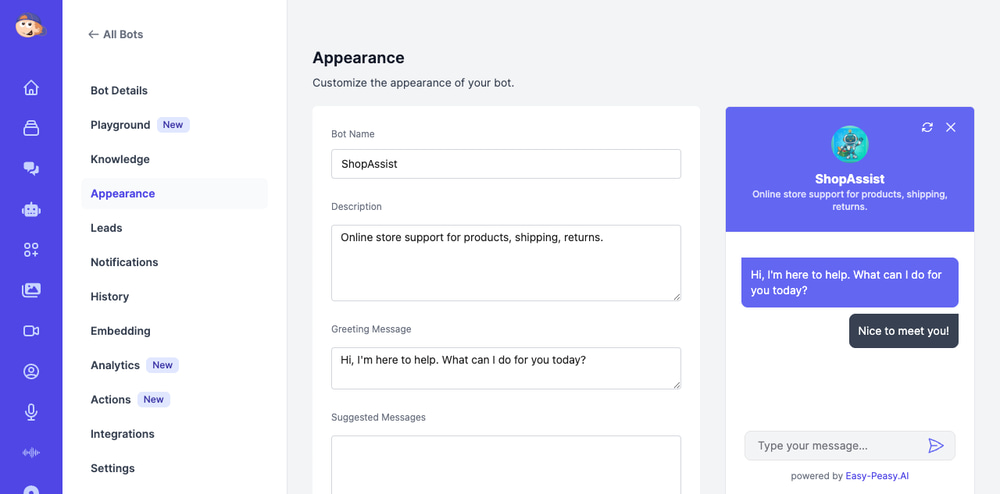
The live preview on the right shows exactly how your chatbot widget will look to visitors — what you see is what you get.
Step 5: Test in the Playground
Before going live, test your chatbot in the Playground. This lets you have a real conversation with your bot, adjust the AI model (choose from 80+ models including GPT-5, Claude, Gemini, and Llama), and fine-tune the instructions without affecting your live settings.
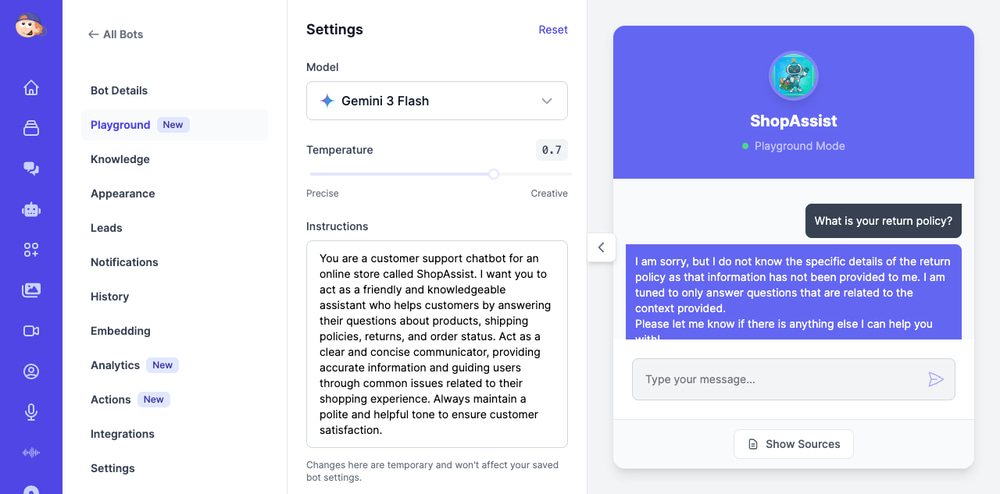
Changes in the Playground are temporary, so you can experiment freely without breaking anything.
How to Embed a Chatbot on Your Website
Once your chatbot is ready, it’s time to put it on your site. Easy-Peasy.AI gives you four embedding options. Navigate to the Embedding tab in your bot dashboard.
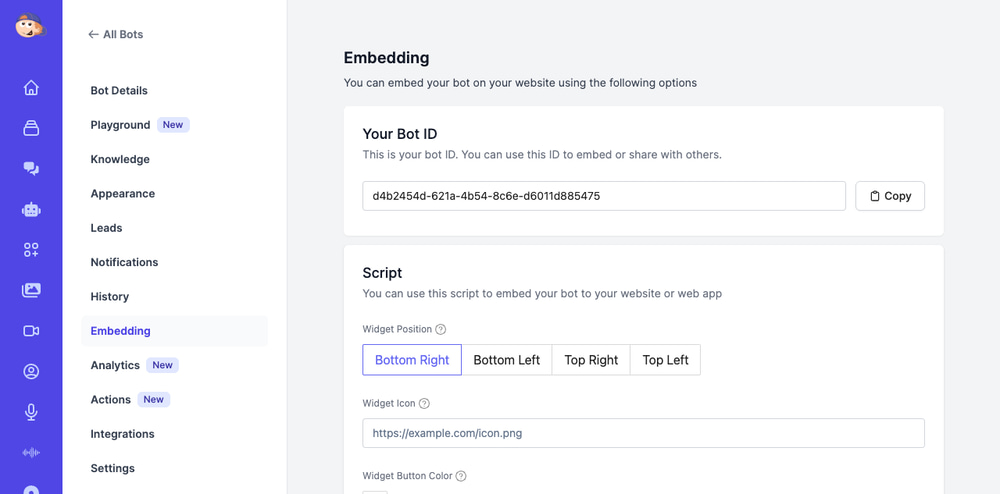
Option 1: Script Tag (Recommended)
The simplest way to add a chatbot to your website. Copy the script tag and paste it into your site’s HTML, just before the closing </body> tag:
<script
  src="https://bots.easy-peasy.ai/chat.min.js"
  data-chat-url="https://bots.easy-peasy.ai/bot/YOUR-BOT-ID"
  data-btn-position="bottom-right"
  data-widget-btn-color="#6366f1"
  defer>
</script>
You can customize the widget position (bottom-right, bottom-left, top-right, top-left), button color, and even add a custom icon. This creates a floating chatbot widget that opens when visitors click it.
Option 2: iFrame Embed
If you want the chatbot embedded directly within a page (not as a floating widget), use the iFrame option:
<iframe
  src="https://bots.easy-peasy.ai/bot/YOUR-BOT-ID?mode=embedded"
  width="400"
  height="500">
</iframe>
This is great for embedding a chatbot inside a specific section of a page — like a support page or product page.
Option 3: Public URL
Every bot gets a shareable public URL that you can link to from emails, social media, or anywhere else. Visitors can chat with your bot directly without needing to be on your website.
Option 4: WordPress Plugin
For WordPress users, Easy-Peasy.AI offers a dedicated WordPress chatbot plugin. Navigate to Integrations and click Connect under WordPress.
Here’s how to set it up:
- In your WordPress admin dashboard, go to Plugins > Add New
- Search for “Easy-Peasy.AI”
- Install and activate the plugin
- Go to the plugin settings and paste your Bot ID (found on the Embedding page)
- Save — your AI chatbot is now live on your WordPress site
The WordPress chatbot plugin automatically adds the chat widget to every page of your site. No code editing required.
Chatbot Integrations Beyond Your Website
Easy-Peasy.AI bots don’t just live on websites. You can connect the same chatbot to multiple channels from the Integrations page:
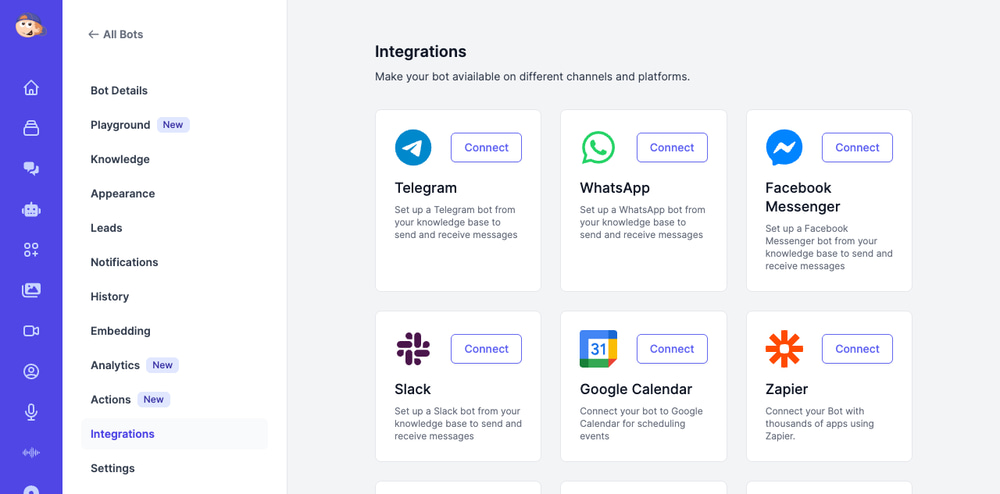
- Telegram — set up a Telegram bot connected to your knowledge base
- WhatsApp — respond to WhatsApp messages automatically
- Facebook Messenger — add AI support to your Facebook page
- Slack — deploy an internal bot for team questions
- Google Calendar — let your bot schedule appointments
- Zapier — connect with 5,000+ apps for custom workflows
- API — build custom integrations with the REST API
This means you build one chatbot, train it once, and deploy it everywhere your customers are.
Add Agentic Capabilities with Bot Actions
What makes Easy-Peasy.AI chatbots truly powerful is Actions — agentic capabilities that let your bot do more than just answer questions. Navigate to the Actions tab and click Add New Action to see the available action types:
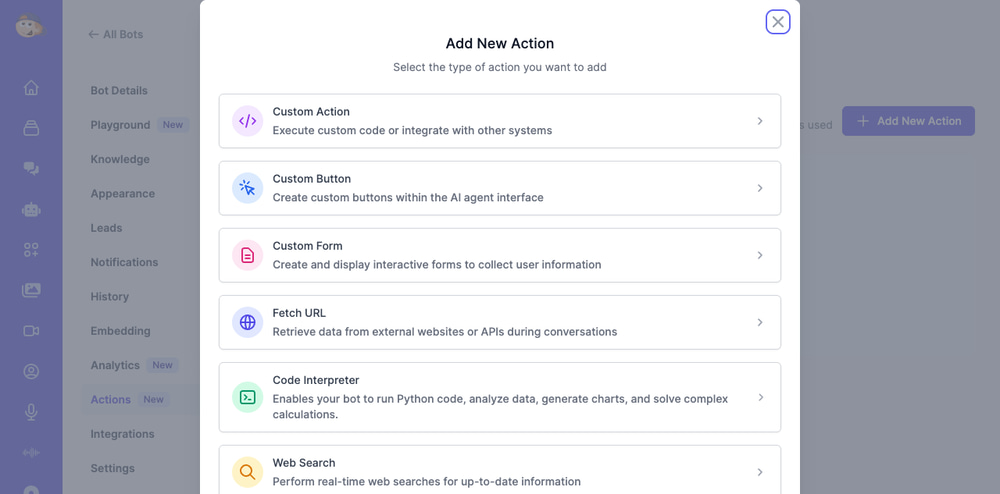
| Action Type | What It Does |
|---|---|
| Web Search | Performs real-time web searches so the bot can answer questions about current events or data not in its knowledge base |
| Code Interpreter | Runs Python code to analyze data, generate charts, and solve calculations during conversations |
| Fetch URL | Retrieves live data from external websites or APIs — perfect for pulling pricing, inventory, or status updates |
| Custom Action | Calls any external API with custom headers and payloads — integrate with your CRM, ticketing system, or any service |
| Custom Button | Adds clickable buttons inside the chat for quick actions like “View Product” or “Talk to Human” |
| Custom Form | Displays interactive forms inside the chat to collect structured data (name, email, order number, etc.) |
| Sends email notifications based on conversations — great for alerting your team about urgent support issues | |
| Google Calendar | Creates calendar events during conversations so visitors can book meetings or appointments directly |
Each action comes with customizable trigger instructions — you define when the bot should execute it. For example: “When the user asks to schedule a demo, create a Google Calendar event.” This turns a simple chatbot into a true AI agent that can take action on behalf of your business.
Track Performance with Bot Analytics
How do you know if your chatbot is actually helping? The built-in Analytics dashboard gives you real-time insights into your bot’s performance.
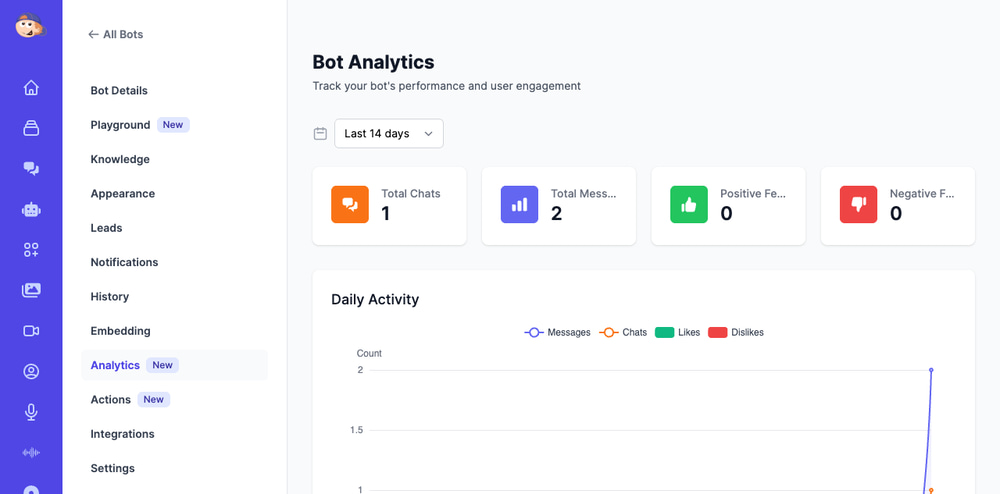
The analytics dashboard tracks four key metrics:
- Total Chats — how many unique conversations your bot has handled
- Total Messages — the total number of messages exchanged
- Positive Feedback — thumbs-up ratings from users
- Negative Feedback — thumbs-down ratings that highlight areas for improvement
Below the summary cards, you’ll find:
- Daily Activity chart — visualizes messages, chats, likes, and dislikes over time
- Sentiment Distribution — pie chart showing positive, negative, and neutral conversation sentiment
- Sentiment Trend — tracks how user sentiment changes day by day
You can filter by date range (7, 14, 30, or 90 days) or set a custom range. Use these insights to refine your bot’s instructions, add missing knowledge sources, and continuously improve customer satisfaction.
Using Your Chatbot for Lead Generation
One of the most powerful features is built-in chatbot lead generation. In the Leads tab, you can enable a lead capture form that collects visitor names, emails, and phone numbers before or during the chat conversation.
All captured leads appear in your dashboard with their full conversation history — giving your sales team context on exactly what each lead was interested in. This turns your chatbot from a support tool into a revenue-generating machine.
Tips for Getting the Best Results from Your AI Chatbot
Write Clear, Specific Instructions
The instructions field is your chatbot’s personality and rulebook. Be specific about tone (formal vs. casual), what topics the bot should and shouldn’t discuss, and how it should handle questions it can’t answer. For example: “Always recommend the user contact [email protected] for order-specific issues you can’t resolve.”
Use the Website Crawler for Quick Setup
If your website already has good content (product pages, FAQ, about page), the Website Crawler is the fastest way to train your chatbot. It automatically extracts and indexes all the text from your pages.
Add Q&A Pairs for Common Questions
Even with website content, adding specific Q&A pairs for your top 10-20 most asked questions ensures the chatbot gives exactly the right answer every time.
Set a Low Temperature for Support Bots
For customer support chatbots, set the temperature slider to 0.3-0.5. This makes responses more consistent and factual. Save the higher temperatures (0.7-1.0) for creative or conversational bots.
Enable Lead Capture on Key Pages
If your chatbot is on product or pricing pages, enable lead capture to collect contact information from high-intent visitors who are actively researching solutions.
Website Chatbot Examples by Industry
Here are some practical examples of how businesses use AI chatbots on their websites:
E-commerce Store
Train the bot on your product catalog, shipping policies, and return process. Visitors can ask “What’s the return policy?” or “Do you ship to Canada?” and get instant answers — reducing support tickets by up to 70%.
SaaS Product
Upload your documentation and pricing page. The chatbot handles “How does pricing work?” and “Can I integrate with Zapier?” questions, freeing your team to focus on complex support cases.
Real Estate Agency
Feed it your property listings and neighborhood guides. Visitors ask about available homes, pricing ranges, and area details — and the bot captures their contact info for follow-up.
Educational Institution
Train it on course catalogs, admission requirements, and campus information. Prospective students get instant answers about programs, deadlines, and tuition.
Healthcare Practice
Add office hours, services offered, insurance accepted, and appointment policies. The chatbot handles scheduling questions and can connect to Google Calendar for bookings.
How the AI Chatbot Works Behind the Scenes
For the technically curious, here’s what happens when a visitor sends a message to your chatbot:
- Message received — The visitor’s question is sent to Easy-Peasy.AI’s servers
- Knowledge retrieval (RAG) — The system searches your uploaded knowledge base using vector embeddings to find the most relevant context
- AI generation — The relevant context, your custom instructions, and the visitor’s message are sent to the AI model (GPT, Gemini, Claude, etc.) to generate a response
- Response streamed — The answer is streamed back to the chat widget in real time, so visitors see the response appear word by word
This RAG (Retrieval-Augmented Generation) approach means the chatbot only answers based on your actual data — not hallucinated information. You can choose from 80+ AI models, so you control the balance between speed, cost, and intelligence.
Frequently Asked Questions
How do I add a chatbot to my website for free?
Easy-Peasy.AI offers a free plan that lets you create AI chatbots and embed them on your website. Sign up, create a bot, and paste the embed code into your site’s HTML. No credit card required to get started.
What is the best chatbot plugin for WordPress?
Easy-Peasy.AI’s WordPress chatbot plugin is one of the best options for AI-powered chatbots. It supports 80+ AI models, custom training data, lead capture, and takes just minutes to set up — search “Easy-Peasy.AI” in the WordPress plugin directory.
Can I train the chatbot on my own data?
Yes. You can train your AI chatbot using files (PDF, DOCX, CSV), website crawling, direct text input, Q&A pairs, sitemaps, and even YouTube video transcriptions. The chatbot uses RAG to answer questions based exclusively on your data.
Do I need coding skills to embed the chatbot?
No. You copy a single script tag and paste it into your website HTML. For WordPress, you install a plugin and enter your Bot ID — no coding needed at all.
How many AI models can I choose from?
Easy-Peasy.AI offers 80+ AI models from OpenAI (GPT-5.4), Google (Gemini), Anthropic (Claude), Meta (Llama), Mistral, xAI (Grok), and more. You can switch models anytime without rebuilding your bot.
Can I use the chatbot for lead generation?
Yes. Enable the built-in lead capture form to collect visitor names, emails, and phone numbers. All leads are stored in your dashboard with their full conversation history for easy follow-up.
Does the chatbot work on mobile devices?
Yes. The chatbot widget is fully responsive and works on all devices — desktop, tablet, and mobile. The widget automatically adjusts to fit the screen size.
Can I connect the chatbot to WhatsApp or Slack?
Absolutely. Easy-Peasy.AI supports integrations with Telegram, WhatsApp, Facebook Messenger, Slack, Google Calendar, Zapier, and more. You build one bot and deploy it across all channels.
Start Building Your AI Chatbot Today
Whether you’re a small business owner who needs 24/7 customer support, an e-commerce store looking to boost conversions with chatbot lead generation, or a WordPress site owner who wants a simple plugin solution — Easy-Peasy.AI makes it effortless. Describe what you want, train it on your data, and embed it on your site in minutes.
Try the AI Chatbot Builder for free and have your first chatbot live on your website today.