
Automations replace Marky’s Scheduled window. Tasks you scheduled before are on the Automations page and keep posting their results in the same chat as before.
Create an automation by asking
The easiest way is to tell Marky what you want and when, in any chat:Every weekday at 8am, find the latest news about the yoga and wellness industry and give me the five most important stories, one line each, with links.Marky writes detailed instructions for the automation, sets it up, and shows a card under its reply: what starts it, what Marky will do, where the results go, which emails you get, and the next run. Click View in Automations to open it.
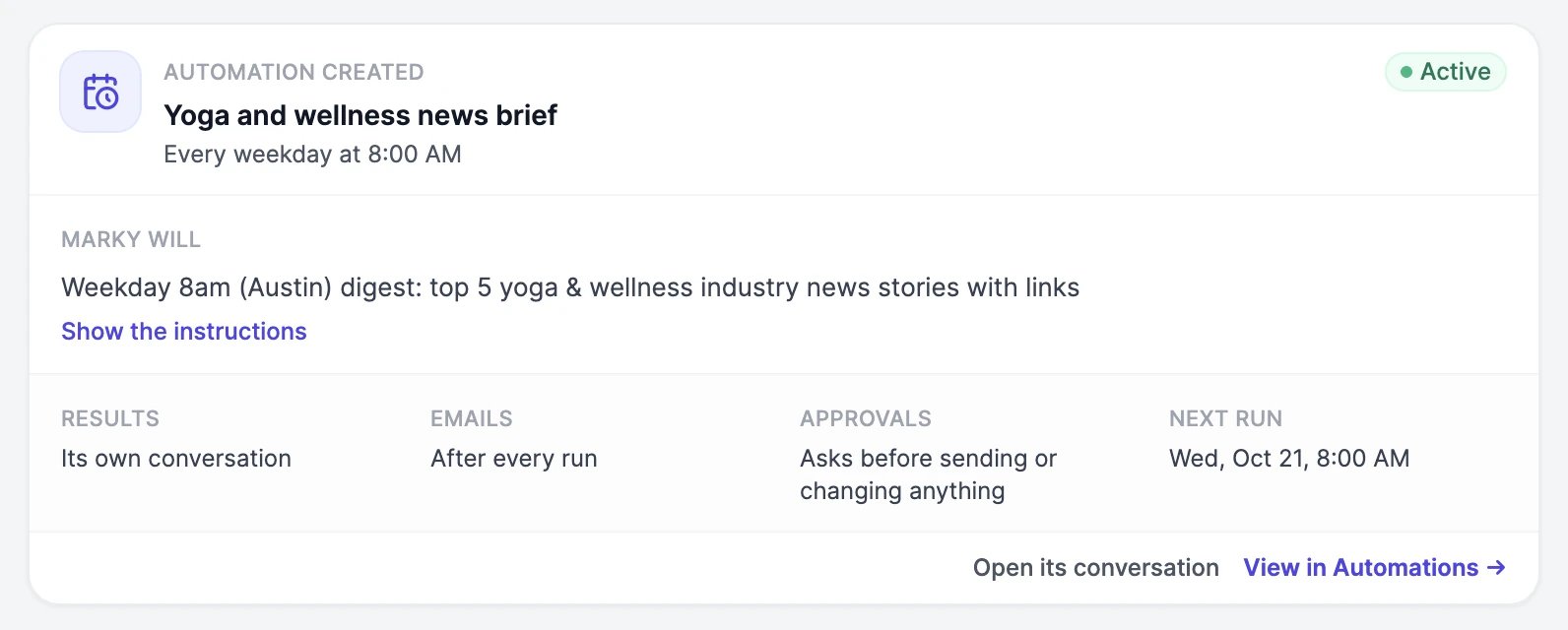
Find your automations
Click Automations in the Marky sidebar, or go to easy-peasy.ai/automations. A dot on Automations means new results are waiting.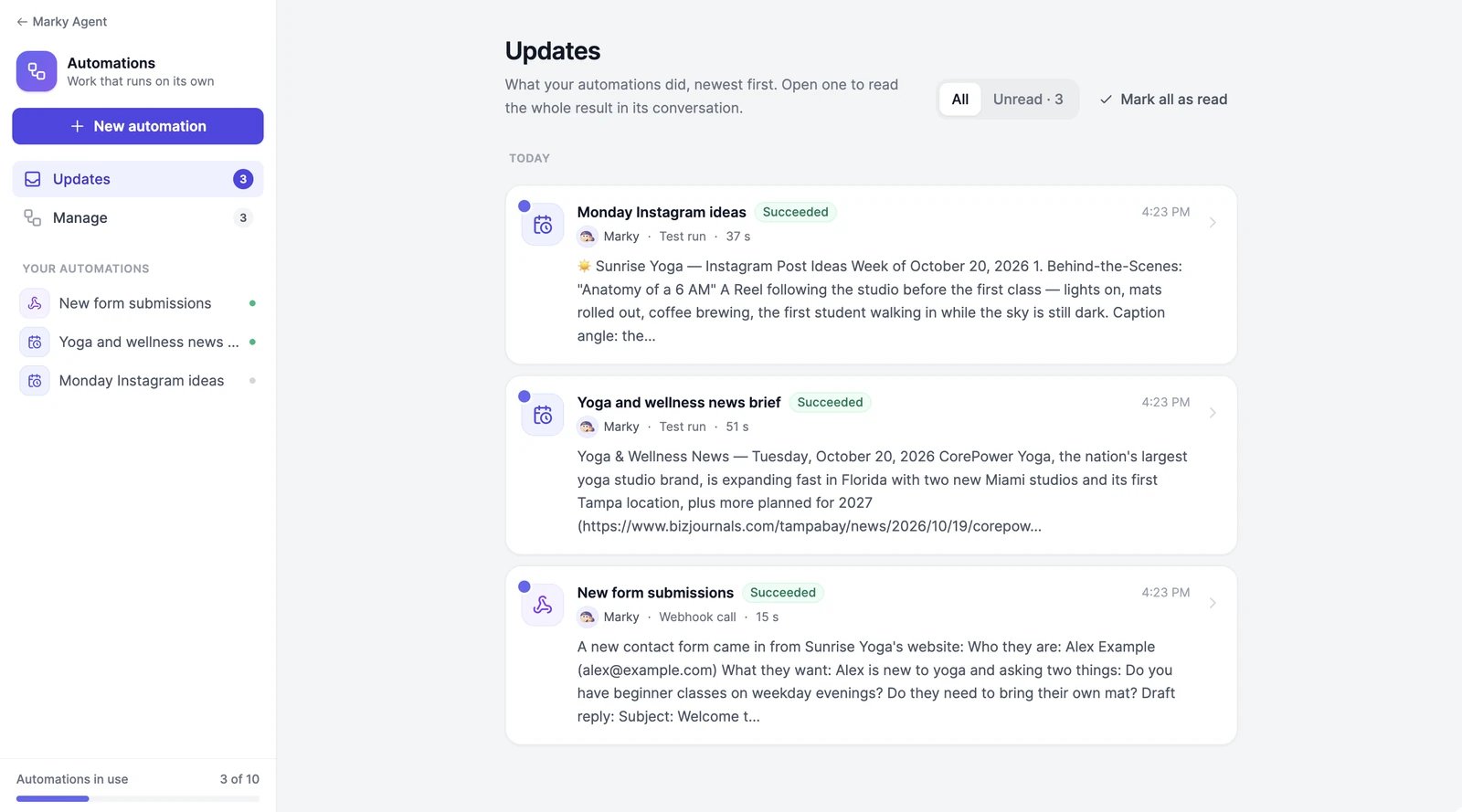
The menu on the left also lists each automation, and Automations in use at the bottom shows how many you have out of 10.
Create an automation on the page
1
Open the form
Click New automation. If you have no automations yet, Manage also shows examples under Start with an example, such as Morning news brief, Emails that need me today, and Prepare me for meetings. An example fills in the form; nothing is created until you save.
2
Choose what starts it
Under When should it run?, pick On a schedule, When a webhook is called, When an email arrives, or When something happens in an app, and fill in the settings that appear. See What can start an automation.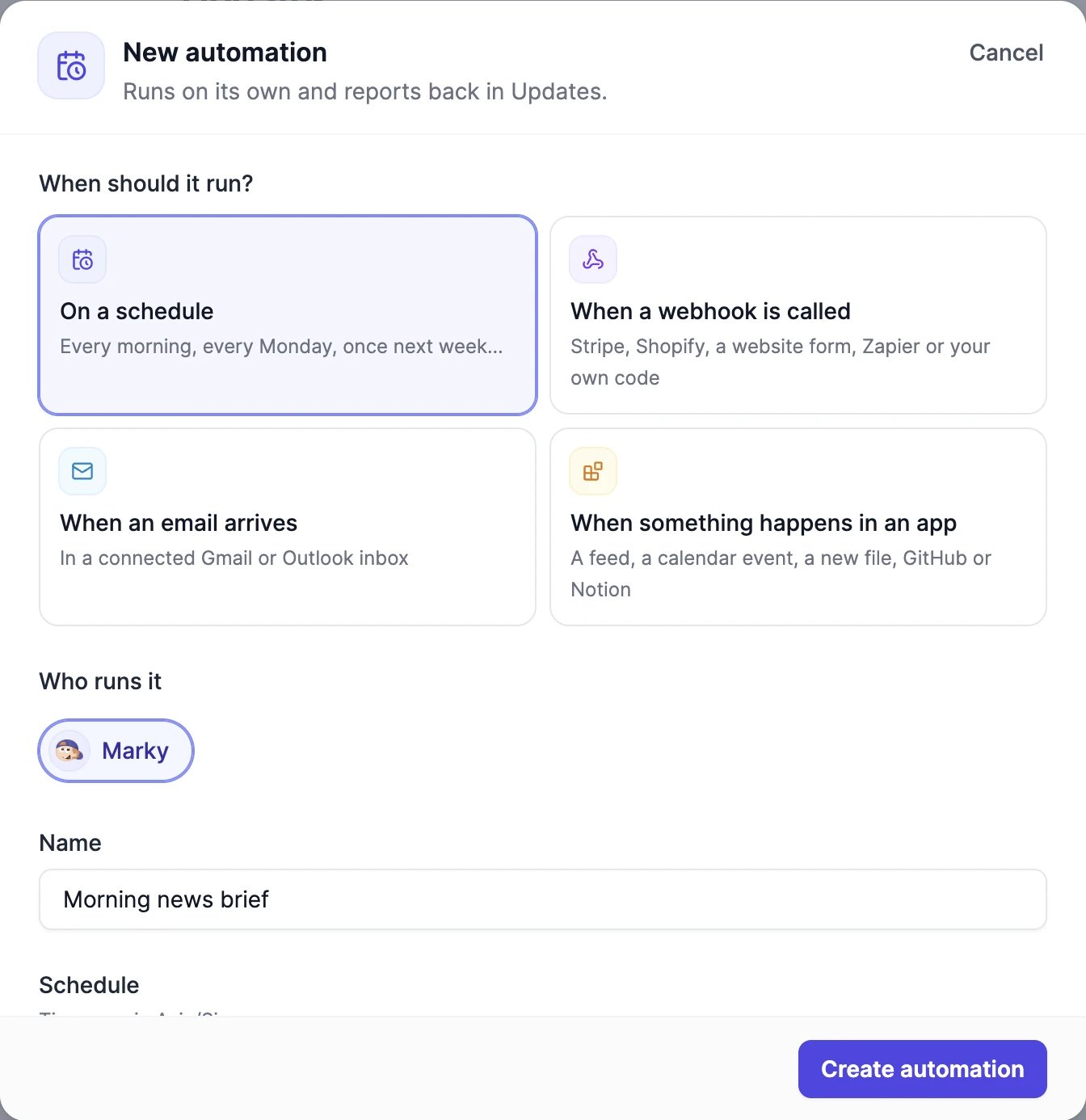
3
Name it and say what to do
Type a Name, then write the instructions in What should Marky do? as a message to Marky. See Write good instructions.
4
Choose emails, approvals, and the model
Email me sets when you get an email about a run, Approvals what Marky must ask you first, and Model the model that runs it. See Emails and approvals.
5
Save and test it
Click Create automation, and its page opens. Click Test run to run it now, or Send a test event for an automation that starts from a webhook, an email, or an app. The result shows up in Updates in a minute or two.
What can start an automation
On a schedule
The form shows the schedule in words, such as “Every weekday at 8:00 AM”. Stop after (optional) ends a repeating schedule on a date, for example at the end of a campaign.
Times are in the time zone shown under Schedule, which is your browser’s time zone when you create the automation. A schedule runs at most every 5 minutes. Schedules Marky set up in chat, such as “every 2 hours”, stay as they are when you edit the automation, unless you pick a new schedule.
When a webhook is called
A webhook automation runs each time another service calls its private URL: Stripe when an order is paid, Shopify when an order comes in, a form on your website, Zapier, or your own code. Marky gets the data that was sent (JSON, form fields, or text) along with its instructions. After you save, the automation’s page shows the Webhook URL. Click Copy URL and paste it into the other service’s webhook settings. Example request shows a test call you can send from a terminal. Anyone with the URL can start the automation, so keep it private. If it leaks, click Reset URL to get a new one. The old URL stops working right away. For more control, open Conditions and security (optional) in the form:
You set these options on the Automations page, not in chat.
When an email arrives
An email automation runs when a new email arrives in your Gmail or Outlook inbox. Connect the inbox in Marky’s Connectors first, then pick it under Inbox. Inboxes are checked every 2 minutes, and only emails that arrive after you save start a run.
Send a test event runs the automation on your latest matching email.
When something happens in an app
Apart from RSS feeds, the app must be connected in Marky’s Connectors. If it isn’t, the form shows a Connect button.
Click Check the source to see the five latest items, each marked by whether it meets your conditions. Add conditions under Run only when (optional): for example, only files whose name contains “invoice”, or only meetings with more than two attendees.
Calendars are checked every 2 minutes; Google Drive, OneDrive, GitHub, and Notion every 5; and feeds every 15. Only what’s new after you save starts a run. If more than 10 new items show up in one check, the 10 newest start runs and the rest are skipped.
Conditions
Email, webhook, and app automations can run only when conditions are met. Click Add a condition, then pick a field, a test such as contains, is, starts with, is more than, or is before, and a value. And adds a condition to the same set, and all the conditions in a set must hold. Or another set of conditions adds an alternative: the automation runs when any one set holds. For dates, enter a date (2026-10-31), now, or a time from now such as -3d, +2h, or -30m.
For a webhook, name the fields under Fields to test first, then add conditions on them.
Conditions are checked before a run starts, so whatever they filter out uses no words.
Write good instructions
At run time you’re not there to answer questions, so the instructions have to stand on their own. When Marky creates an automation for you, it writes them this way. When you write them yourself, include:- The goal and who it’s for: “Write three Instagram post ideas for Example Yoga Studio.”
- Where to look: the websites, files, or connected apps to use.
- What to do with what arrives: for a webhook, email, or app automation, say how to use the data: “An order was paid. Check it in Stripe, then send me a two-line summary.”
- How to avoid repeats: “Check the earlier runs in this conversation and don’t repeat an idea.”
- The format of the result: a table, three bullets, a one-page report.
Where results go
Each automation has its own conversation, named “Automation:” followed by the automation’s name, in the Automations folder of the Marky sidebar. Each run adds to it, under an Automation ran line that you can open to see the instructions and the data the run started from. Open conversation on the automation’s page takes you there. Tasks you scheduled before Automations keep posting in the same chat as before, and schedules you asked Marky to post “here” post in the chat where you asked. Every run also shows in Updates and in the automation’s History, as Succeeded, Failed, Skipped (for example, when your plan is out of words), or Running. When Marky flags a run for you, it shows Needs your attention with the reason.Emails and approvals
Set these under Email me and Approvals when you create or edit an automation. The automation’s page shows them under Notifications and approvals.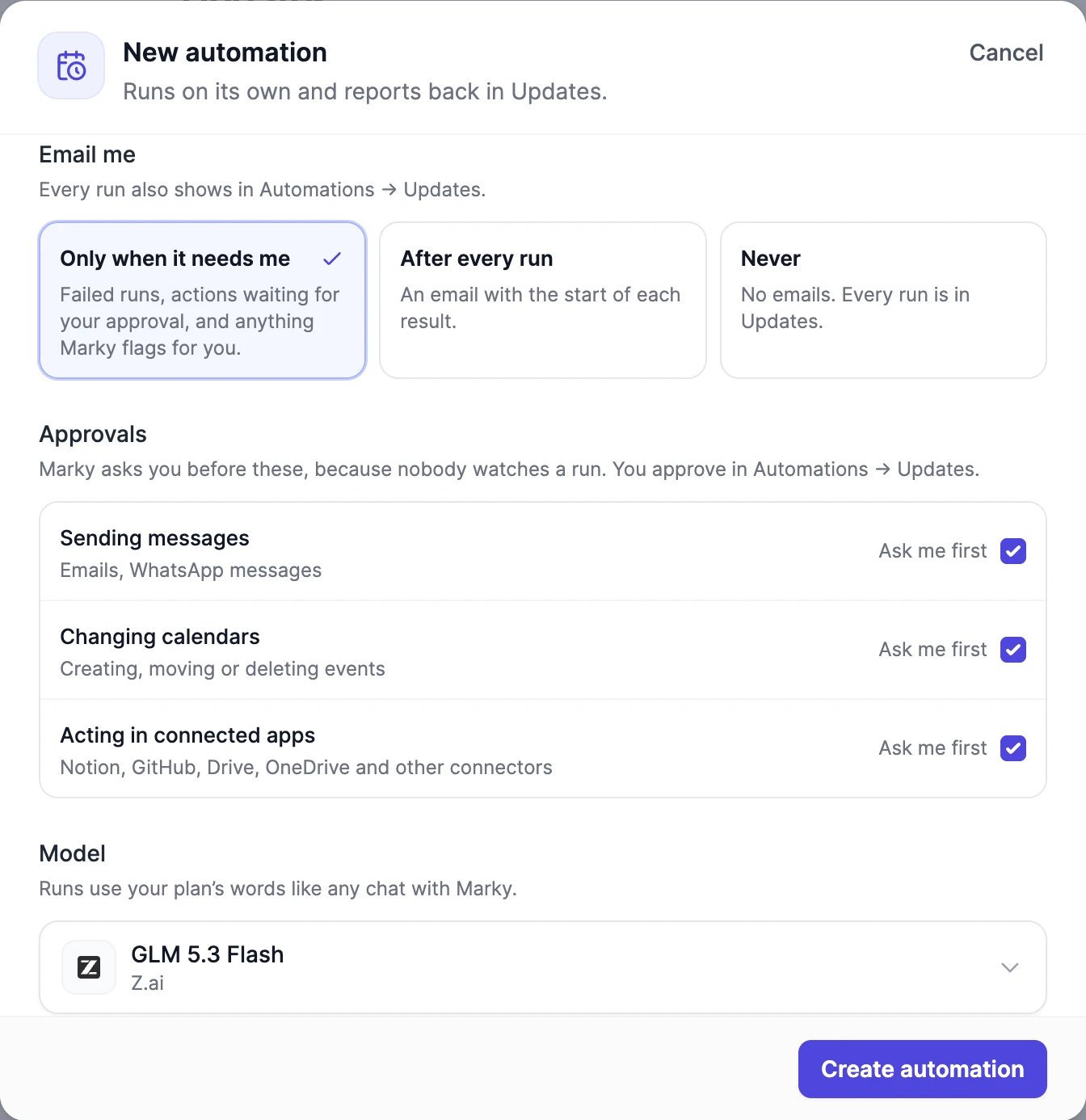
Email me
When Marky creates an automation in chat, it picks this setting from your request, and its card shows the choice under Emails. A failing automation emails you once, when it starts failing, not after every failed run. Tasks you scheduled before Automations email you after every run until you change the setting.
Approvals
Nobody watches a run, so Marky asks you before it acts on your behalf. Each group is set to Ask me first or Run without asking:
All three start as Ask me first, also for automations Marky creates in chat.
When a run wants to do one of these, the action waits and the run finishes without it. You find it at the top of Updates, under Waiting for your approval, on the automation’s page, and in its conversation:
- Approve does it now.
- Edit lets you change it first, such as the text of an email. Then click Approve with changes.
- Reject, then Don’t do it, cancels it.
Model
Model is the model that runs the automation. Automations Marky creates in chat use the chat’s model. Grok and DeepSeek models can’t work with Gmail, Google Calendar, or Google Drive data, so pick another model for an automation that starts from one of them.Manage an automation
Open an automation from Manage or the menu on the left. The buttons at the top of its page, and the ⋯ menu on its card, have these actions: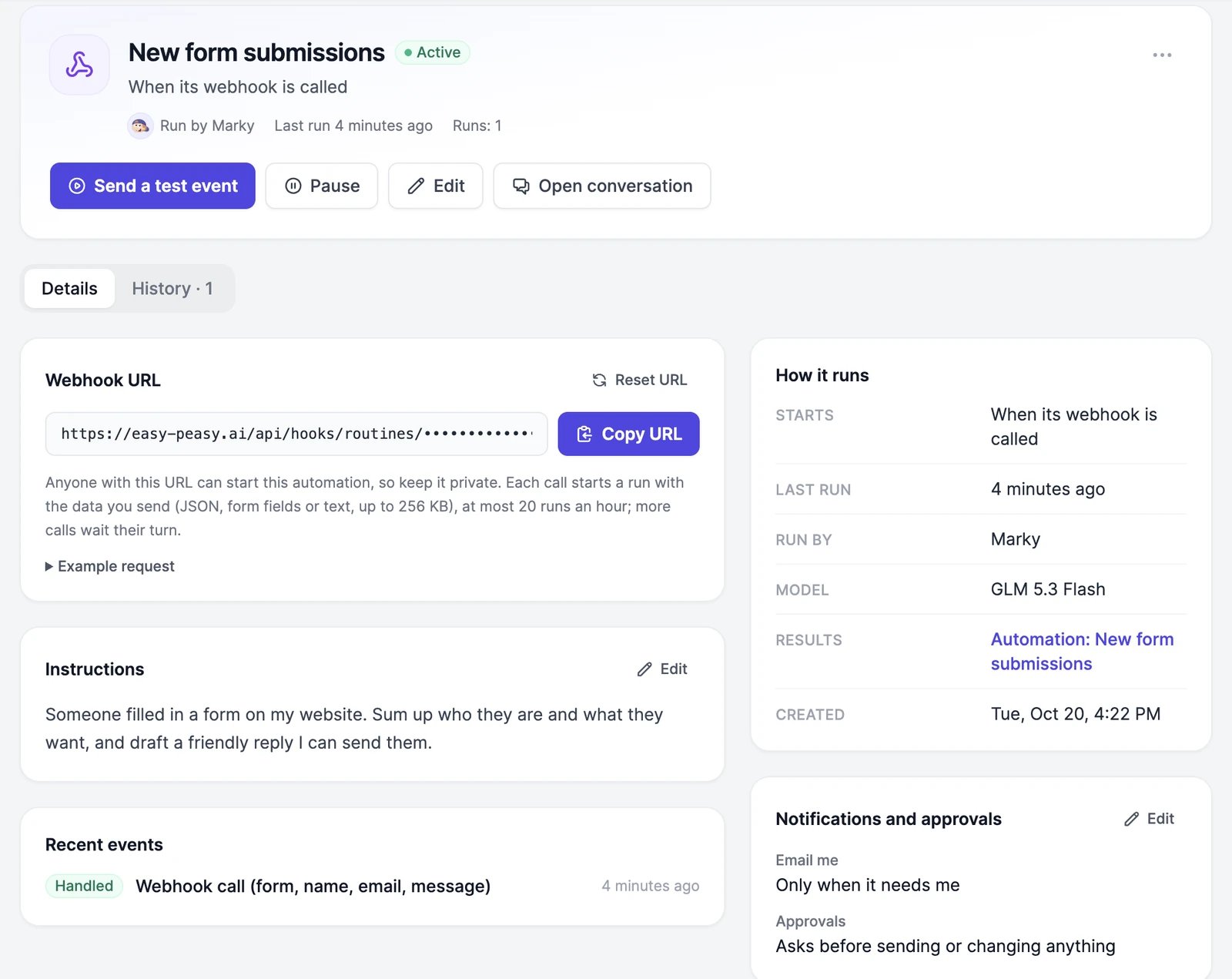
Each automation shows its status: Active, Running, Paused, Finished (a one-time automation that ran), Ended (past its Stop after date), or Failed.
Limits
- You can have up to 10 automations, paused ones and AI Employee routines included. Delete one to add another.
- A schedule runs at most every 5 minutes.
- A webhook call can carry up to 256 KB.
- A webhook, email, or app automation runs at most 20 times an hour. More calls, emails, or items wait their turn, and one run can handle up to 5 that arrived together. One that waits more than a day is skipped.
Credits
Each run uses words like any other message to Marky, at the rate of the automation’s model, plus image & video credits for anything it generates, such as images. Test runs count too. Frequent schedules and busy webhooks add up, so check Usage after the first few runs. See Models and words for how words are counted.Can an automation use my Gmail, Calendar, or other apps?
Can an automation use my Gmail, Calendar, or other apps?
Yes. A run can use every app you’ve connected in Connectors, so “every morning, summarize the unread emails from clients” works. Sending, changing your calendar, and acting in your apps wait for your approval unless you change Approvals. See Connectors.
An automation ran at the wrong time
An automation ran at the wrong time
Schedules run in the time zone shown under Schedule when you edit the automation. It’s set from your browser when the automation is created, and editing doesn’t change it. If it’s wrong, check the time zone setting of your computer, then create the automation again.
My email automation didn't run
My email automation didn't run
Only emails that arrive after you save start a run, and newsletters, receipts, and other automated emails are skipped unless you turned them on. Emails that arrive while the automation is paused are skipped too. The automation’s page shows its filters and when the inbox was Last checked.
Can Marky ask me questions during a run?
Can Marky ask me questions during a run?
No. Runs happen without you, so Marky can’t ask you to clarify anything. It asks for approval before it sends, changes, or acts in your apps, and when something else needs your input, it flags the run: you see Needs your attention in Updates and get an email, unless Email me is set to Never.
Connectors
Let Marky work with Gmail, Google Calendar, Notion, GitHub, and more.
Usage
See how many words your automations use.