
Remove a background
- An image you made
- Your own photo
Open the image from Images or History > Images and click Remove Background. The cut-out is saved as a new image in History > Images, and the original stays as it is. It costs 1 credit.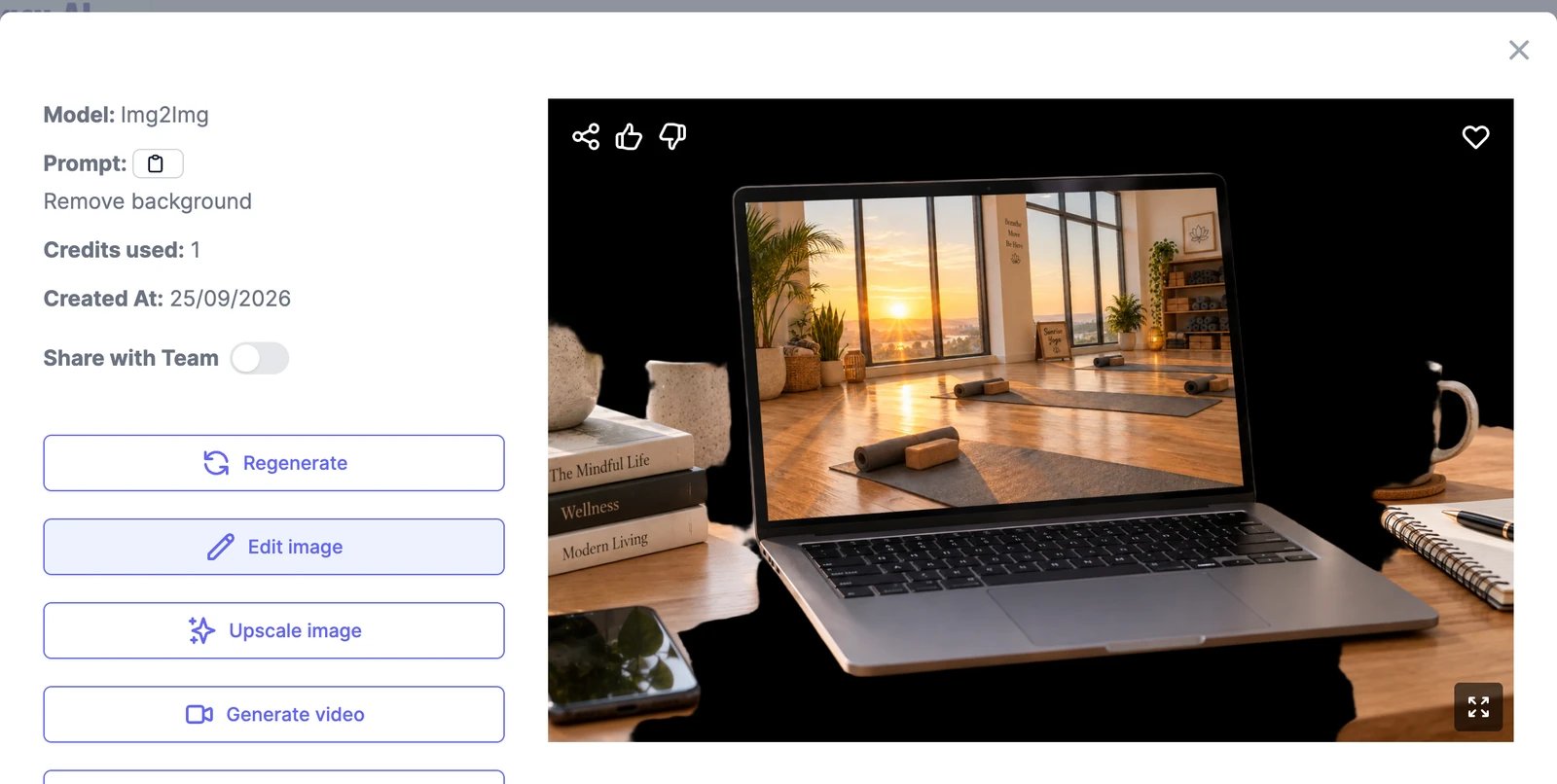
Replace a background
- Choose Images > Replace Background from the menu at the top.
- Upload your photo.
- In Prompt, describe the new background, for example “a white marble countertop in a bright kitchen”.
- Click Generate.
Other ways to change a background
- The Change Background and Product Background Change templates do the same job with a tested prompt. See Templates and one-click tools.
- To change the background and something else at the same time, edit the image and describe both changes.