
Make a song
1
Open AI Music Generator
Click AI Music Generator in the sidebar, or Audio > Music Generator in the top menu. Usage at the top shows how many text-to-speech characters you’ve used this period.
2
Choose a model
Suno V6 is the default. You can also pick Suno V6 Wild or Suno V6 Mini and compare; all three cost the same.
3
Describe the song
With Custom Mode off, describe it in Song Description, up to 400 characters: the genre, mood, what it’s about, and any names to include. The lyrics are written for you.For example: “An upbeat acoustic song for a yoga studio’s anniversary, about morning classes, community, and breathing easy.”
4
Set the vocals
Tick Instrumental Only for music without singing. Otherwise, set Vocal Gender to Male, Female, or Auto (Let AI decide).
5
Click Generate
The song takes a few minutes. Two versions appear under Music, each with its own cover.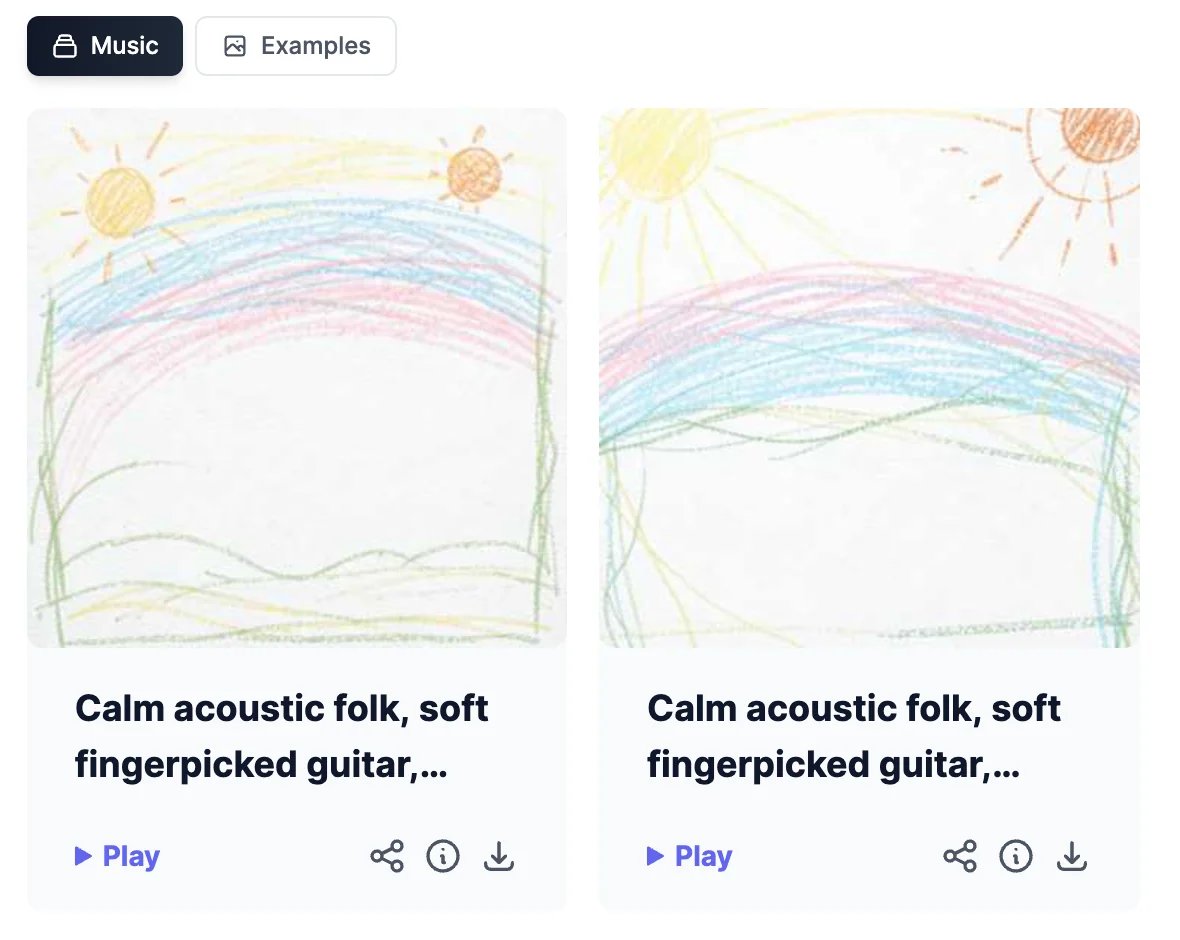
Write your own lyrics
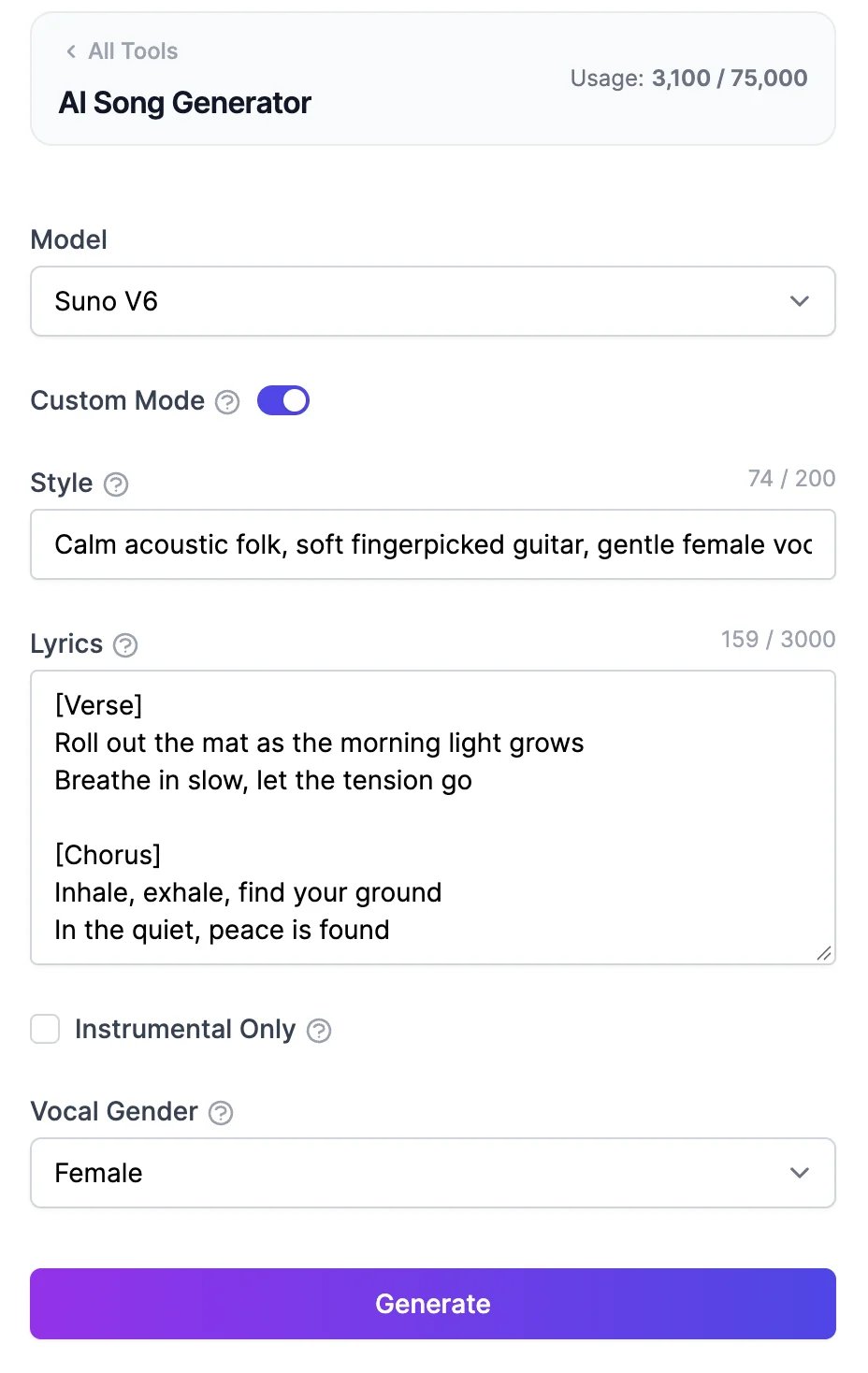
Turn on Custom Mode to control the words and the sound:- Style: genres, instruments, mood, and tempo, up to 200 characters. For example, “Calm acoustic folk, soft fingerpicked guitar, gentle female vocals, 70 BPM”.
- Lyrics: up to 3,000 characters. Mark the parts with tags such as
[Verse],[Chorus], and[Bridge].
Your songs
Each song has Play, Share, Details (ⓘ), and Download (MP3).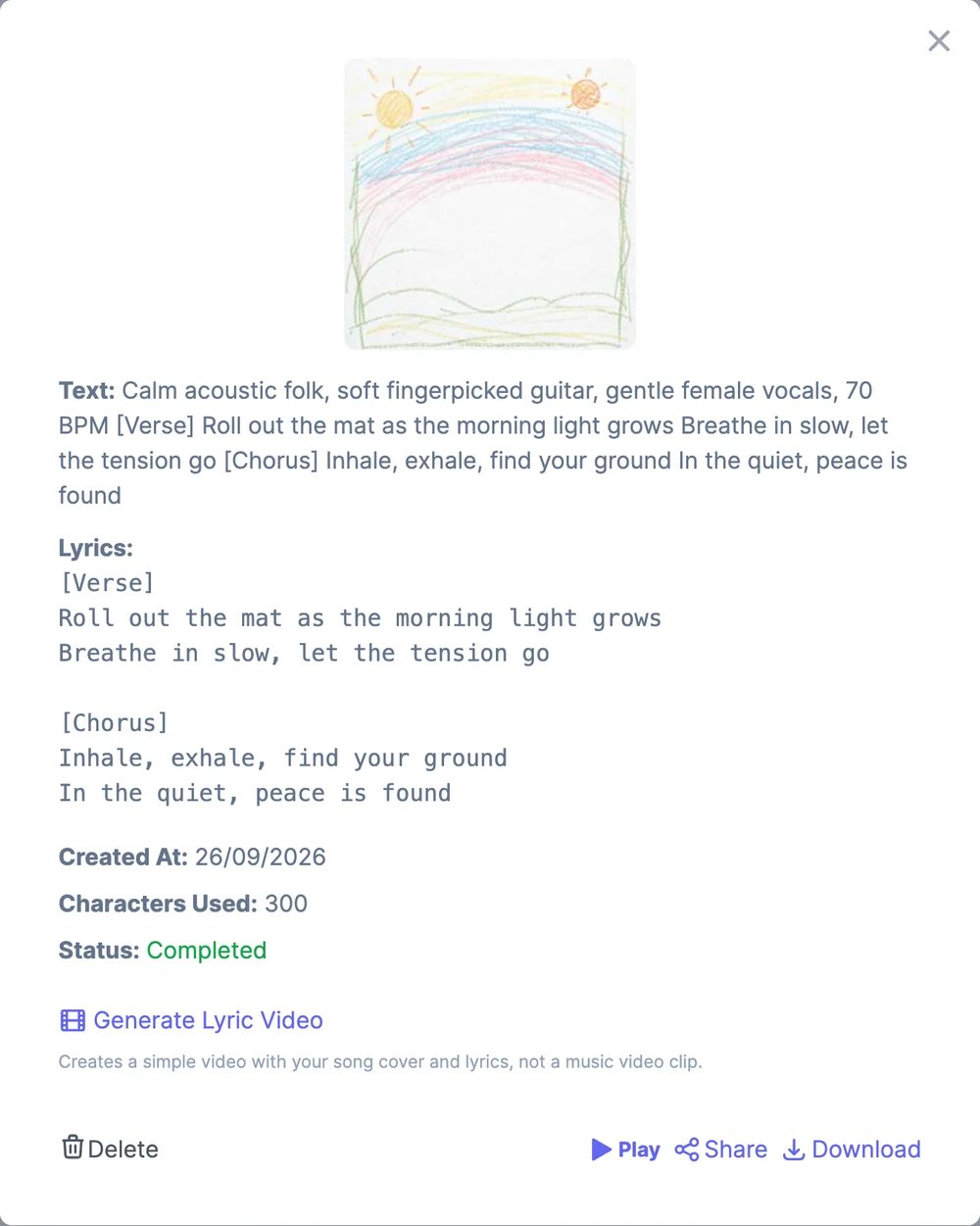
- Details shows the lyrics, the date, and the characters used, and has Delete.
- Generate Lyric Video makes a simple video of the cover with the lyrics on screen. It’s not a music video.
- Share makes a public link, like it does for speech. On a Teams plan you can also share with your team.
What it costs
Each generation uses 600 text-to-speech characters: 300 for each of the two versions. If a song fails, it isn’t counted. The Free plan’s 100 characters are enough for one generation a month; paid plans include many more. See Audio plans and limits. You can also ask Marky to make a song in a chat.Sound effects
Make sound effects and ambience.
Audio generator
Mix voices, music, and sound in one clip.