
Where your videos are
- The Videos tab on the Video Generator shows your latest videos. On a team, it also shows videos your teammates shared with the team.
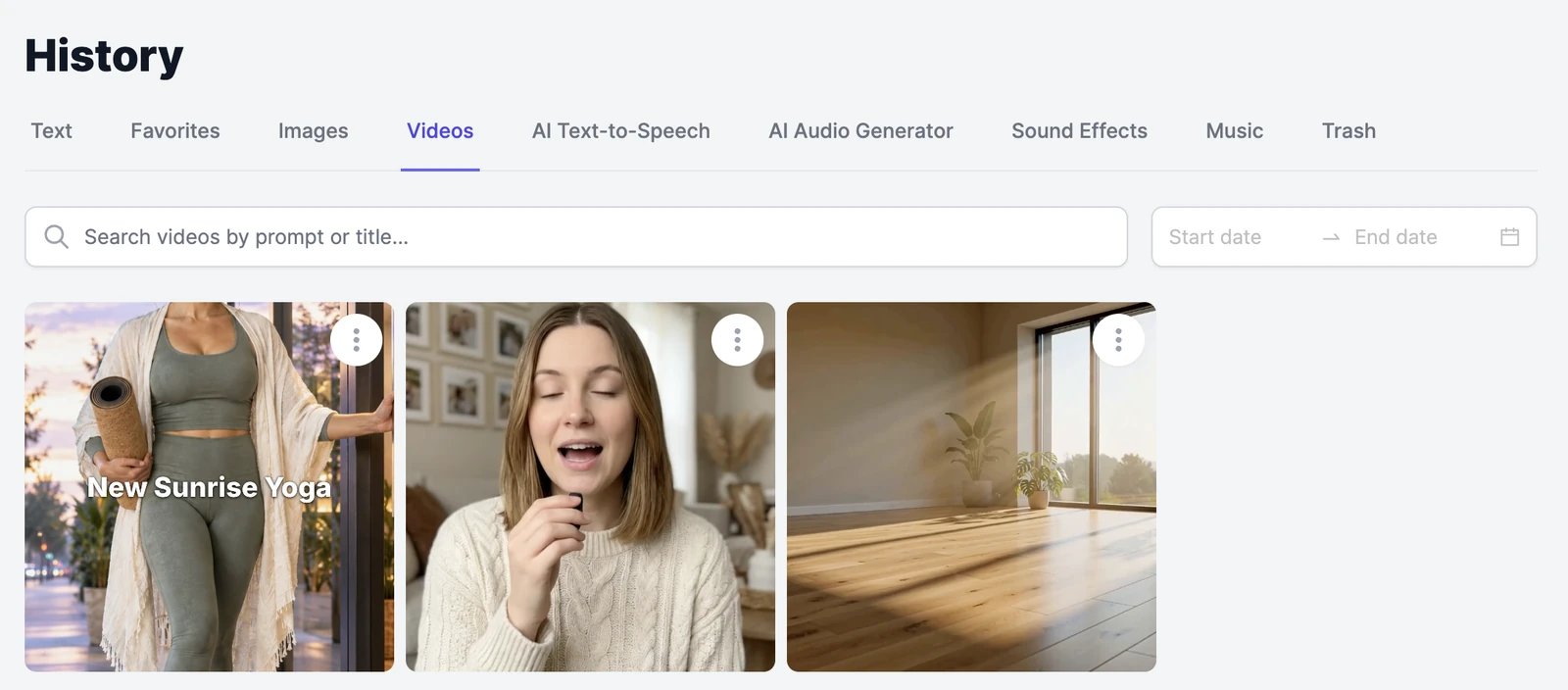
- History > Videos has every video you’ve made: generated videos, talking videos, edits, extensions, upscales, and Video Editor exports. Search by prompt or title, filter by date, and on a team, filter by person.
The video menu
Each video has a ⋮ menu: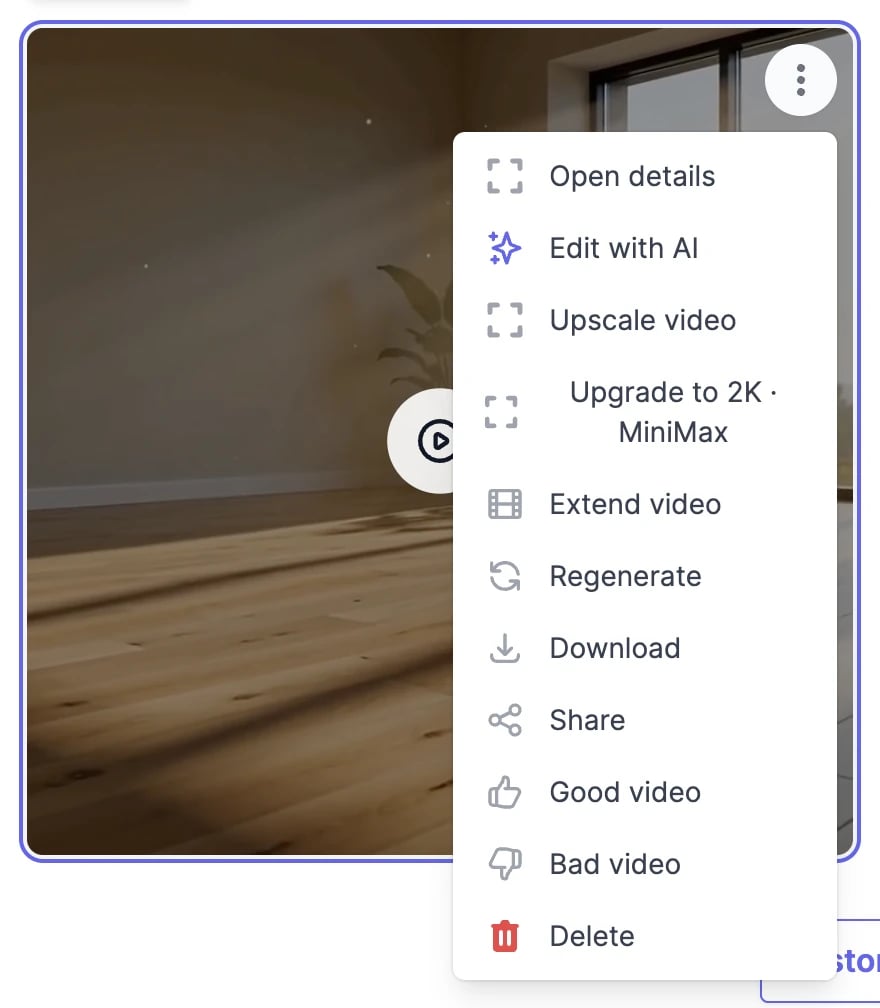
Video details
Open details shows the model, the credits the video used, the prompt (with a button to copy it), and the date. The same actions are here as buttons.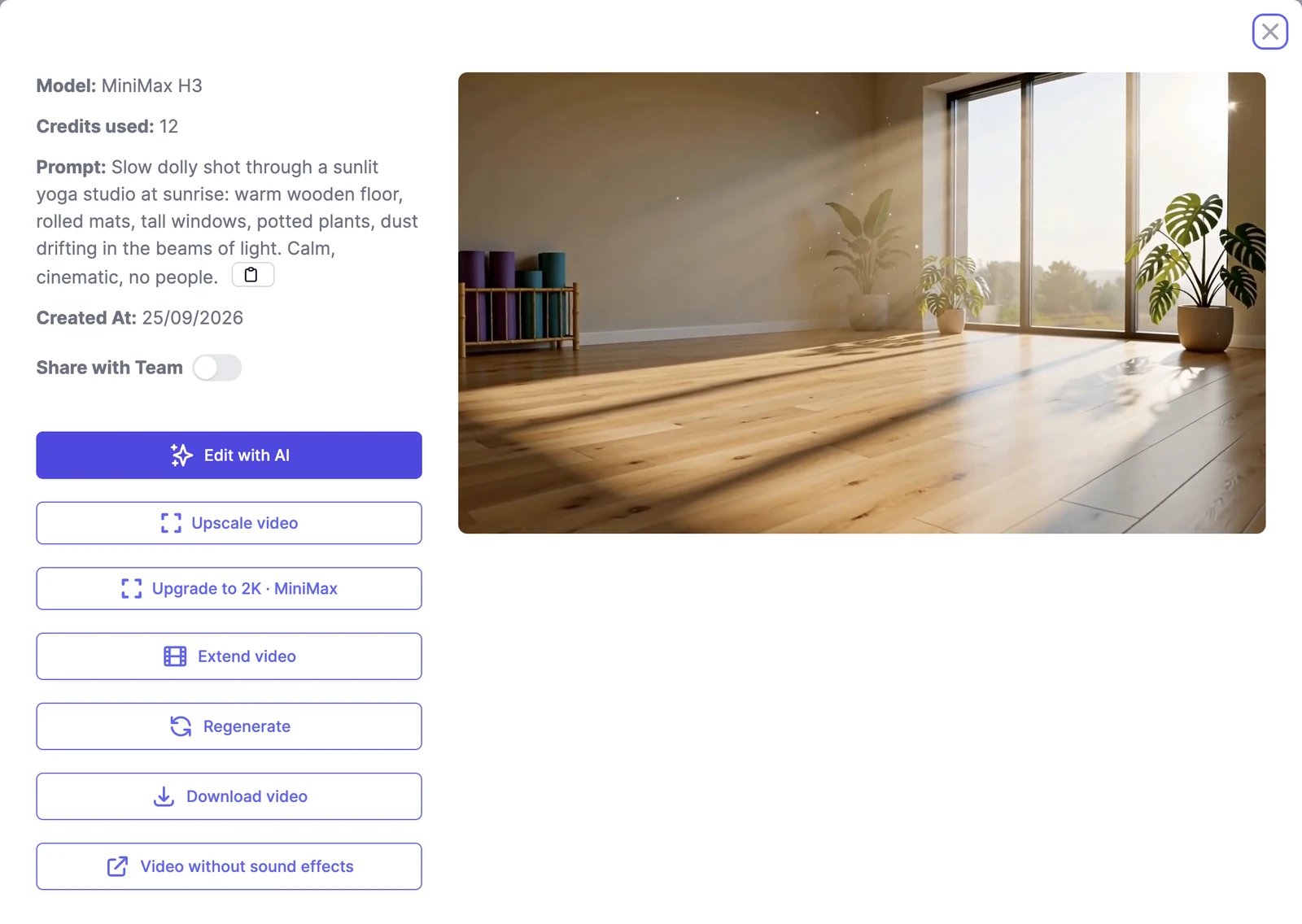
Share a video
- Share with Team in the details shows the video to everyone on your team.
- Share opens Share Video. Turn on Share Publicly to get a public page for the video on easy-peasy.ai, with buttons to post it to LinkedIn, Facebook, X, and Reddit. Turn it off to take the page down. Share with Team Members is available on Teams plans.
Get credits back for a bad result
If a video came out wrong, open its menu and click Bad video. You get its credits back, up to 10% of your plan’s monthly credits in each billing period. It works for your own videos from the current billing period. Your feedback also helps us improve the models.Delete a video
Open the menu, click Delete, and confirm. Deleted videos can’t be restored, and deleting doesn’t return the credits they used.Download
Download saves the video as an MP4, with no watermark.Generate a video
Make a new video.
Plans and credits
How image & video credits work.