
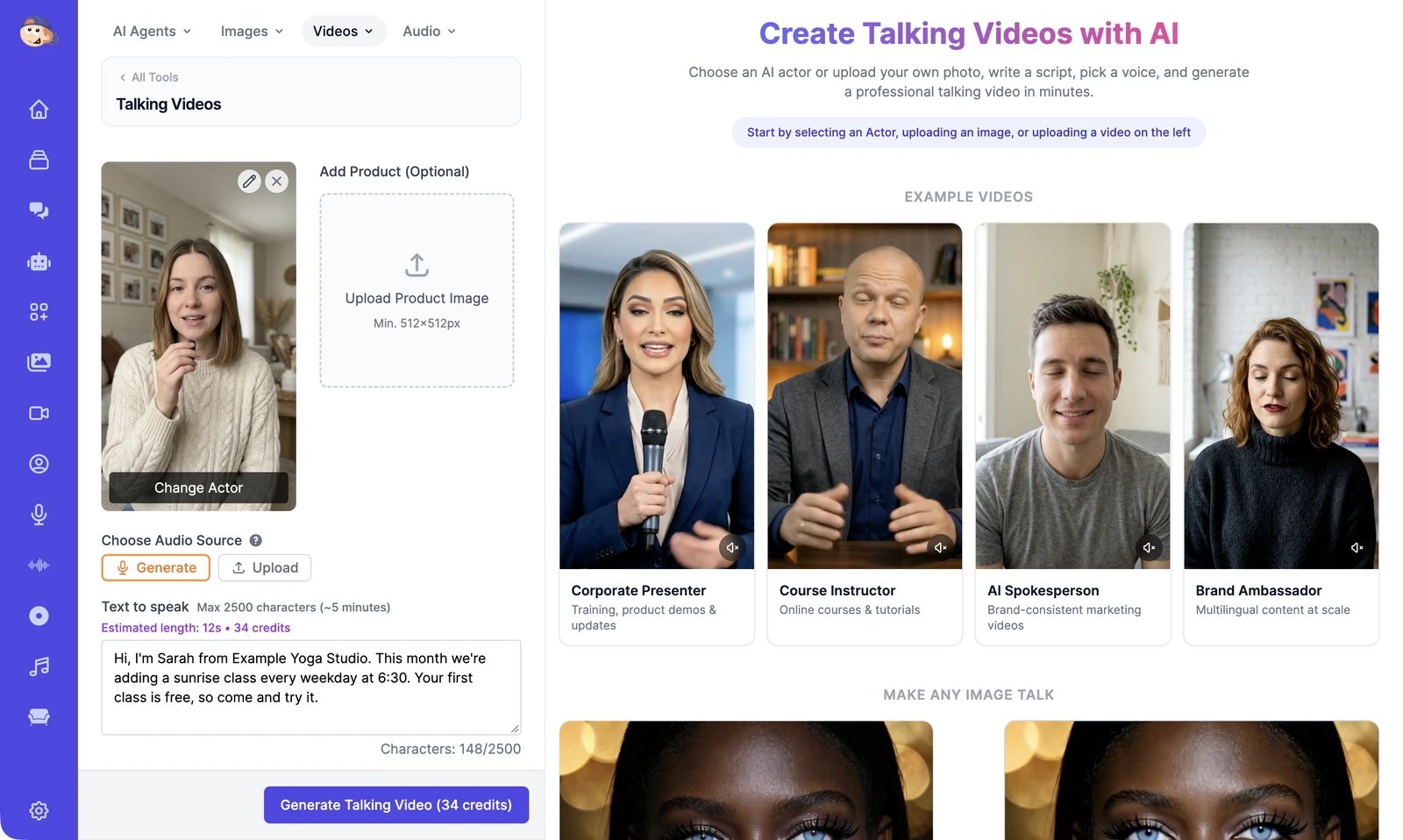
Make a talking video
1
Choose who speaks
Under Choose Upload Type, pick one: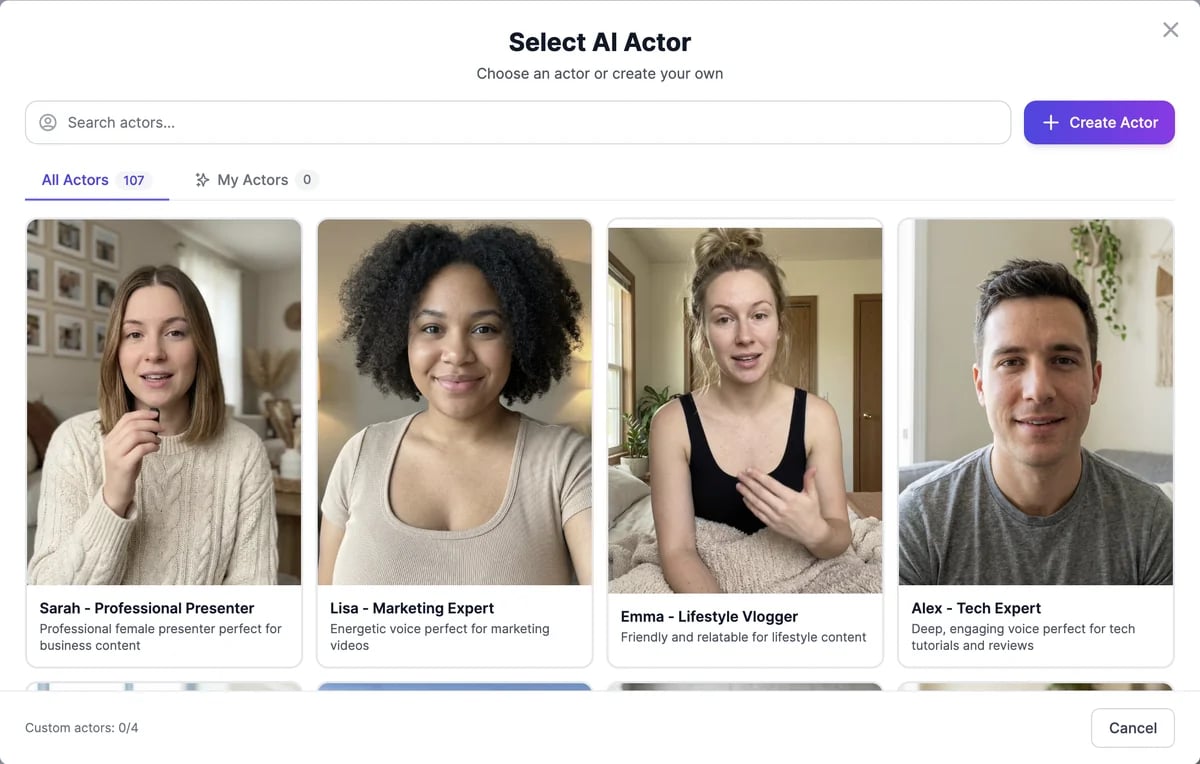
- Image: a photo to bring to life. It must be at least 512 × 512 pixels; one clear, front-facing face works best.
- Video: a video of someone speaking, MP4 or MOV, 3 seconds to 5 minutes. The lips are matched to your new audio, which replaces the original sound.
- AI Actor: pick a ready-made presenter in Select AI Actor, or click Create Actor to make your own. Picking an actor also picks the actor’s voice.
2
Add the words
Under Choose Audio Source:
- Generate: type the script in Text to speak, up to 2,500 characters (about 5 minutes). Estimated length shows how long it will be and what it will cost.
- Upload: use your own recording, such as a voiceover or a podcast clip. MP3, WAV, M4A, AAC, or OGG, up to 5 minutes.
3
Pick a voice
If you chose Generate, click Change voice to choose from hundreds of voices. Search by name, or filter by Language and Accent, and pick a voice that speaks the language of your script.To speak in your own voice, click Clone Your Voice and upload or record a sample. Choose an Instant clone for talking videos; it works on every plan. How many voices you can clone depends on your plan.
4
Choose captions, model, and resolution
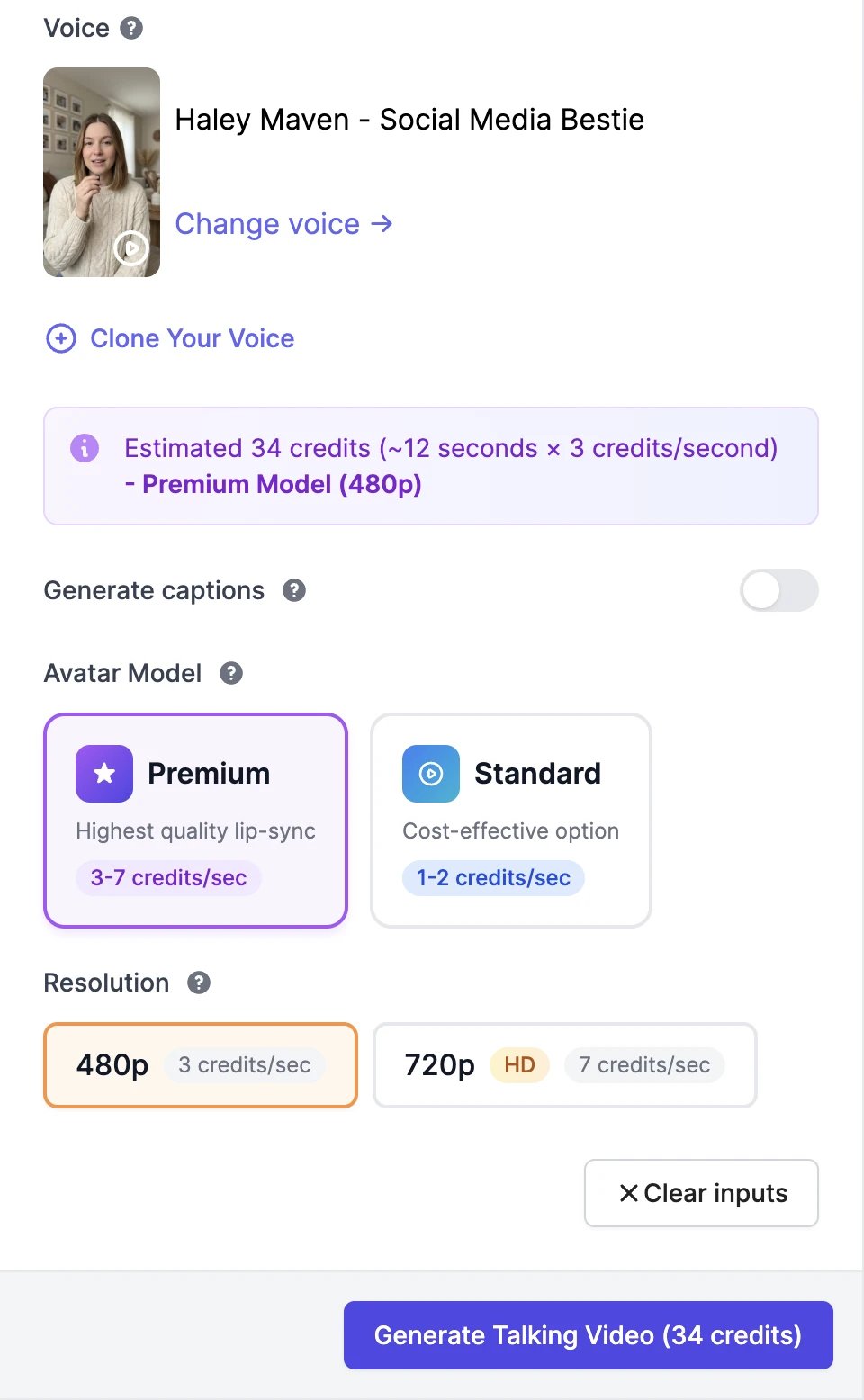
- Generate captions adds word-by-word captions. Pick the Highlight color for the word being spoken.
- Avatar Model: Premium gives the best lip-sync. Standard costs less.
- Resolution: 480p or 720p. Premium videos made from a video keep the resolution of that video.
5
Review and generate
Click Generate Talking Video. With a typed script, Review before generating opens first, so you can listen to the voice before you pay for the video. Click Change text or voice to go back, or Confirm & Generate. With an uploaded recording, the video starts right away.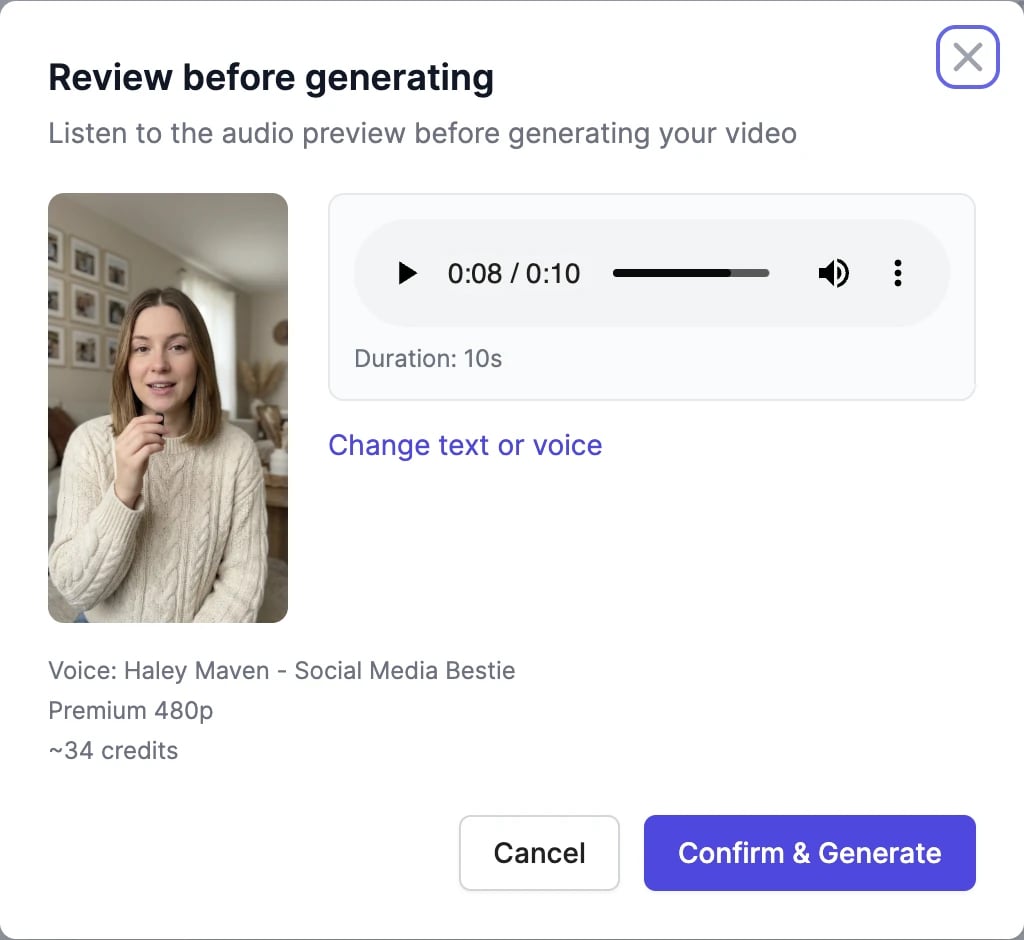
Credits
Talking videos are charged per second of speech:
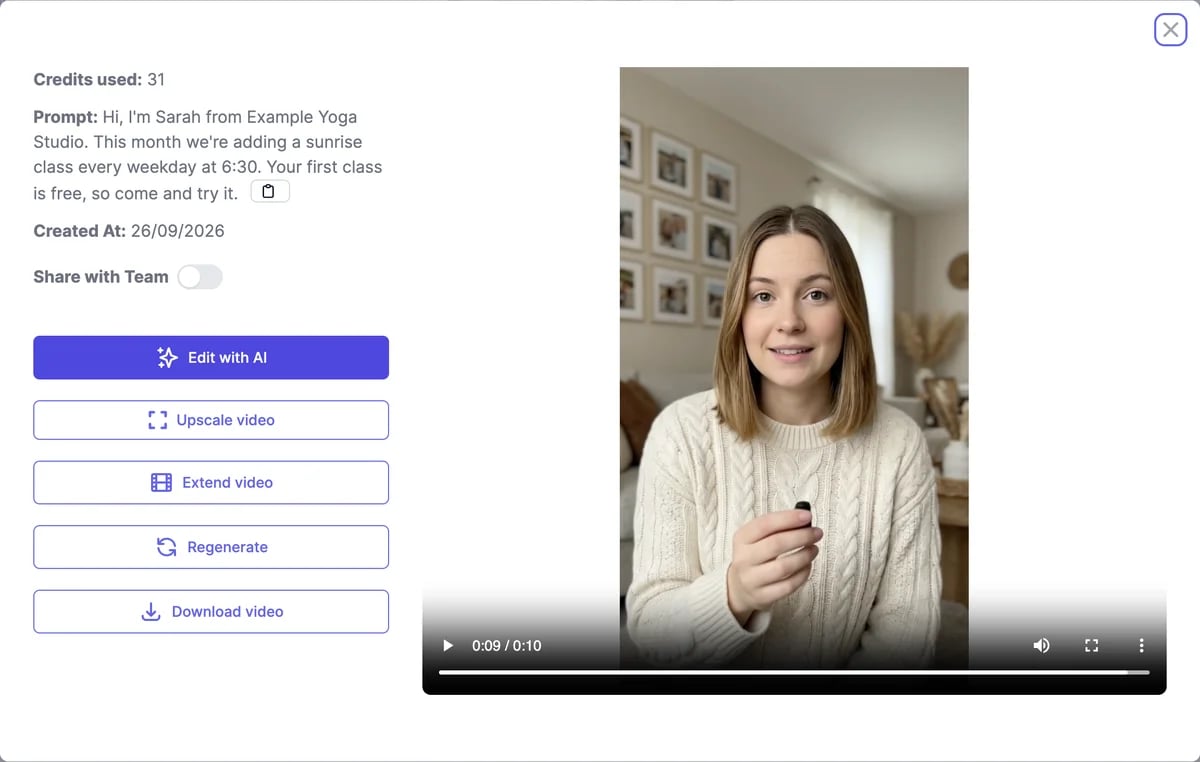
The price on the button is an estimate from the length of your script. When the video is done, the charge is corrected to its actual length, so it can end up slightly lower or higher. In the example above, the estimate was 34 credits and the 10-second video cost 31.
The voice itself doesn’t use your text-to-speech characters. Captions are free.
On the Free plan
- Only the Standard model at 480p is available.
- A video can be as many seconds long as you have credits left, at 1 credit per second.
Your own actors
Create Actor walks you through four steps: Photo, Voice, Details, and Preview. Upload a clear photo of a face (PNG, JPG, or WEBP, at least 512 × 512 pixels), or make one with Generate with AI or Transform with AI, which use image & video credits. Then pick the actor’s voice and give them a name. Your actors appear under My Actors, and the window shows how many your plan allows, such as Custom actors: 0/4.If something goes wrong
- If a video fails, you get its credits back. It either disappears from the list or shows Generation Failed.
- Image must be at least 512x512 pixels: use a larger photo.
- If the lip-sync looks off, try Premium, and a photo where the face is straight on and not covered.
Video Agent
Build a full video with scenes, voiceover, and music.
Manage your videos
Download, share, and edit your talking videos.