
1
Describe the image
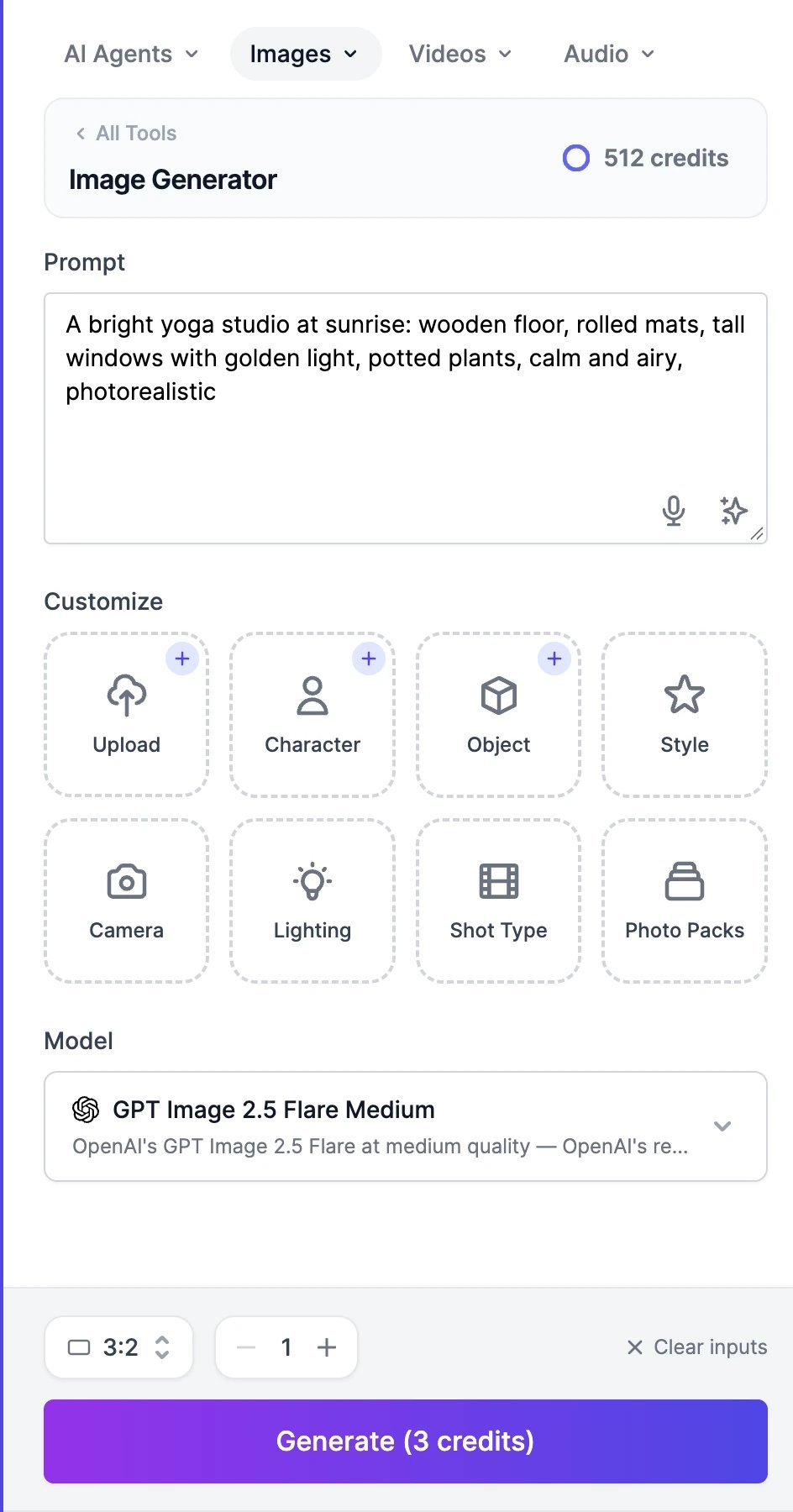
Type what you want to see in Prompt. Say what’s in the picture, where it is, the light, and the style. For example: “A bright yoga studio at sunrise: wooden floor, rolled mats, tall windows with golden light, potted plants, calm and airy, photorealistic.”Two buttons in the box can help. Dictate (the microphone) lets you speak your prompt. The button next to it writes a Random prompt when the box is empty, or rewrites yours in more detail (Improve prompt).
2
Add a style, camera, lighting, or shot (optional)
The Customize buttons add ready-made directions to your prompt: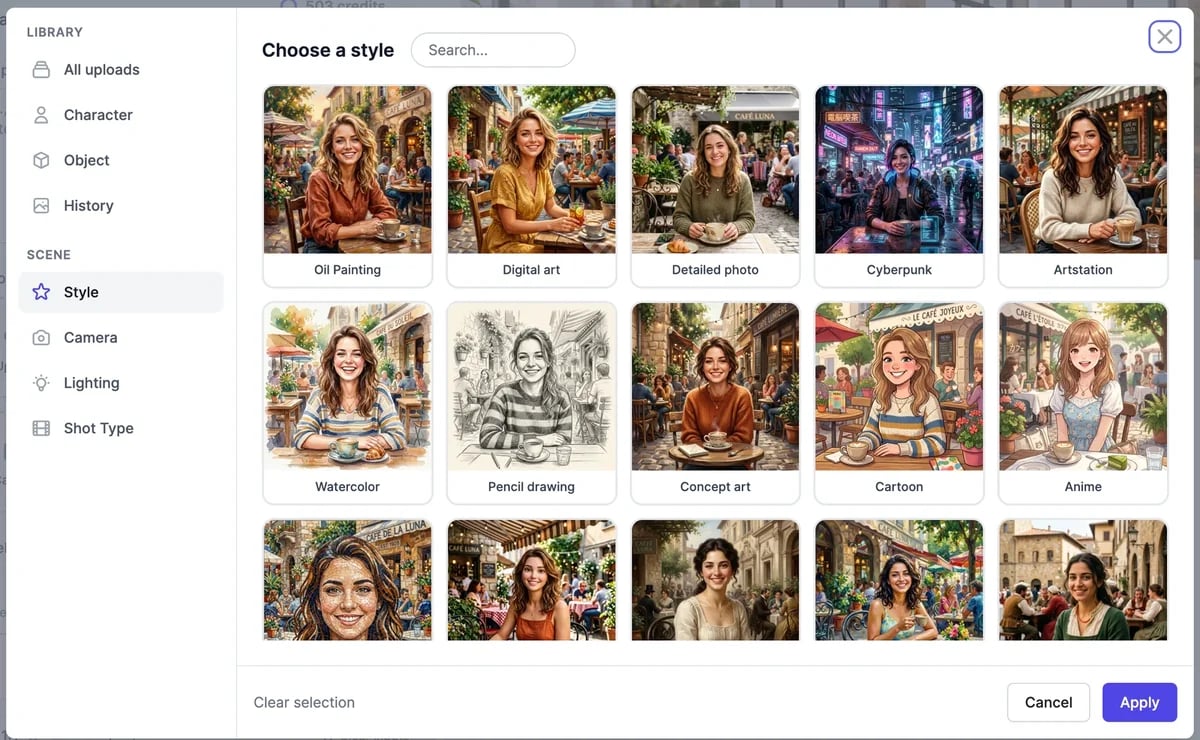
- Style: 43 looks, from Oil Painting and Watercolor to Anime and Cyberpunk.
- Camera: presets such as Cinematic or Phone Snap, or a specific camera body, lens, and aperture.
- Lighting and Shot Type: the light and the framing, such as Golden Hour light or a Low Angle shot.
3
Pick a model
Click the model under Model to open Choose a model. Every card says what the model is good at and what it costs per image. Search by name, or turn on Multi-select to generate the same prompt with several models at once and compare them. Compared images come out square, and the credits of each model add up.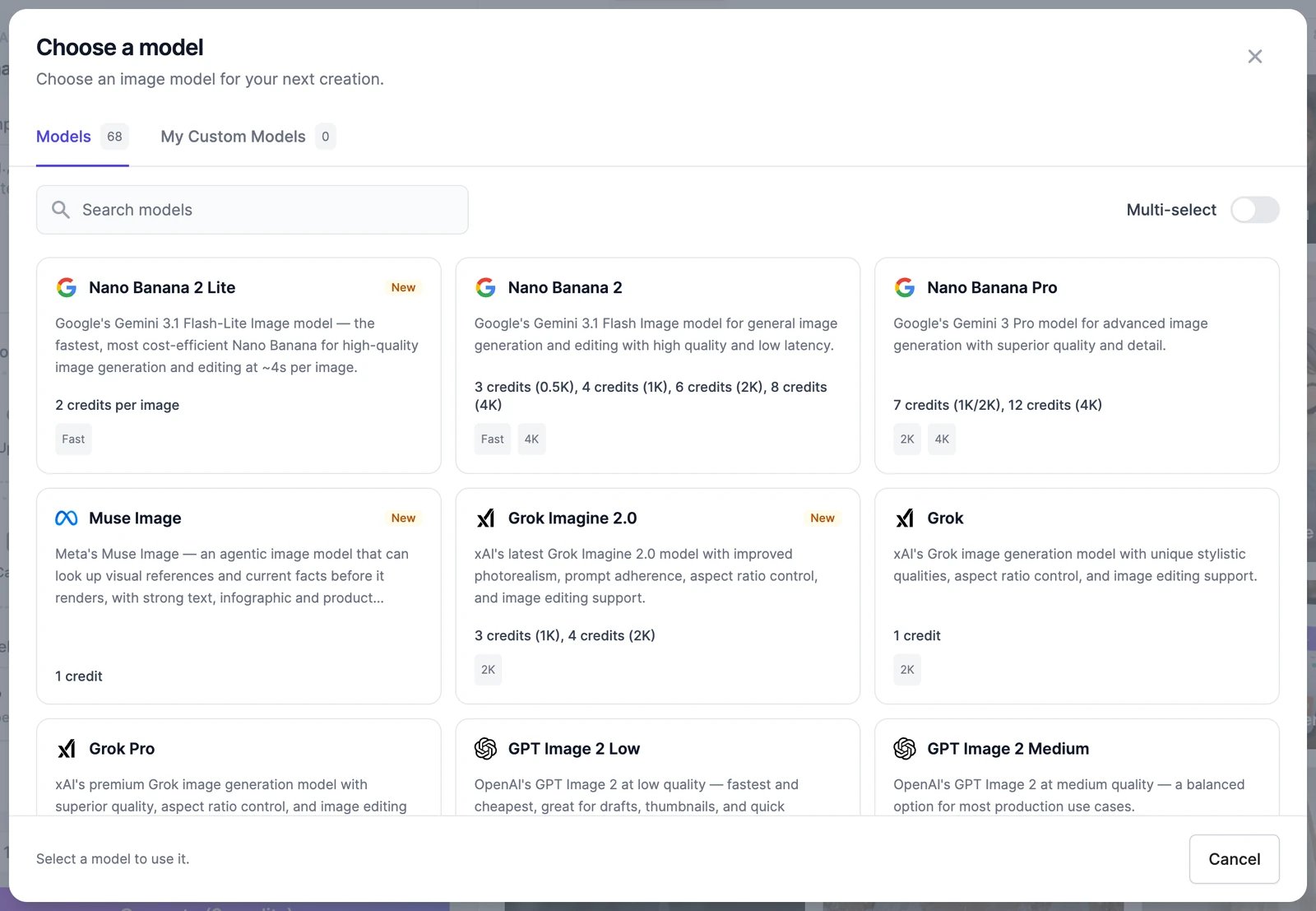
4
Choose the size and how many
At the bottom of the panel, pick an aspect ratio, such as 1:1 Square, 3:2 Standard, or 16:9 Widescreen, and how many images to make. You can make up to 4 at once, or 8 with some FLUX models. Models that offer it also show a Resolution setting, such as 1K, 2K, or 4K.
5
Click Generate
The button shows the total price, for example Generate (3 credits). Your images appear in the Images tab on the right, usually within a minute.
Put your own people, products, or photos in the picture
Use Upload, Character, or Object to add a photo. Character and Object keep a library of the people and products you add, so you can reuse them for consistent results across many images. You can also pick any of your past images from History. When a photo is attached, the page switches to editing: an Action menu appears, set to Edit Image with AI, and your prompt describes what to make from the photo. See Edit images. Photo Packs turns a model you’ve trained on one person into themed photo sets, such as LinkedIn headshots or Halloween photos, from 3 credits per photo. It’s available on paid plans.Tips for better images
- Be specific about the subject, the setting, and the light. “A golden retriever on a beach at sunset, low angle, warm light” beats “a dog”.
- Put words you want to see in the image in quotes, and pick a model that’s good at text, such as GPT Image 2.5 or Seedream 5.0 Pro.
- Try the same prompt with Multi-select to see which model suits it best, then stick with that one.
- To fix one detail, edit the image instead of generating again.
On the Free plan
- One image at a time. Most wide and tall sizes are locked; with the default model, only the square 1:1 size is available.
- Models marked Paid plans in the picker are locked, and so are 4K, Multi-select, and Midjourney.
- Downloading needs a paid plan or bonus credits. See Plans and credits.
If a generation fails or is blocked
- A tile that says Generation Failed doesn’t cost anything. Try again, or try another model.
- If the GPT Image models refuse a prompt for policy reasons, we remake it with Seedream 5.0 Pro automatically. The tile then shows Seedream 5.0 Pro and is charged at that model’s price.
- Uploaded photos are checked too. If one breaks the content policy, the button changes to Content Blocked.
Edit images
Change part of an image with words or markers.
Manage your images
Download, share, upscale, or animate your results.