
Use a template
Templates are ready-made looks: product mockups, posters, portrait styles, filters, and more. Each one comes with a tested prompt, the model it was made for, and a sample photo you swap for your own.1
Find a template
Open the Templates tab and filter by category, such as New, Starring You, Product, or Mockups. Hover over a template and click Use template.
2
Swap in your photo
The left panel fills in: the template appears at the top, with its prompt and model below it. Its sample photo sits in the Customize row. Remove the sample with its X, then add your own photo with Upload, Character, or Object, or pick one of your past images from History.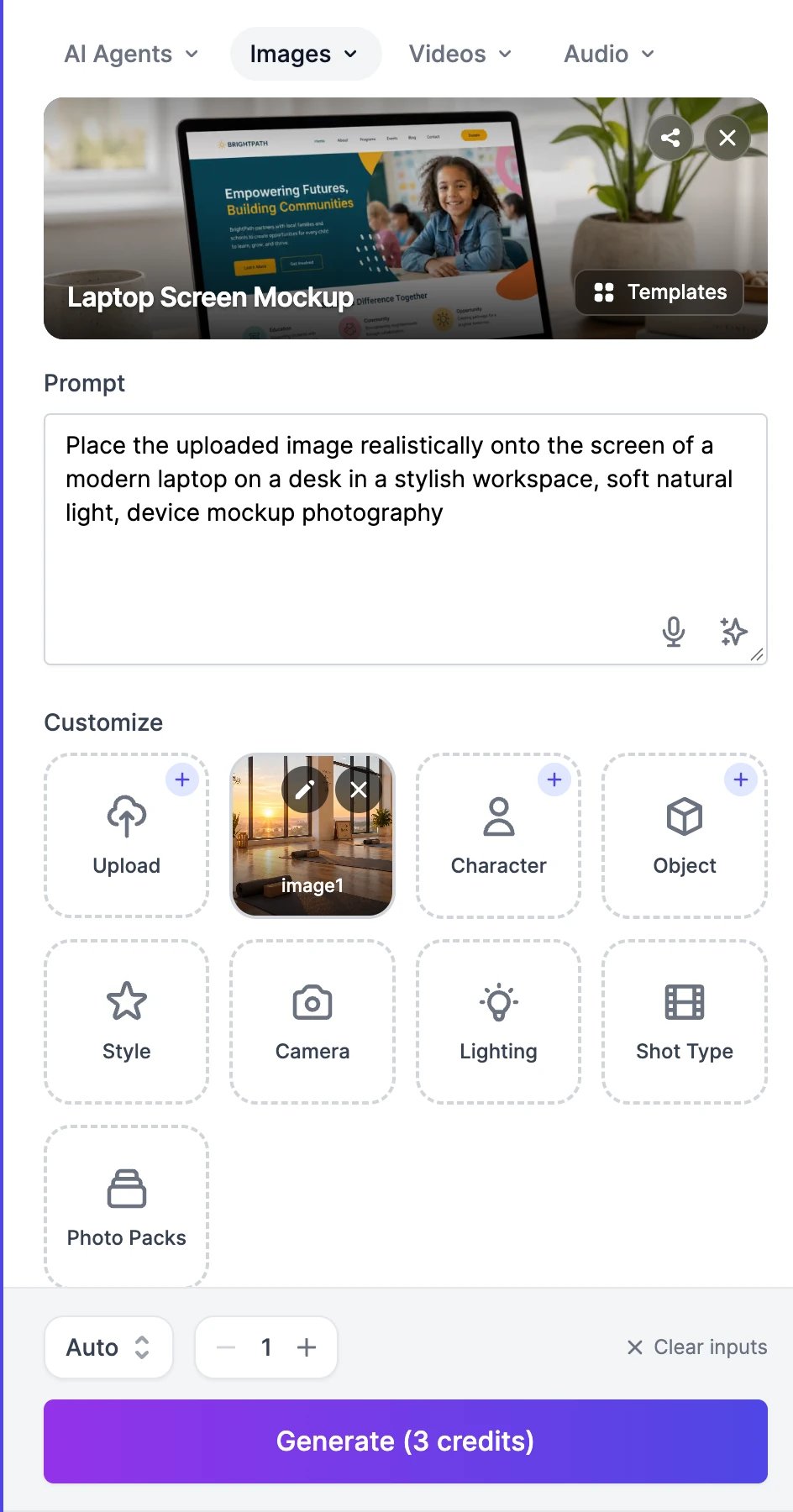
3
Generate
Change the prompt if you like, then click Generate. This example put the yoga studio image on a laptop screen: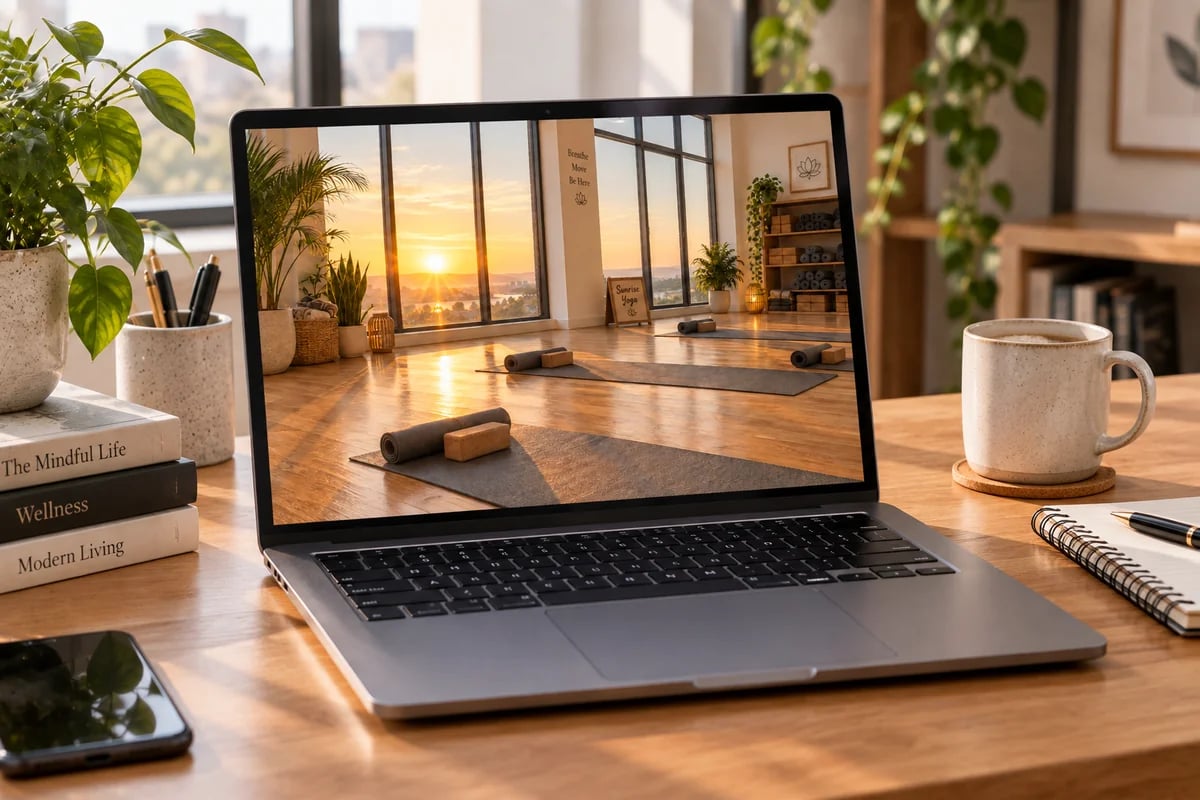
One-click tools
The AI Image Tools tab lists jobs that need only a photo. Some also appear in the Action menu that shows up when you add a photo on AI Images.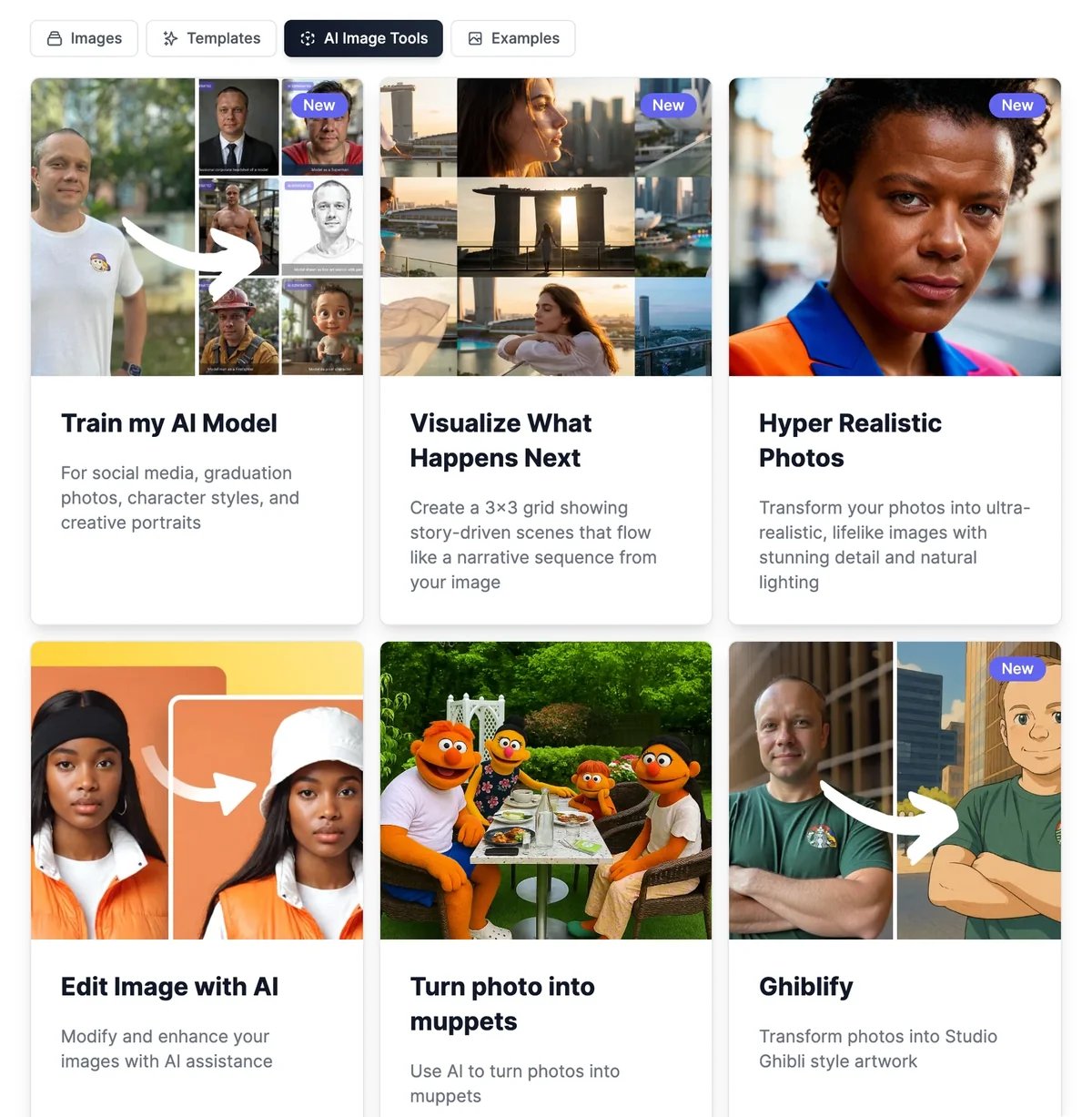
These cards open other tools instead:
- Edit Image with AI, Sketch to Image, and Style Transfer open AI Images ready to edit. Add your photo and describe the result you want. See Edit images.
- Creative Upscale opens the Magic Upscaler.
- Animate Image opens AI Videos to turn the photo into a video.
- Headshot Generator, Train my AI Model, and Interior & Exterior Design open Headshots, AI Photo Studio, and Interior Designer.
Remove or replace a background
Step by step, with examples.
Image models and credits
Prices for every model.