
Make a video
1
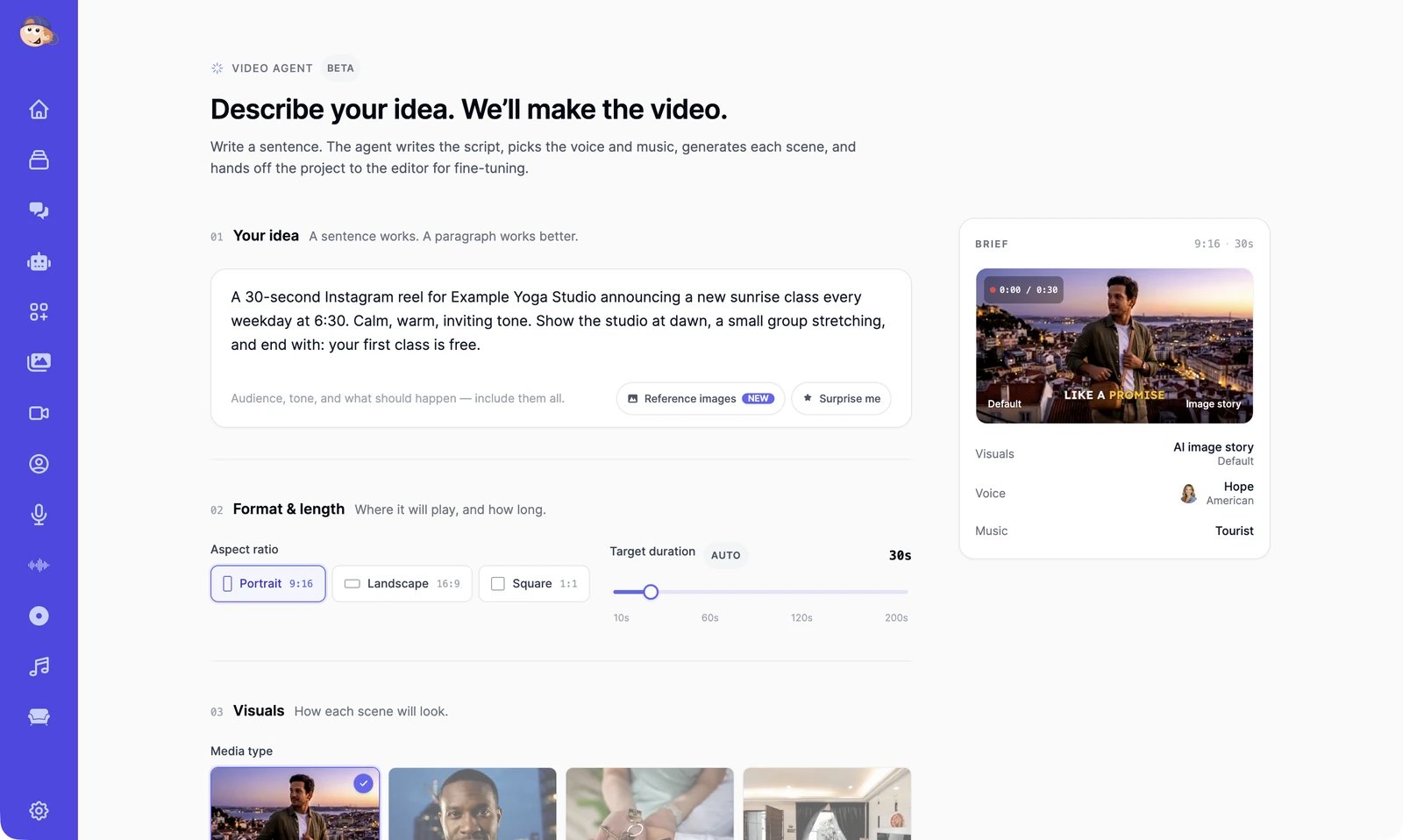
Describe your idea
In Your idea, say what the video is for, who it’s for, the tone, and what should happen. A sentence works; a paragraph works better. For example: “A 30-second Instagram reel for Example Yoga Studio announcing a new sunrise class every weekday at 6:30. Calm, warm, inviting tone. Show the studio at dawn, a small group stretching, and end with: your first class is free.”Surprise me fills in an example idea. Reference images lets you add up to 6 photos, such as a real property, product, or place, and the scenes are based on them.
2
Choose the format and length
Under Format & length, pick Portrait (9:16, the default), Landscape (16:9), or Square (1:1), and a Target duration from 10 to 200 seconds. Auto lets the agent pick the length, usually 20 to 60 seconds.
3
Choose the visuals
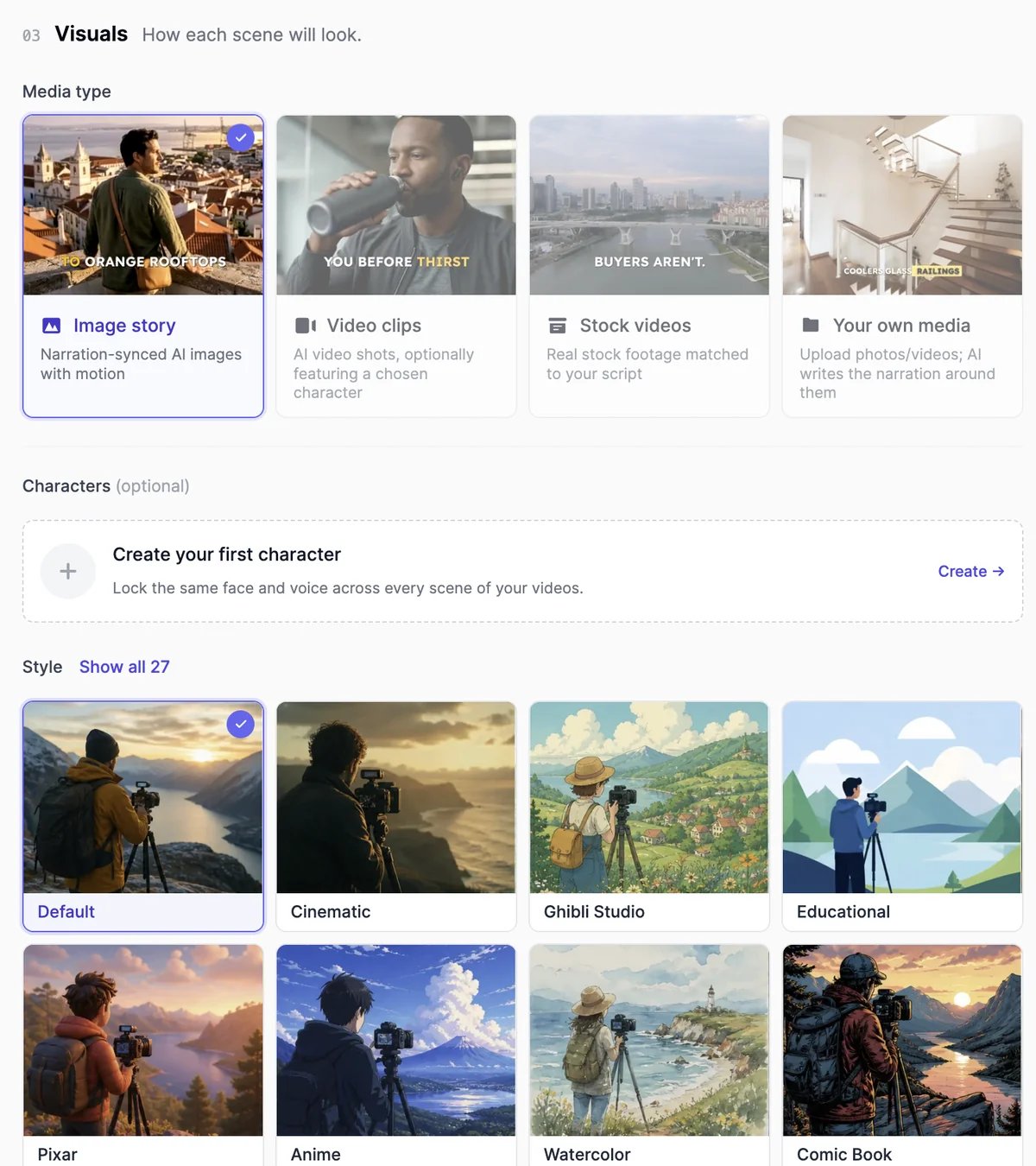
Characters (optional) puts the same person, with the same face, in every scene: pick one of your custom actors or create one. Style sets the look, from Cinematic to Anime or Watercolor; Show all 27 lists them all.
4
Choose the voice and music
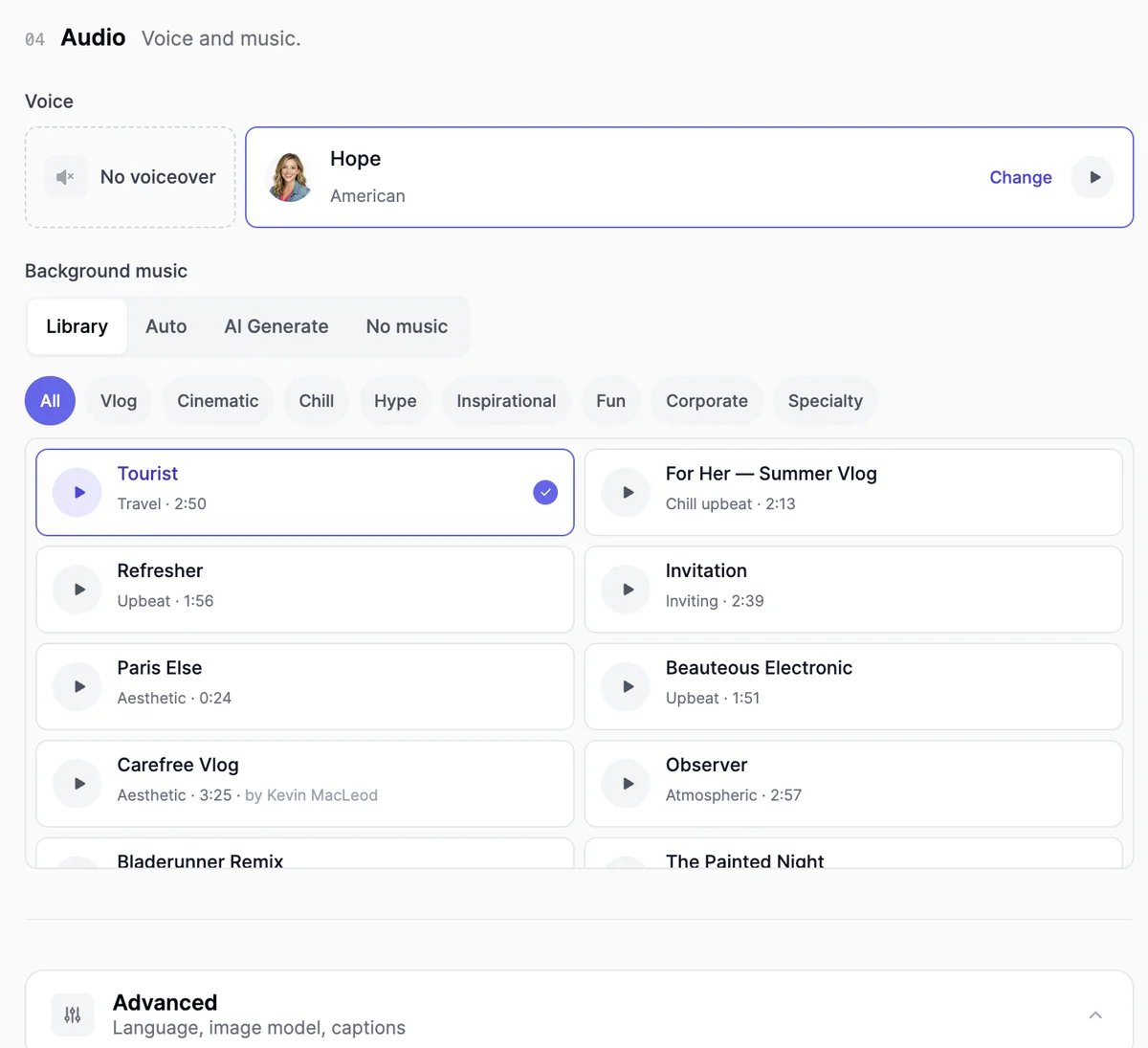
- Voice: the narrator. Click Change to pick another voice, or choose No voiceover.
- Background music: pick a track from the Library, let the agent choose (Auto), describe a track to create (AI Generate, always instrumental), or choose No music.
5
Check the advanced settings (optional)
Open Advanced to set:
- Language of the narration and captions. Auto follows your idea.
- Image model for image scenes. The default is GPT Image 2.5 Flare Medium.
- Captions on or off, and the Caption style: Viral (the default), Hormozi, Wrap, Faceless, Classic, or Minimal. You can change the style later in the editor.
6
Click Generate video
The agent starts working and takes you to the AI Video Editor, where your project shows Generating with a timer. It usually takes 2 to 5 minutes, longer for long videos, and you can leave the page in the meantime.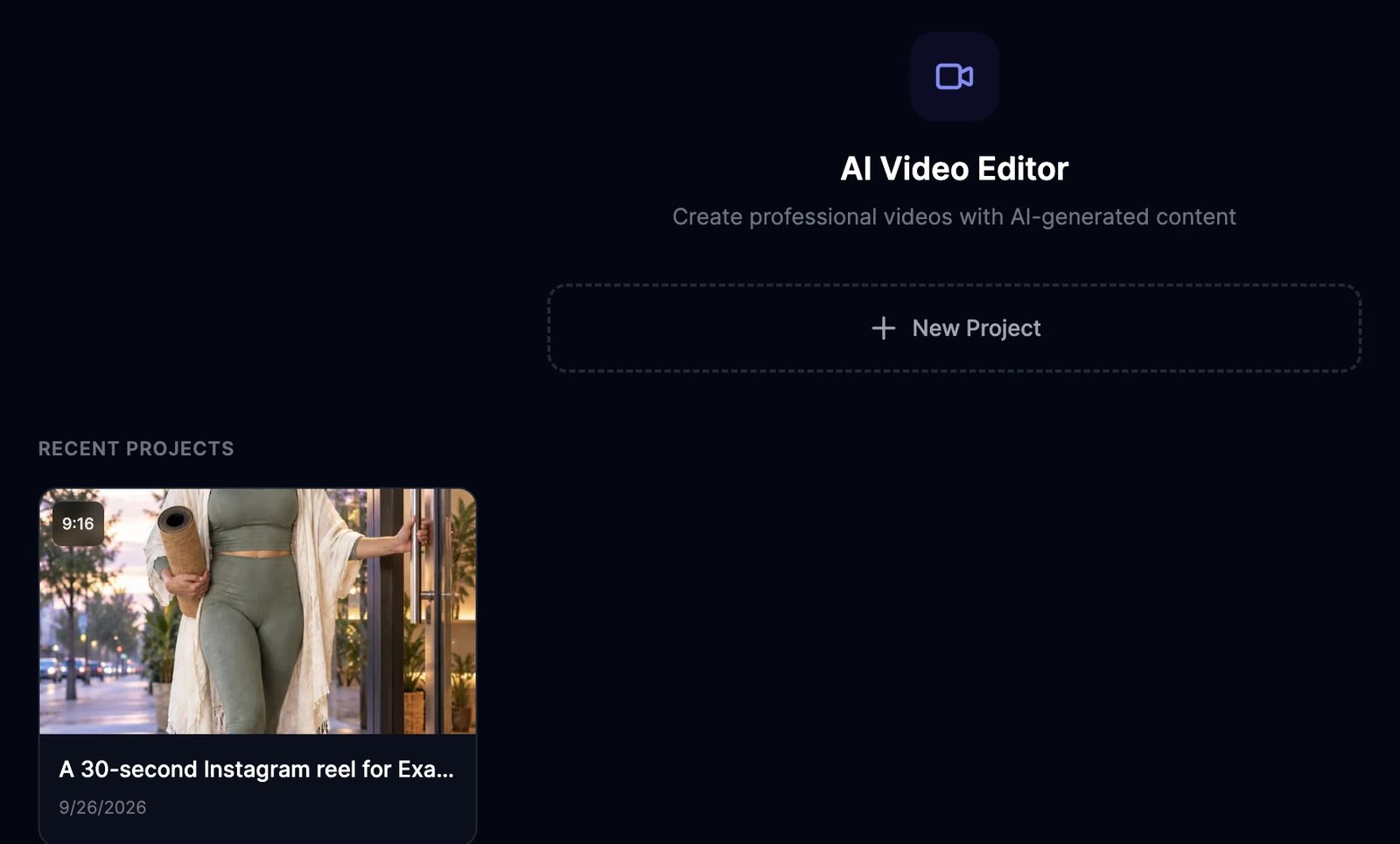
Credits
There’s no total price before you start. Each part is charged as it’s made:
On paid plans, the agent checks your balance first and stops with a message if the video would need more credits than you have left. Try a shorter length or a cheaper video model.
If a project fails, it’s marked Generation failed. Scenes that were already made are still charged; scenes that failed are not.
On the Free plan
- Image story, Stock videos, and Your own media are available; Video clips, characters, and Turn images into videos need a paid plan.
- Background music comes from the Library.
- You can make 2 projects per billing period, and you need at least 1 credit left.
Tips
- Say who the video is for and what the viewer should do at the end, such as “book a free class”.
- Put names, prices, and times in your idea exactly as they should appear.
- If a scene isn’t right, don’t start over: open the project and regenerate that scene.
Video Editor
Edit and export the project.
Talking videos
A single presenter speaking to camera.