
Creating a model and photo packs are for paid plans.
Create a model
1
Open AI Photo Studio
Click Images > AI Photo Studio in the top menu, or go to easy-peasy.ai/ai-images/models. Click Start Your AI Photo Shoot Now, or Train New Model if you already have one.
2
Upload 3 to 10 photos
Drag in photos of the same person, PNG or JPEG. Use sharp, well-lit photos where only that person is in view, from different angles and in different settings. Avoid group photos and blurry or heavily filtered pictures.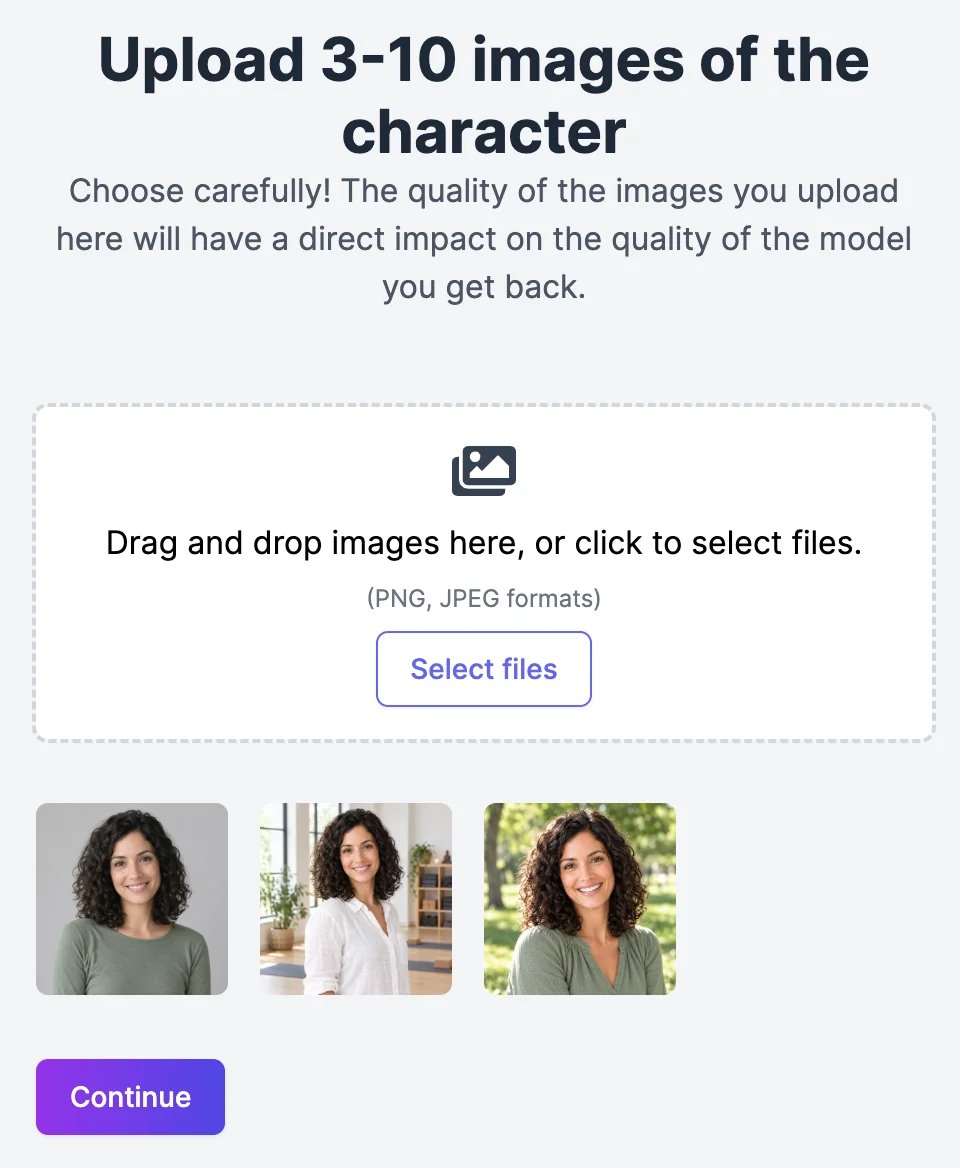
3
Name the model
Click Continue, then enter a Name and choose the Gender, and click Continue. The model is ready straight away.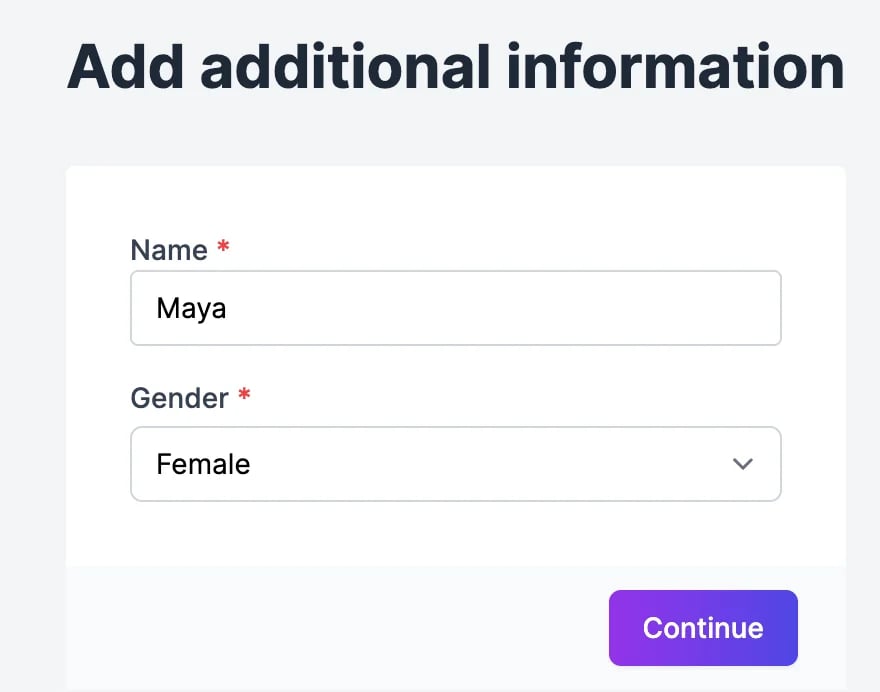
4
Pick photo packs, or skip them
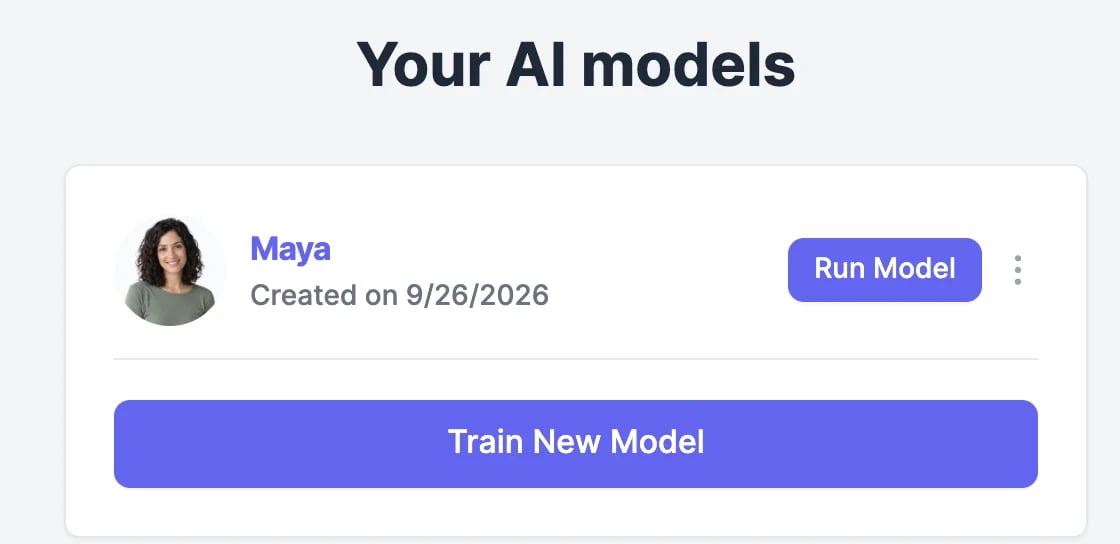
Next you can choose photo packs. To create your own scenes instead, go back to AI Photo Studio and click Run Model.
Create photos from a prompt
1
Describe the scene
Write the prompt with the word Model where the person should be, for example: “Model teaching a morning yoga class on a wooden deck by the sea, smiling, wide shot, photorealistic”.
2
Pick a rendering model
Rendering model decides which image model draws the photo. Hyperrealism gives the most lifelike results.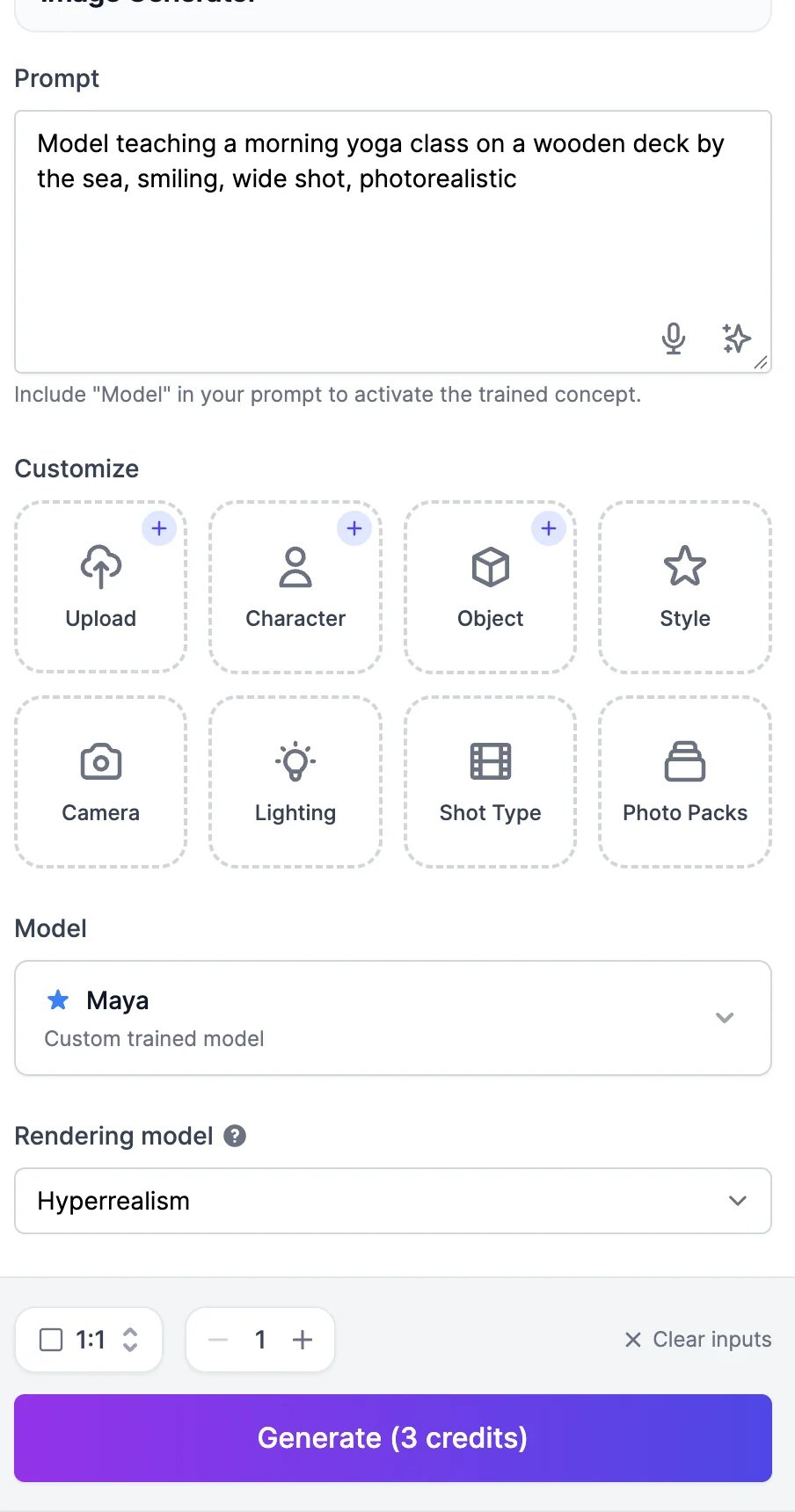
3
Click Generate
The photos appear with your other images a few seconds later.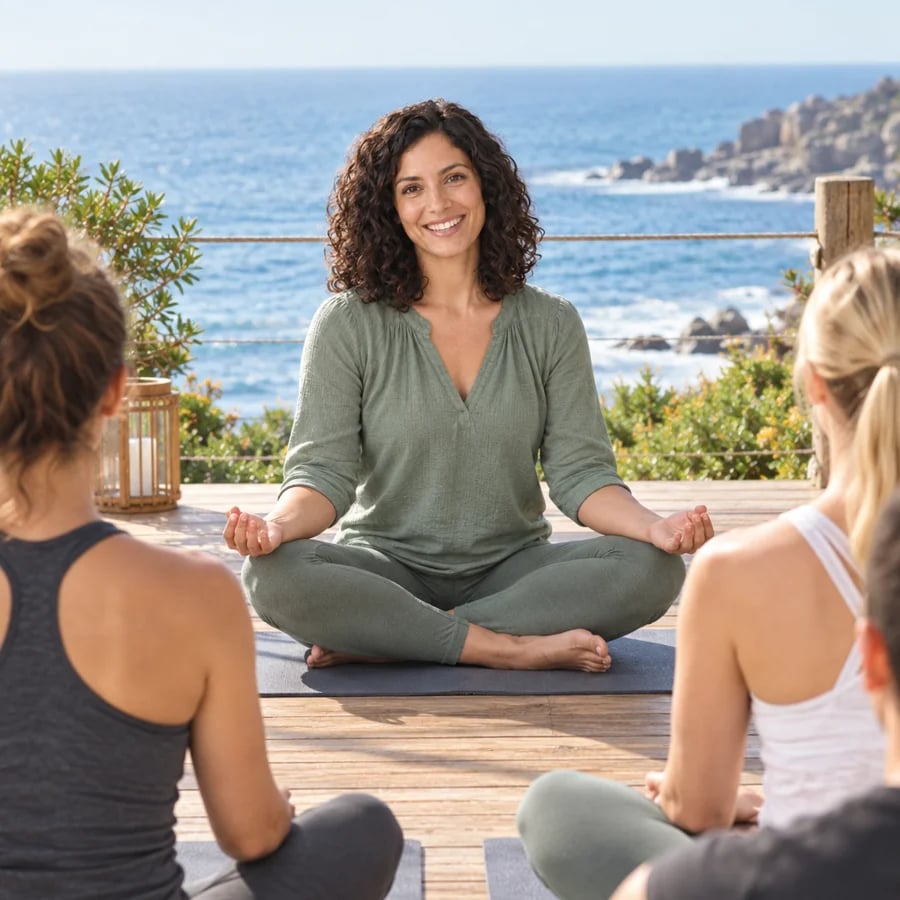
Everything else in AI Images works as usual: aspect ratio, number of images, styles, and editing the results. See Generate images.
Photo packs
Photo packs are ready-made photo shoots: pick a pack, such as Halloween, fitness, or business portraits, and get a whole set of photos of your person in that theme, without writing prompts. Search the packs, or filter them by Category and Gender.
Manage your models
AI Photo Studio lists your models, including headshot orders. To delete one, click the ⋯ menu next to Run Model, then Delete.Headshots
Order a set of professional headshots.
Generate images
All the options in AI Images.