
Add a source
1
Click Add new source
Open your agent, click Knowledge, and click Add new source.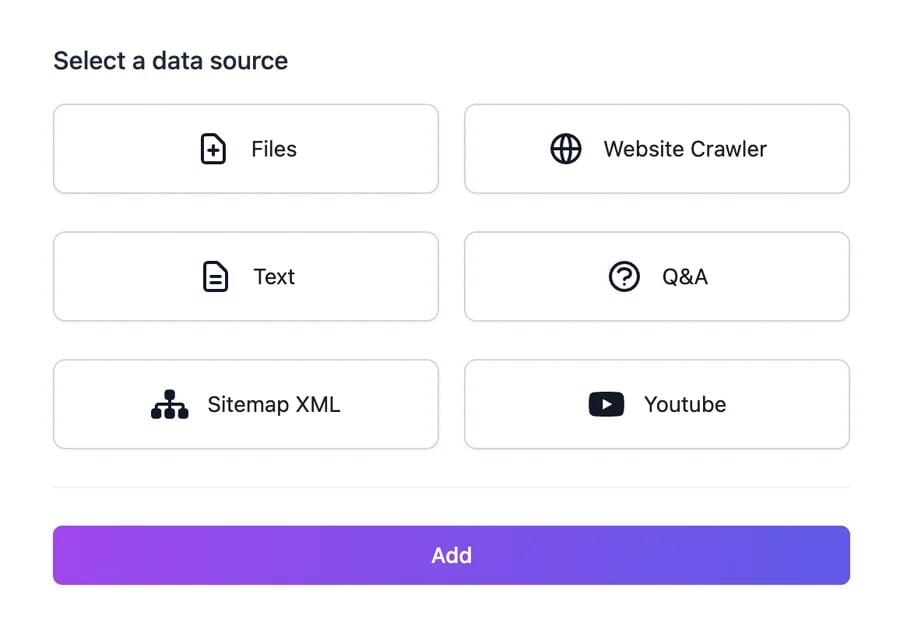
2
Choose the type and fill it in
3
Click Add
The source appears in the table as PENDING, then PROCESSING, and FINISHED when the agent can use it. The table refreshes on its own.
Sources and their status
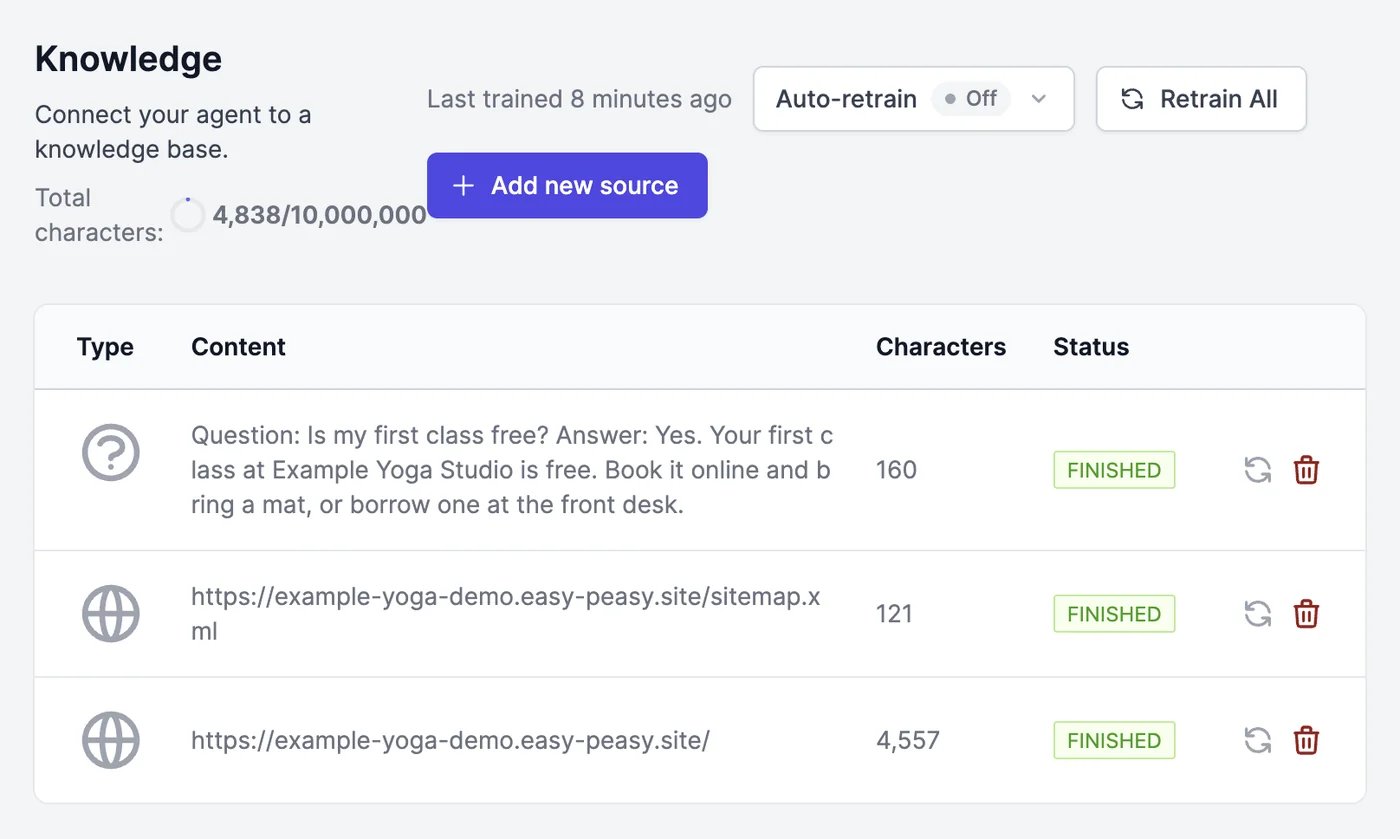
Each row shows the source’s type, its content or URL, how many characters it adds, and its status:
When a website crawl or a sitemap finishes, each page it found appears as its own row.
- The refresh icon reads a source again. Use it after a page changes, or to retry a failed source.
- The trash icon deletes a source and everything the agent learned from it.
- Retry Pending appears when sources are stuck in PENDING, and starts them again.
Keep your knowledge current
Your agent doesn’t notice when your website changes. To update it:- Retrain All reads all your website pages again. Files, text, Q&A, and videos stay as they are; to replace a document, delete it and upload the new version.
- Auto-retrain checks your website pages every week and relearns only the pages whose content changed. It’s available on Unlimited 500 and higher plans.
Fix a wrong answer
When the agent gets something wrong in a real conversation, open it in Conversations and click Revise answer. Your corrected answer is added to Knowledge as a Q&A, so the agent gives it next time. You can also add a Q&A here directly.Limits
Total characters shows how much of your plan’s knowledge allowance this agent uses. Each agent has its own allowance, from 1 million characters on the Free plan up to 250 million. On the Free plan, an agent can also have up to 250 sources. See Limits and usage.How the agent uses its knowledge
Your content is split into short passages. For each message, the agent searches for the passages closest to the question and the conversation so far, and answers from them. That means:- Clear, specific pages work best. A page that answers “How much is a class pass?” in one sentence beats a long page that mentions prices in passing.
- Q&A pairs give exact answers. Use them for the questions you get most, and for anything the agent keeps getting wrong.
- Conflicting content causes conflicting answers. Remove outdated pages and documents.
A source says FAILED
A source says FAILED
Click the refresh icon to try again. If a web page keeps failing, the site may block automated reading: copy the page’s text into a Text source, or upload it as a PDF. A YouTube video fails when it has no transcript in the language code you entered.
The agent doesn't know something that's in a document
The agent doesn't know something that's in a document
Make sure the source is FINISHED. Scanned PDFs without selectable text can’t be read; upload a text version. Then try asking the same question with different words, and add a Q&A for the answer you expect.
The crawler read pages I don't want
The crawler read pages I don't want
Delete those rows. Next time, add a Sitemap XML or pick pages in the website step of a new agent, which lets you uncheck pages.
Test in the Playground
Ask questions and see which sources were used.
Instructions and model
Tell the agent how to answer.