
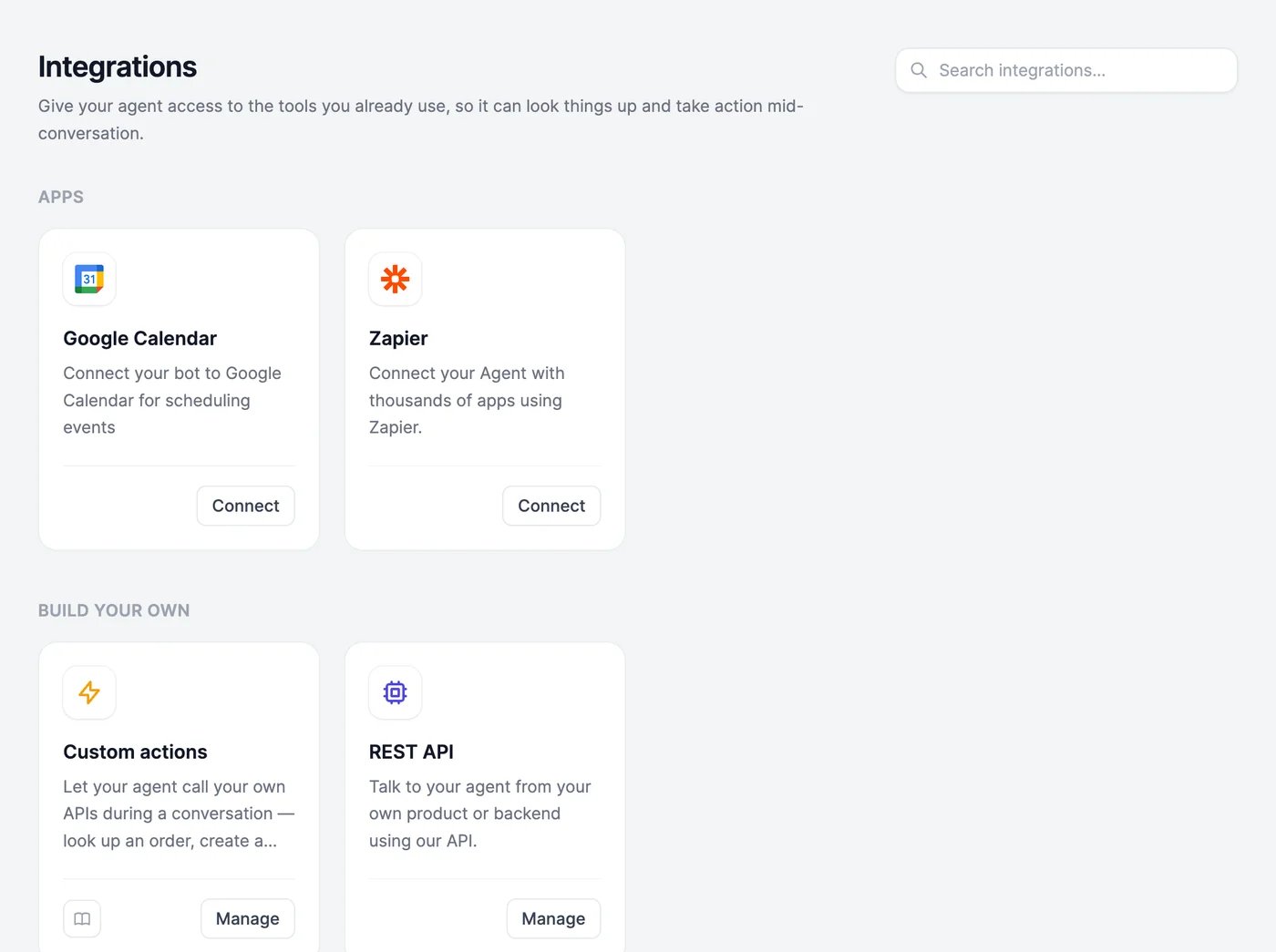
Google Calendar
With Google Calendar connected, your agent can offer free times from your calendar and book meetings during a chat. The visitor is added to the event with the email they give, so they get an invite.1
Connect your calendar
Click Connect on Google Calendar, then Connect with Google. Sign in with the Google account whose calendar should get the bookings and allow access. The page shows the Connected Account.
2
Add the Google Calendar action
On Actions, add Google Calendar. In Trigger Instructions, say when to offer a meeting, for example “When someone asks for a demo or a consultation. Business hours are 9:00 to 17:00 on weekdays.”
3
Set the defaults
Set the default event title and description, the Default Meeting Duration (minutes), and the Default Timezone your free times are offered in. Save the configuration.
4
Book a test meeting
In the Playground, write “I’d like to book a call next week.” The agent offers free times, asks for your name and email, and books the meeting.
Zapier
The Easy-Peasy.AI app on Zapier lets your agent answer inside automated workflows: reply to new emails, answer form submissions, or post answers in a spreadsheet.1
Create a Zap with a trigger
In Zapier, click Create Zap and choose what starts it, such as a new email in Gmail or a new form submission.
2
Add the Easy-Peasy.AI action
Add an action step, search for Easy-Peasy.AI, and choose the action that sends a message to your agent. Connect your account with an API key from Settings > API/MCP.
3
Map the message and your agent
Paste Your Agent ID (from Channels > Website) and map the message to the text from your trigger.
4
Send the answer on
Add a step that uses the agent’s answer, such as a Gmail reply or a new row in Google Sheets. Test the Zap and turn it on.
REST API
Talk to your agent from your own app or backend. Click Manage on REST API to see your agent’s endpoint, try a request with Test API, and copy example code in curl, Node, Python, or Go.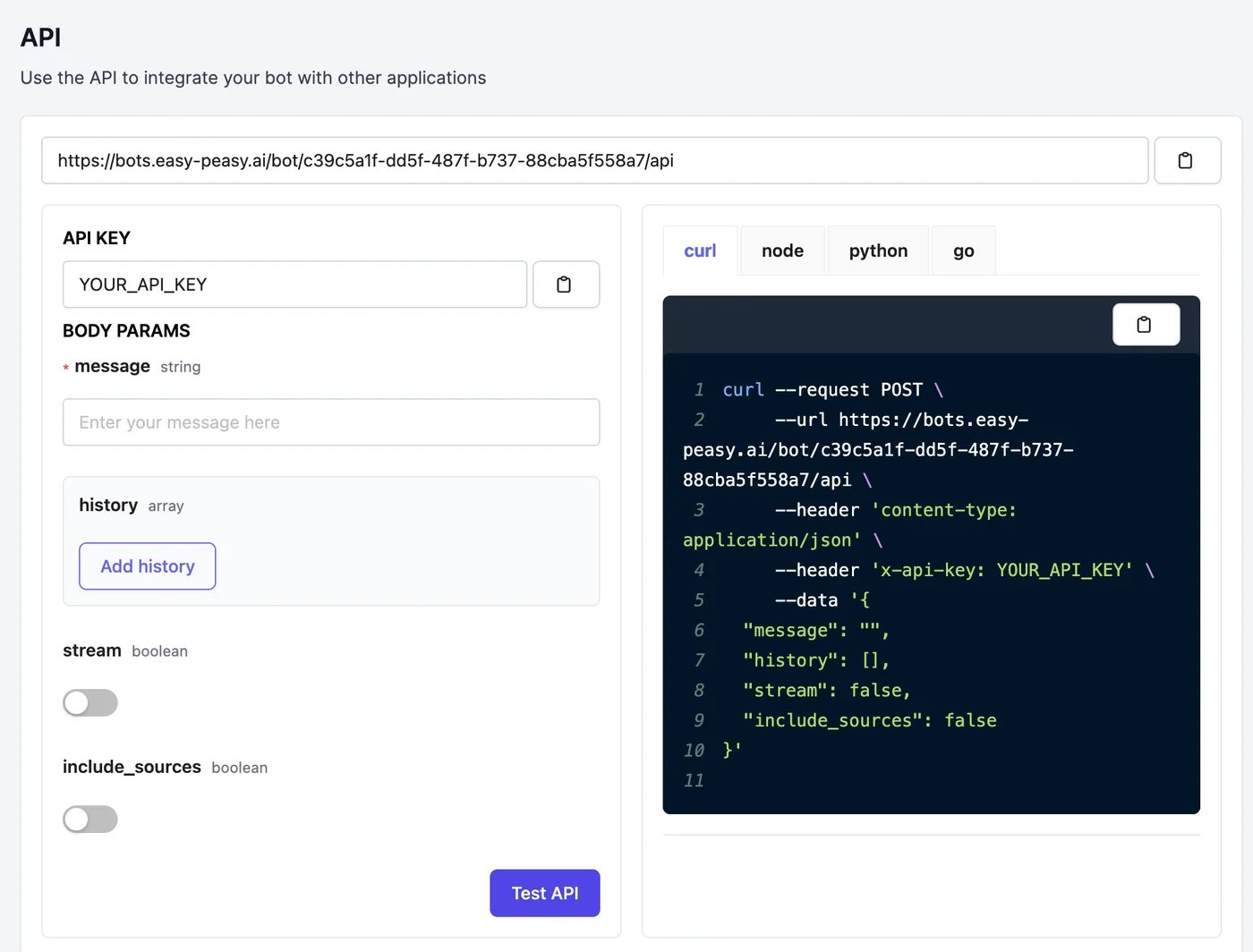
The key is your account’s API key, from Settings > API/MCP. Keep it on your server, never in a web page. The API answers from the agent’s knowledge and instructions; actions don’t run through the API. See the API reference for the full request and response.
Custom actions
To let your agent call your own API during a chat, for example to look up an order, add a Custom Action.Actions
Everything your agent can do in a chat.
API reference
The agent endpoint in detail.