
Just describe the job: “Go to example.com and list every product under $50”, “Check the contact form on my new site works.”
The cloud browser
Marky opens pages, clicks, types, scrolls, and reads what’s on screen. After each action, a screenshot appears in Marky’s Computer, so you can follow along. Logins you make in the cloud browser are saved for your account, so Marky stays logged in across chats. You can turn this off when you finish a takeover.Take over the browser
When Marky reaches a login page, a verification code, or a payment, it doesn’t guess. It asks you to take over:- In the chat, click Take control on the Marky needs you in the browser card. Click I can’t right now to skip.
- The browser opens full screen. Log in, or do what Marky asked. What you type stays in the browser and isn’t shared with the AI.
- Click Exit takeover, or press Esc.
- Tell Marky what you did, if anything needs explaining, and click Send and continue. Turn off Persist login state across tasks if you don’t want the login kept for later chats.
Use your own browser
With the Easy-Peasy.AI Browser Agent extension, Marky works in your Chrome, with your logins and your internet connection. It works in Chrome, Edge, Brave, and Arc.1
Install the extension
Open Connectors in the Marky sidebar and click Install next to My Browser, or install Easy-Peasy.AI Browser Agent from the Chrome Web Store.
2
Connect this browser
Open easy-peasy.ai/browser-extension in the same browser, signed in to your account. Read the disclosure, check the box, and click Connect this browser. When it’s connected, My Browser shows Online in Connectors.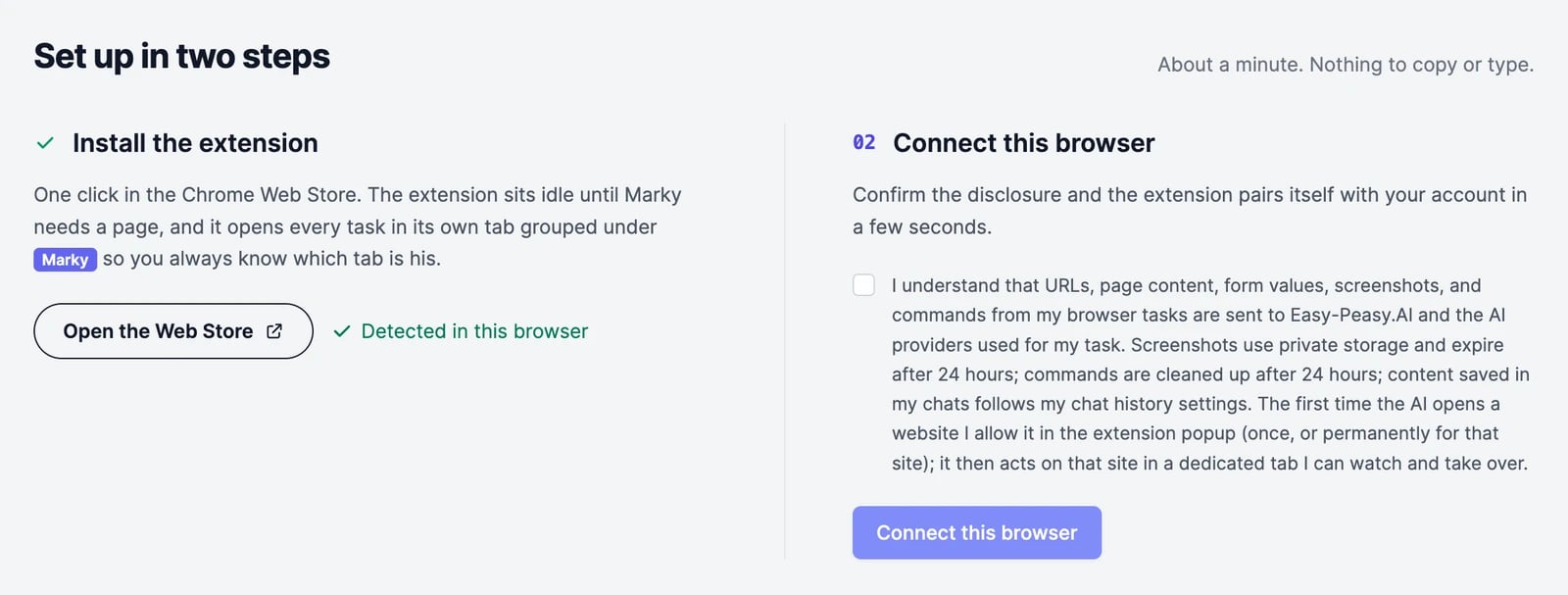
3
Ask Marky to use it
In any chat, give Marky a job on a website. While your browser is online, Marky uses it by default. It opens a new tab in your window, in a tab group named Marky, and works there while you watch. You can click into the tab at any time; Marky waits and picks up where you left off.
Choose which sites Marky can use
The first time Marky wants to work on a website, the extension’s window opens and asks: Allow Marky to work on the site? If it doesn’t open, click the extension icon in your toolbar; it shows an orange ? while a question is waiting.- Allow on the site: Marky can work there from now on.
- Just this once: allows this action only.
- Deny: Marky stops and tells you.
Marky asks in the chat before it does anything you can’t take back, such as sending a message, posting, or buying something. Keep the browser open while Marky works: the first action can take up to 30 seconds to start.
Turn it off or disconnect
- In Connectors, switch My Browser off. Your browser stays connected, but Marky uses the cloud browser instead.
- To disconnect a browser, open My Browser in Connectors and click Manage browsers, or open the browser extension page and click Disconnect next to it.
Limits
- Marky can’t use your browser in scheduled tasks unless your computer is on and Chrome is open.
- Some websites block automated browsers. If a site shows a security check, Marky asks you to take over, or you can use My Browser instead.
Credits
Browsing doesn’t cost extra: Marky’s work uses words at the rate of the chat’s model, like any other task.Connectors
Give Marky access to your apps through their official connections.
Research
Web search with sources and in-depth reports.