
- The lead form, a short form in the website chat that appears after the agent’s first answer. Set it up on the Leads page.
- The Collect Data action, which asks for details during the conversation and works on messaging channels too.
The lead form and notifications are for paid plans.
Set up the lead form
1
Open Leads
Open your agent and click Leads in its menu.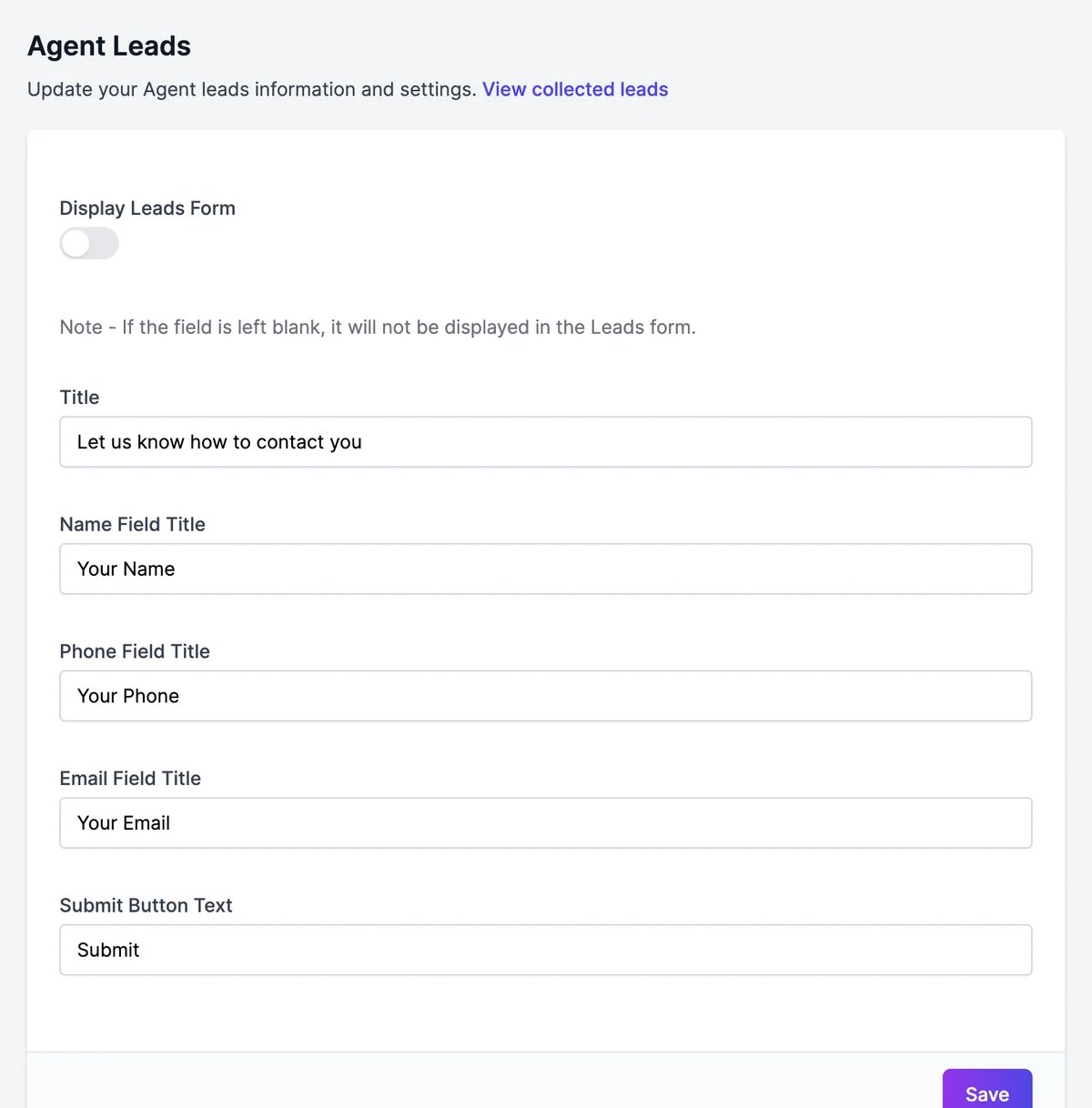
2
Turn on Display Leads Form
Change the Title, the field labels, and the Submit Button Text if you like. Leave a field’s label empty to hide that field: for example, clear Phone Field Title to ask only for a name and email.
3
Click Save
The form appears in the chat after the agent’s first answer. Visitors can close it, but it comes back after the next answer until they submit it. Submitted details are also sent to the agent as a message.
See collected leads
Open Activity > Leads, or click View collected leads on the Leads page. Each lead shows the date and the details the visitor left, 25 per page. Details collected by the Collect Data action appear here too when its Also save to Leads option is on. Click Export CSV to download them for your CRM or mailing tool.Get notified
Open Notifications to choose which emails you get: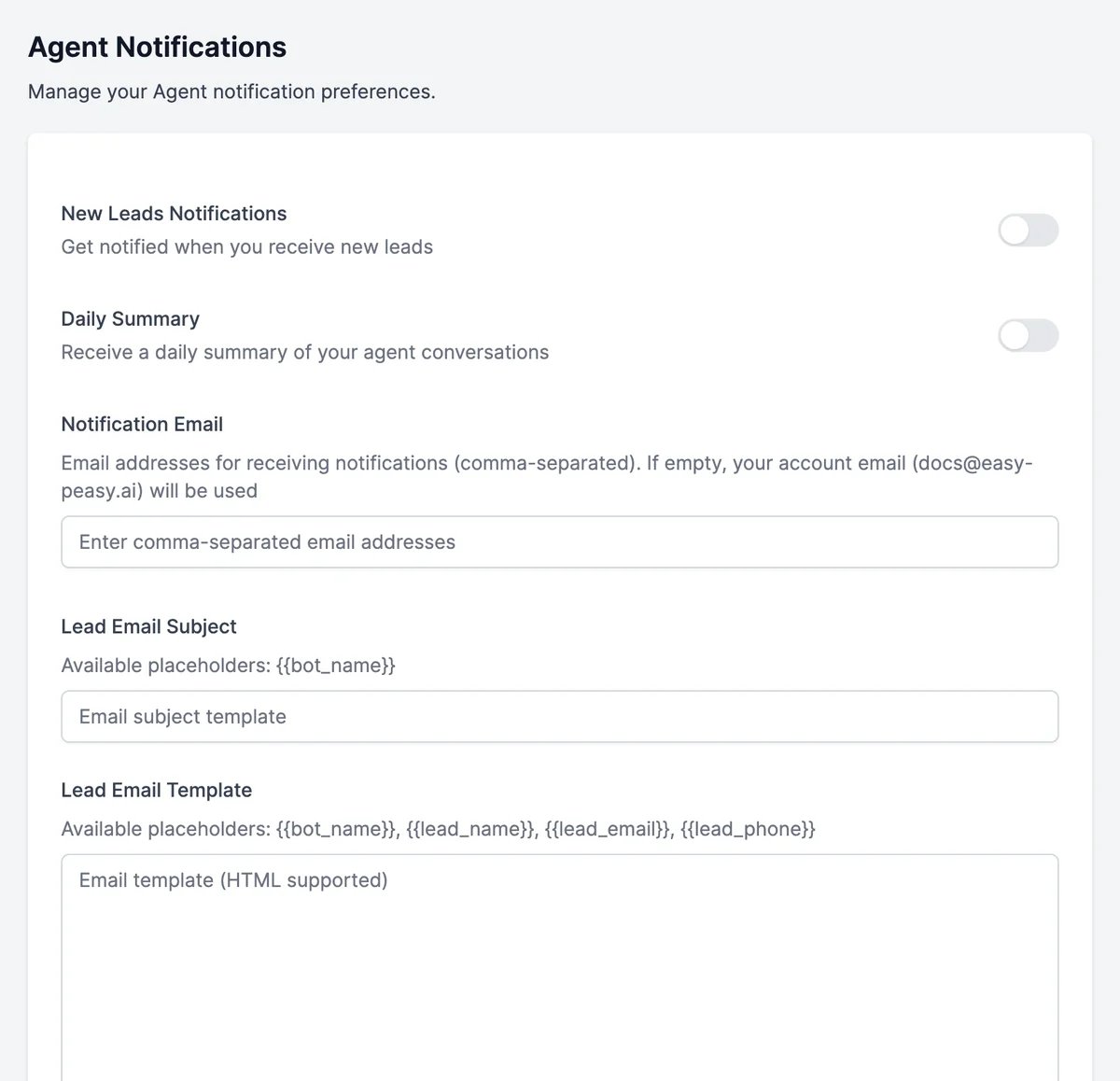
The daily summary covers one UTC day and arrives around 07:00 UTC.
Actions
Collect details in the conversation with Collect Data.
Conversations
See who your leads talked to the agent about.