
Create audio
1
Open AI Audio Generator
Click Audio > AI Audio Generator in the top menu, or find it in All Tools. The number at the top right shows how many text-to-speech characters you have left.
2
Describe your audio
Write it in Describe your audio, up to 2,048 characters. Set the scene, the voices and how they speak, and the music and sounds. Put spoken words in quotes.Not sure where to start? Pick one under Start with an idea, Narration, Music, Dialogue, or Soundscape, to fill in an example description and length.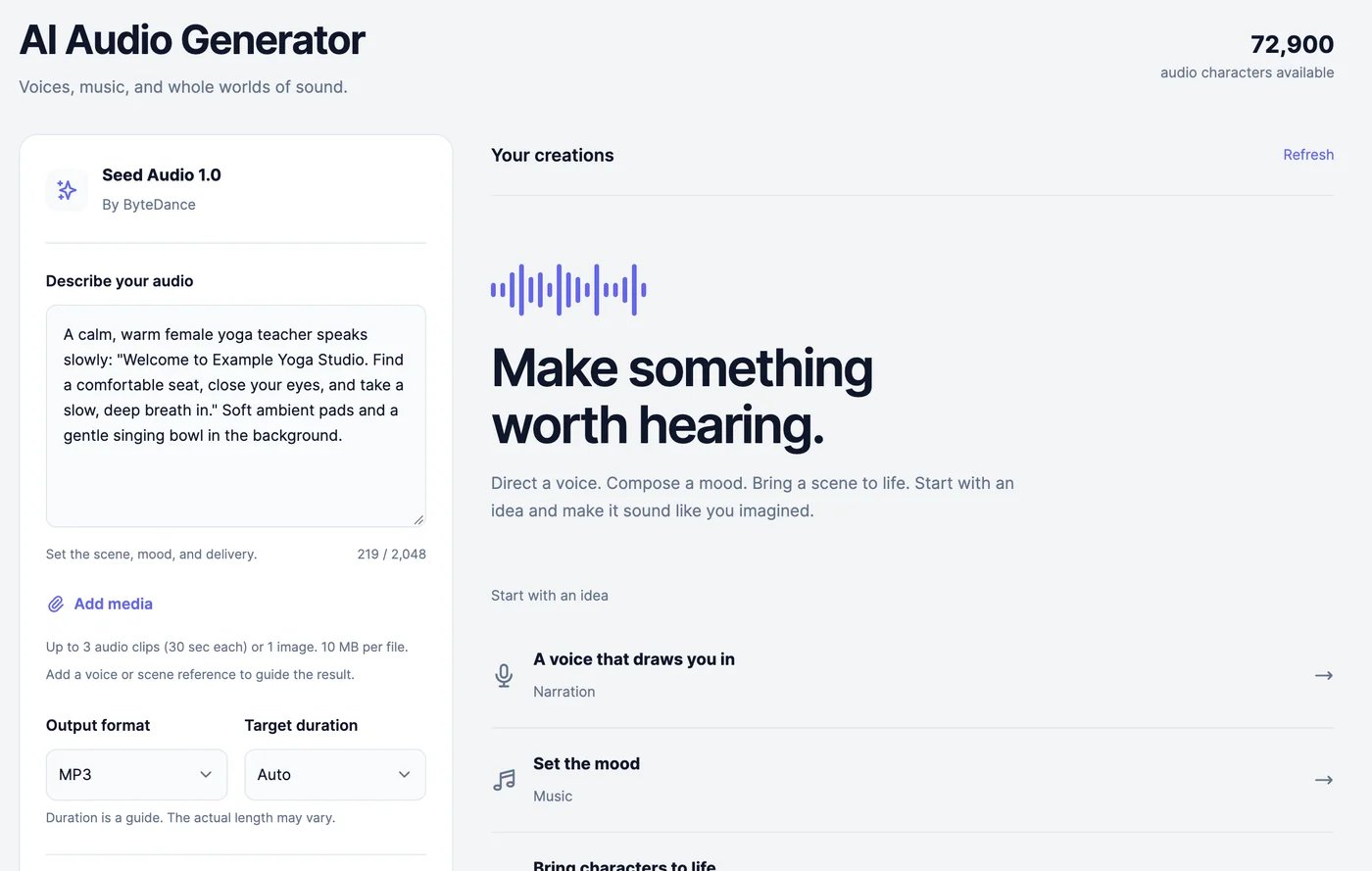
3
Add references (optional)
Click Add media to guide the result with up to 3 audio clips (MP3 or WAV, up to 30 seconds each) or 1 image (JPG, PNG, or WebP), 10 MB each. You can’t mix audio and an image. Refer to the clips in your description as
@Audio1, @Audio2, and @Audio3, for example “Use the voice from @Audio1”.4
Choose the format and length
- Output format: MP3, WAV, OGG Opus, or PCM.
- Target duration: Auto, or 5 seconds to 2 minutes. It’s a guide; the actual length can differ.
5
Click Generate audio
The audio is ready in about 20 seconds and appears under Your creations.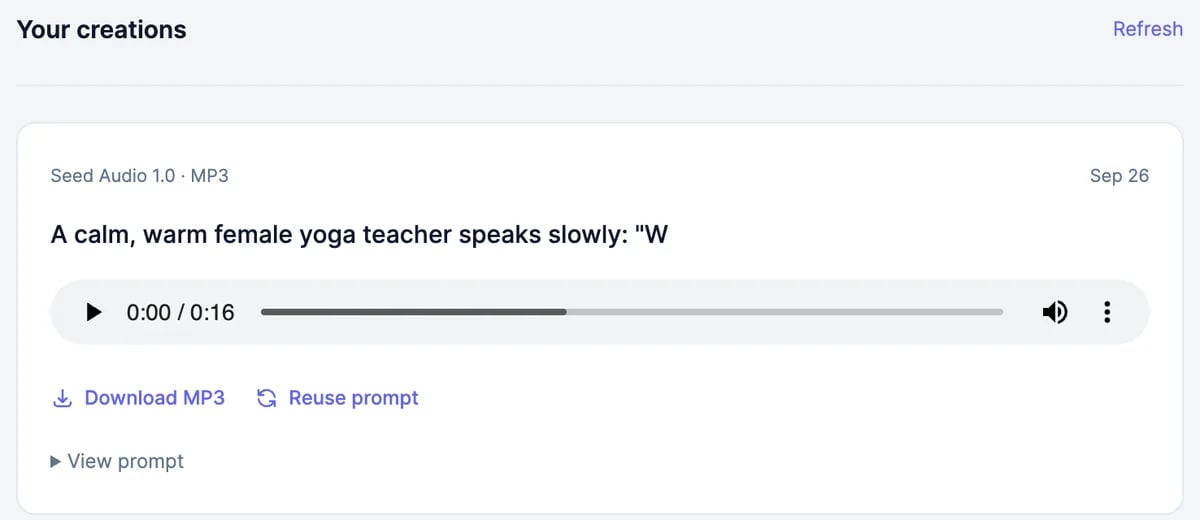
Advanced settings
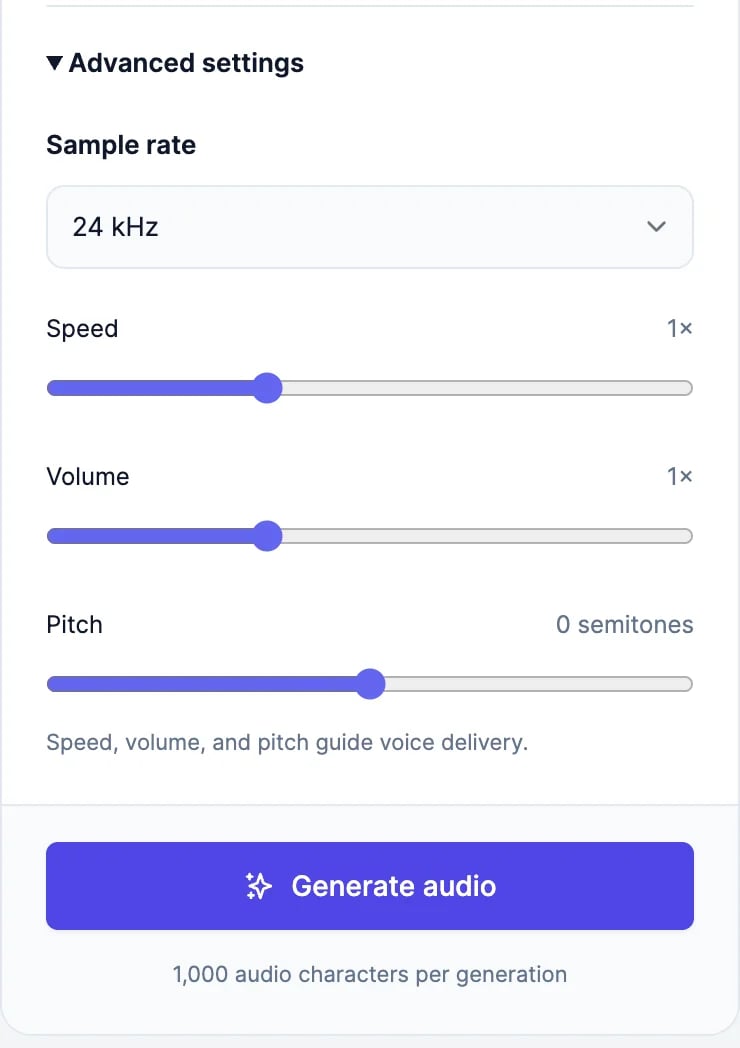
Speed, volume, and pitch mainly shape the voices.
What it costs
Each generation uses 1,000 text-to-speech characters, whatever its length, and only when it succeeds. You need at least 1,000 characters left; otherwise the button changes to Upgrade to generate. The Free plan’s 100 characters aren’t enough. See Audio plans and limits. You can make one clip at a time, together with the sound effect generator.Text to speech
Read a script aloud in one voice.
Sound effects
Make a single sound effect.