
Motion Control is available on paid plans.
Make a video
1
Open Motion Control
Choose Videos > Motion Control. How it works at the top shows an example.
2
Add the reference video and the character
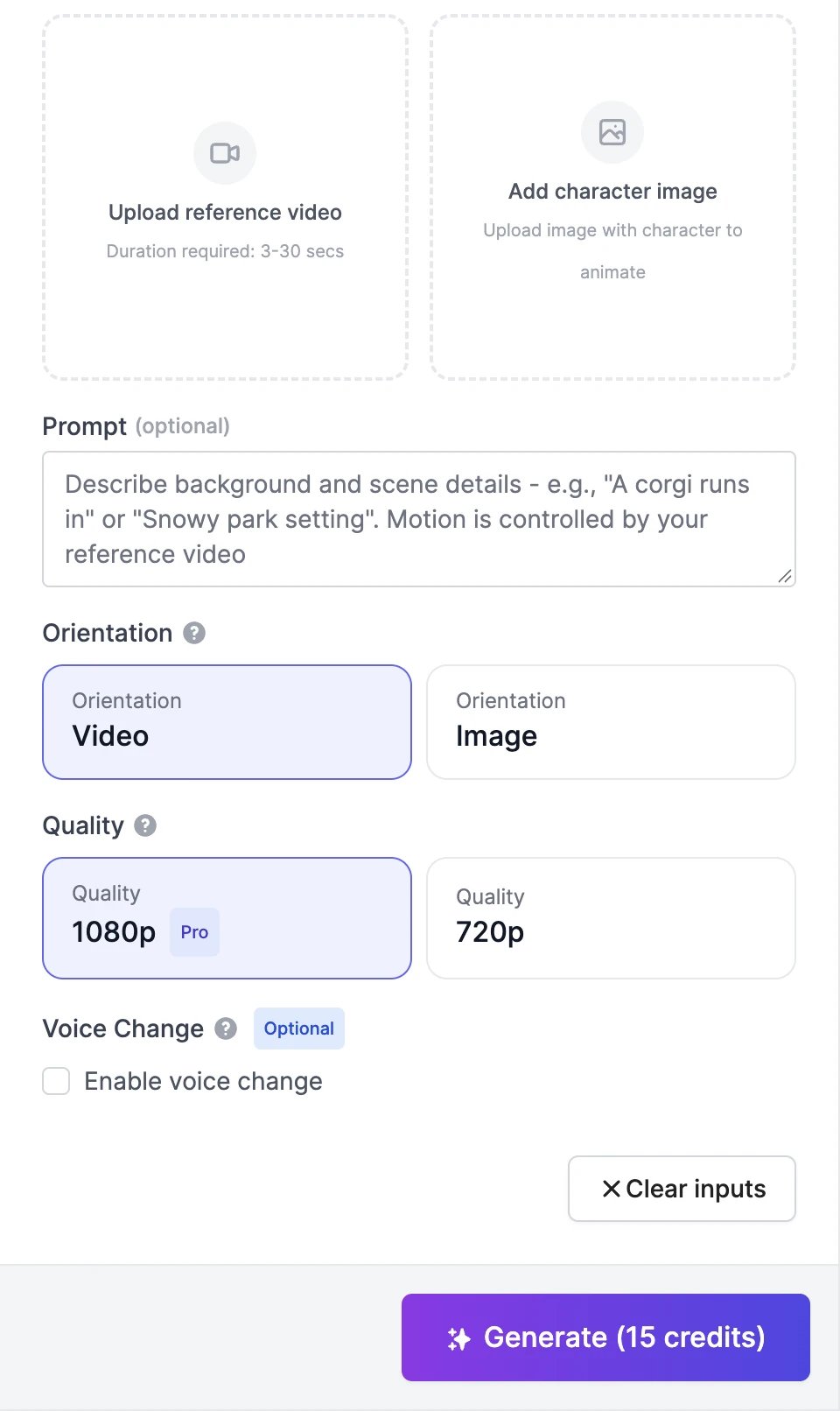
- Upload reference video: the movement to copy. MP4 or MOV, 3 to 30 seconds, up to 100 MB.
- Add character image: the character to animate. JPEG or PNG, at least 512 × 512 pixels, up to 10 MB.
3
Describe the scene (optional)
The movement comes from the video, so use Prompt for everything else: the background, the setting, extra details. For example: “A corgi runs in” or “Snowy park setting”.
4
Choose the settings
5
Click Generate
The button shows the price. The video appears in your results in a few minutes.
Tips
- Use steady, moderate movements. Avoid fast action and camera cuts in the reference video.
- Keep the character fully visible in both the image and the video.
Credits
Motion Control is charged per second of the reference video, rounded up: 5 credits per second at 1080p and 2.5 at 720p. A 10-second reference video costs 50 credits at 1080p. Until you add a video, the button shows the price for 3 seconds.Use references
Guide the camera and motion of a new video with a clip.
Talking videos
Make a character speak instead.