
Invite people
Open the workflow and click the people icon at the top right. The Share workflow window opens.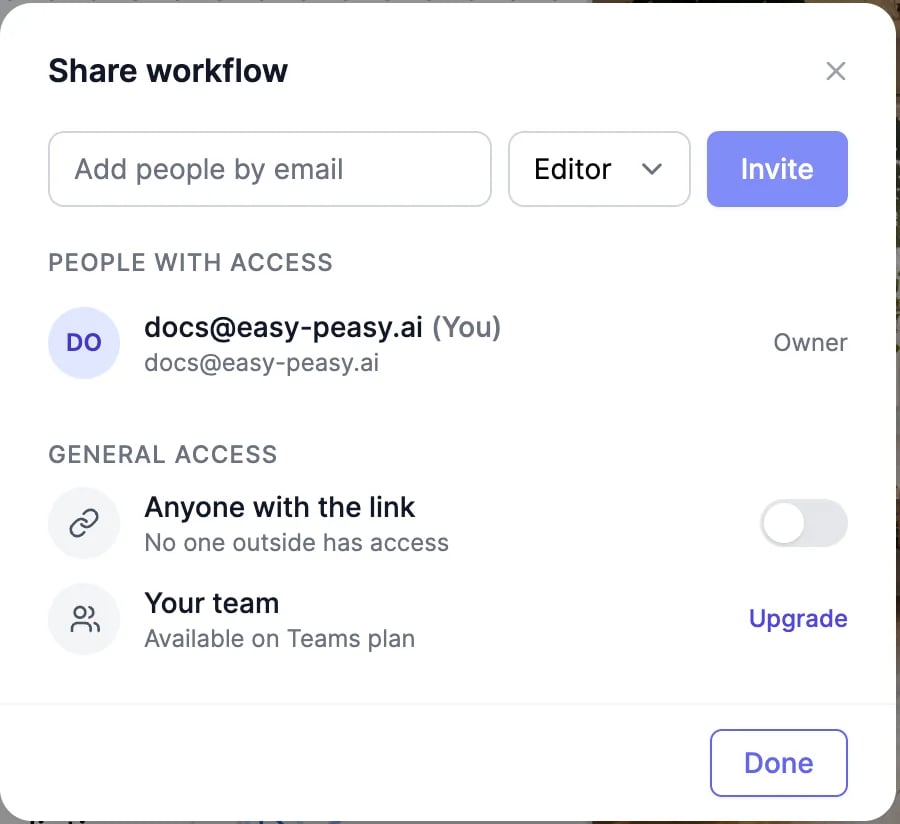
1
Add their email address
Type it in Add people by email. They need an Easy-Peasy.AI account; if they don’t have one, ask them to sign up first.
2
Choose a role
Editor can change the workflow and run it. Viewer can only look at it.
3
Click Invite
They get an email, and the workflow appears in their Shared with me tab. To remove someone, use the remove button next to their name under People with access.
Share by link or with your team
Under General access:- Anyone with the link: turn it on, choose Viewer or Editor, and click Copy link. People who open the link sign in and are added with that role.
- Your team: on a Teams plan, turn it on so your team members can view and edit the workflow. You can also do this with Share with Team in the workflow card’s menu.
Work together
People with the workflow open see each other’s cursors, and the share window shows how many are active now. Changes save automatically. Only the owner can change who has access, and delete the workflow.Whoever runs a node pays for it from their own plan. A viewer can’t run nodes.
Build and run a workflow
Nodes, connections, and running.
Teams
Add teammates to your plan.