
Choose a mode
Click AI Interior Designer in the sidebar, or Images > Interior Designer in the top menu. Pick what to do under Choose mode: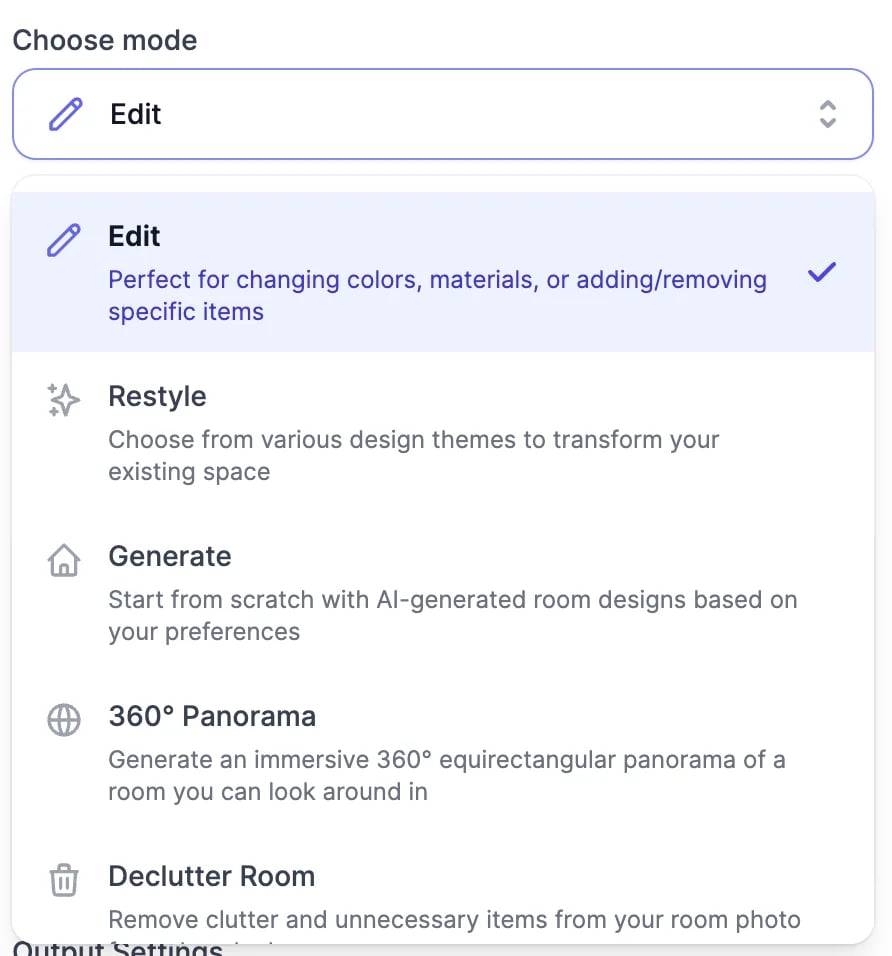
Edit a room
1
Upload a photo
Drag in a photo of the room, garden, or exterior: JPG, PNG, or WebP, up to 10 MB. For Edit and 360° Panorama, Add more adds up to 6 photos of the same space.
2
Describe the change
With Edit Mode on Prompt, write it in What would you like to edit? Say where things go, for example “add a blue sofa on the left wall”. To point at a spot instead, switch to Visual and click Add Visual Markers.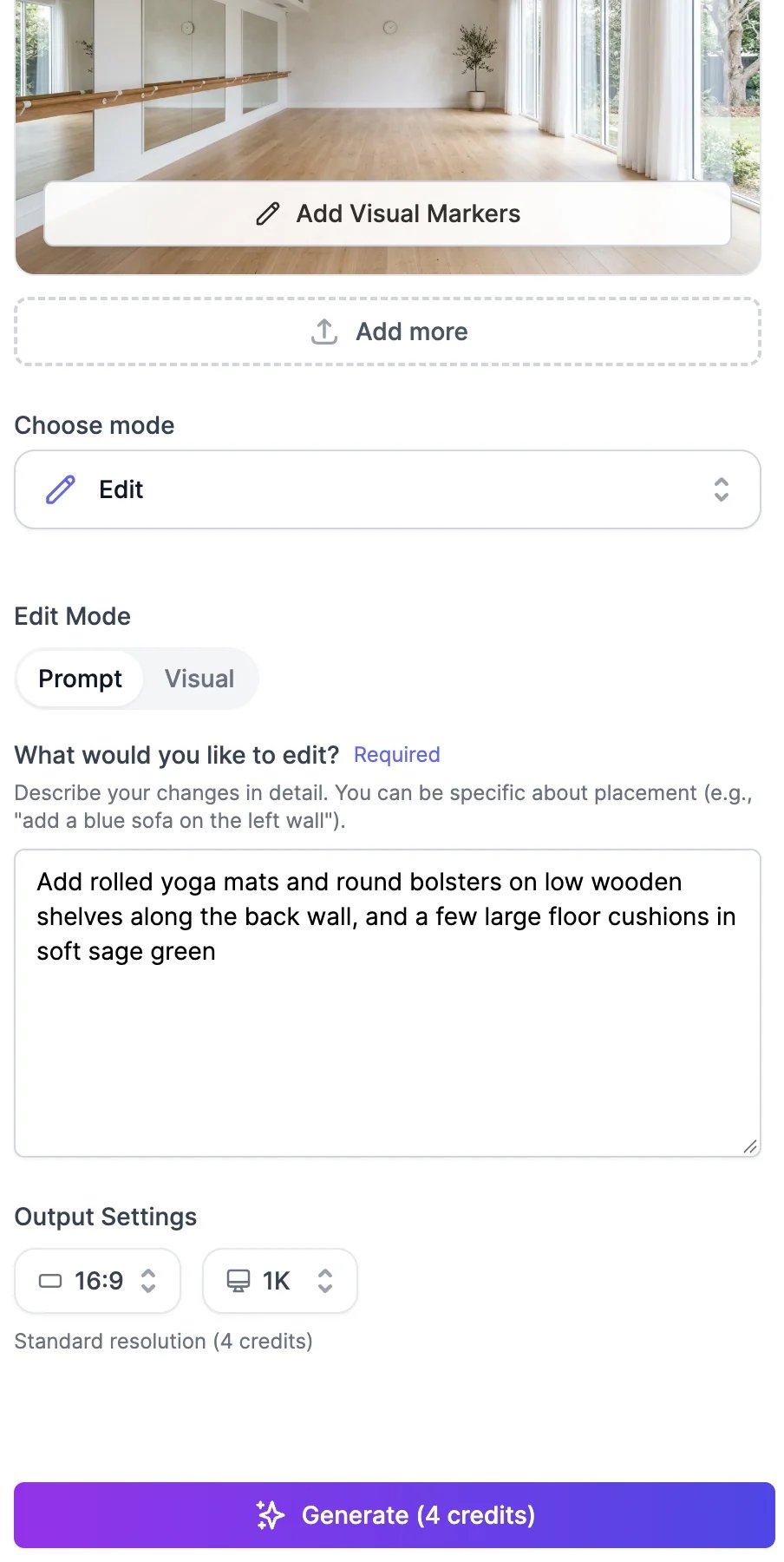
3
Choose the output settings
Pick the aspect ratio and the resolution: 1K, 2K, or 4K. 4K is for paid plans.
4
Click Generate
The result appears on the right in about 20 seconds.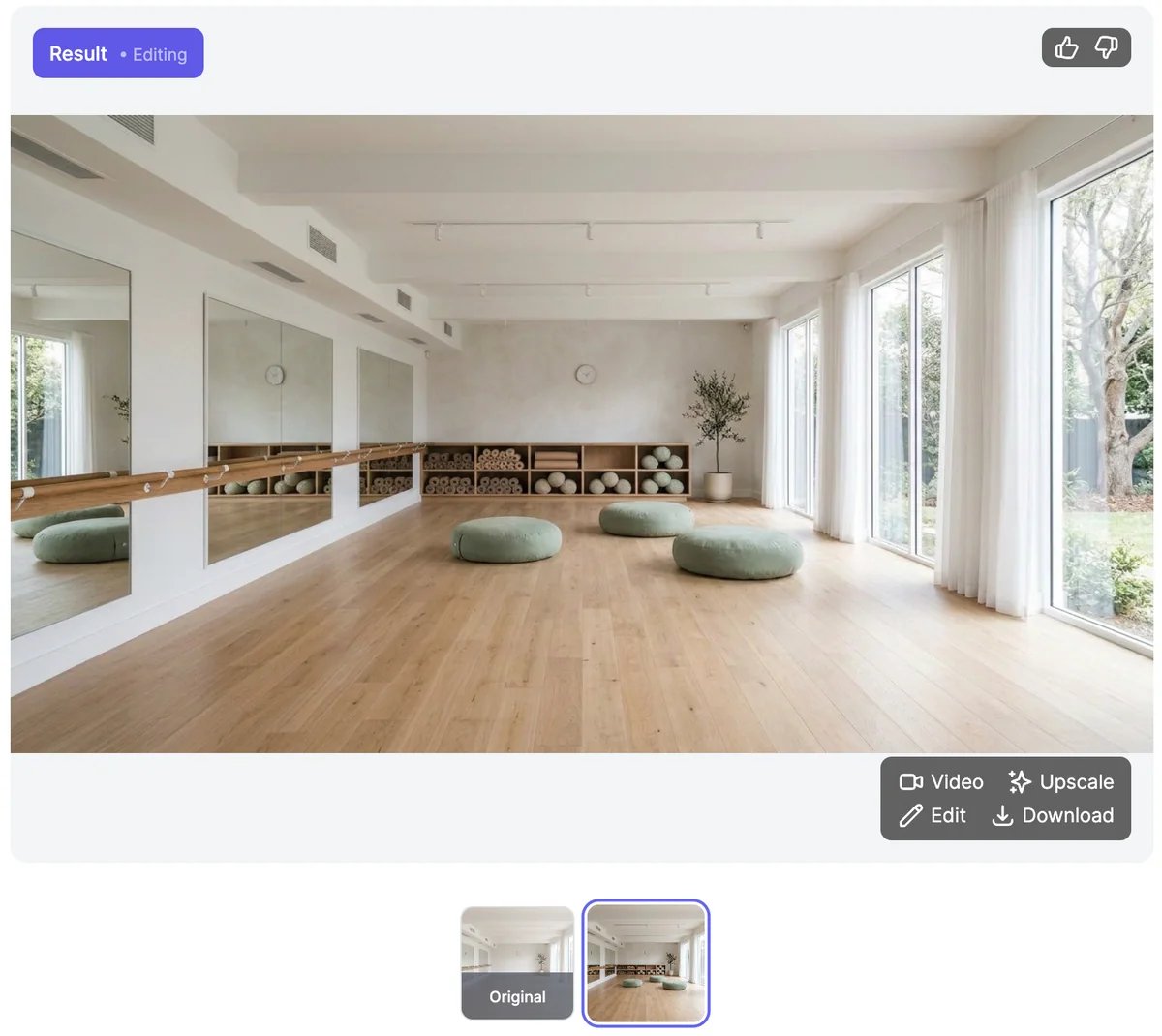
- Edit: opens it in an editing window to change it with a description, like editing images.
- Upscale: opens it in the Magic Upscaler in a new tab. See Upscale images.
- Video: turns it into a short video, such as a slow walkthrough. See Generate videos.
- Download, and thumbs up and down.
Restyle or design from scratch
For Restyle and Generate, choose the Room Type, such as a living room, kitchen, home office, coffee shop, or front yard, and one or more Themes: Minimalist, Scandinavian, Industrial, Bohemian, Japanese Zen, Coastal, and many more. Custom lets you describe your own. You get one design per theme, so picking three themes makes three designs.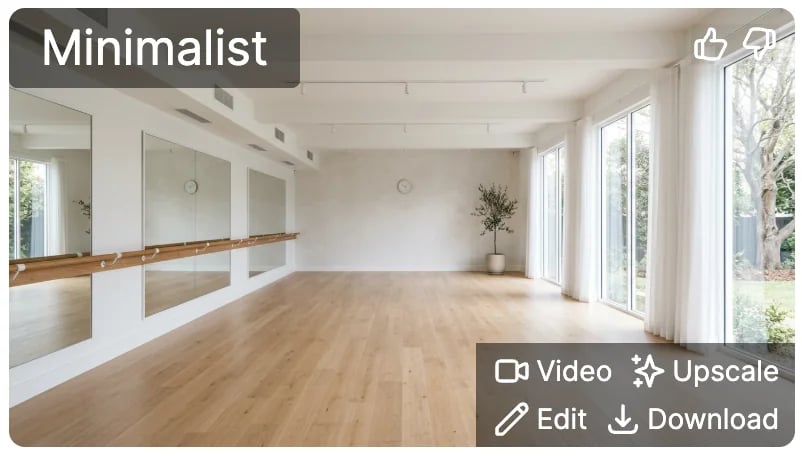
Tips
- Take the photo in daylight, from a corner, so the whole room is in view.
- In Edit, change one or two things at a time, then build on the result.
- For paint colors, name the color and the finish, such as “soft sage green, matte”.
What it costs
Interior Designer uses image & video credits:For the photo modes, the Generate button currently shows a lower number than what’s charged. The table above is what’s used.
Edit images
Change any image with a description.
Generate videos
Turn a room into a walkthrough video.