
1
Describe the video
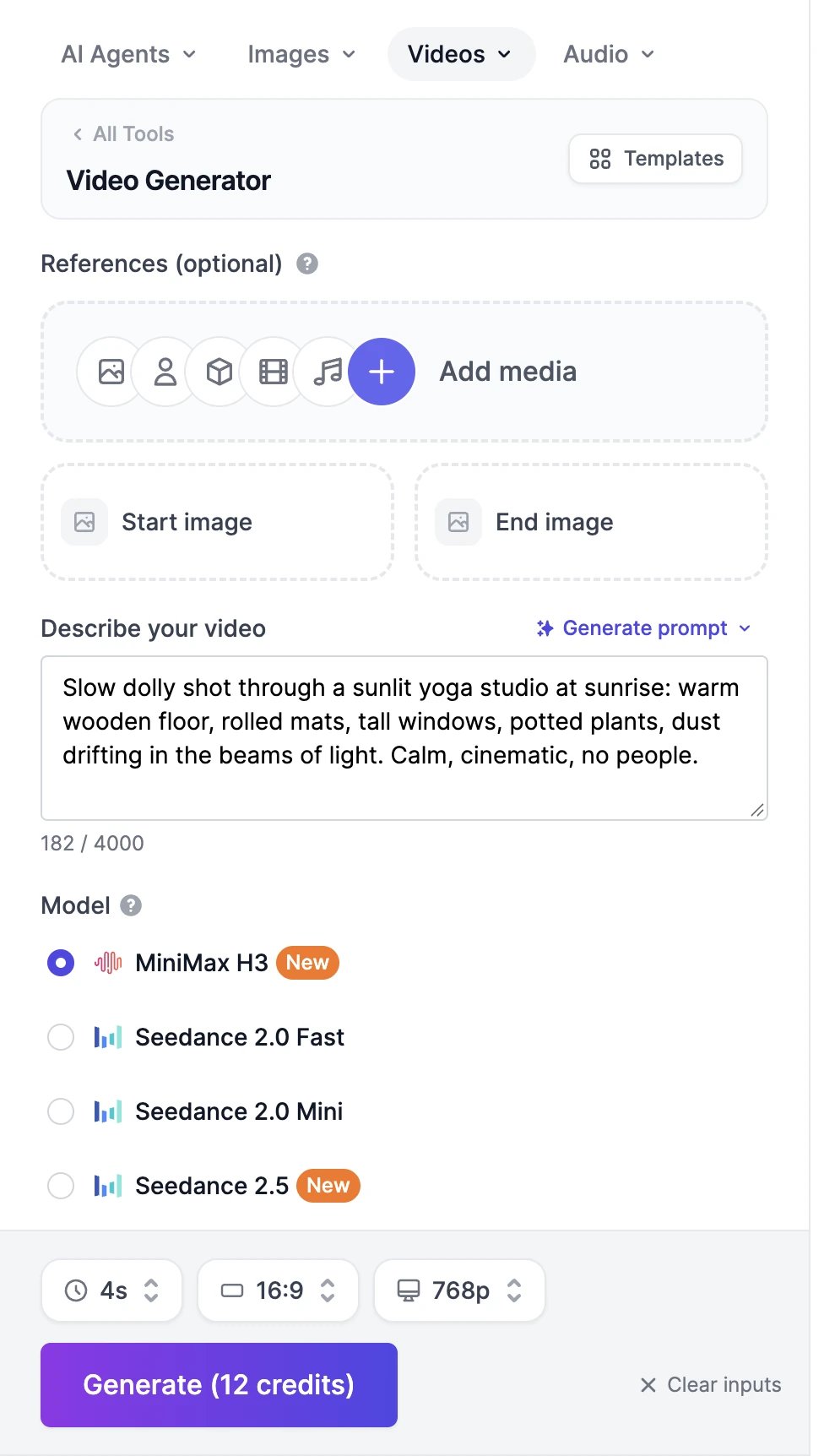
Type what you want to see in Describe your video: the subject, what happens, the setting, the light, and how the camera moves. For example: “Slow dolly shot through a sunlit yoga studio at sunrise: warm wooden floor, rolled mats, tall windows, potted plants, dust drifting in the beams of light. Calm, cinematic, no people.”The counter under the box shows how long your prompt can be for the selected model: 4,000 characters for MiniMax H3, and up to 20,000 for Seedance 2.5 and WAN 3.0.Need help with the wording? Generate prompt has two options. Simple writes a prompt for you, or a random one when the box is empty. Advanced asks about the concept, style, camera, pacing, and effects first. Both use a few words from your plan.
2
Start from an image (optional)
Click Start image to animate one of your images. The label above the prompt changes to How do you want to animate this image?, so describe the motion rather than the picture. Add an End image too, and the video moves from the first image to the last.Images must be at least 512 × 512 pixels. You can pick an upload or any image from your History, so you can make the perfect first frame in AI Images and animate it here.To keep a person or product the same without fixing the first frame, use references instead. A video can have a start image or references, not both.
3
Pick a model
The list under Model shows the models that fit what you’ve added: text models when there’s no image, image models when there’s a start image, and models that support a start and end image when you add both. If your model can’t take what you added, the page switches to one that can, so check the model before you generate.MiniMax H3 is selected on paid plans. Prices aren’t shown in the list, but the Generate button updates as you switch. See Video models and credits to compare them.
4
Set the length, shape, quality, and sound
The bar at the bottom holds the settings for the selected model: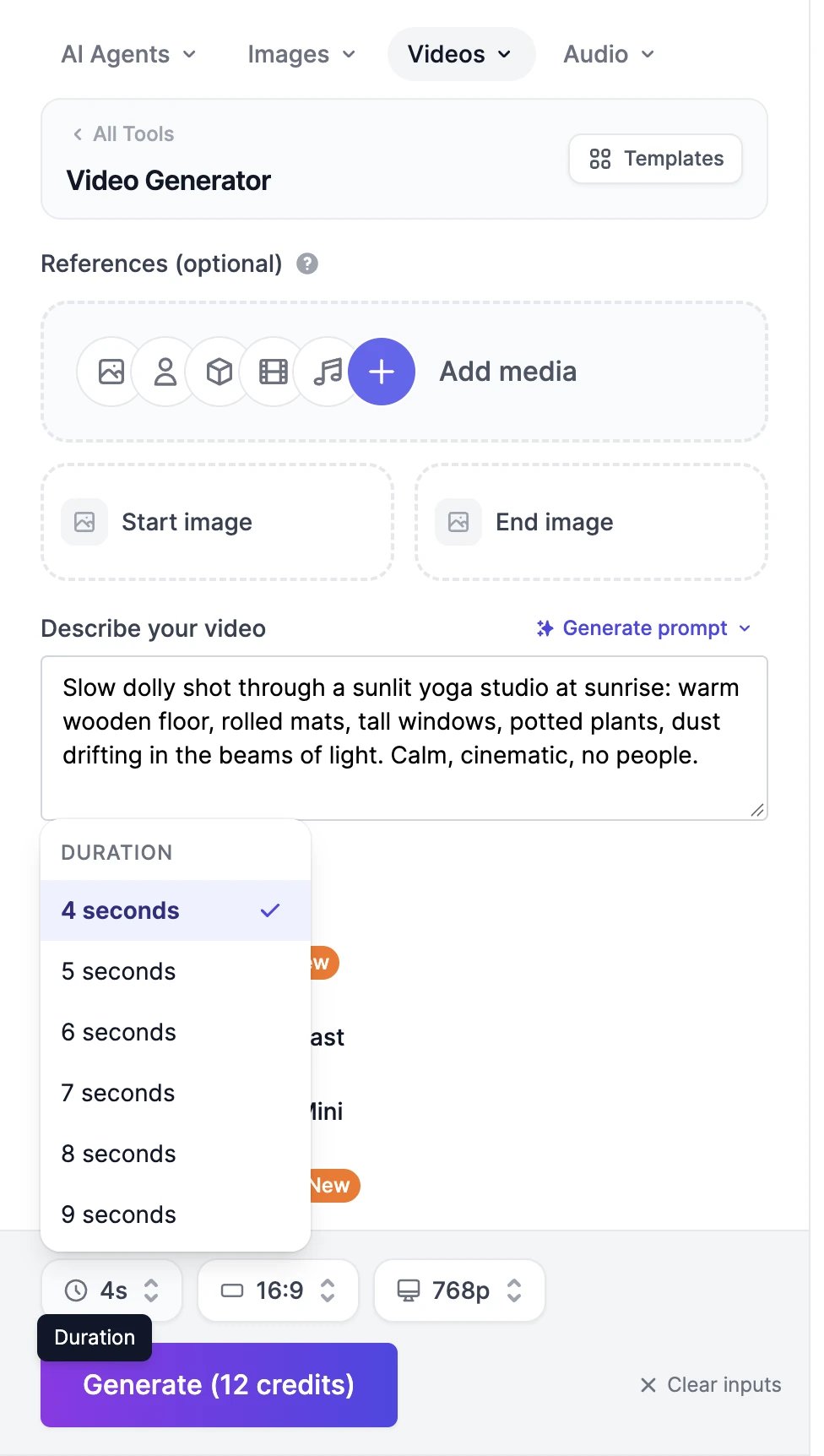
5
Click Generate
The button shows the total, for example Generate (12 credits). Your video appears in the Videos tab as Processing video… and is usually ready in 2 to 5 minutes. The list updates by itself. You can leave the page: the video keeps rendering and appears in History > Videos when it’s done.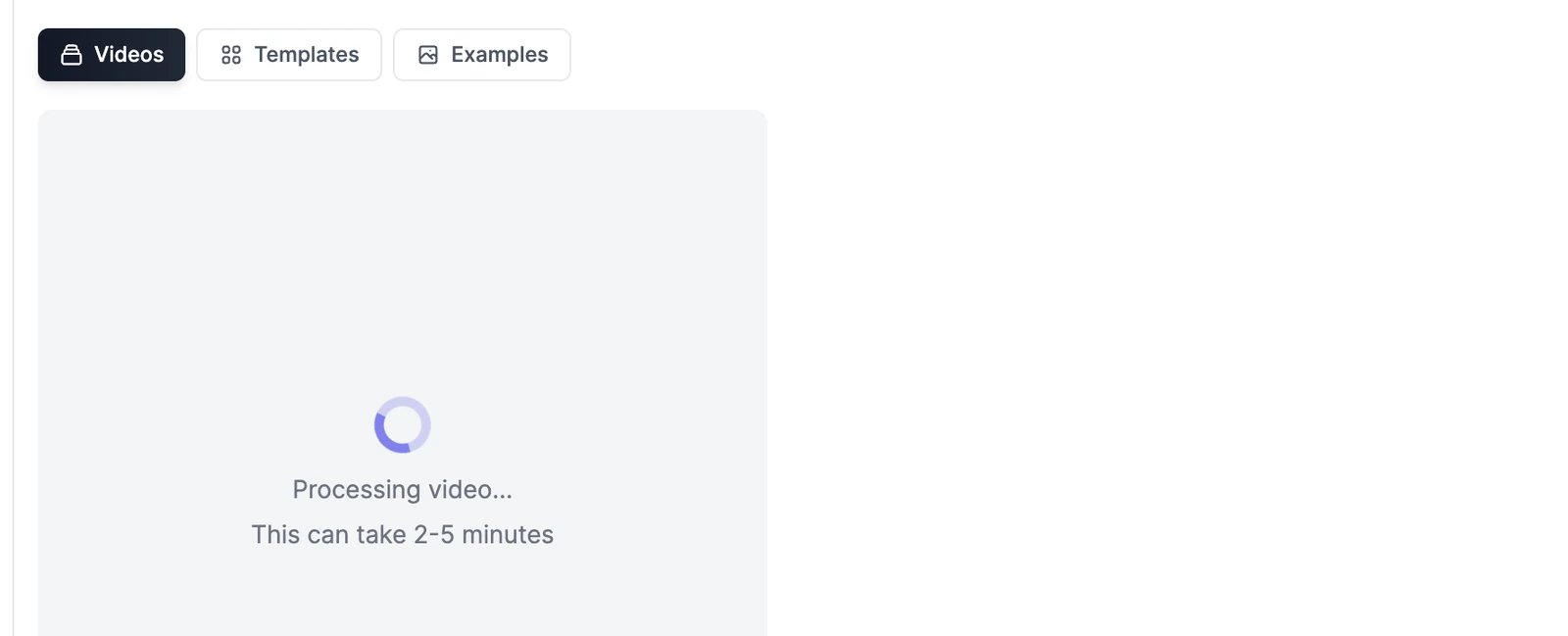
Add camera, lighting, and shot directions
Click Add media and use the Scene tabs, Camera, Lighting, and Shot Type, to add ready-made directions such as a lens, Golden Hour light, or a Low Angle shot. They’re added to the end of your prompt when you generate. They work the same way as in AI Images.Tips for better videos
- Describe one continuous shot: who or what is in it, what happens, how the camera moves, and the light.
- Say what should be heard. Models that make sound follow directions such as “soft piano music”, “birds outside”, or dialogue in quotes.
- For full control of the look, make the first frame in AI Images, then use it as the Start image.
- Test cheaply first: 4 seconds at 480p on Seedance 2.0 Mini costs 8 credits. Switch to a stronger model or a higher resolution once the idea works.
- To keep the same character across several videos, add them as a reference every time.
On the Free plan
- You can use Seedance 2.0 Mini (480p, up to 5 seconds), and Veo 3.1 Fast and Veo 3.1 Lite (720p). Other models show a crown and can’t be selected.
- Videos use the same credits as images, and the shortest video costs 8 credits, so you may need bonus credits or an upgrade to make one.
- Extending, editing, and upscaling videos, and Motion Control, need a paid plan.
If a video fails
- A tile that says Generation Failed doesn’t cost anything. The video was refused, usually because of the prompt or an image, or the model couldn’t finish it. Try again with a different prompt or another model.
- Sometimes a failed video disappears from the list instead. Its credits are returned too.
- Images you add are checked when you add them. If one breaks the content policy, it’s marked Blocked and the button changes to Content Blocked. Remove it to continue.
Use references
Keep a character or product the same across videos.
Manage your videos
Download, share, extend, or edit your results.