
Open the editor
There are three ways in, and they all work the same:- From a result. Hover over an image and click the pencil, or open it and click Edit image.
- On its own page. Choose Images > Image Editor from the menu at the top. Upload an image (JPG, PNG, or WebP) or pick one of your recent images.
- From your own photo. On AI Images, add a photo with Upload, Character, or Object. The Action menu appears, set to Edit Image with AI. Describe the change in Prompt and click Generate.
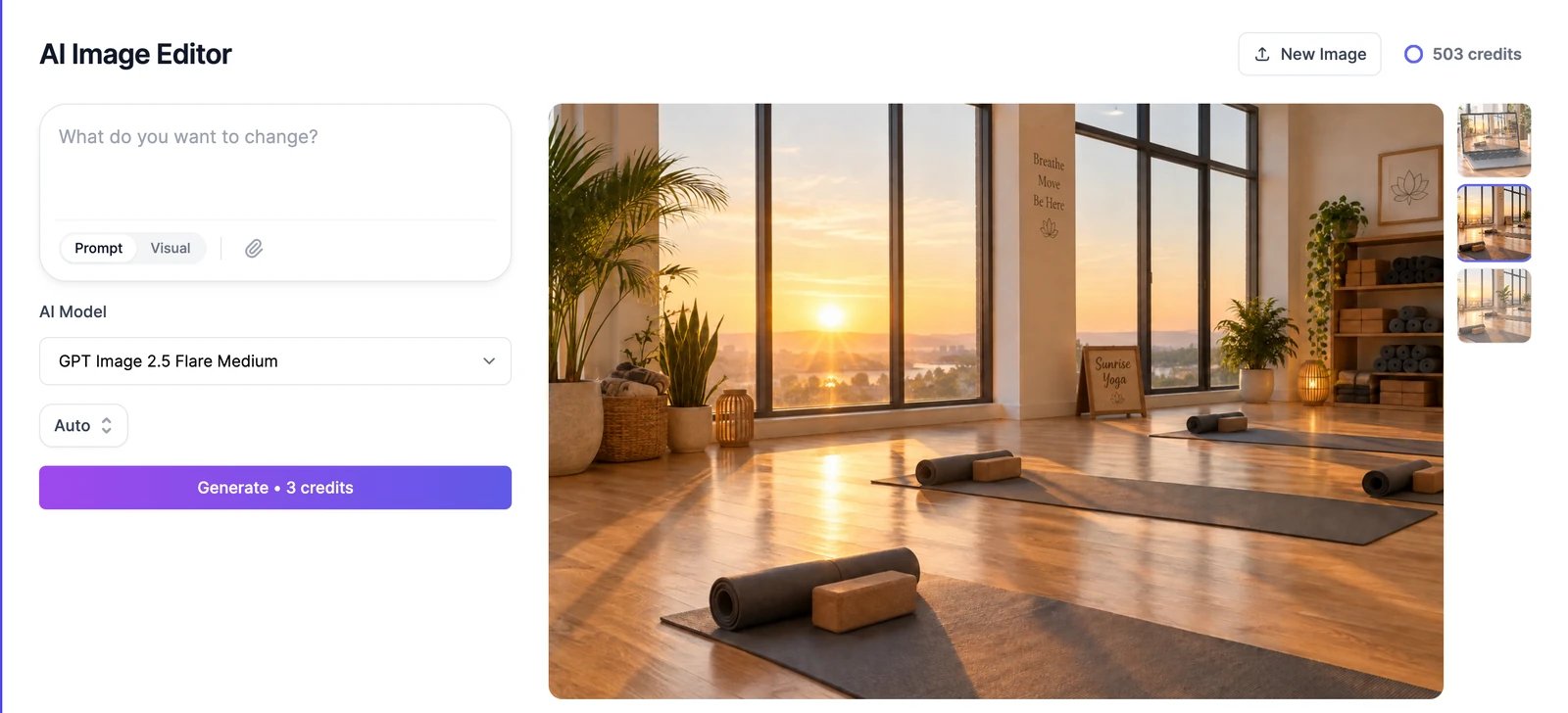
Describe the change
The editor has two ways to say what you want:- Prompt
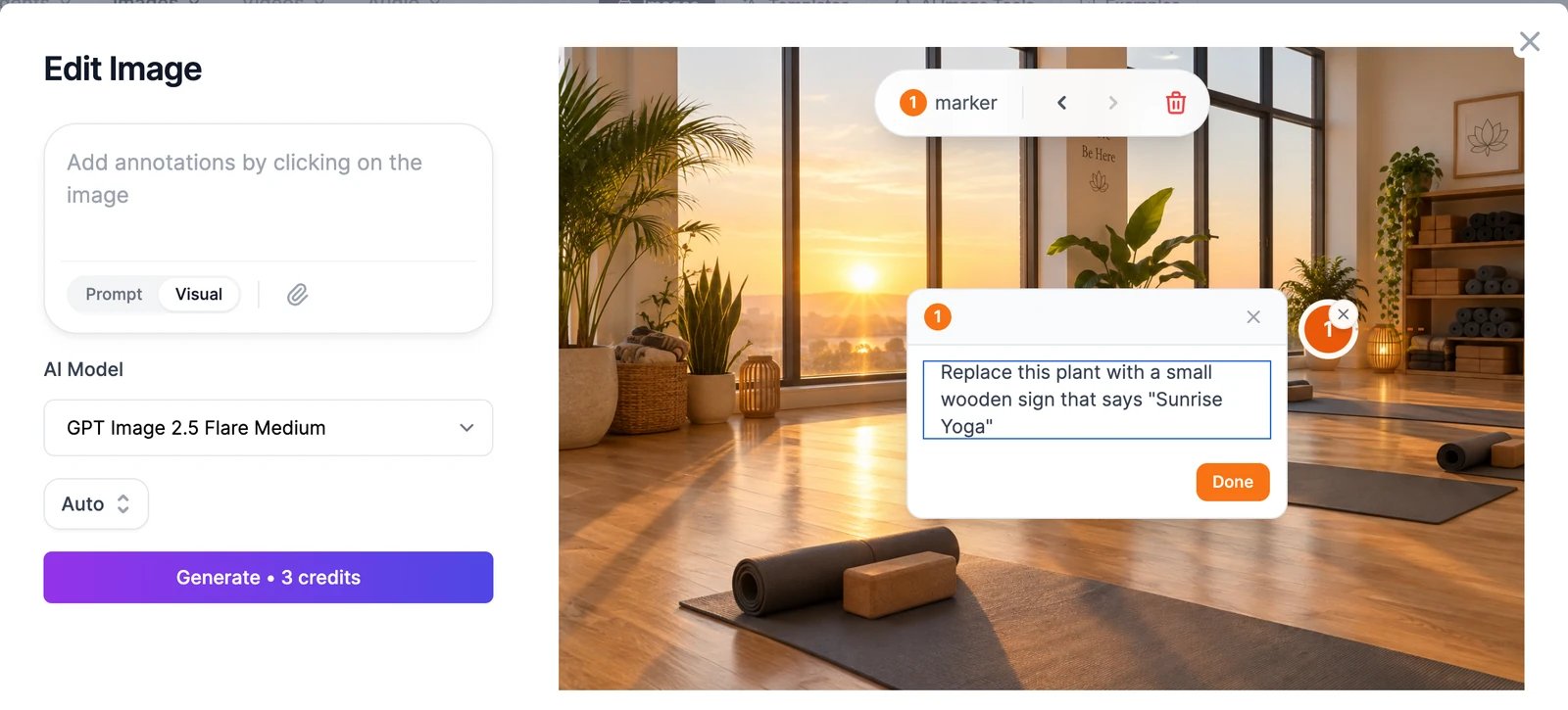
- Visual
Type the change in What do you want to change?, as if you were asking a designer. For example: “Make it evening and turn on the lamps” or “Change the mats to deep blue”.
Keep editing, version by version
Each edit adds a new version to the strip under the controls. Click Original or any version to see it, and keep editing from whichever one you like best. Every version is also saved in History > Images.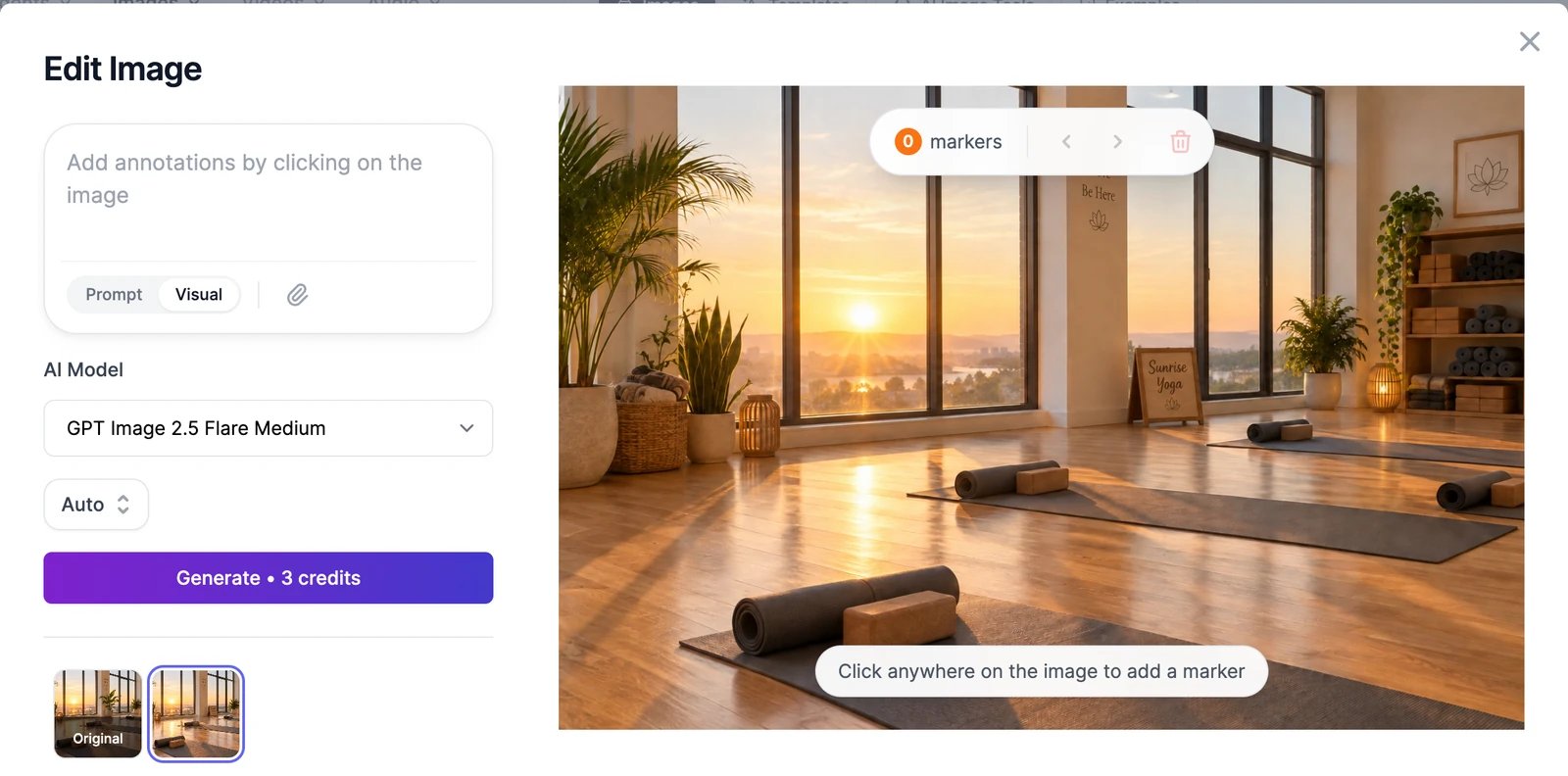
Add reference images
Click the paperclip to add other images the model should use, such as a product to place in the scene or a person to put in the picture. Only models that can combine several images are listed while references are attached: the FLUX.2, Seedream, Nano Banana, and GPT Image families.Which models can edit
Most image models can edit. These are available in the AI Model menu:- Every plan: Nano Banana 2 Lite, Nano Banana 2, Grok, Muse Image, GPT Image 2 Low, GPT Image 2 Medium, GPT Image 2.5 Flare Low, GPT Image 2.5 Flare Medium, GPT Image 2.5 Sunburst Medium, Seedream 4.5, Seedream 5.0 Lite, FLUX.2 [max], FLUX.2 [pro], FLUX.2 [flex], Seedream 4.0, Nano Banana, Qwen Image, Reve, Reve Fast, Mai Image 2.5, Flux Kontext Pro
- Paid plans only: Nano Banana Pro, Grok Pro, Grok Imagine 2.0, GPT Image 1.5, GPT Image 2 High, GPT Image 2.5 Flare High, GPT Image 2.5 Sunburst High, Seedream 5.0 Pro, Flux Kontext Max, GPT Image 1, Ideogram v3 Character
Limits
- Upload JPG, PNG, or WebP files. On AI Images you can attach up to 8 photos at once. Very large images are scaled down to 3,840 pixels on the long side, and transparent areas become white.
- Uploads are checked against our content policy. If one is blocked, the Generate button changes to Content Blocked.
- There’s no brush or mask. To change one area, use Visual markers.
Remove or replace a background
Cut out the subject in one click.
Templates and one-click tools
Ready-made edits such as Ghiblify, Caricature, and mockups.