
Create your agent
1
Start a new agent
Open Agents in the sidebar and click the button at the top right to create an agent.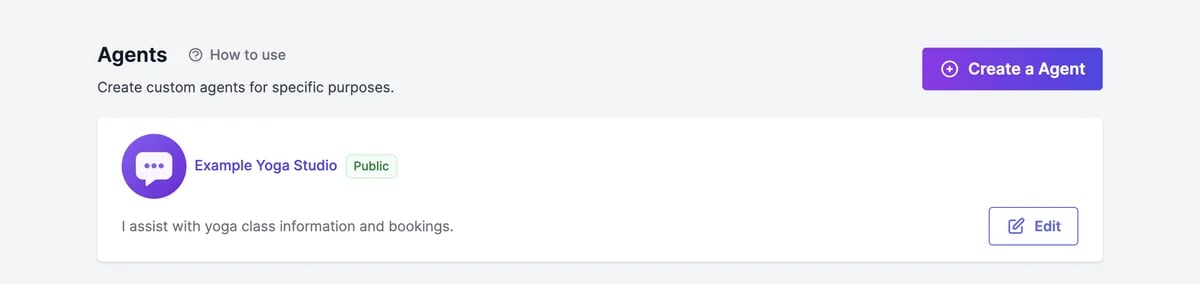
2
Add your website and other content
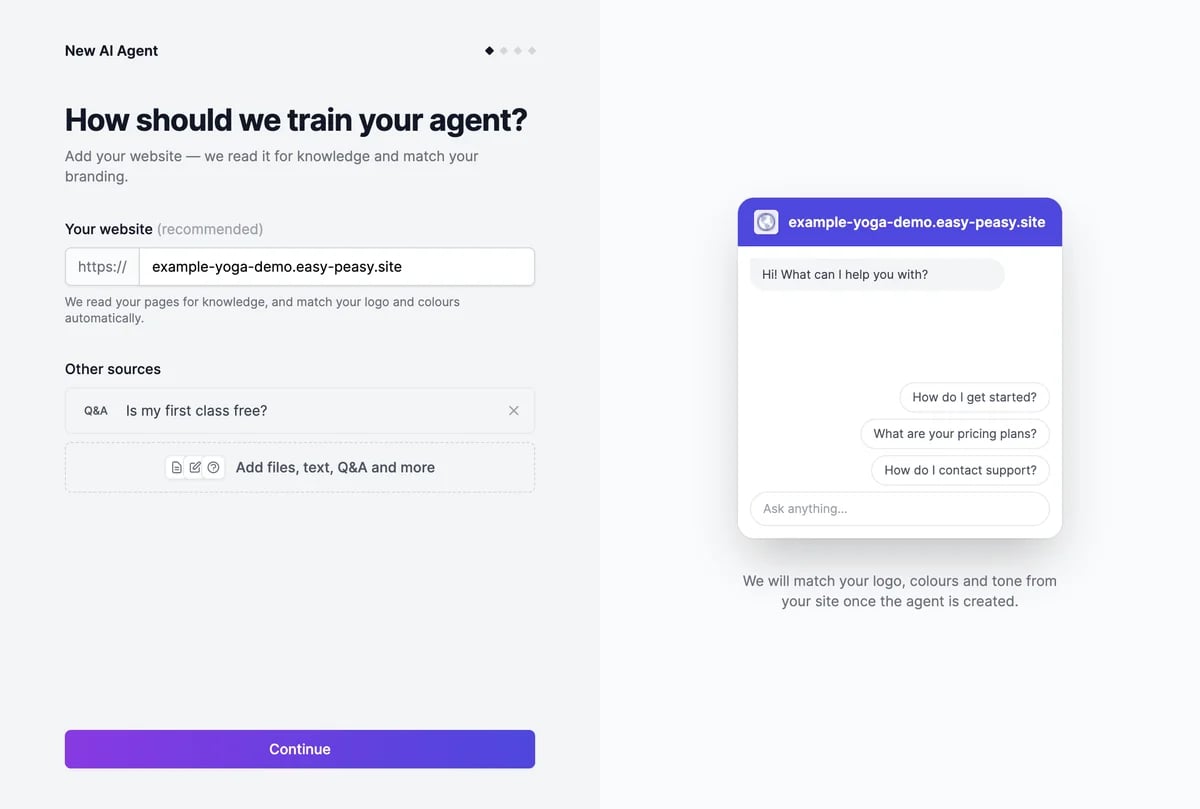
Under How should we train your agent?, enter your website in Your website. The agent reads your pages for its knowledge and takes your logo and colors from them.To add more, click Add files, text, Q&A and more under Other sources: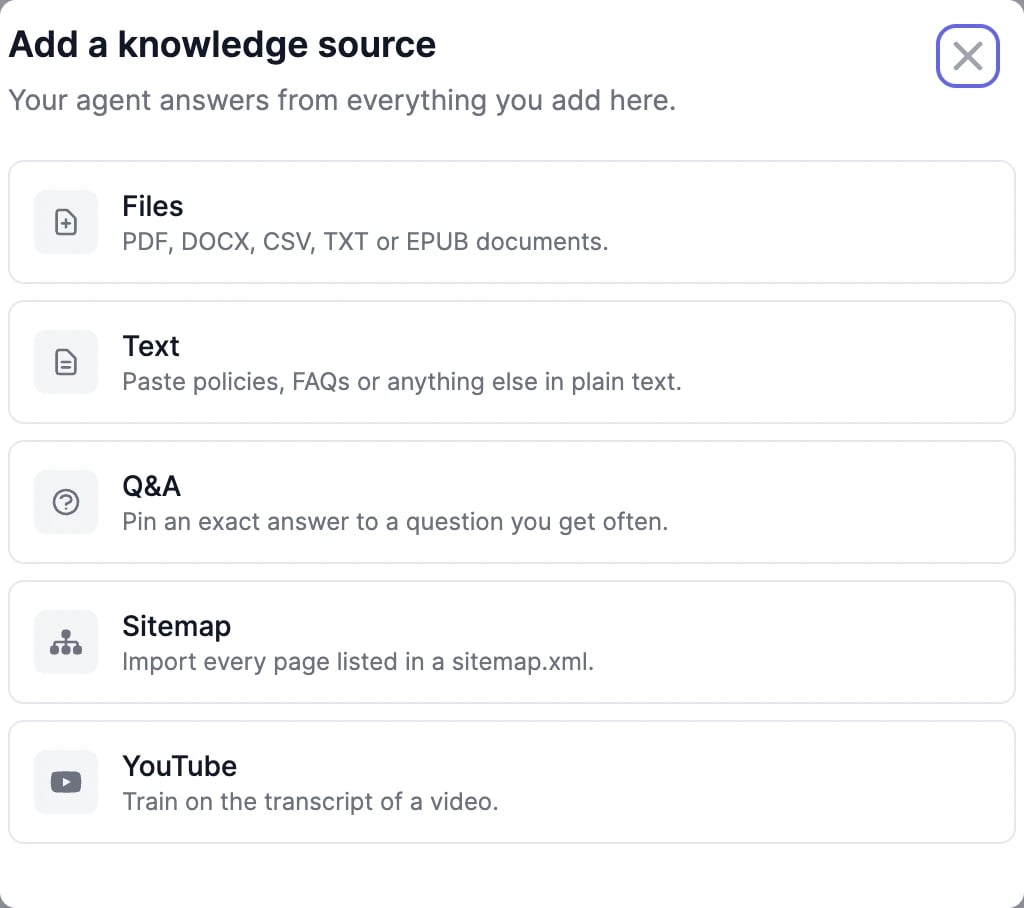
3
Choose what the agent does
Under What should your agent do?, pick Customer support, Sales agent, Shopping assistant, or Something else. Each fills in a short description of the agent’s job. Edit it to fit your business.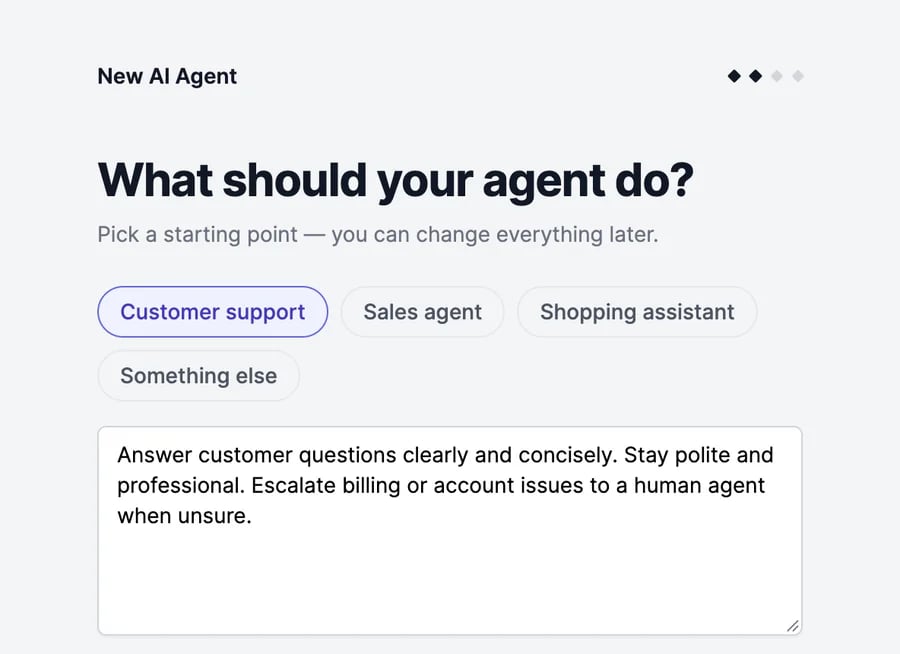
4
Review the pages found (if shown)
When your website has several pages, Here are the links we found lists them. Uncheck the ones the agent shouldn’t learn from, such as a blog archive or legal pages. The agent learns from up to 100 pages. Fewer, better pages give sharper answers.
5
Choose where people will talk to it (optional)
Under Where will people talk to it?, pick the channels you plan to use, such as Website widget or WhatsApp. This only tailors your getting-started checklist. You connect channels later.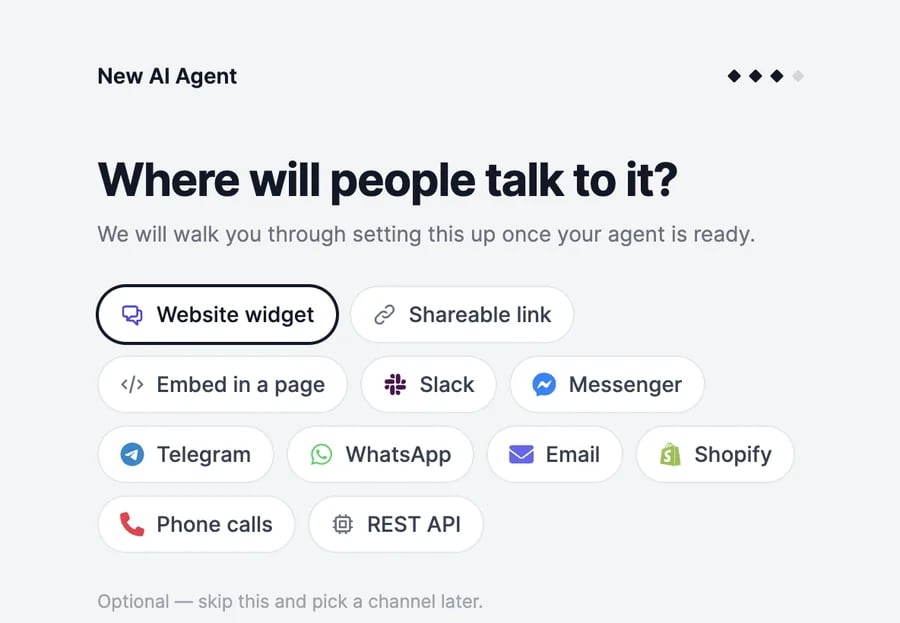
6
Click Create my agent
The agent is created, reads your website, and matches your branding. Then the Playground opens so you can talk to it.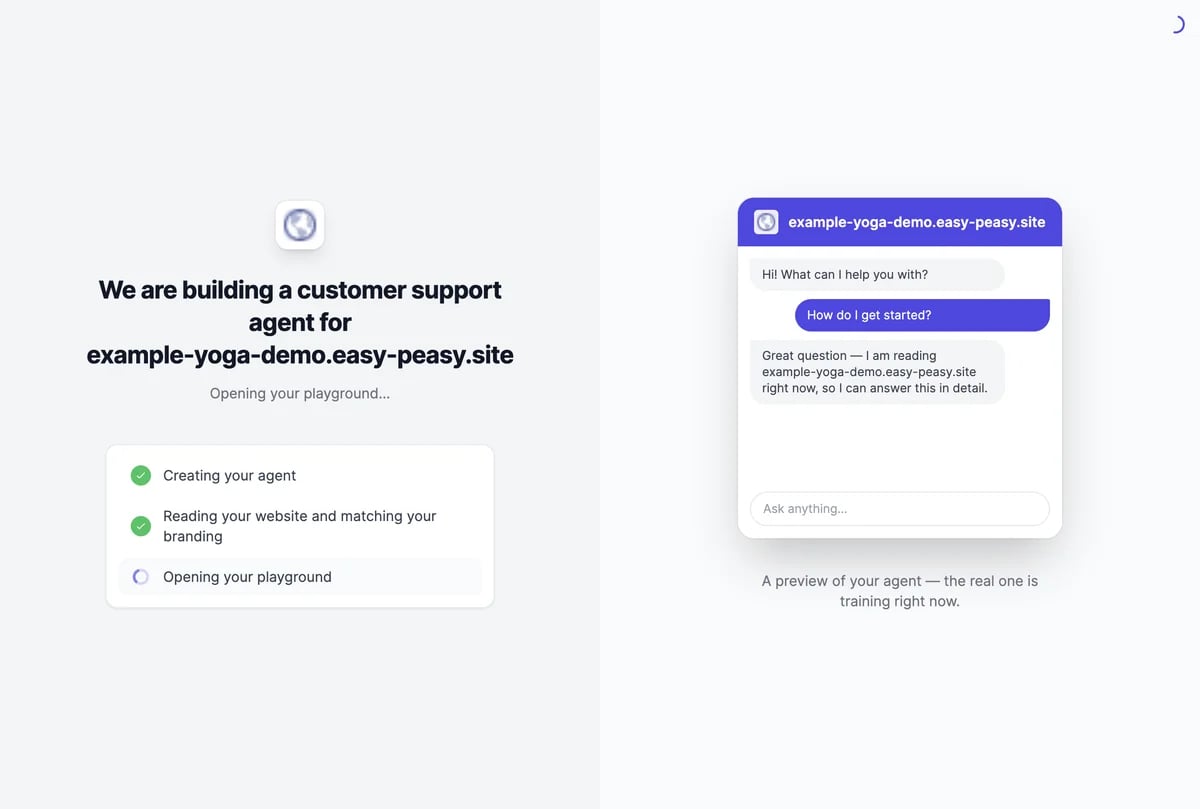
What you get
- A name, a one-line description, a greeting, and three suggested questions, written from your website.
- Instructions for the agent, based on the job you chose. Edit them on Agent Details.
- Chat colors and an avatar taken from your website, where it has them.
- Your pages and sources in Knowledge. Large websites take a few minutes to finish reading; the agent can answer from what’s ready.
- The model GPT-6 Luna. You can change it at any time.
How many agents you can have
Your plan sets how many agents you can have; the Free plan has one. Agents your teammates share with you count too. When you reach the limit, the create button changes to Upgrade plan. See Limits and usage.My website wasn't read, or only one page was
My website wasn't read, or only one page was
Some websites block automated reading, and single-page sites have only one page to read. Add your content another way: upload documents, paste text, or add your sitemap in Knowledge.
The agent's name or colors aren't right
The agent's name or colors aren't right
Change the name, greeting, and colors on Appearance, and the instructions on Agent Details.
Test it in the Playground
Chat with your agent and adjust it.
Knowledge
Add documents, Q&A, and more pages.