
Dub a file
1
Open AI Dubbing
Click Audio > AI Dubbing in the top menu, or find it in All Tools. The bar at the top shows how many text-to-speech characters you’ve used.
2
Add your file or link
Drag a video or audio file into Upload File or Enter URL, up to 1 GB and 2.5 hours. Or paste a link to a video on YouTube, X, TikTok, Vimeo, and other sites.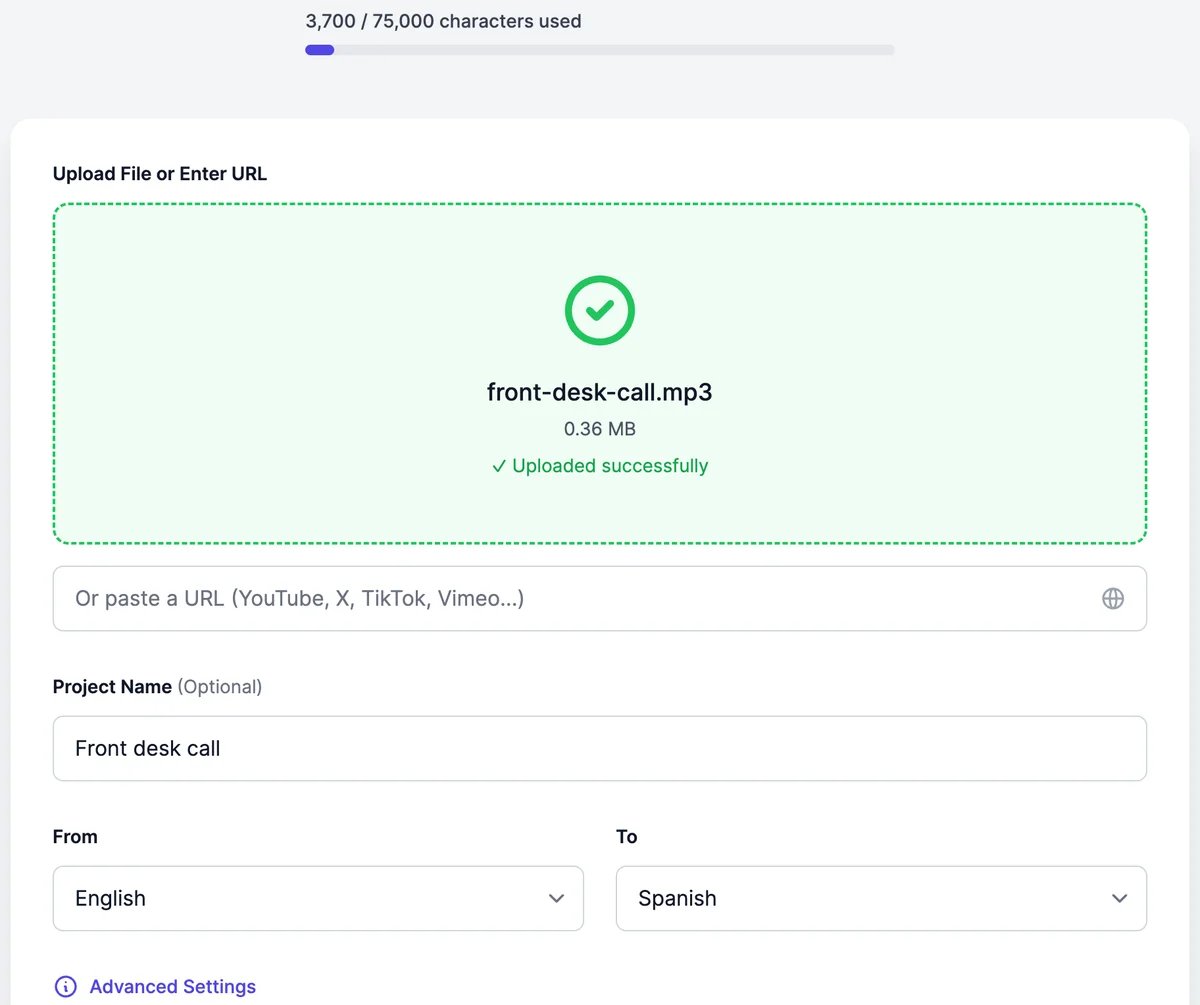
3
Choose the languages
Give the project a name if you like. Set From to the language spoken in the file and To to the language you want.
4
Check the settings (optional)
Open Advanced Settings: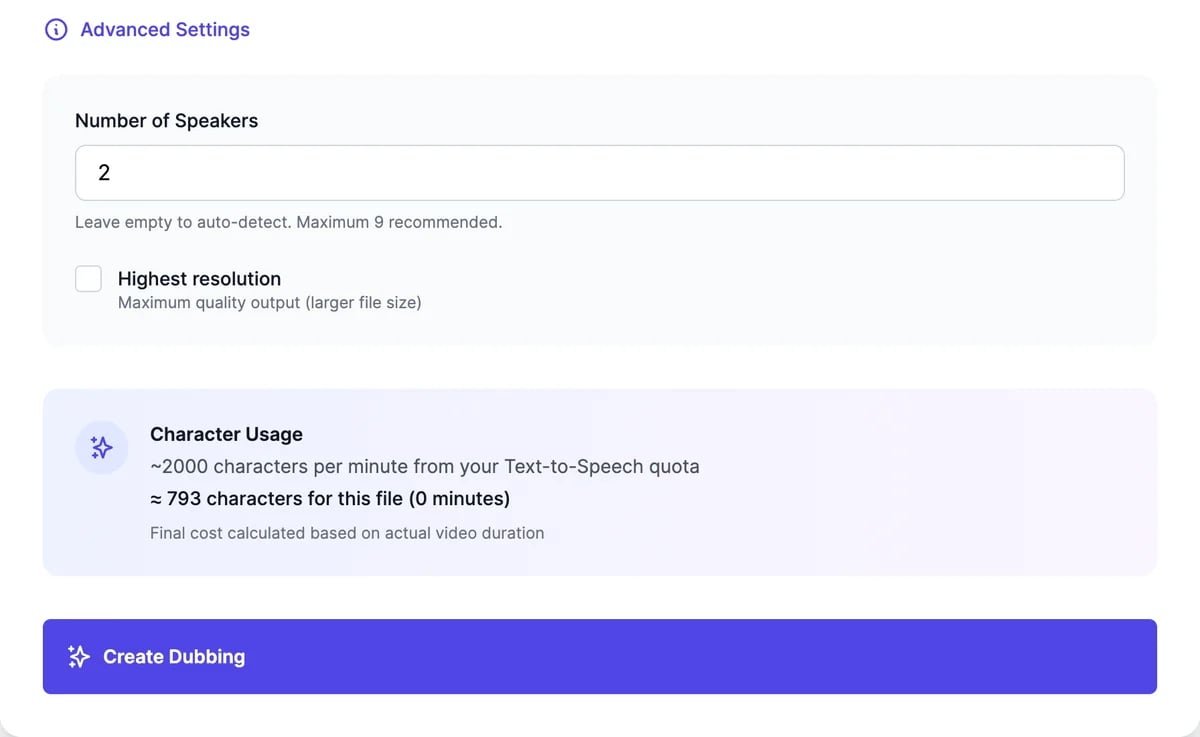
- Number of Speakers: how many people speak. Leave it empty to detect them automatically.
- Highest resolution: keeps the video at its best quality, for a larger file.
5
Click Create Dubbing
The project appears under Recent Projects as Processing…. Short files are ready in under a minute; long videos can take much longer. When it says Ready, click the download button to save the dubbed file.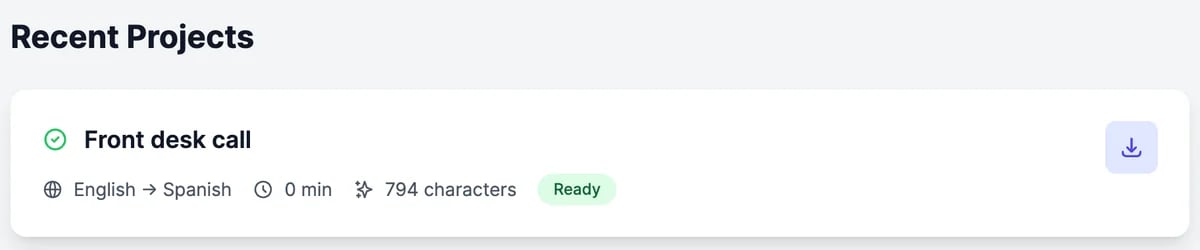
Languages
Dub from and to any of these 32 languages: Arabic, Bulgarian, Chinese, Croatian, Czech, Danish, Dutch, English, Filipino, Finnish, French, German, Greek, Hindi, Hungarian, Indonesian, Italian, Japanese, Korean, Malay, Norwegian, Polish, Portuguese, Romanian, Russian, Slovak, Spanish, Swedish, Tamil, Turkish, Ukrainian, and Vietnamese.Tips
- Start with clear speech. Dubbing works best when speakers don’t talk over each other and the music is quieter than the voices.
- Set the number of speakers when you know it. It helps keep each person’s voice separate.
- Try a short clip first. Check the result on a minute of your video before dubbing the whole thing.
What it costs
AI Dubbing uses your plan’s text-to-speech characters: about 2,000 per minute of the original file. The estimate is shown before you start, and the final count is based on the file’s length. See Audio plans and limits.Voice changer
Change the voice without translating.
Speech to text
Get a transcript and subtitles.