
Prompt Library
The Prompt Library has ready-made prompts for common jobs, such as social posts, ads, emails, job descriptions, and SEO briefs, plus the prompts you save yourself. Open it with Prompts in the Marky sidebar, the sun icon at the top of a chat, or + > Prompts > Open Prompt Library.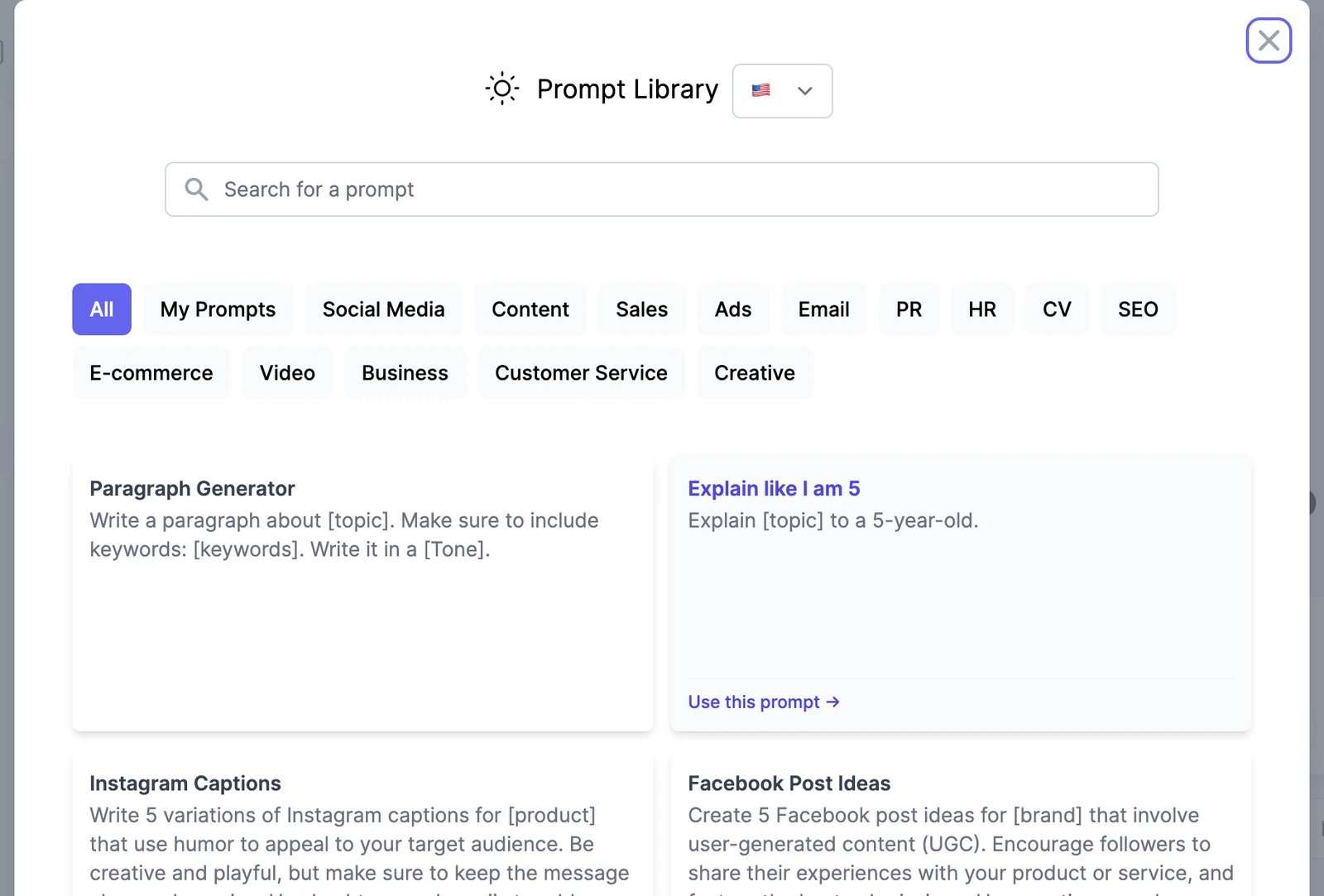
- Pick a category, or search for a prompt. The flag next to the title switches the language of the prompts.
- Click Use this prompt. The prompt goes into the message box.
- Replace the parts in square brackets, such as
[topic]or[product], with your details, and send.
Save your own prompts
- In the Prompt Library, open My Prompts and click Add Prompt.
- Enter a Title, a Category, and the Prompt. To have the prompt written for you, click Write for me, describe the prompt you need, and click Generate.
- Click Save.
Brand voice
A brand voice describes how your business writes: its tone, vocabulary, and style. When one is on, Marky writes in it. Click + > Brand Voice and pick a voice. A megaphone button appears next to +; hover over it to see which voice is on, or click it to change it. The voice stays on, in this chat and new ones, until you choose None or reload the page. To make one, click + > Brand Voice > Create a brand voice. You can build it from your website, writing samples, files, or a description of your style. See Create a brand voice and Use a brand voice, which also covers the writing tools.Skills
Teach Marky a whole job, not just a prompt.
Memory
Let Marky remember facts about you and your business.