
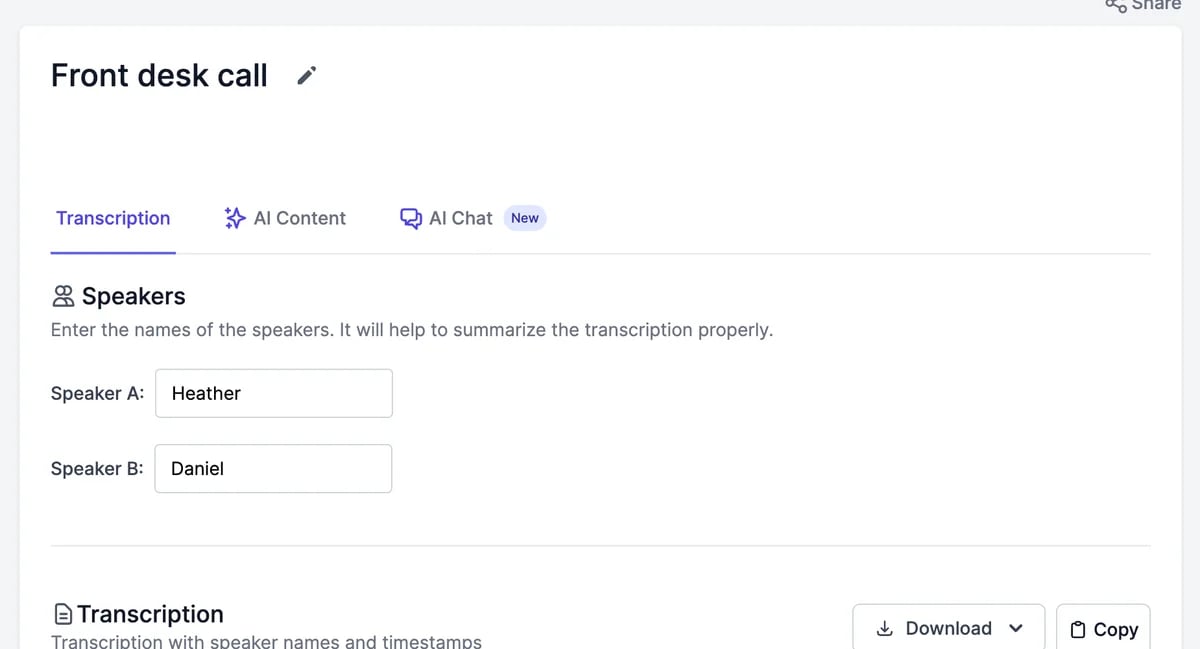
The transcript
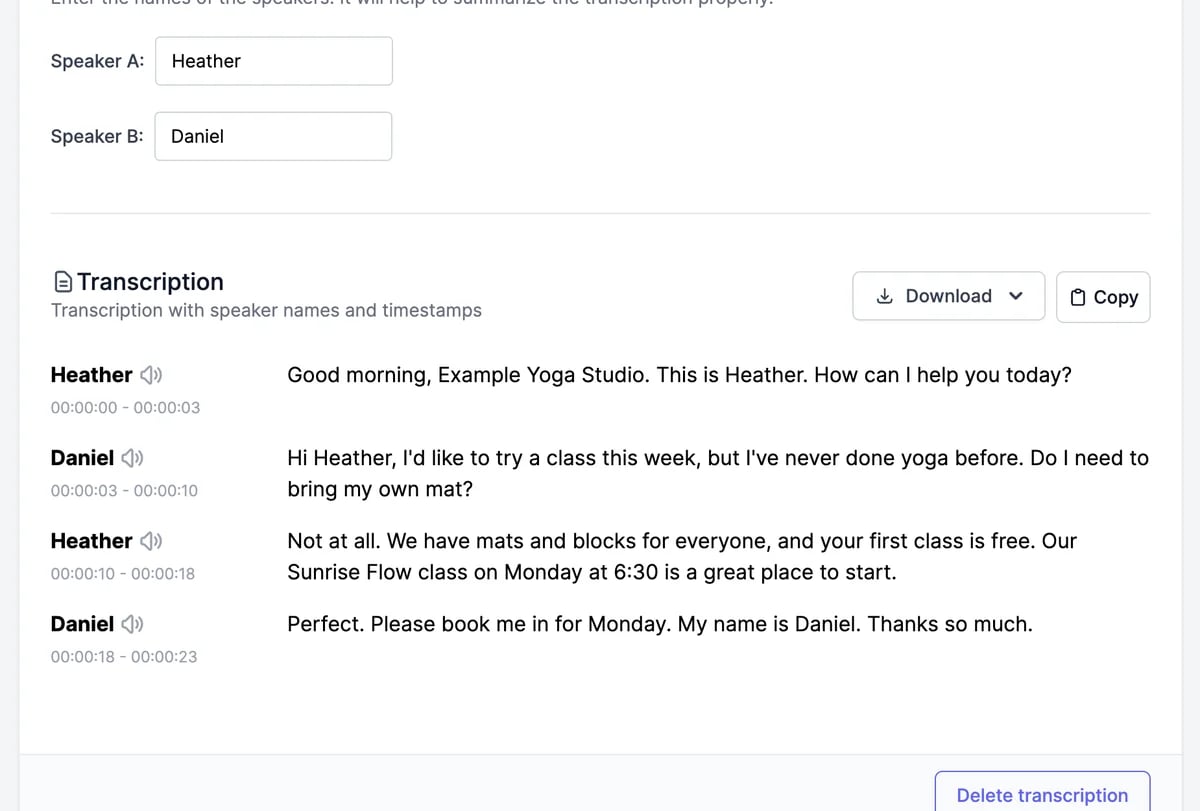
- Speakers: replace Speaker A, Speaker B, and so on with real names. The names appear in the transcript and help AI Content write accurate summaries.
- Play from a line: click the speaker icon next to a name to play from there. The words are highlighted as they’re spoken.
- Copy copies the whole transcript with speaker names.
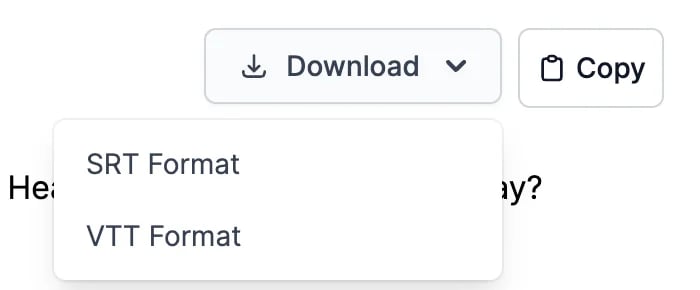
- Download saves subtitles in SRT Format or VTT Format, with timings, for video editors and YouTube.

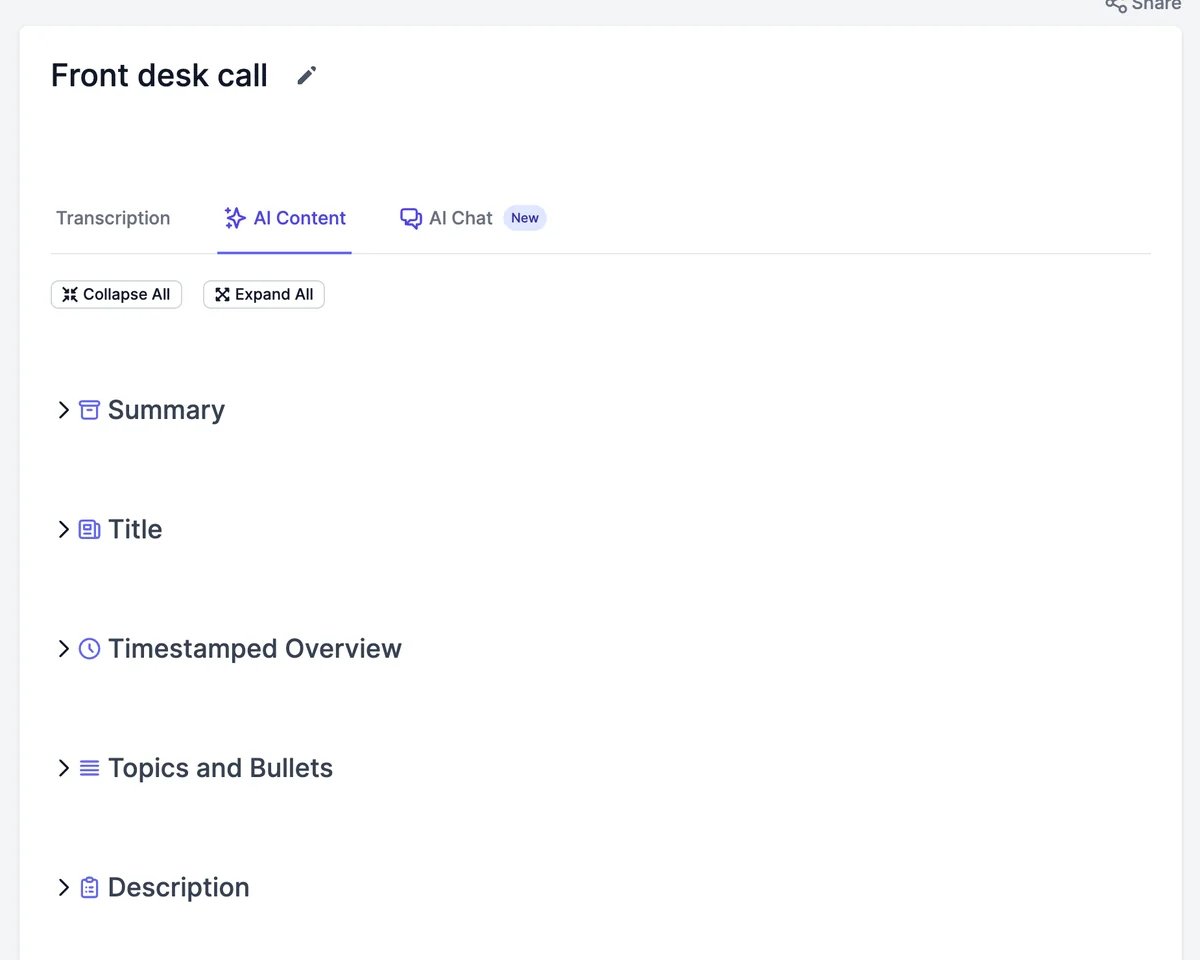
AI Content
AI Content turns the transcript into ready-to-use text. The first time you open it, a summary and the other items for your type of recording are written automatically.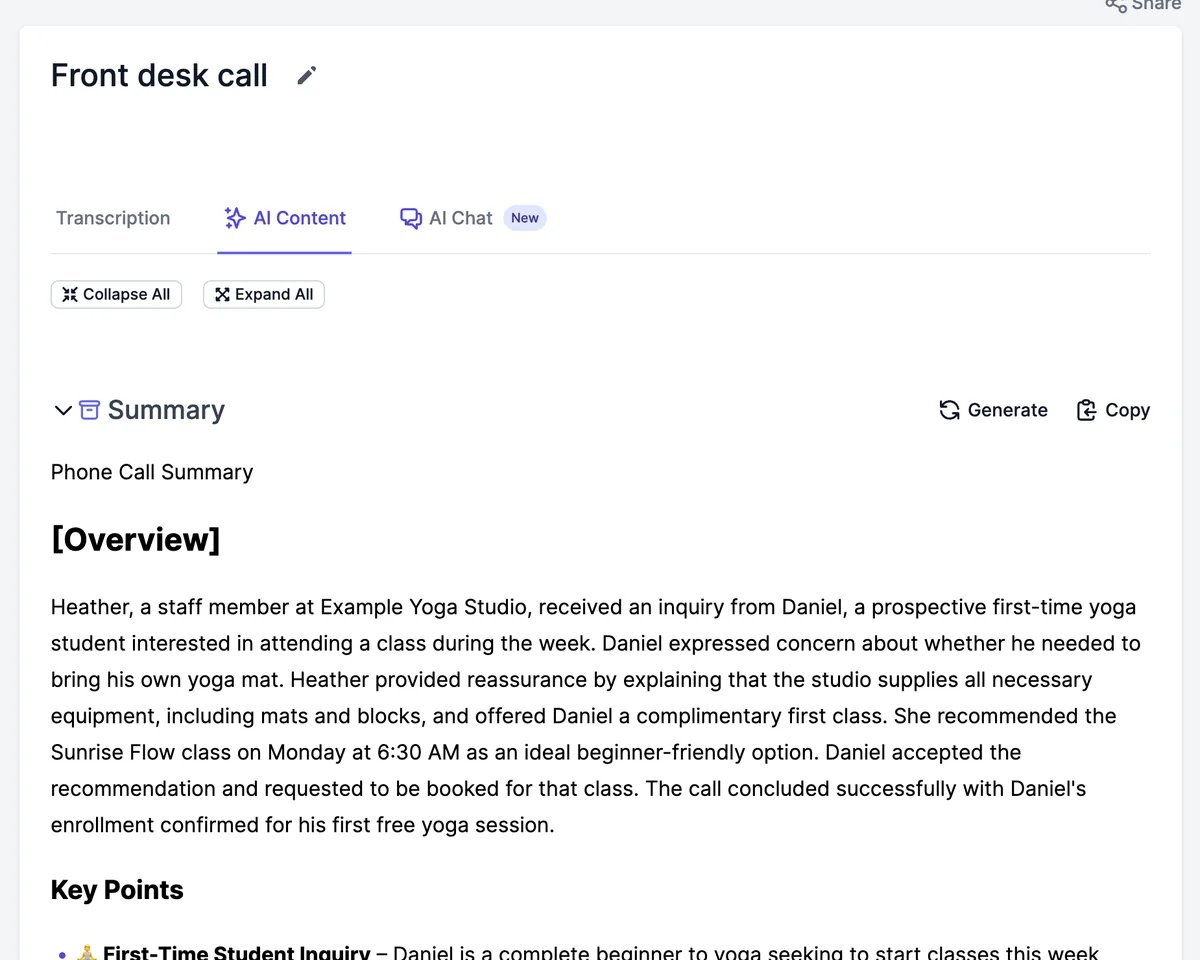
AI Chat
AI Chat answers questions about the recording: what was decided, who said what, or a draft of a follow-up email.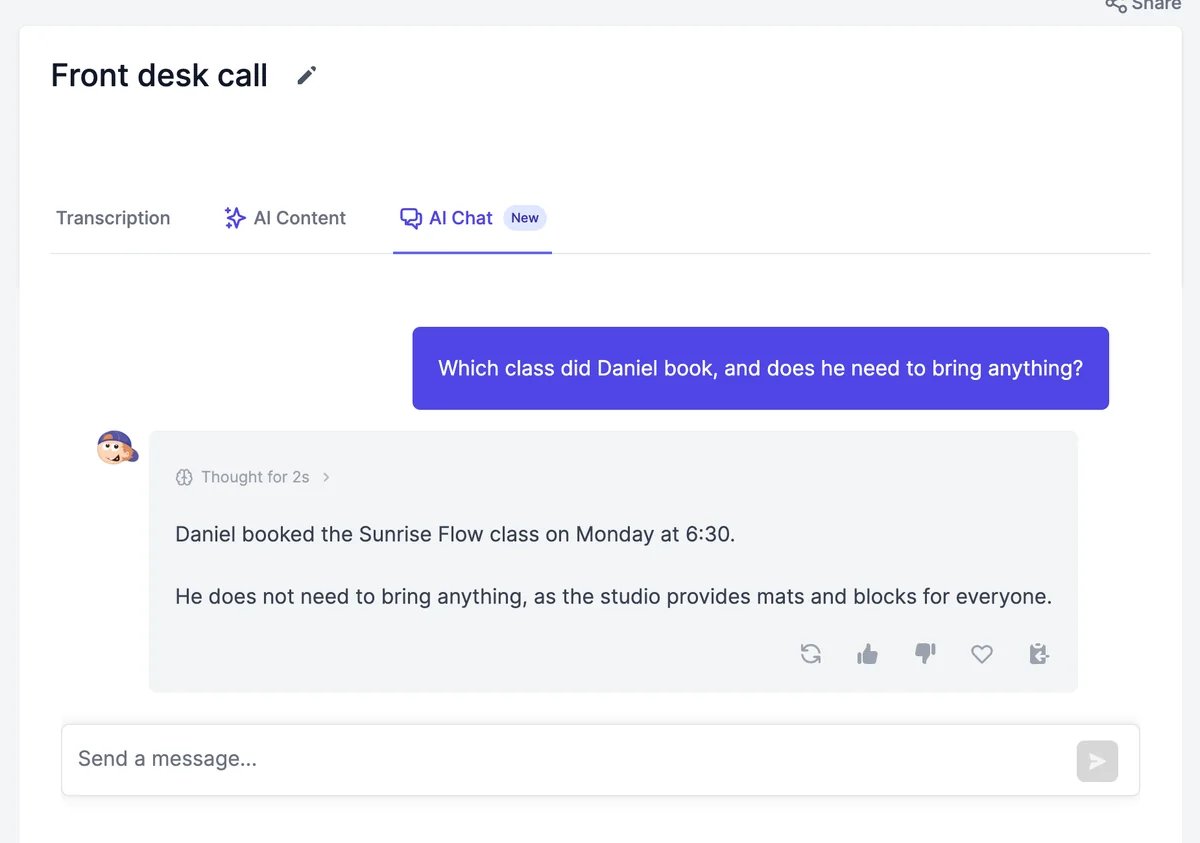
Rename, share, and delete
- Rename: click the pencil next to the title, type, and press Enter.
- Share: click Share at the top right. Share Publicly creates a public page with the transcript and AI Content. On a Teams plan, Share with Team Members shows it in your teammates’ lists.
- Delete: click Delete transcription at the bottom and confirm. The recording is deleted and can’t be restored. Deleting doesn’t give the transcription back to your allowance. Turn off Share Publicly before you delete.
Speech to text
Transcribe another file or link.
Record & Transcribe
Record a meeting in your browser.