
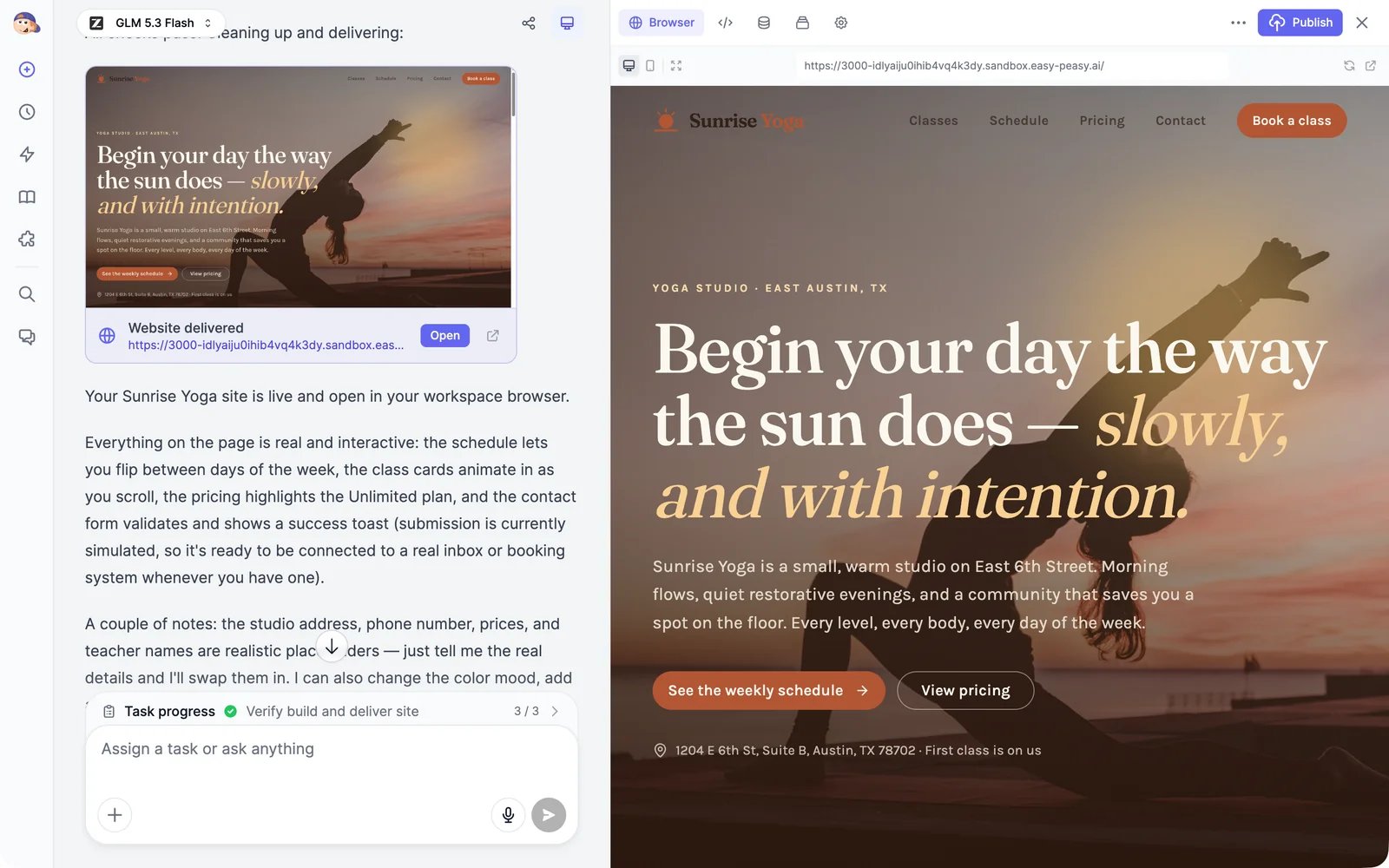
Build a site
1
Switch to Build website
Start a new chat and click Build website under the message box.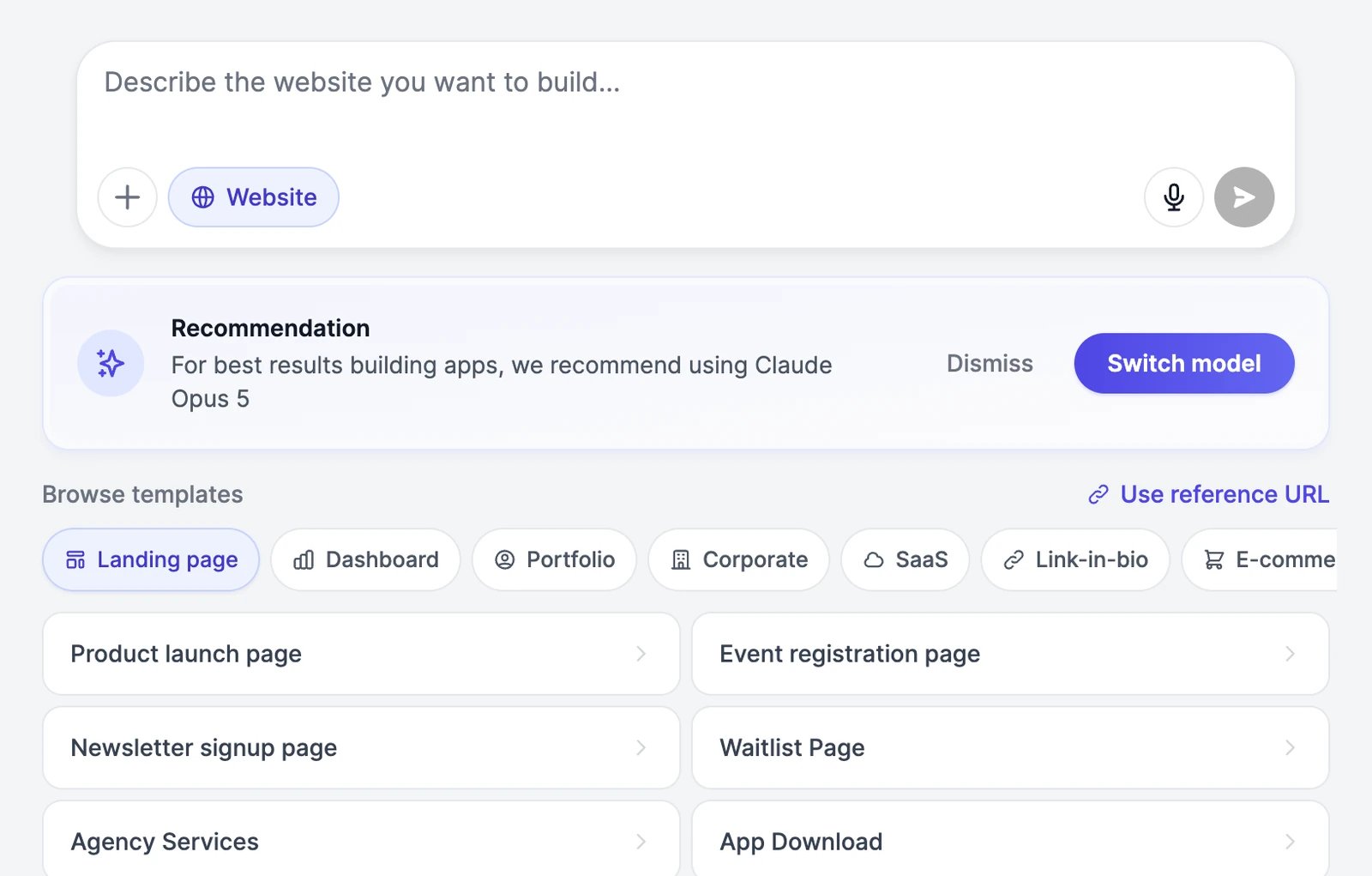
2
Describe the site
Say what the site is for, the sections you want, and the look. For example: “A one-page website for Sunrise Yoga, a small yoga studio in Austin: a hero section, our classes, a weekly schedule, pricing, and a contact form.”For ideas, pick a category under Browse templates and click one. To copy the look of a site you like, click Use reference URL and paste its address; Marky takes a screenshot and uses it as a visual reference.
3
Watch Marky build
Marky plans the work, finds images, writes the code, and checks the result in its own browser. The workspace opens on the right. In the Code tab you can watch each file being written.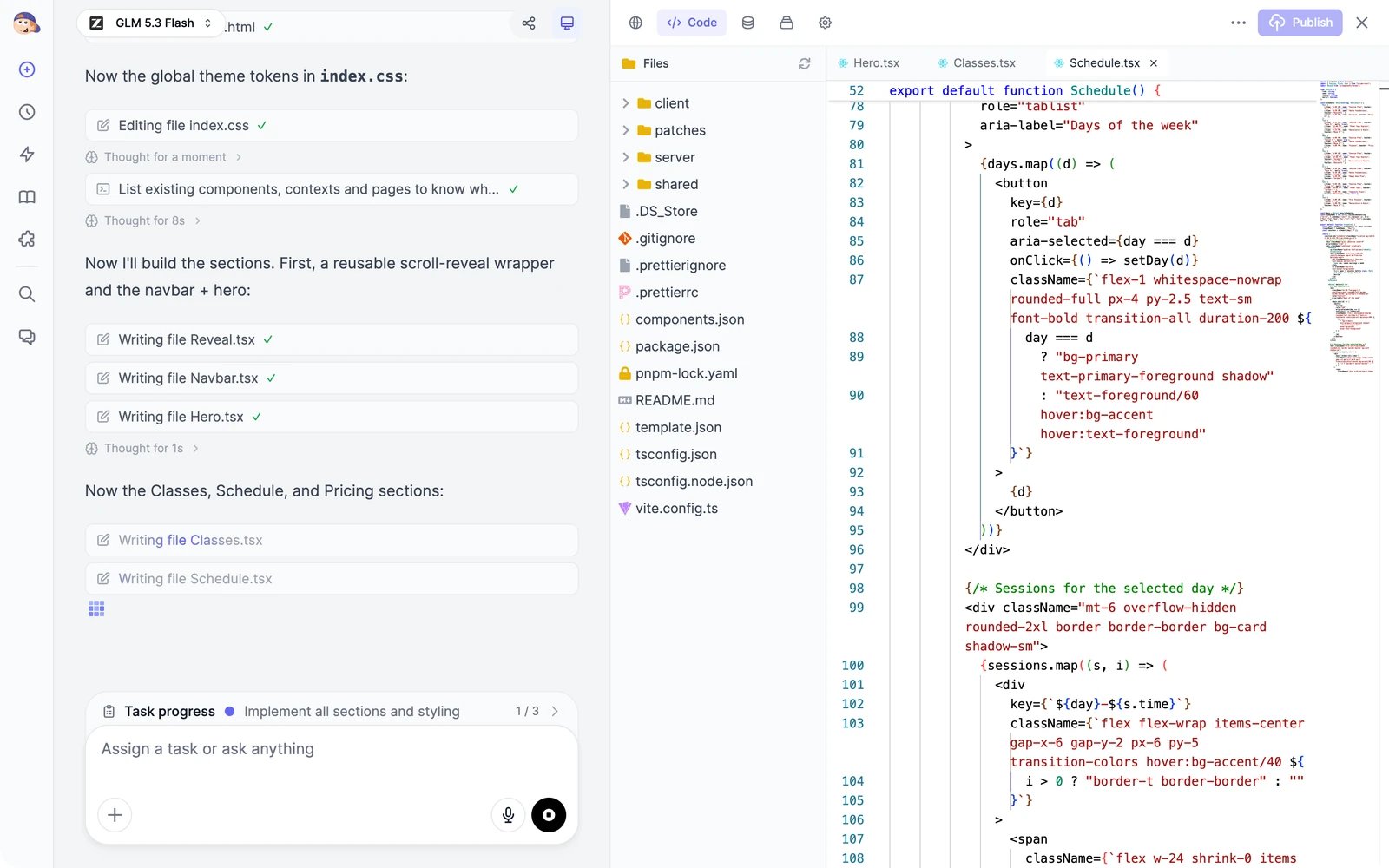
4
Preview and refine
When the site is ready, Marky posts a Website delivered card; click Open to see it again later. The Browser tab shows the live preview. Switch between the desktop and mobile view, refresh it, or open it in a new tab. Then ask for changes in the chat: “Make the hero image brighter”, “Add a FAQ section above the contact form”, “Use our logo from the attached file.”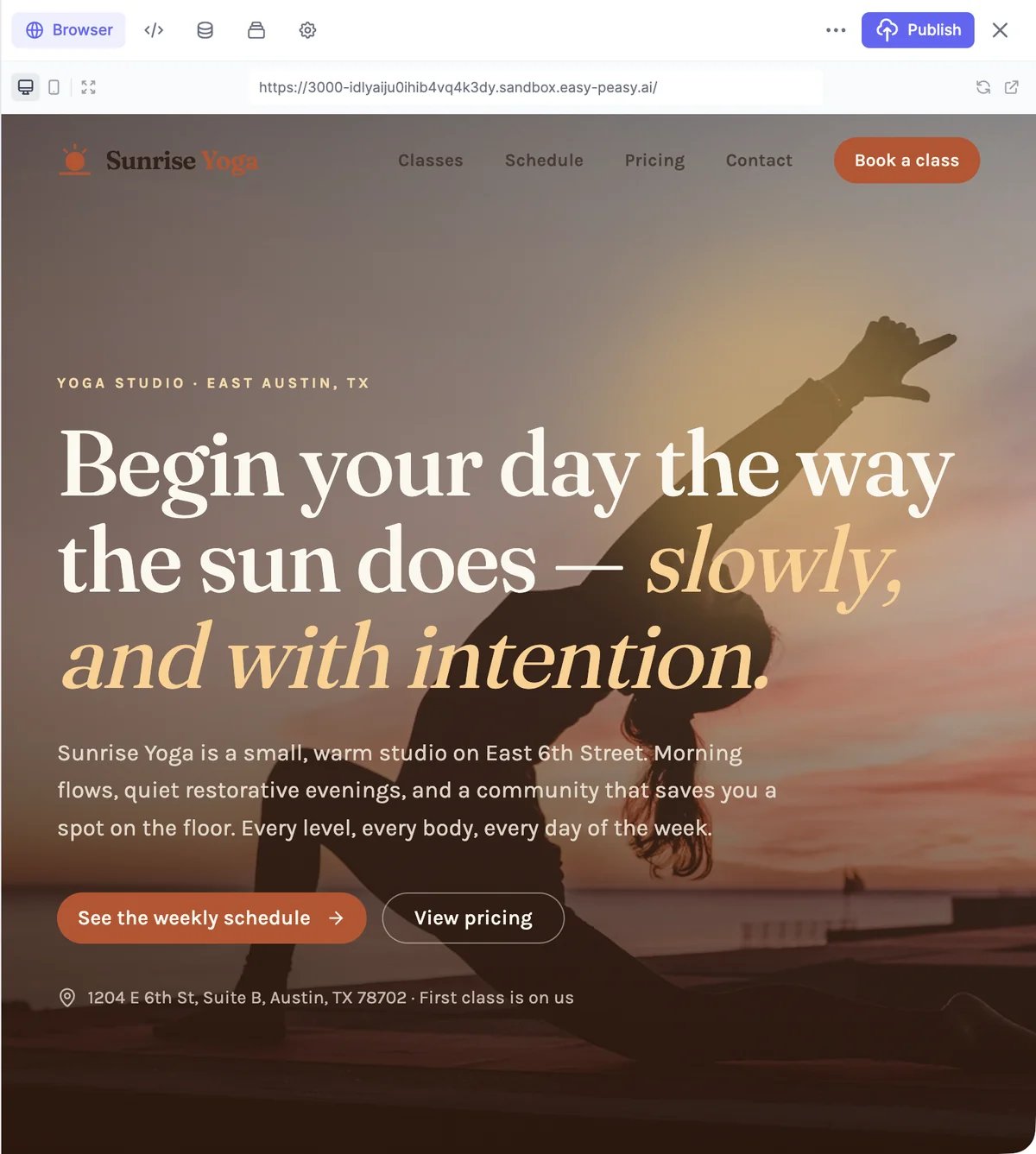
5
Publish
Click Publish at the top of the workspace. Building and publishing takes a few minutes. When it’s done, Published Successfully! shows your site’s address, which ends in 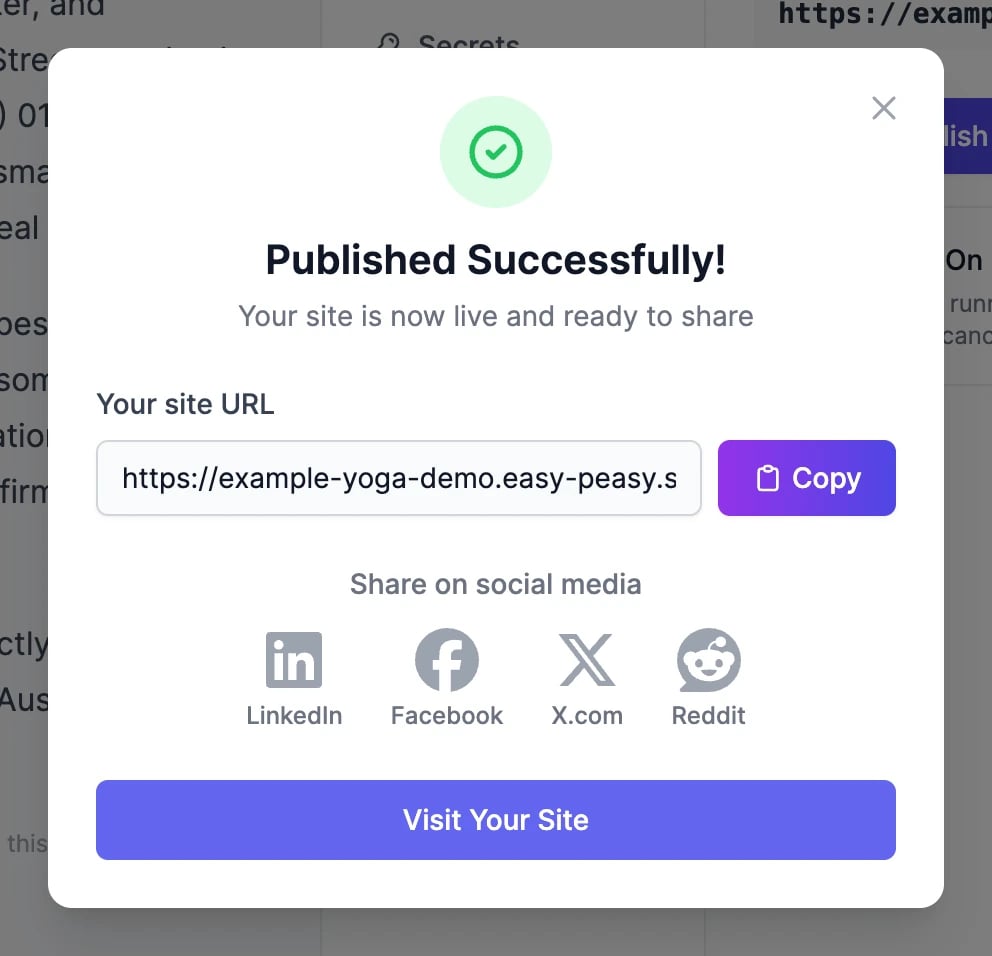
.easy-peasy.site and is based on the project’s name. Copy it, share it on social media, or click Visit Your Site.Changes you make after publishing show up in the preview right away, but not on your live site. Click Publish again, or Re-publish in Settings > General, to put them live.
Websites, web apps, and mobile apps
Marky picks the right setup from your description:The workspace
The ⋯ menu has Version history, Push to GitHub, and Download ZIP. To show or hide the workspace, use the monitor icon at the top of the chat.
If the preview says the sandbox is paused
Marky’s computer pauses when a project isn’t used for a while. Click Resume Sandbox to wake it up; your files are kept. Published sites aren’t affected: they keep running on their own.Mobile apps
For a mobile app, the Preview tab shows the app in the browser and a QR code. Scan it with the Expo Go app on your phone to try the app on a real device. When the app is ready, click Build at the top of the workspace:- Android: choose Build APK for a file you can install on any Android phone for testing, or Build for Google Play for an AAB file to upload to the Play Store. A build takes 5 to 15 minutes, then a download button appears. Android builds need a paid plan.
- iOS: coming soon.
Undo changes with version history
Marky saves versions of your project as it works. Open ⋯ > Version history to see them, newest first.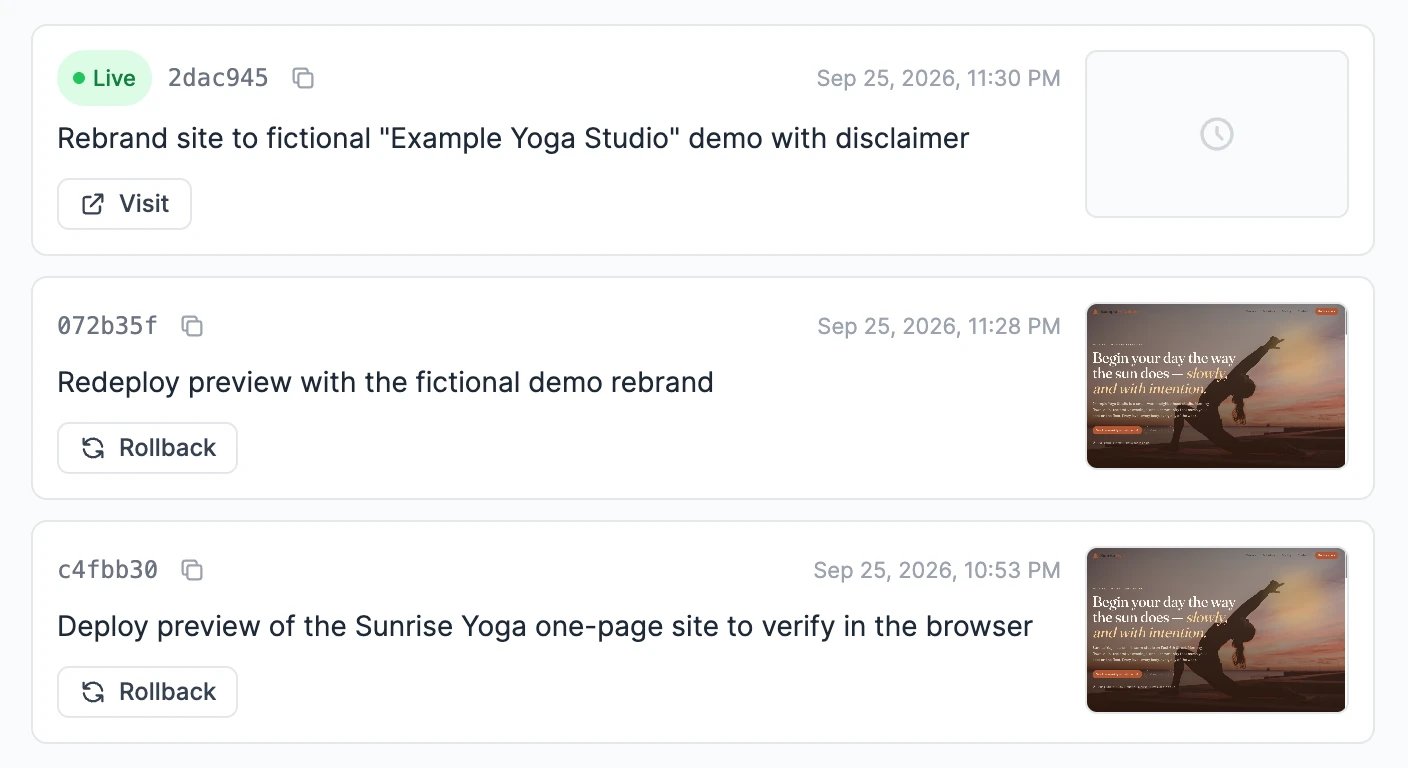
- The published version is marked Live. Visit opens it.
- If your newest version isn’t published yet, it’s marked Current and has a Publish button.
- Rollback returns the project to an older version. You’re asked whether to roll back the live site too.
Settings
Click the gear icon in the workspace.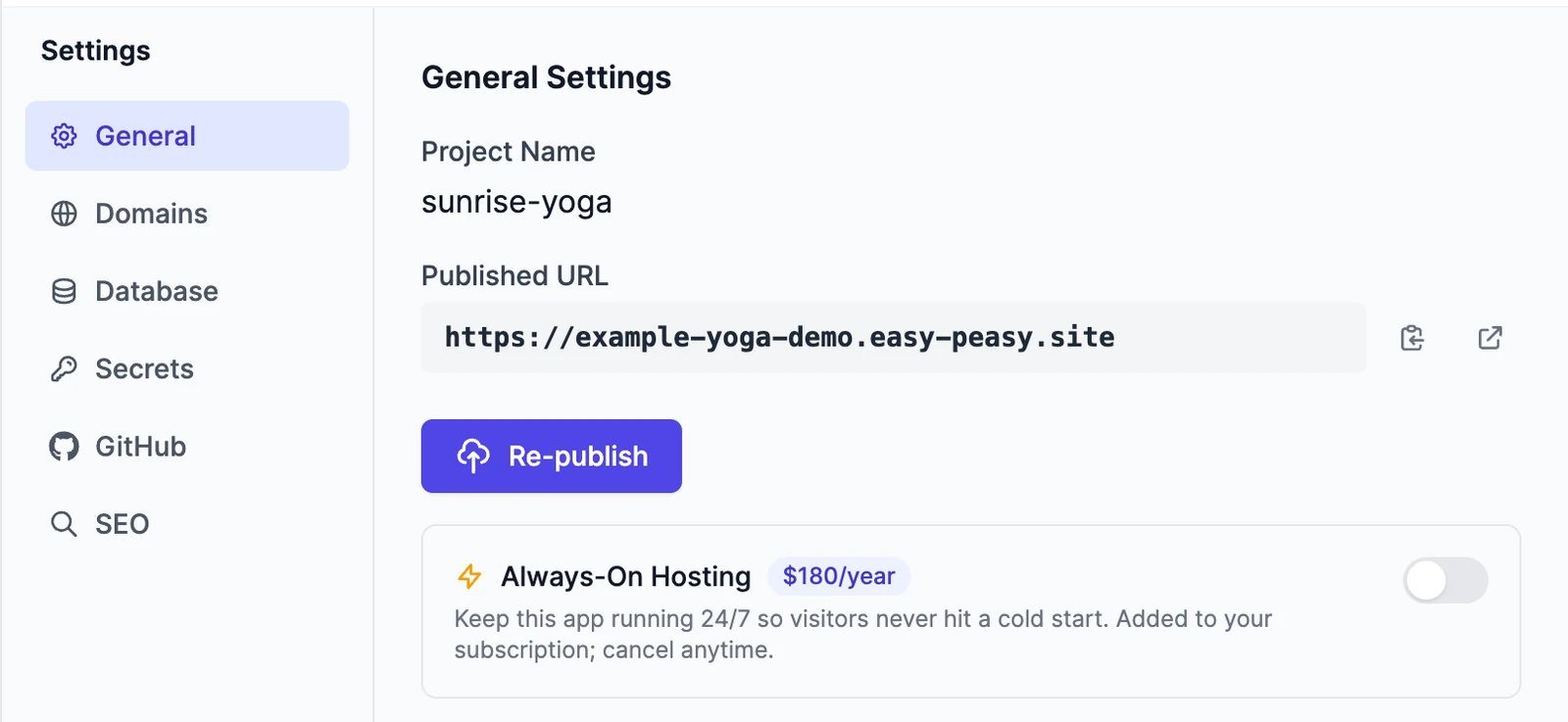
Change the address
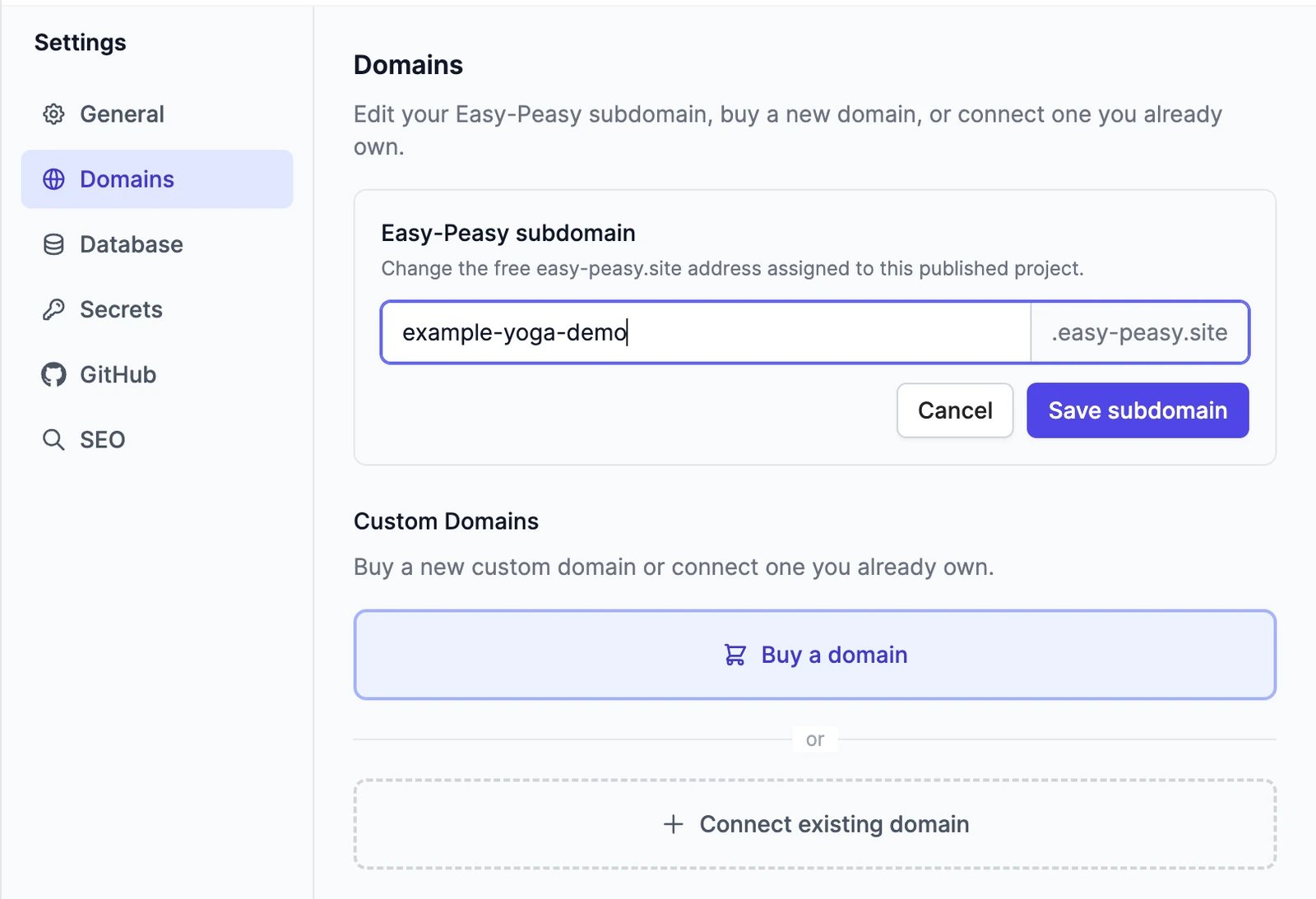
Your site gets a free address ending ineasy-peasy.site. To change the first part, open Settings > Domains, click Edit next to Easy-Peasy subdomain, type the new name, and click Save subdomain. The new address works right away, and the old one stops working, so update any links you’ve shared.
Use your own domain
Publish the site first, then open Settings > Domains > Custom Domains:- Buy a domain: search for a name, check the yearly price, and click Buy. You pay by card, and the domain is connected for you. Domains are registered for one year.
- Connect existing domain: enter a domain you own and click Add Domain, then add the DNS record shown at your domain registrar. The status goes from Pending DNS to SSL Provisioning to Active. Click Check again to refresh it.
example.com, www.example.com works too.
Always-On Hosting
Published sites go to sleep when nobody visits them, and the first visit afterwards takes a few seconds to load. Always-On Hosting keeps the site awake, so every visit is fast. It’s a paid add-on for each site, available on paid plans. You’ll see the price before you add it in Settings > General.Keep a copy of the code
- Download ZIP: ⋯ > Download ZIP gives you the whole project.
- Push to GitHub: ⋯ > Push to GitHub creates a new repository (private or public) or links an existing one, then pushes the code. Use Sync Changes later to push new versions.
.env files to GitHub.
Credits
Building uses words, like any Marky task, at the rate of the model you pick. Images Marky generates for the site use image & video credits; stock photos are free. Publishing is free. Custom domains and Always-On Hosting are paid separately.Is my published site public?
Is my published site public?
Yes. Anyone with the address can visit it. The preview in the Browser tab uses a private, hard-to-guess address, but it isn’t password-protected either.
What happens to my site if I cancel my plan?
What happens to my site if I cancel my plan?
If you built the site on a paid plan and the plan ends, the site’s hosting is paused. Renew your plan to bring it back.
How do I take a site offline?
How do I take a site offline?
Open Settings > Data Controls on the dashboard, find the site under My Websites or My Apps, and delete it. Deleting the chat where you built it also takes the site offline. See Manage your chats.
Can I edit the code myself?
Can I edit the code myself?
Yes. Download the ZIP or push it to GitHub and work on it with your own tools. To keep building with Marky, ask for changes in the chat.
Create slides
Turn a topic or a document into a finished deck.
Models and words
Pick the right model for building.