
AI video editing is available on paid plans.
Open the editor
- For a video you made here: open its ⋮ menu, or its details, and click Edit with AI. The Edit video with AI window opens.
- For your own video: open Videos > Edit Video and click Upload a video: MP4 or MOV, 4 to 30 seconds, up to 100 MB.
Make an edit
1
Describe the change
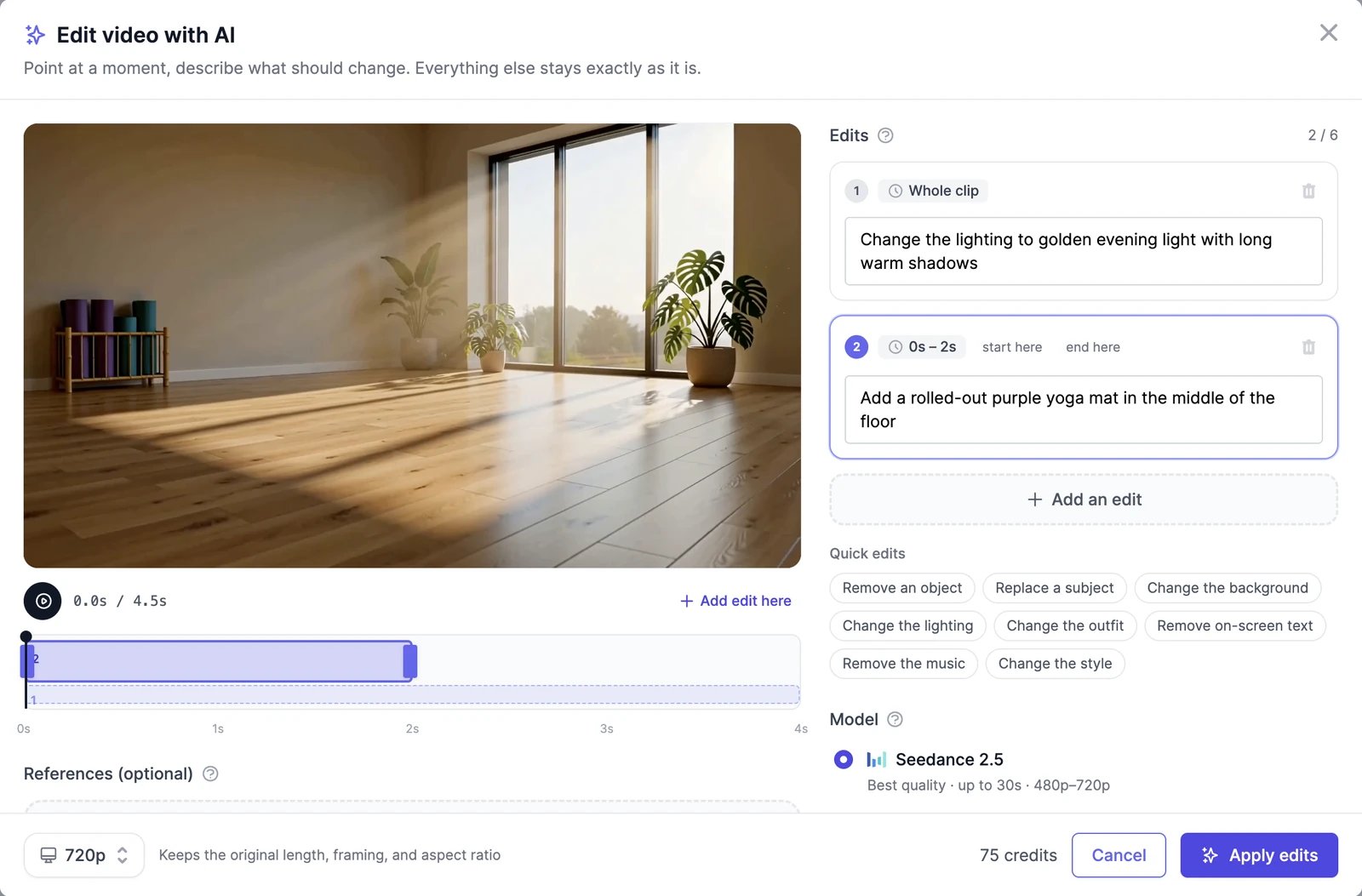
Type the change in the first edit, which applies to the Whole clip. Start with what you want done: add, remove, replace, or change. Quick edits start a sentence for you: Remove an object, Replace a subject, Change the background, Change the lighting, Change the outfit, Remove on-screen text, Remove the music, and Change the style.
2
Limit an edit to a moment (optional)
Play the video, pause where the change should happen, and click Add edit here. The new edit covers a few seconds from that point. Drag its ends on the timeline, or use start here and end here while the video plays. Times snap to whole seconds, so treat them as a strong hint rather than an exact cut. You can add up to 6 edits.
3
Add reference images (optional)
Under References (optional), add up to 4 images, such as a jacket or a person to swap in. They’re tagged @Image1 to @Image4, so you can write “replace the jacket with @Image1”.
4
Pick an engine and resolution
Choose a model under Model, and a resolution at the bottom. The price updates as you go.
5
Click Apply edits
The edited video appears in your results in a few minutes. Its menu says Change these edits instead of Regenerate, so you can adjust the instructions and try again.
Engines and credits
Editing is charged per second of the video you edit, at the resolution you choose. Seconds are rounded up.
For example, editing a 5-second video with Seedance 2.5 at 720p costs 75 credits.
Tips
- Keep each edit to one change. Use separate edits for separate changes.
- Name what’s there and what should replace it: “replace the red car with a white van” works better than “change the car”.
- If an edit is refused, which can happen with clips that show real people, try WAN 3.0. You aren’t charged for refused edits.
Extend a video
Add a new shot to the end.
Upscale a video
Make the result sharper.