
Fill in the form
1
Describe what you want
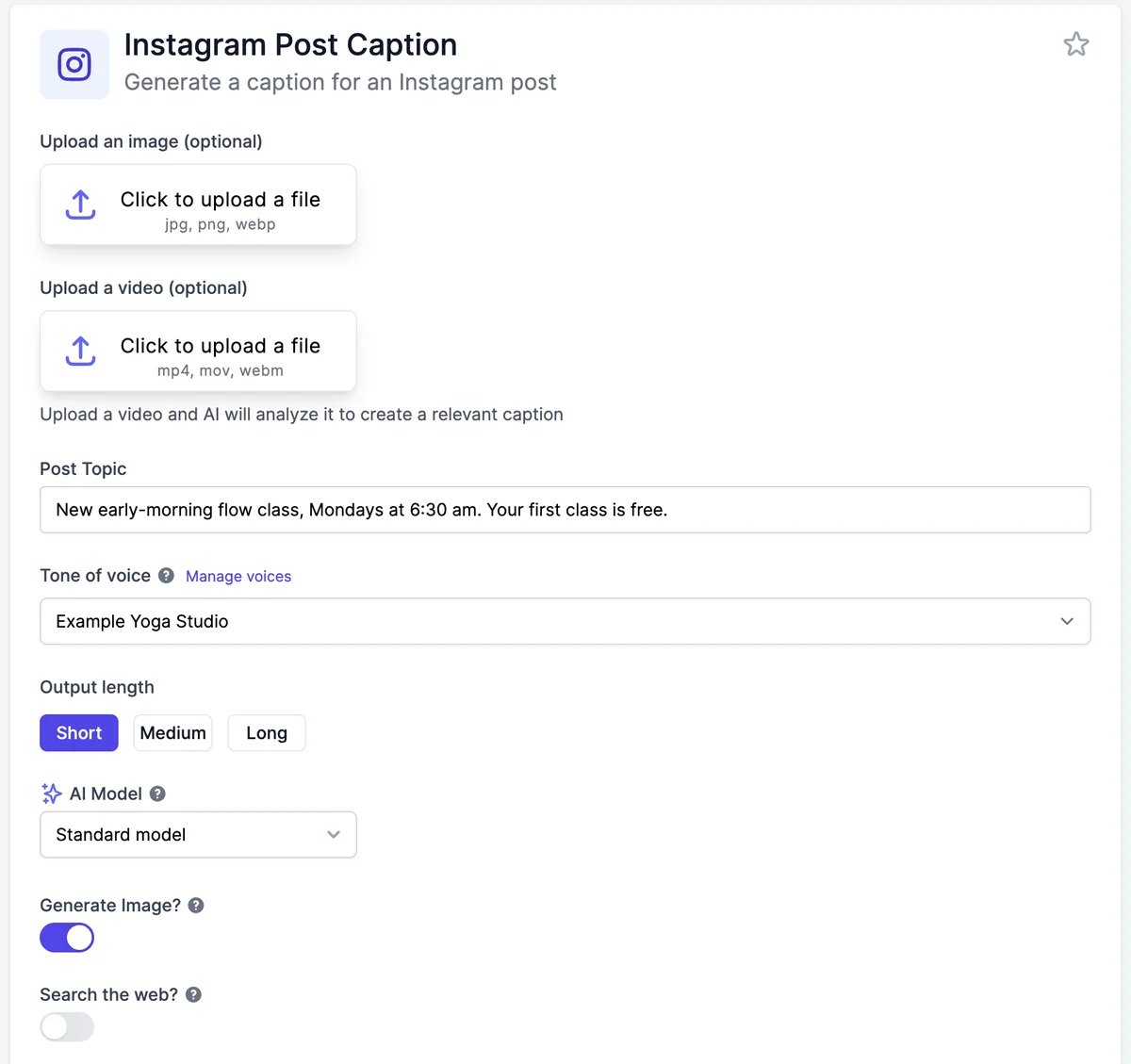
Fill in the main field, such as Post Topic. Be specific: names, dates, prices, and the one thing readers should remember. Fields with a counter have a length limit.The Dictate microphone next to a text box types what you say, for up to 10 minutes at a time.
2
Set the tone
Tone of voice decides how the result sounds. If you have brand voices, pick one here; your newest one is selected for you. Pick Custom to type a tone instead, such as “witty” or “warm and reassuring”. Manage voices opens Brand Voice.
3
Add files (optional)
Some tools read an image, a video, or a document you upload, for example a photo to write a caption for, or a PDF to summarize. Reading a file adds 150 words to each result.
4
Choose the options
5
Choose how many results and the language

6
Click Generate
Results appear under New Outputs a few seconds later. You can leave the page; results are saved to History.
- Output Examples (optional): paste examples of results you like, and turn them on. The tool follows their format and style.
- Save default instructions for this tool: instructions added to every run of that tool, such as your clinic’s note format.
Work with the results

History, next to New Outputs, lists everything you’ve made with this tool.
If a result fails, its card says so and you aren’t charged for it. Click Generate again.
Share a result
Click Share on a result and turn on Share with anyone. You get a link to a public page with the result, and buttons to post it on LinkedIn, Facebook, X, and Reddit. Anyone with the link can view it, and it may be featured as an example on Easy-Peasy.AI.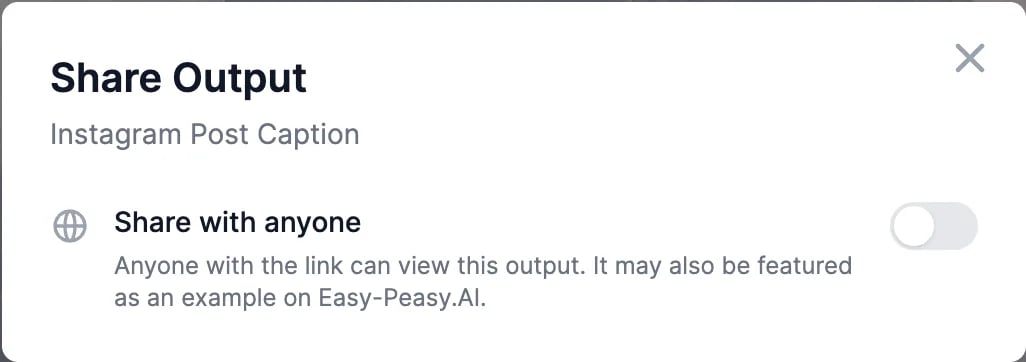
What it costs
Each result uses words from your plan, based on its length and the model. On the Unlimited and Teams plans, the Standard model doesn’t use words. Generate Image? uses 3 image & video credits per result. See Models and words.Models and words
Which model to pick, and what it uses.
Create your own tool
Build a tool for a job you do often.