
Connect an app
1
Open Connectors
Click Connectors in the Marky sidebar. You can also click + in the message box, then Connectors > Manage Connectors.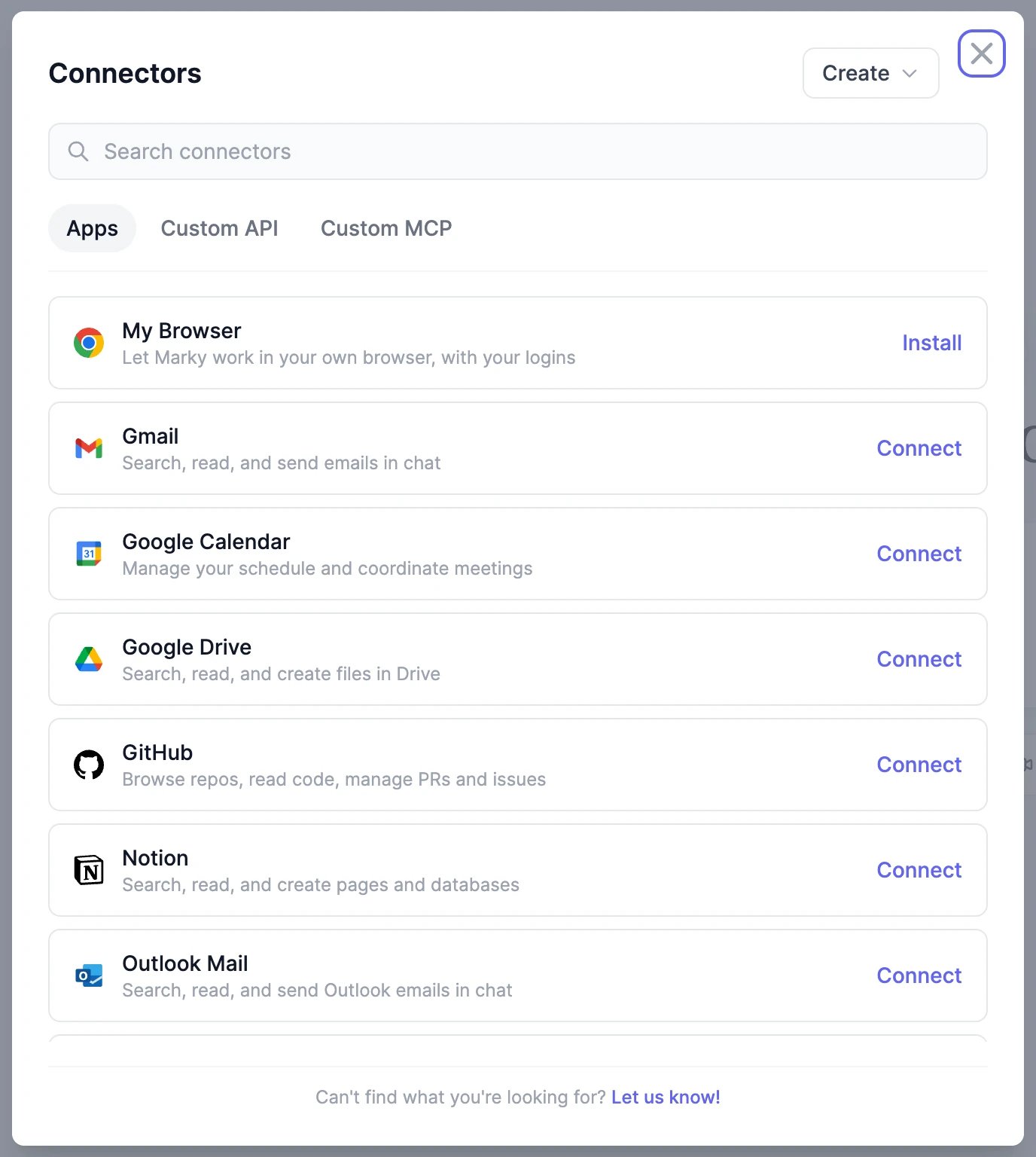
2
Click Connect
Find the app in the list or search for it, and click Connect. Sign in to the app in the window that opens and approve access.
3
Use it in a chat
Back in Marky, the app shows Connected with the account you used. Ask Marky to do something with it. Connected apps also appear as small logos next to + in the message box.
Available apps
Some apps come in two versions so you can choose how much Marky may do. For example, Supabase (Read-only) lets Marky look at your database but never change it.
For Crisp, you paste a token instead of signing in: in Crisp, go to Workspace Settings > Advanced and copy the MCP Server Token.
Don’t see your app? Click Let us know! at the bottom of the window, or add it yourself as a custom connector.
Turn connectors on and off
Each connected app has a switch. Turn it off and Marky won’t use that app in any chat, but it stays connected, so you can turn it back on in one click. This is useful when you want Marky to stay out of your email for a while. To see what Marky can do in an app, click the app’s name. The details list its Tools, such as searching, reading, or creating. Disconnect removes the connection.Add a custom connector
If an app isn’t in the list, connect it yourself with Create at the top of the window:
Custom MCP servers connect with URLs and headers; signing in with OAuth works only for the apps in the list.
Privacy and Google data
- Marky reads your data only while it works on a task that needs it.
- In Gmail, Outlook, Google Calendar, Outlook Calendar, Google Drive, OneDrive, OneNote, Notion, and GitHub, Marky asks in the chat before it sends an email, changes your calendar, or creates or changes files, pages, and issues. For other apps, say in your request if you want Marky to check with you first, for example “show me the refund before you issue it”.
- Grok (xAI) and DeepSeek models can’t use Gmail, Google Calendar, or Google Drive, because of Google’s rules for how its data may be used. While those connectors are on, these models are unavailable in the model picker. Turn the Google connectors off to use them.
Marky says an app isn't connected, but it is
Marky says an app isn't connected, but it is
The app’s sign-in may have expired, for example after you changed your password or haven’t used it for a long time. Open Connectors and connect the app again. If it still shows Connected, click its name, then Disconnect, and connect it again.
Can my scheduled tasks use connectors?
Can my scheduled tasks use connectors?
Yes. Scheduled tasks can use every connector that’s connected and on.
Which OneNote notebooks can Marky see?
Which OneNote notebooks can Marky see?
Notebooks stored in your own OneDrive or OneDrive for Business. Notebooks on SharePoint team sites or in Microsoft 365 groups aren’t available.
Browse the web
For websites without a connector, let Marky use a browser.
Scheduled tasks
Run a connector job every day or week.