
Change a voice
1
Open Voice Changer
Click Audio > Voice Changer in the top menu, or find it in All Tools.
2
Upload your audio or video
Drag the file into Upload your audio or video, or click to choose it. MP3, WAV, M4A, AAC, OGG, FLAC, MP4, MOV, and WebM files up to 100 MB and 30 minutes long work.
3
Choose a target voice
Click Change and pick a voice. Play a few to compare. You can use any voice from the library, and your Instant clones and designed voices.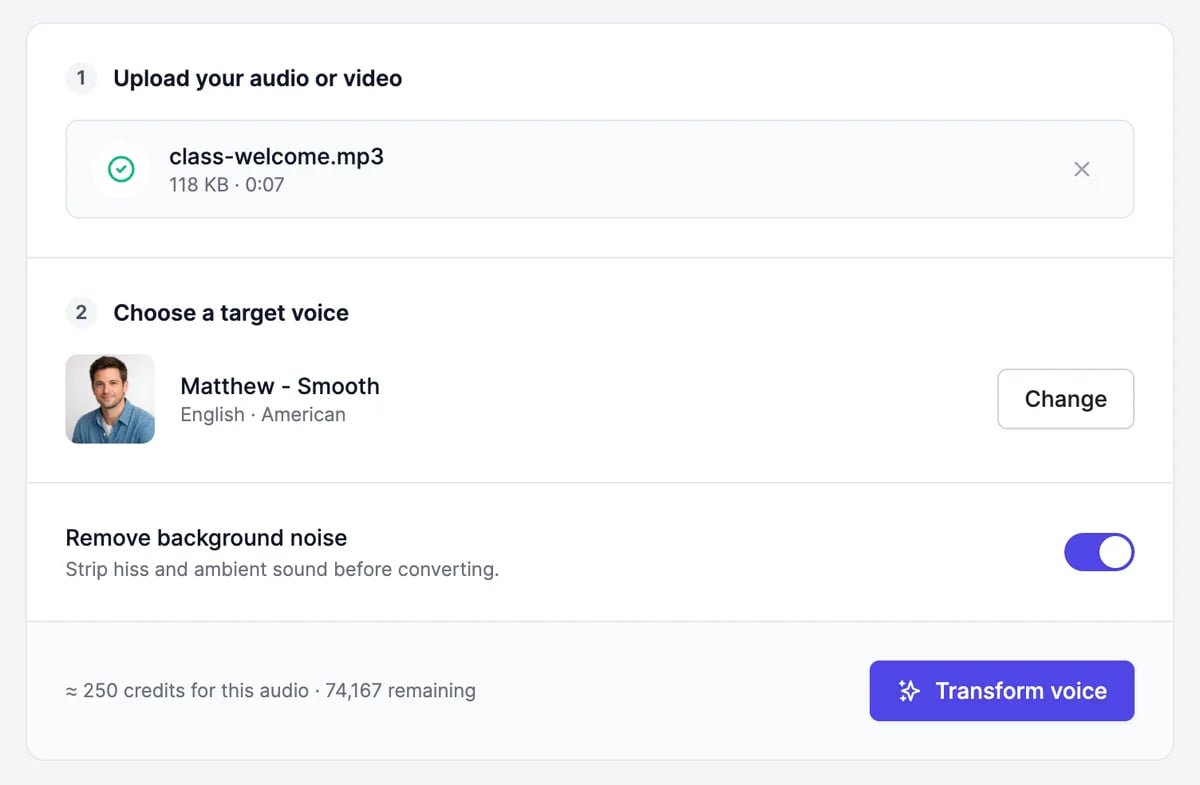
4
Click Transform voice
Remove background noise, on by default, cleans up hiss and room sound first. Turn it off to keep the original atmosphere.The result appears under Your conversions a few seconds later.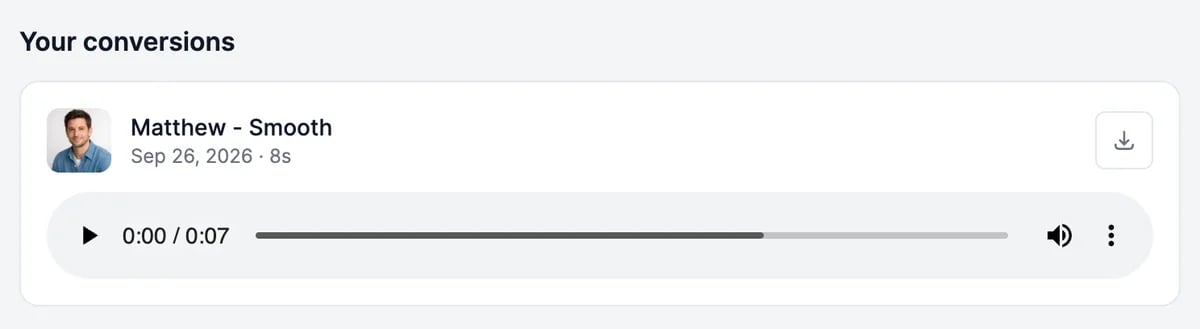
Tips
- Record clean audio. One speaker, close to the microphone, no music. The new voice copies your delivery, so perform the lines the way you want them to sound.
- Match the voice to the performance. A calm voice reading shouted lines sounds odd. Pick a voice that suits the energy of the recording.
- Professional clones don’t work here. Voice Changer can’t use Professional clones. To change a recording into your own voice, make an Instant clone from the same sample.
What it costs
Voice Changer uses your plan’s text-to-speech characters, shown on this page as Speech credits: about 2,000 per minute of audio, or 33 per second. Before you start, the page shows an estimate for your file; the final count is based on the length of the result. A failed conversion isn’t counted. If the estimate is more than you have left, Transform voice changes to Upgrade to continue. See Audio plans and limits.Voices and voice cloning
Clone your voice or design a new one.
AI dubbing
Translate a video into another language.