
Your team
Open Settings > Team.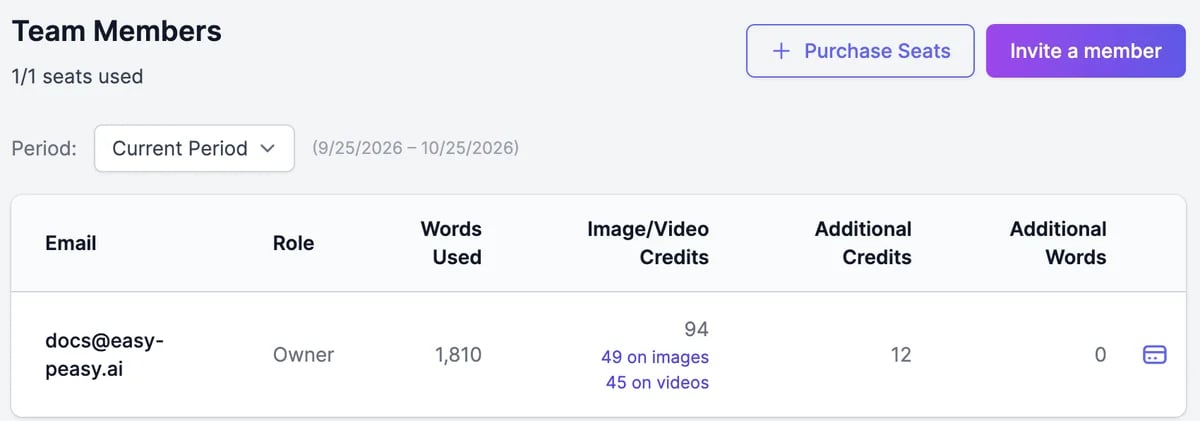
Team members see a message to ask the account owner; only the owner manages the team.
Invite team members
1
Click Invite a member
It’s available while you have a free seat. If all seats are used, add a seat first.
2
Invite by email or link
Type their email addresses, separated by commas, and click Send. Or copy the link under Invite by link and send it yourself.
3
They sign up
When they sign up through the invitation, they join your team and appear in the table.
Add or remove seats
- Purchase Seats adds seats to your subscription, up to 50 extra. Each seat costs the same as your plan, and you pay the prorated amount for the rest of the current period.
- Remove Seats removes empty seats. Remove the member first. The change is immediate, and the unused time is credited on your next invoice.
Top up a member
Click Buy Additional Credits or Words on a member’s row, choose Image & Video Credits or Words, and pay. They go to that member only. See Buy more credits.Share with your team
Most things you create can be shared with the team. Turn on Share with Team Members, or the team option in the share window, on:- transcriptions and speech,
- images and Marky chats,
- agents, workflows, and custom tools.
Manage your subscription
Change plan or payment details.
Check your usage
See your own usage this period.