
Transcribe a file or link
1
Choose a source
Click AI Speech to Text in the sidebar, then Upload new.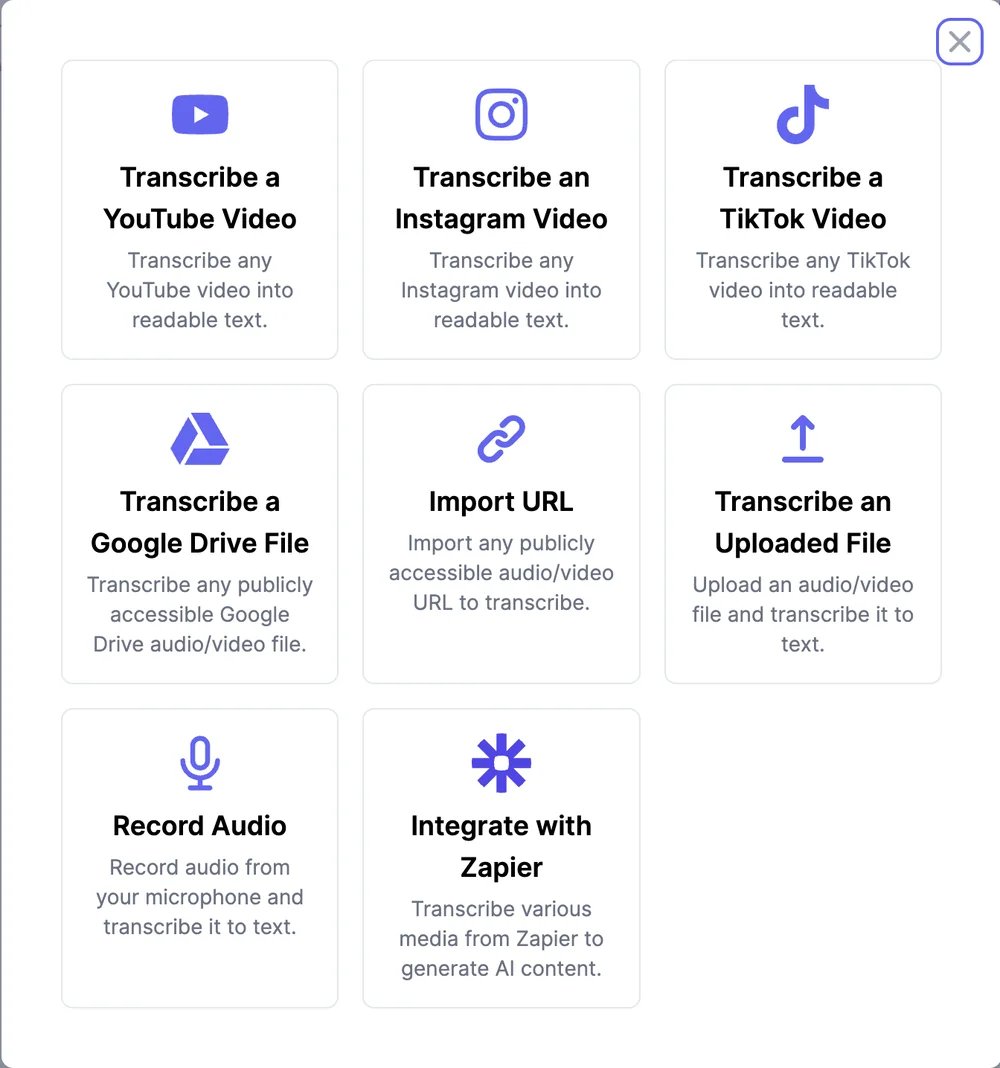
2
Add the file or link
For a file, drag it in or click to choose it. Audio: MP3, M4A, WAV, FLAC, OGG, AAC, Opus, WMA. Video: MP4, MOV, WebM, AVI, MKV, FLV.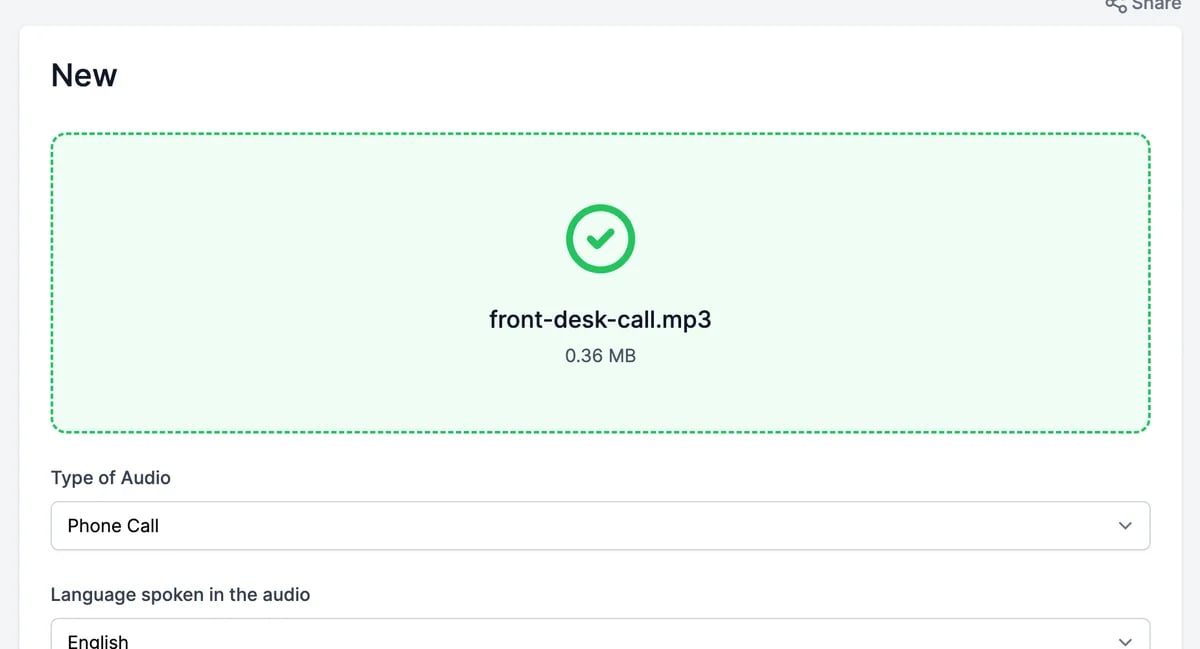
3
Set the options
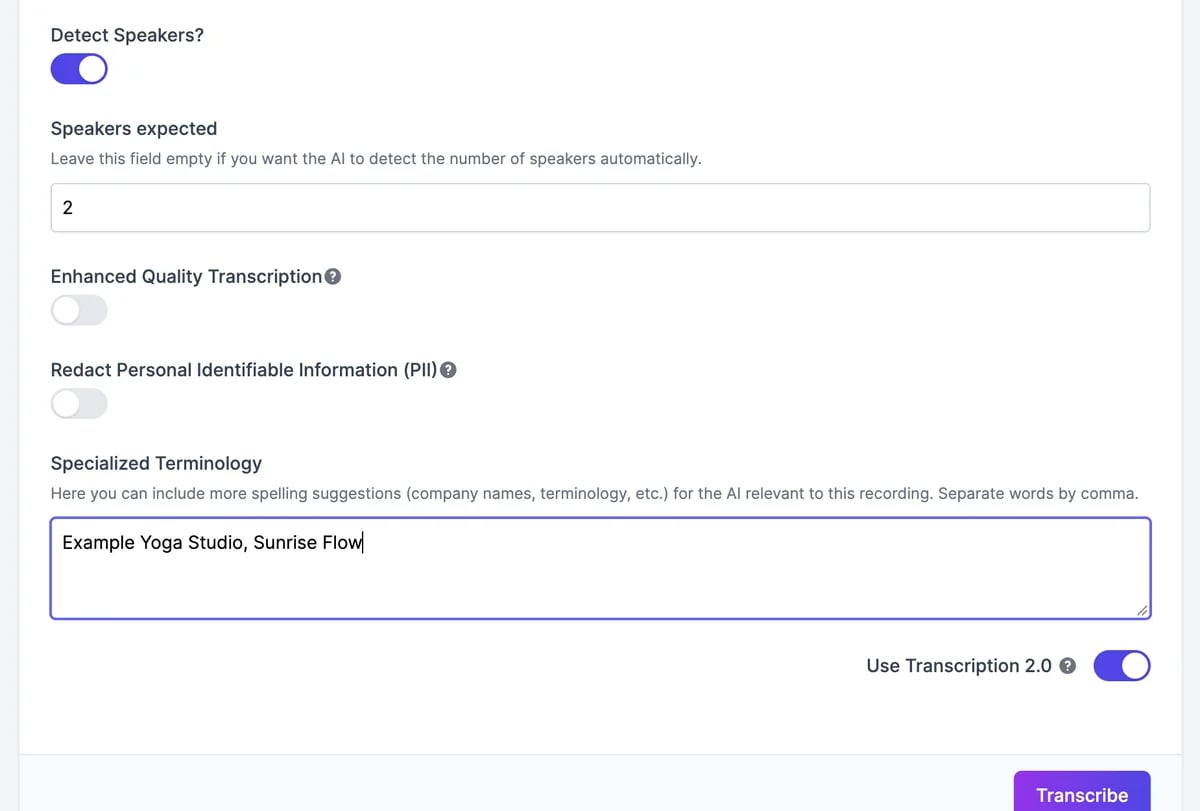
Specialized Terminology and Enhanced Quality Transcription currently only affect the older engine, used when Use Transcription 2.0 is off.
4
Click Transcribe
The file uploads and transcription starts. Short recordings are done in a minute or two; long ones can take 10 to 20 minutes. You can leave the page; you’ll get an email when it’s ready.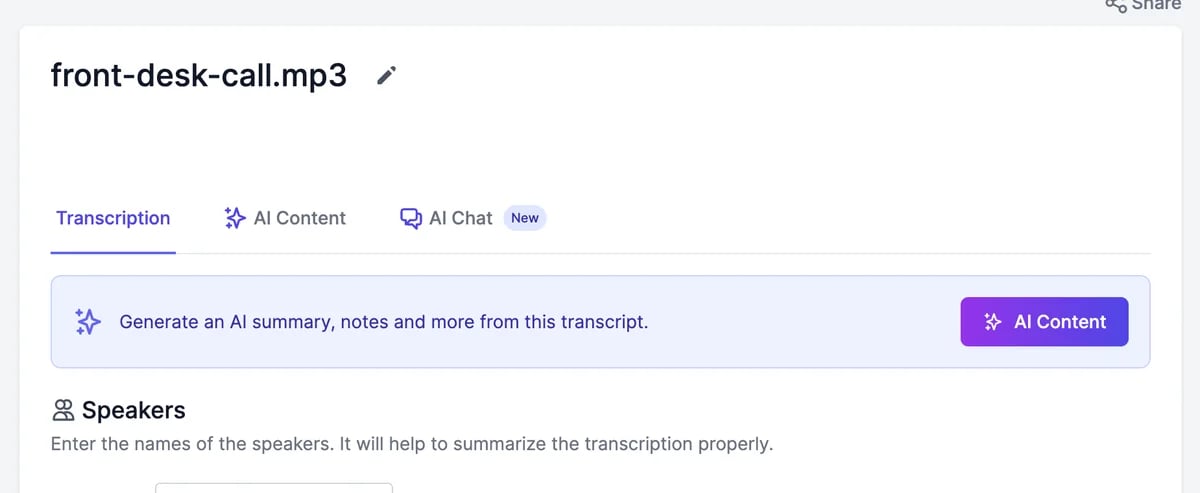
YouTube videos
When a YouTube video has captions, the transcript is ready in seconds as plain text, without speakers or timestamps, and subtitle downloads aren’t available. Videos without captions are transcribed like a file, with speakers and timestamps.Your transcriptions
AI Speech to Text lists your transcriptions, 20 per page, each with its status: Processing, Transcribed, No speech, or Failed. Click one, or Edit, to open it.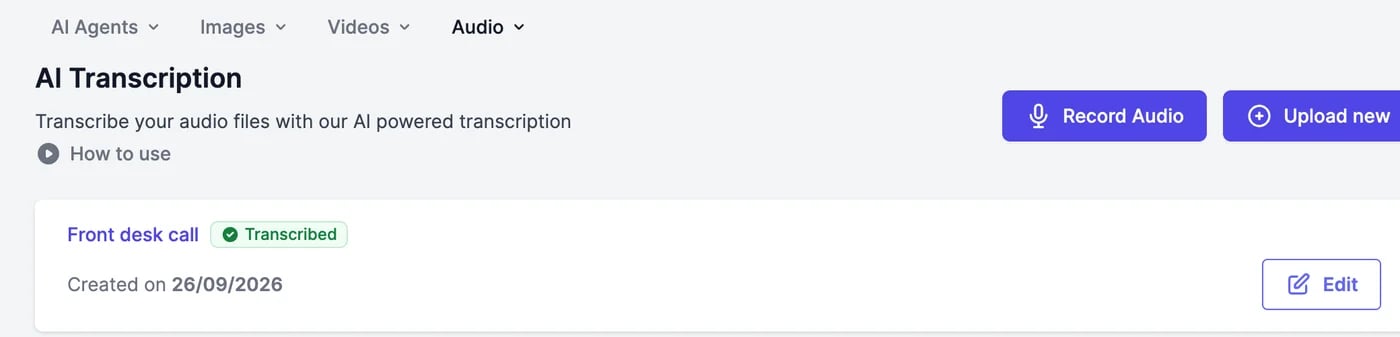
If a transcription fails
- Failed items are retried automatically. You can also open one and click Retry transcription; your file is kept.
- No speech means no speech was found, for example a recording with the microphone muted. Check the recording and upload it again.
Dictate into a text box
The microphone button in Marky, the tools, and AI Images types what you say into the text box. Dictation doesn’t use transcriptions.What it costs
Each new item uses one transcription from your plan, whatever its length. An item counts when you pick a source or start a recording, even if you don’t finish it or delete it later. Retries don’t count again. Check your usage on Settings > Usage and see Audio plans and limits. AI Content and AI Chat use words.For developers
Transcribe from your own code withPOST /api/transcriptions, which needs a paid plan. See Create transcription.
Work with a transcript
Speakers, subtitles, AI Content, and AI Chat.
Record & Transcribe
Record a meeting in your browser.