
Test your agent
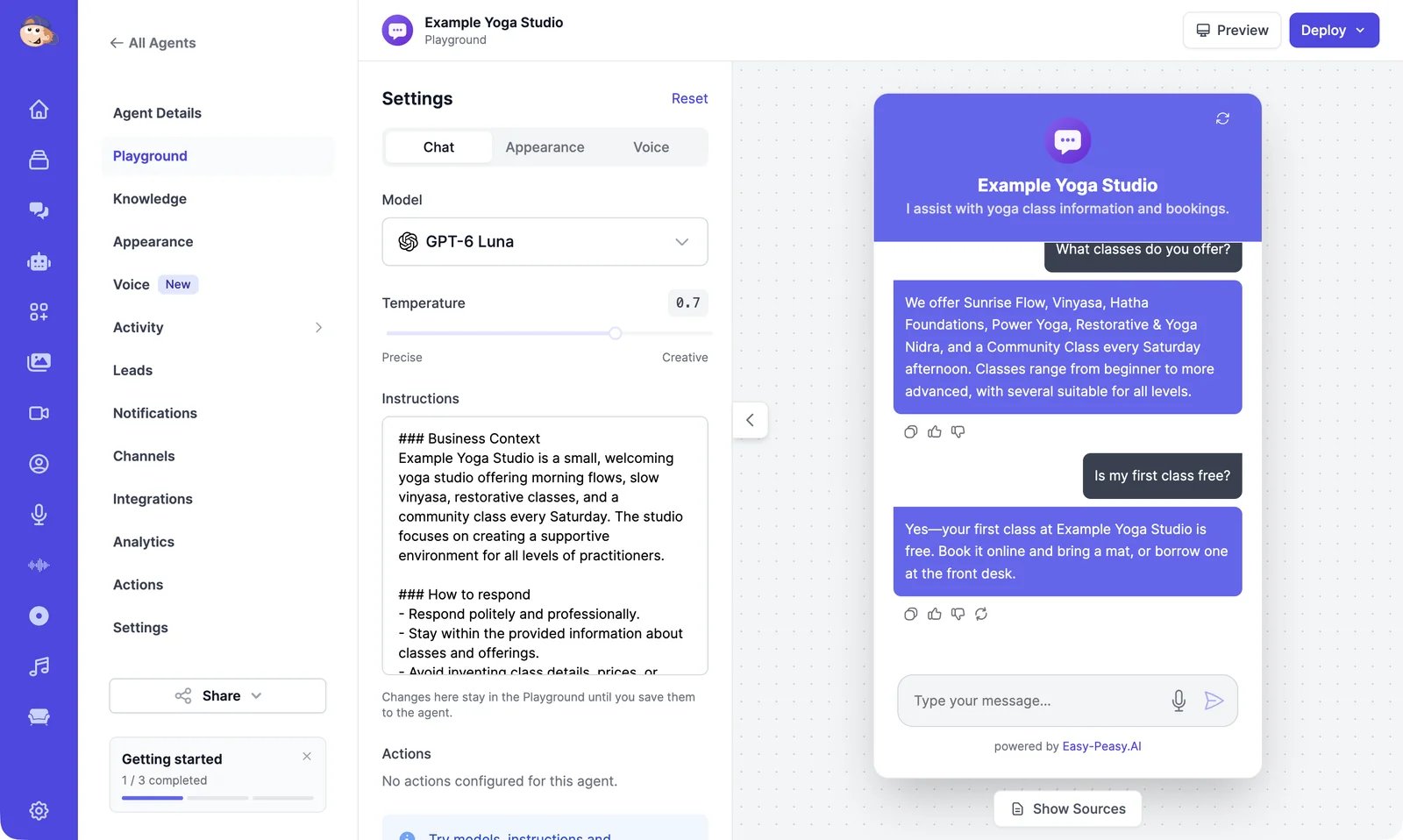
Open your agent and click Playground. Type a question in the chat, or click one of the suggested messages.- Show Sources under the chat lists the knowledge the last answer came from. Use it to check whether an answer came from the right page.
- Under each answer you can copy it, rate it, or regenerate it.
- The refresh icon in the chat header starts a new conversation.
Playground chats are real conversations: they appear in Conversations and use your plan’s allowance like any other chat.
Try a different setup
The Chat tab has the settings that change how the agent answers:
These changes apply only to your Playground chat. When they differ from the agent’s saved setup, a bar appears at the bottom with Unsaved setup:
- Save to agent saves the model, temperature, and instructions to your agent. Every channel uses them from your next message.
- Discard goes back to the saved setup. Reset at the top does the same and also clears the chat.
Change the look
The Appearance tab has the same settings as the Appearance page: name, greeting, suggested messages, colors, and more. The chat preview updates as you type. Click Save at the bottom of the tab to keep your changes.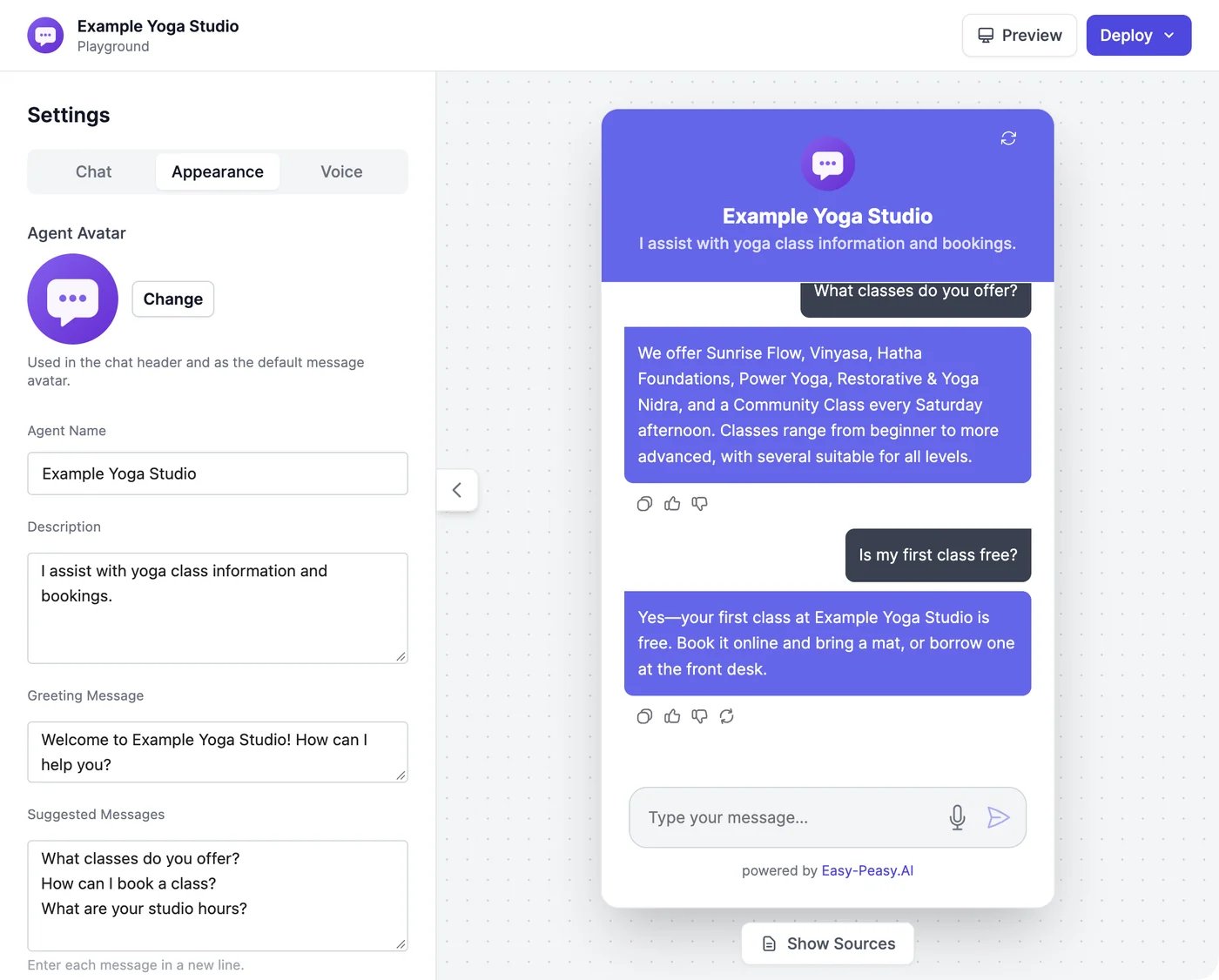
Set up voice calls
The Voice tab turns on voice calls and sets the voice, the model used on calls, and the call instructions. Changes here save automatically. With voice on, a call button appears in the chat. See Voice calls.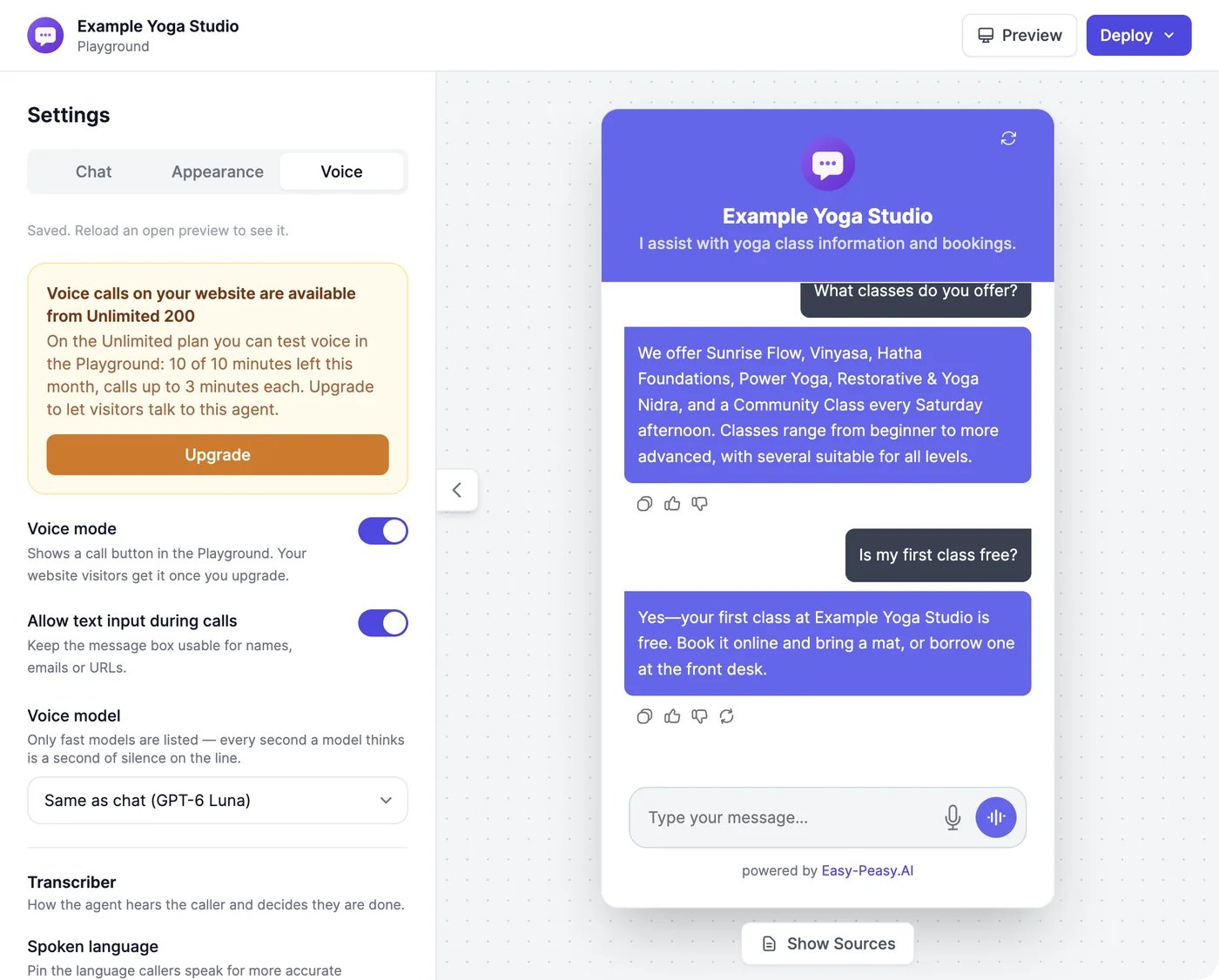
Preview it on a web page
Preview opens your agent’s real chat bubble on a sample web page, the way it looks on your website. Switch between a light and a dark page to check your colors.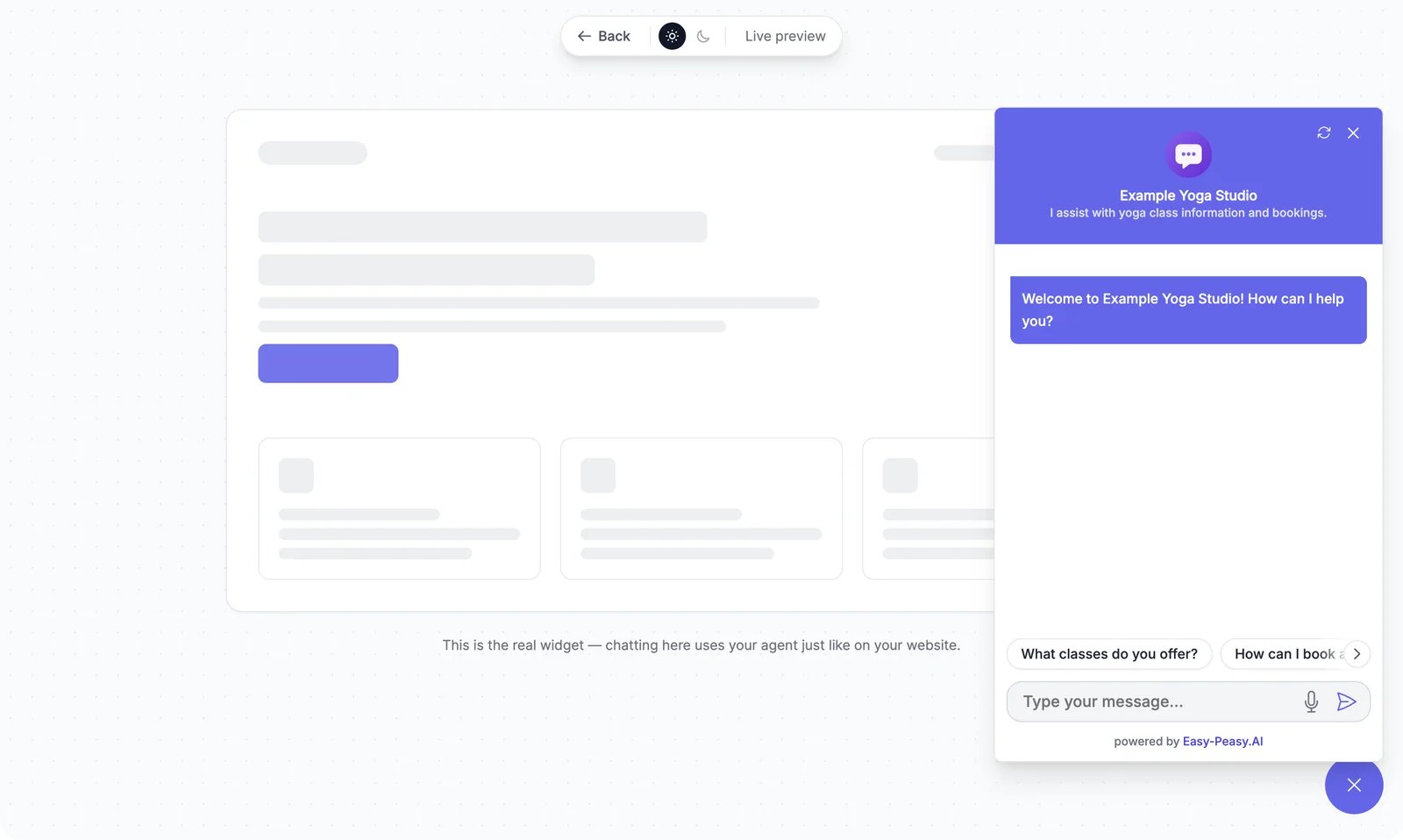
Deploy
Deploy lists the fastest ways to put your agent live: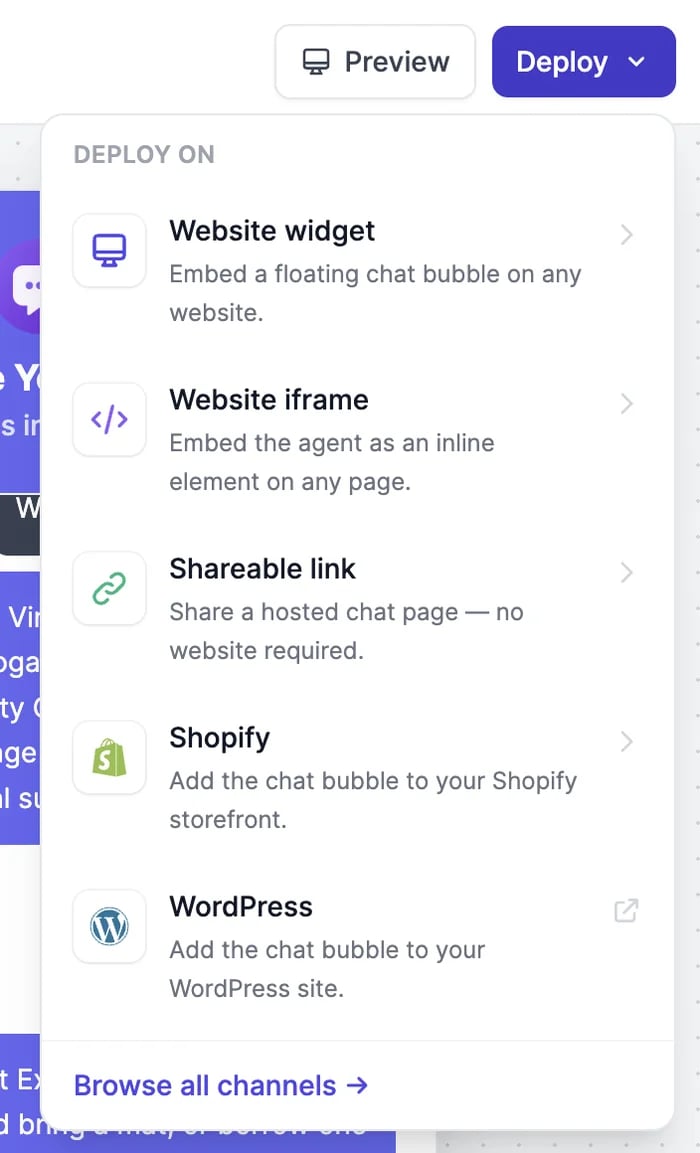
Instructions and model
Write better instructions and pick a model.
Channels
Put your agent where your customers are.