
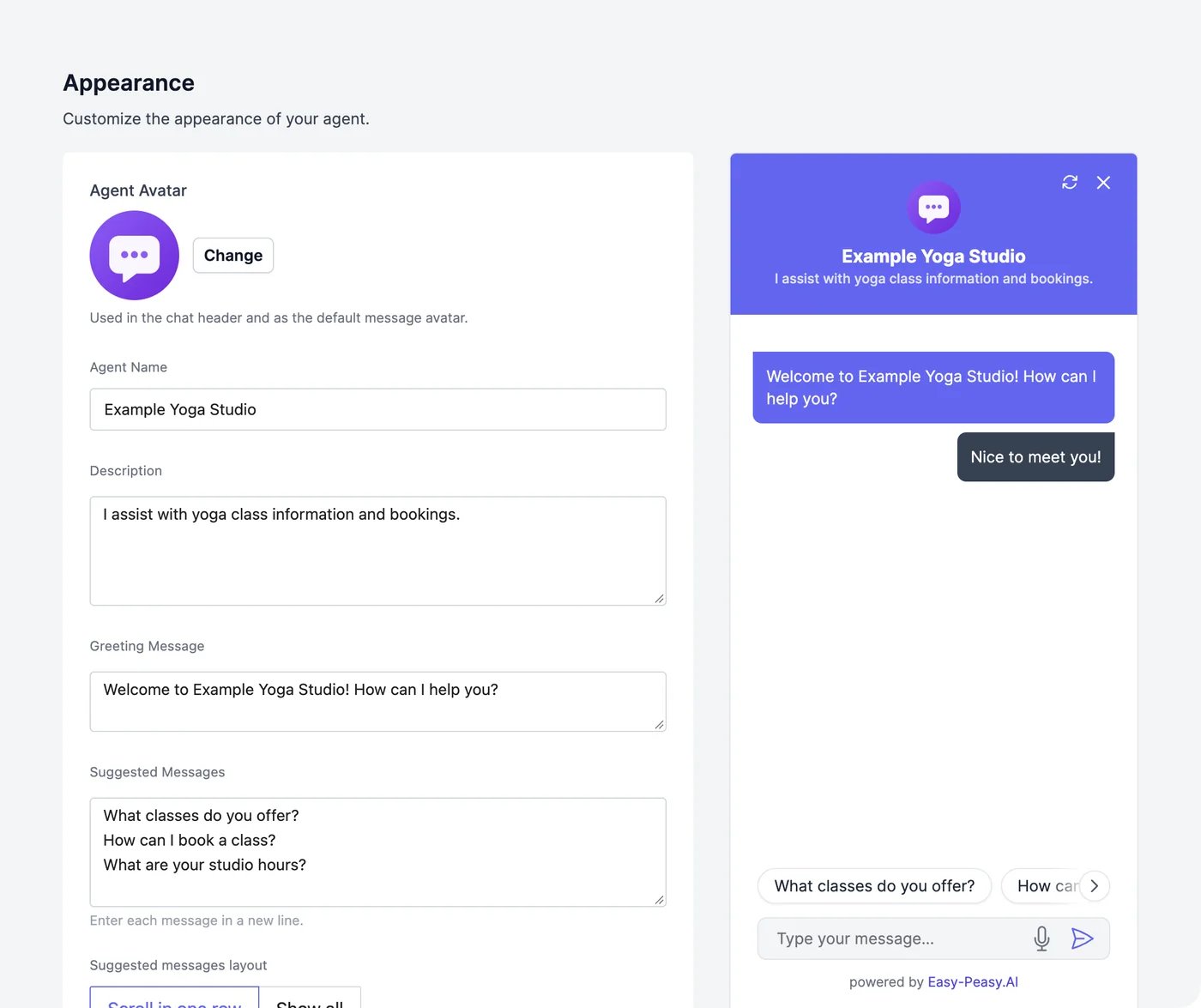
Content
Chat features
Image attachments
With Allow image attachments on, visitors can attach up to 4 images per message (PNG, JPEG, or WebP, up to 5 MB each) in the website chat, on the shareable link, and on Telegram. The agent looks at them and answers.- The agent’s model must be able to see images: GPT, Claude, or Gemini models. With another model, the attach button doesn’t appear.
- Each image the agent looks at uses 200 words, on every model. The agent keeps up to 3 recent images in view, so an image is counted again for each reply it’s still in view for.
Style
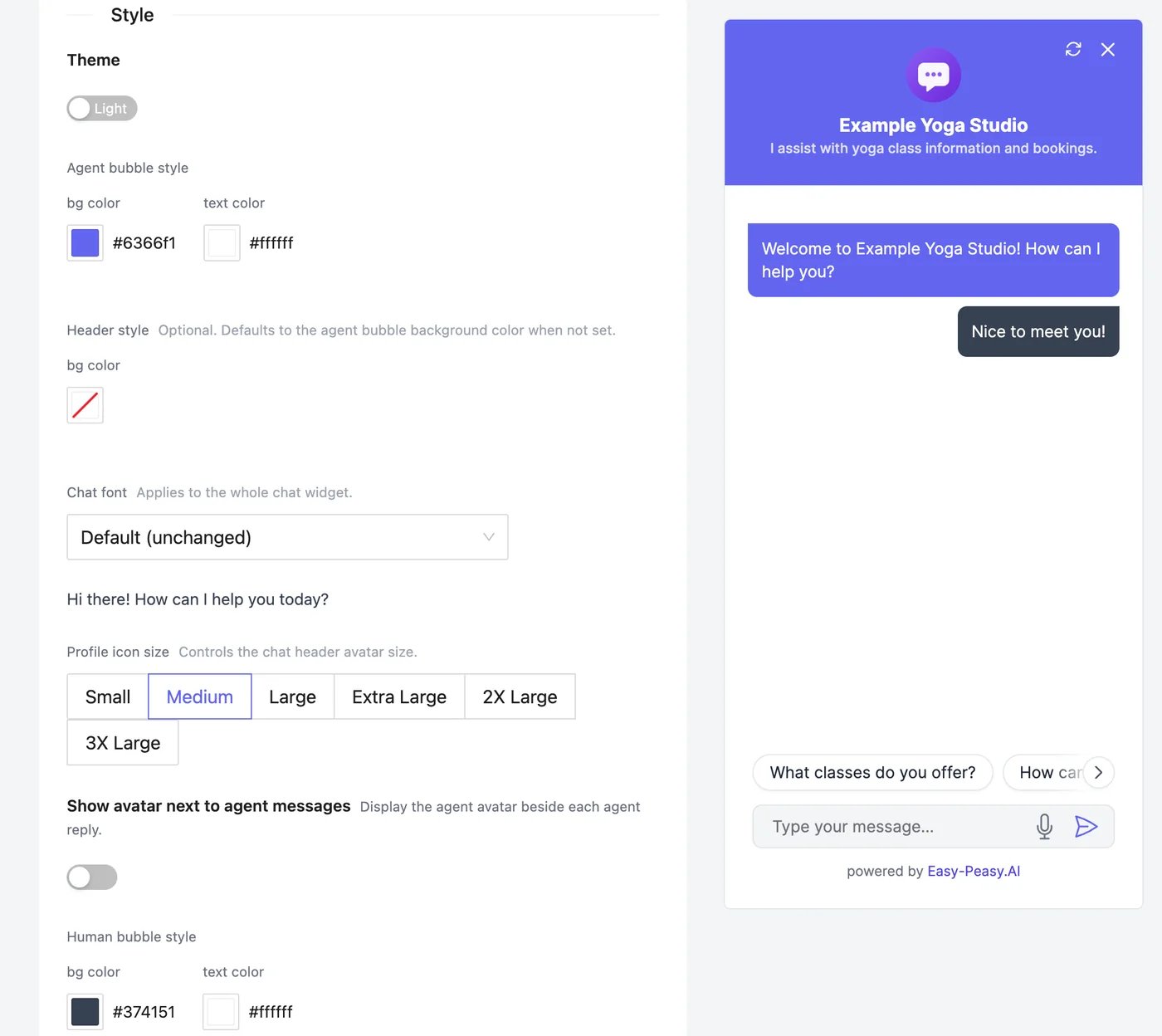
The “Powered by” footer
Show ‘Powered by Easy-Peasy.AI’ footer can be turned off on the Unlimited 200 and higher plans and on Teams plans.Website
Style the chat bubble and copy the code.
Playground
Change the look while you chat.