
The plugin works on every plan, including Free. Your site needs WordPress 5.3 or later and must be able to install plugins: any self-hosted WordPress site, or a WordPress.com plan that allows plugins.
Install the plugin
1
Add the plugin
In your WordPress admin, go to Plugins > Add Plugin (Add New in older versions), search for Easy-Peasy.AI Chatbot, click Install Now, and then Activate.
2
Copy your Agent ID
In Easy-Peasy.AI, open your agent, click Channels, click Manage on Chat bubble, and copy Your Agent ID at the bottom of the page. See Your Agent ID.
3
Paste it into the plugin
In WordPress, go to Settings > Easy-Peasy.AI Chatbot, paste the ID into Agent ID, and click Save Settings. You can also paste the agent’s shareable link or its whole install snippet: the plugin finds the ID in it.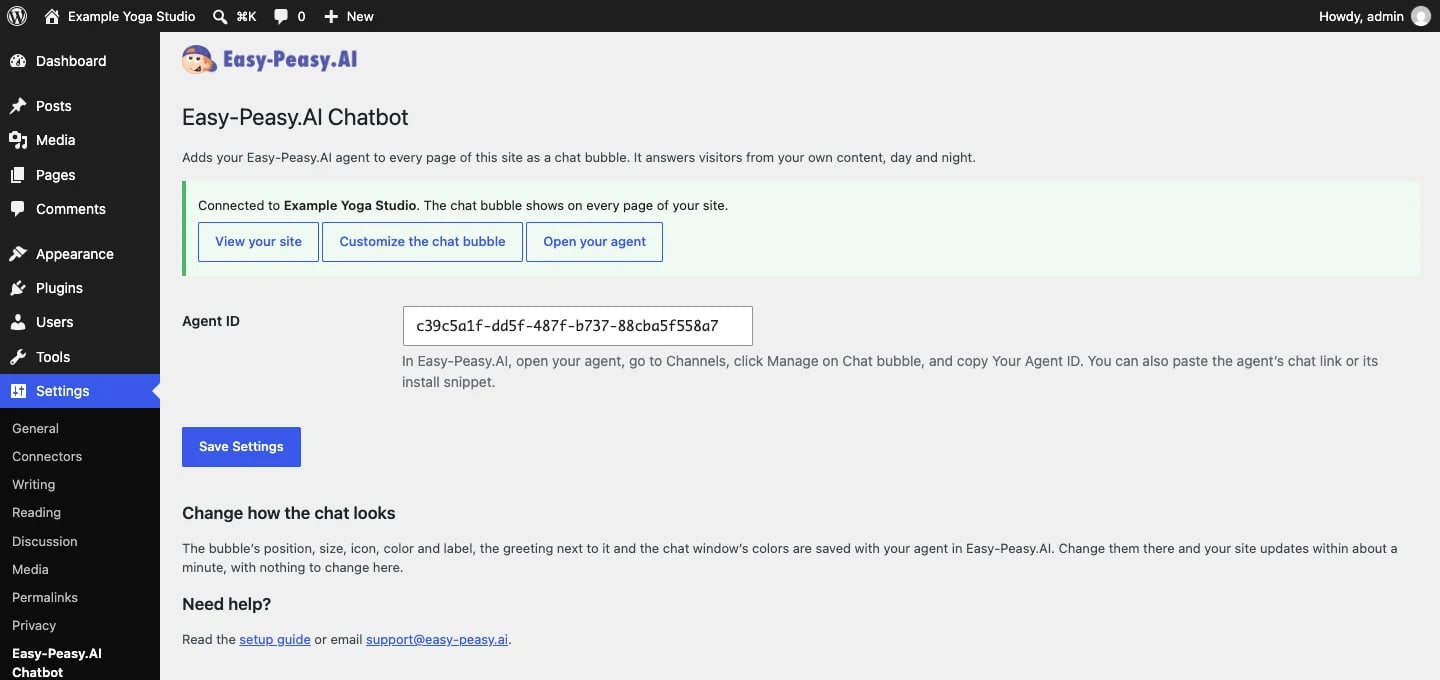
4
Check your site
Open your site. If you use a caching plugin, or your host or CDN caches pages, clear the cache first. The chat bubble shows in the corner of every page, and your greeting pops up next to it.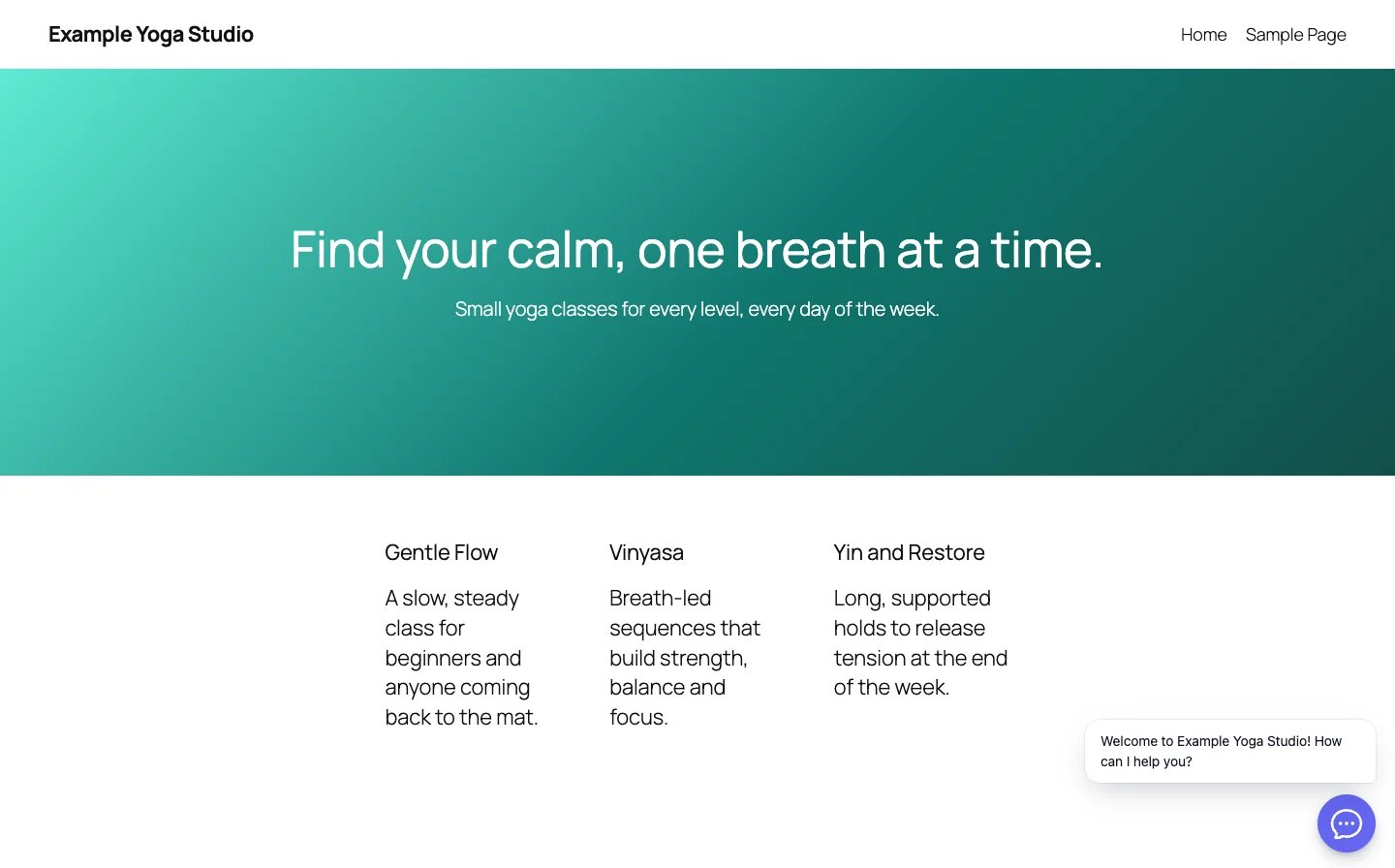
Until an Agent ID is saved, the Plugins screen shows a reminder with an Add your Agent ID link, and the plugin adds nothing to your pages.
Install from a zip file
If your site can’t search the plugin directory, download the plugin from wordpress.org/plugins/easy-peasy-ai-chatbot. In WordPress, go to Plugins > Add Plugin > Upload Plugin, choose the zip file, click Install Now, and then Activate. A plugin installed this way still gets updates.Change how the chat looks
The bubble’s position (a corner, or a tab on the side of the page), size, icon, color, and label, the greeting next to it, and the chat window’s colors are all saved with your agent. To change them, click Customize the chat bubble on the plugin’s settings page, or open your agent’s Playground > Appearance in Easy-Peasy.AI. See Appearance. Your site updates within about a minute, with nothing to change in WordPress.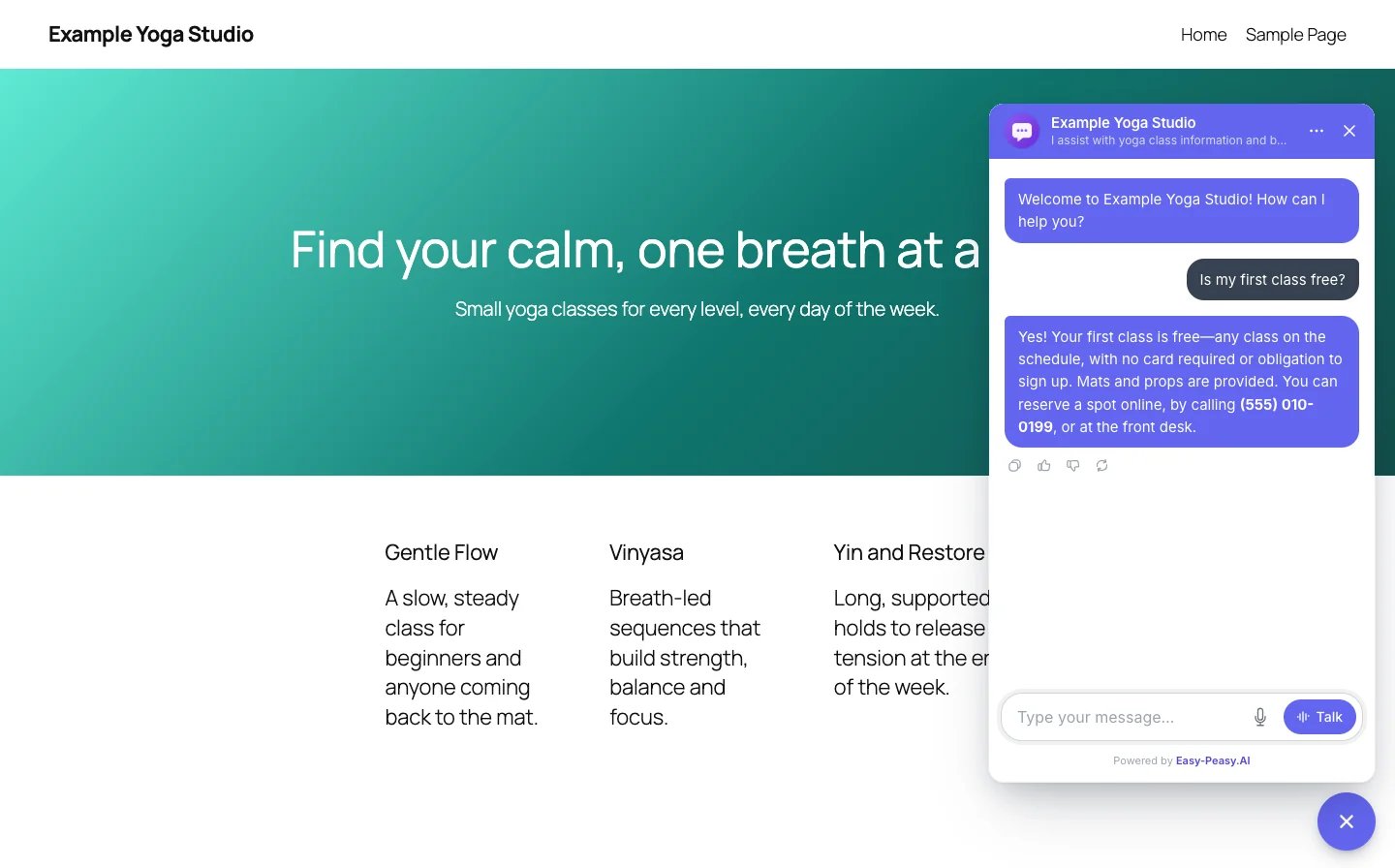
Older look settings
Version 1.0 of the plugin had its own position, button color, and icon settings. If you changed them, they stay under Older look settings after you update the plugin, and the chat uses each of them only while no value is saved for it in Appearance. Clear a field to use your agent’s look.Leave the chat off some pages
The plugin adds the chat to every page. To leave it off some of them, add a filter to your theme’sfunctions.php file or to a code snippets plugin. This one leaves it off the page with the slug checkout:
Update or remove the plugin
- Update: new versions show up under Plugins like any other plugin. Click Enable auto-updates next to the plugin to get them automatically.
- Deactivate: the chat leaves your site. Your settings stay, so activating the plugin again brings the chat back.
- Delete: also removes the plugin’s settings.
The chat bubble doesn't appear
The chat bubble doesn't appear
- Check that the box at the top of Settings > Easy-Peasy.AI Chatbot says Connected.
- Clear your site’s cache (caching plugin, host, or CDN) and reload the page.
- In your agent’s Settings, Is agent publicly available? must be on.
- If an optimization plugin combines or delays JavaScript, exclude
bots.easy-peasy.ai/chat.min.jsfrom it. - If your site sends a Content Security Policy, allow
https://bots.easy-peasy.aiinscript-src,frame-src, andconnect-src.
The plugin I installed from easy-peasy.ai doesn't update
The plugin I installed from easy-peasy.ai doesn't update
Copies downloaded from easy-peasy.ai before October 2026 used a different folder name, so WordPress can’t match them to the plugin directory. Under Plugins, deactivate and delete the old copy, then install the plugin from Plugins > Add Plugin. Your Agent ID is kept, because the old version doesn’t remove its settings when deleted.
My WordPress.com plan doesn't allow plugins
My WordPress.com plan doesn't allow plugins
Put the chat inside a page instead: copy the Iframe embed code from Channels > Chat bubble > Manage and paste it into a Custom HTML block.
The chat opens but says it can't answer
The chat opens but says it can't answer
The agent may be paused because your plan’s allowance ran out. See Limits and usage.
Add your agent to your website
The install snippet, shareable link, and iframe embed.
Appearance
The greeting, colors, and chat bubble.