
WhatsApp is available on paid plans. Meta charges its own fees for business messaging, billed to your Meta account.
Before you start
You need:- A Facebook account.
- A phone number for your business that can receive a text message or a call for verification.
- A number that isn’t signed in to the regular WhatsApp app. A number you use in the WhatsApp Business app is fine: see Keep using the WhatsApp Business app.
Connect in one click
1
Open the WhatsApp channel
Open your agent, click Channels, and click Connect on WhatsApp.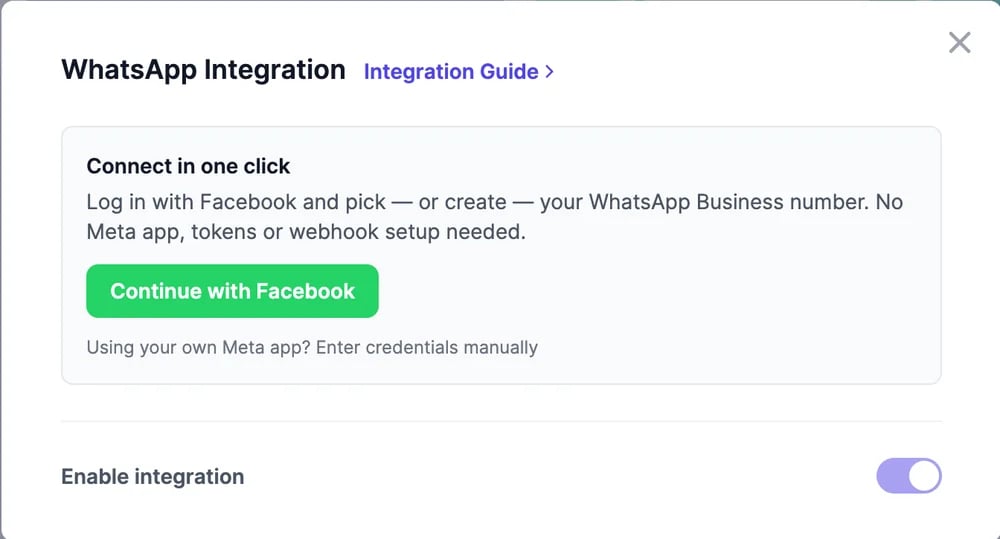
2
Choose how to connect
Click Continue with Facebook, then choose Continue with Facebook again for a number that isn’t on WhatsApp yet, or I already use the WhatsApp Business app.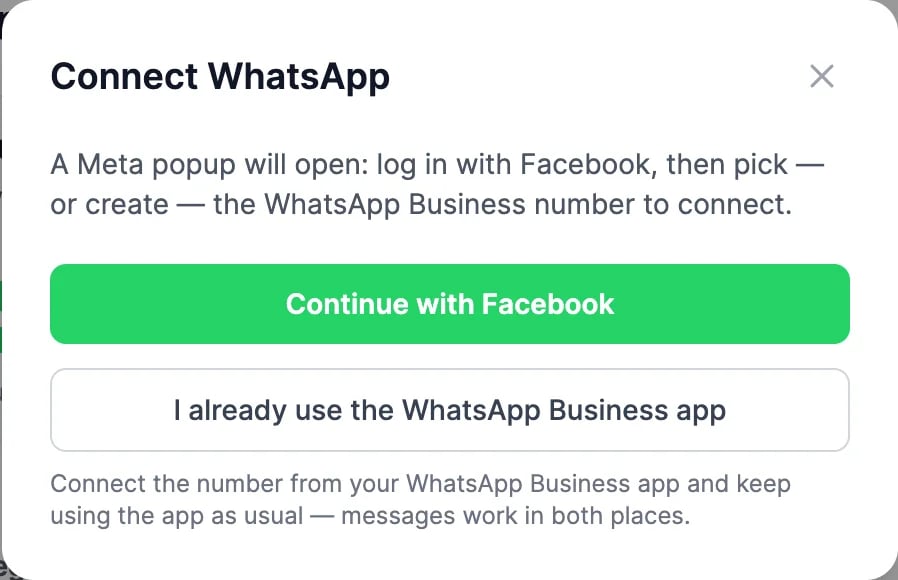
3
Finish in Meta's window
Meta’s window opens. Sign in with Facebook, pick or create a business portfolio, create your WhatsApp Business profile (the name customers see), add your number, and enter the code Meta sends. Keep the window open until it closes on its own.
4
Test it
The WhatsApp card shows Connected. Send a WhatsApp message to your business number from another phone; the agent replies within seconds.
Keep using the WhatsApp Business app
Choose I already use the WhatsApp Business app to connect the number you already use in the app. The agent answers automatically, and you can still read and reply from the app on your phone. Your chat history stays. Meta’s requirements for this option:- The number must be on the WhatsApp Business app, not regular WhatsApp, and in use there for at least 7 days on the latest version.
- It must not already be added to your WhatsApp Business account as an API number. If you tried the one-click option first, remove the number in WhatsApp Manager (Phone numbers), wait a few minutes, and try again.
- It isn’t available in every country.
The 24-hour rule and templates
This is WhatsApp’s rule. Your agent can reply freely within 24 hours of a customer’s last message, which covers normal back-and-forth. To start a conversation with someone who hasn’t messaged you in the last 24 hours, WhatsApp requires an approved message template. Once connected, click Manage templates in the WhatsApp window, then New template. Enter a Template name, Category (Utility or Marketing), the Message body with{{1}}-style variables and example values, and a Language, then click Submit for approval. Meta usually reviews templates within minutes to hours; the list shows each template’s status.
Pause, disconnect, or move a number
- Pause: switch off Enable integration. Messages still arrive at your number; the agent stops answering.
- Disconnect: click Disconnect. The number stays in your Meta account; it just stops going to this agent.
- Move to another agent: disconnect it here, then connect it on the other agent.
Use your own Meta app
If your business already runs the WhatsApp Cloud API with its own Meta app, click Using your own Meta app? Enter credentials manually and fill in:
Unless you need your own app, the one-click connection is faster and needs no upkeep.
The number is still in use in the WhatsApp app on a phone
The number is still in use in the WhatsApp app on a phone
The number is signed in to the regular WhatsApp app, and WhatsApp won’t connect it while that account exists. Delete the WhatsApp account on the phone (Settings > Account > Delete my account), wait a few minutes, and connect again. If the phone uses WhatsApp Business, use Keep using the WhatsApp Business app instead.
It asks for a two-step verification PIN
It asks for a two-step verification PIN
The number was registered before and has a PIN. Enter it when asked, or turn off two-step verification in WhatsApp Manager (Phone numbers > Settings > Two-step verification) and connect again.
The connection expired before I finished
The connection expired before I finished
Meta allows 14 days to finish registering a number. Start the connection again from the beginning.
The agent isn't replying
The agent isn't replying
Check that Enable integration is on, that the number shows as connected in WhatsApp Manager, and that you sent a text message.
Channels
All the places your agent can answer.
Conversations
Read your WhatsApp chats.