
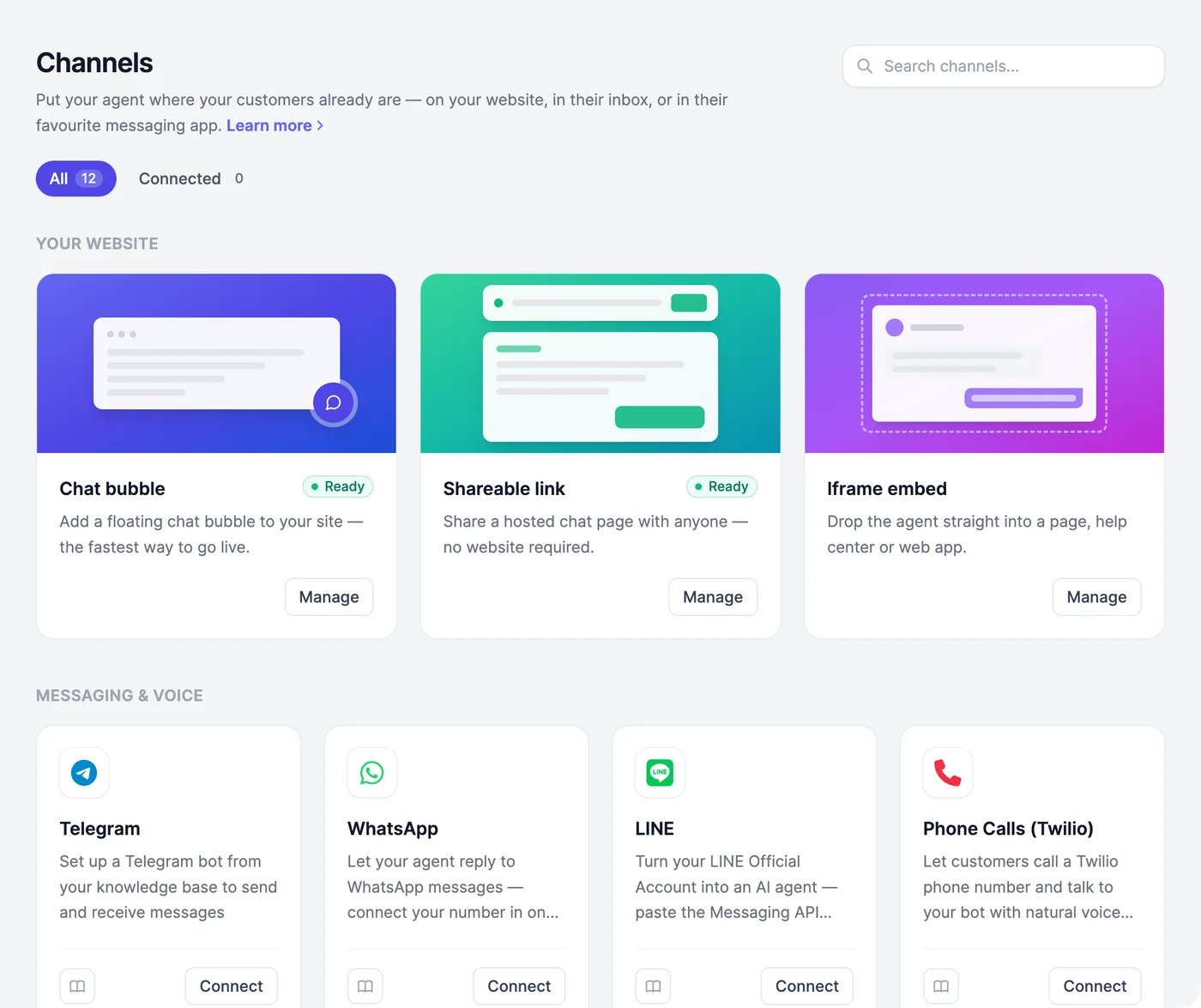
Available channels
On the Free plan, the paid channels show Pro and an Upgrade button.
Connect a channel
Click Connect on a channel’s card. Most channels open a window where you sign in or paste a key; each channel’s page has the steps. The book icon on a card opens its setup guide.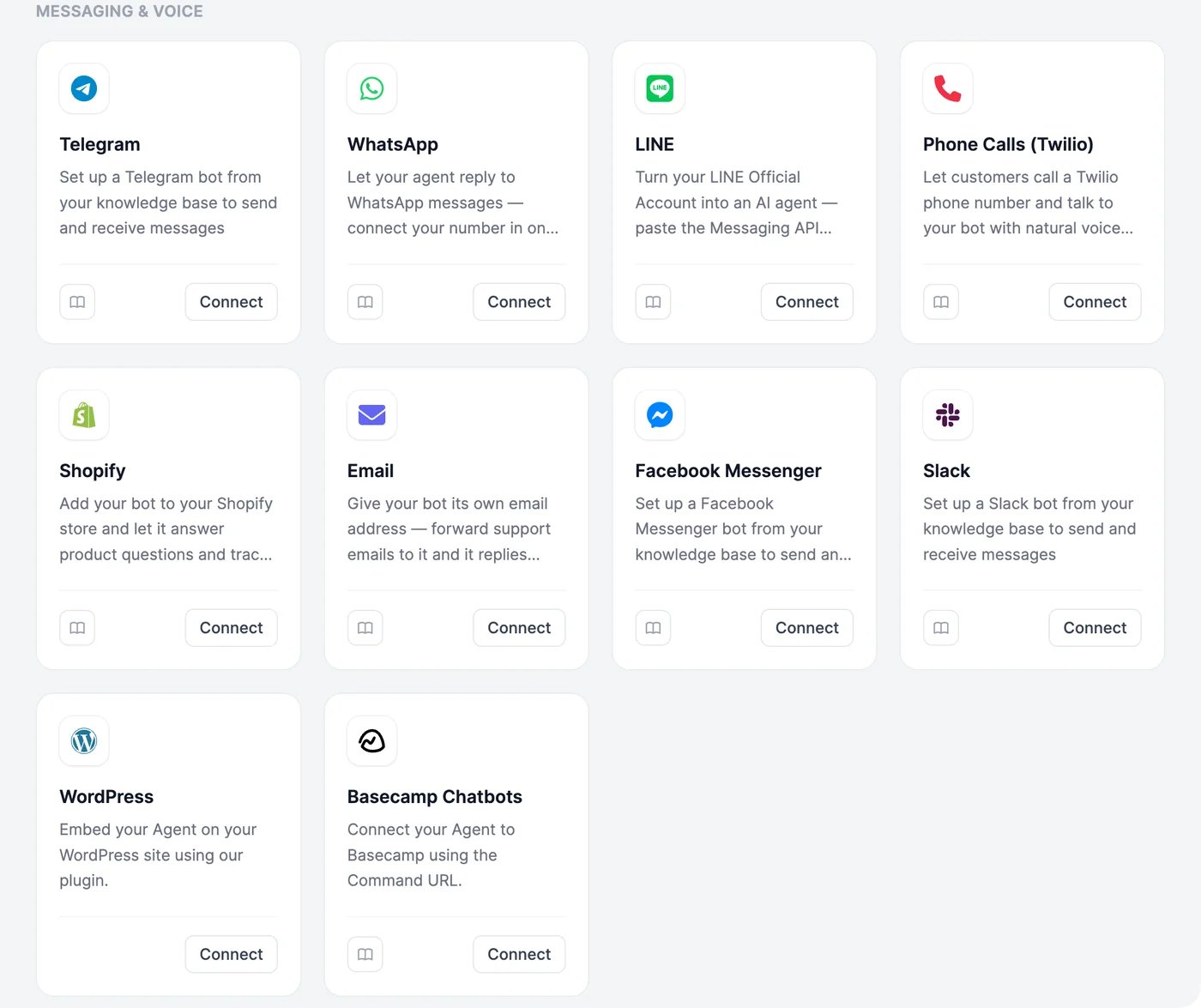
Pause a channel
Open a connected channel and switch off Enable integration. The agent stops answering on that channel until you switch it back on, and the card shows Paused. Your other channels keep working.What works where
Buttons, forms, and suggested messages are made for the website chat. Conversations lists chats from the website, WhatsApp, Messenger, LINE, and Telegram.
Website
Start with the chat bubble on your site.
Connect a WhatsApp Business number in one click.