
- Chat bubble: a button in the corner of every page that opens the chat. The most common choice.
- Shareable link: a hosted chat page. No website needed; share it in emails, QR codes, or your social profiles.
- Iframe embed: the chat inside a page, such as a help center or a contact page.
Add the chat bubble
1
Style the chat bubble
Choose where the bubble sits and how it looks. The preview on the right shows your choices.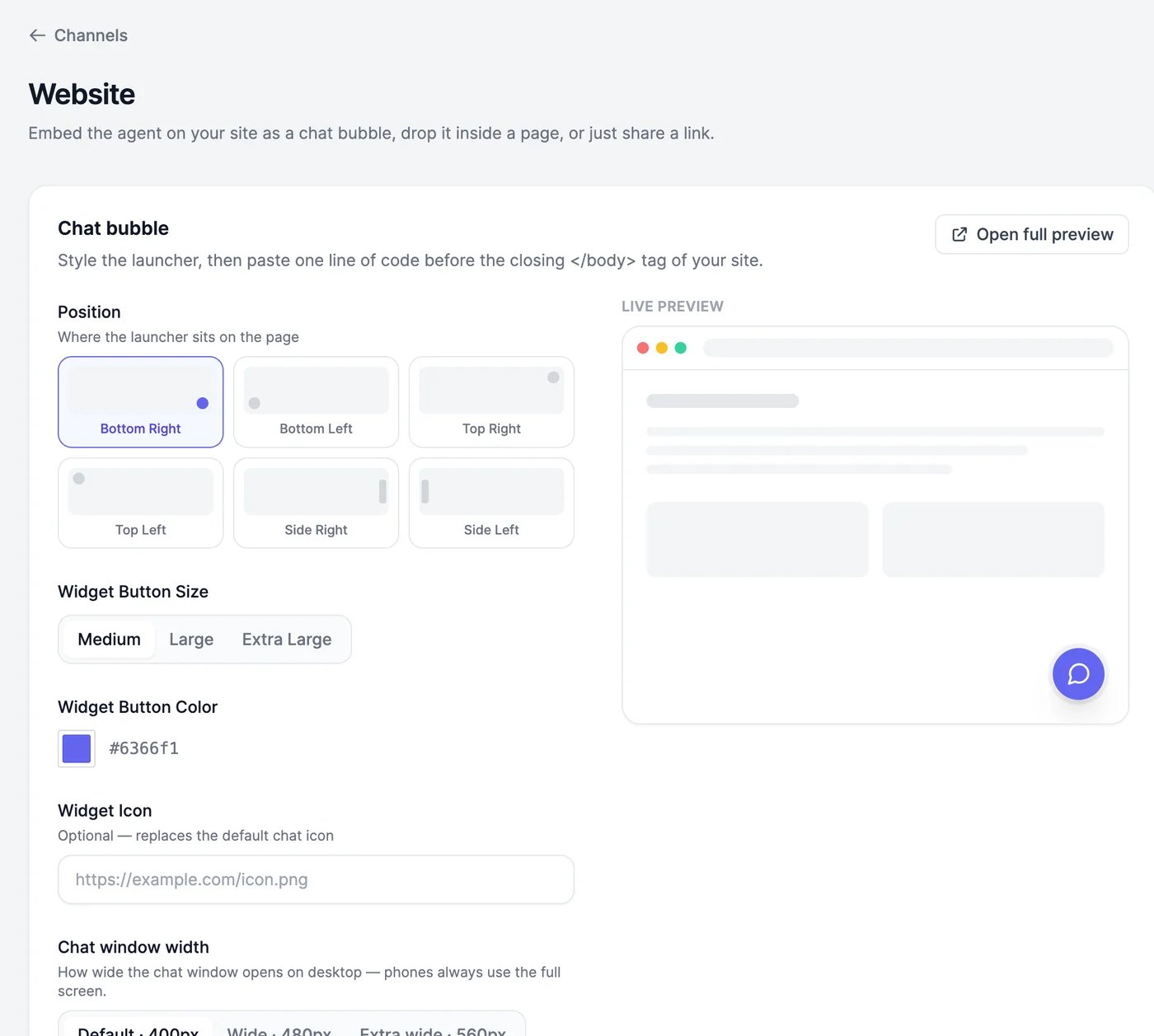
Open full preview shows the real chat on a sample page.
2
Copy the install snippet
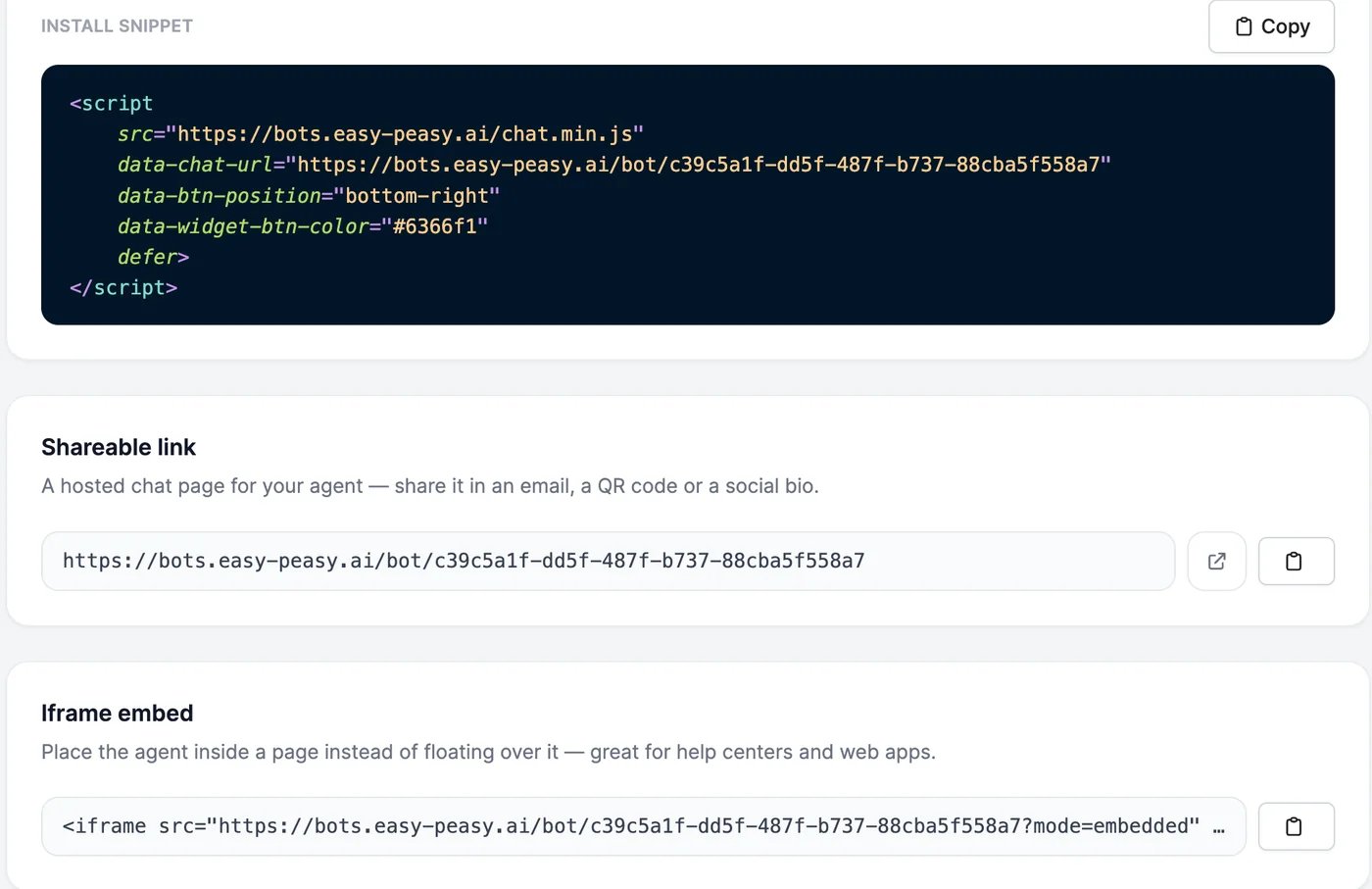
Under Install snippet, click Copy. The code includes your choices:
3
Paste it into your website
Paste the code just before the closing
</body> tag of your site, on every page where the chat should appear. Most site builders have a place for this, such as Footer code or Custom code: see Website platforms.4
Check your site
Open your website. The chat bubble appears in the corner, and the greeting pops up next to it. Click the bubble and ask a question.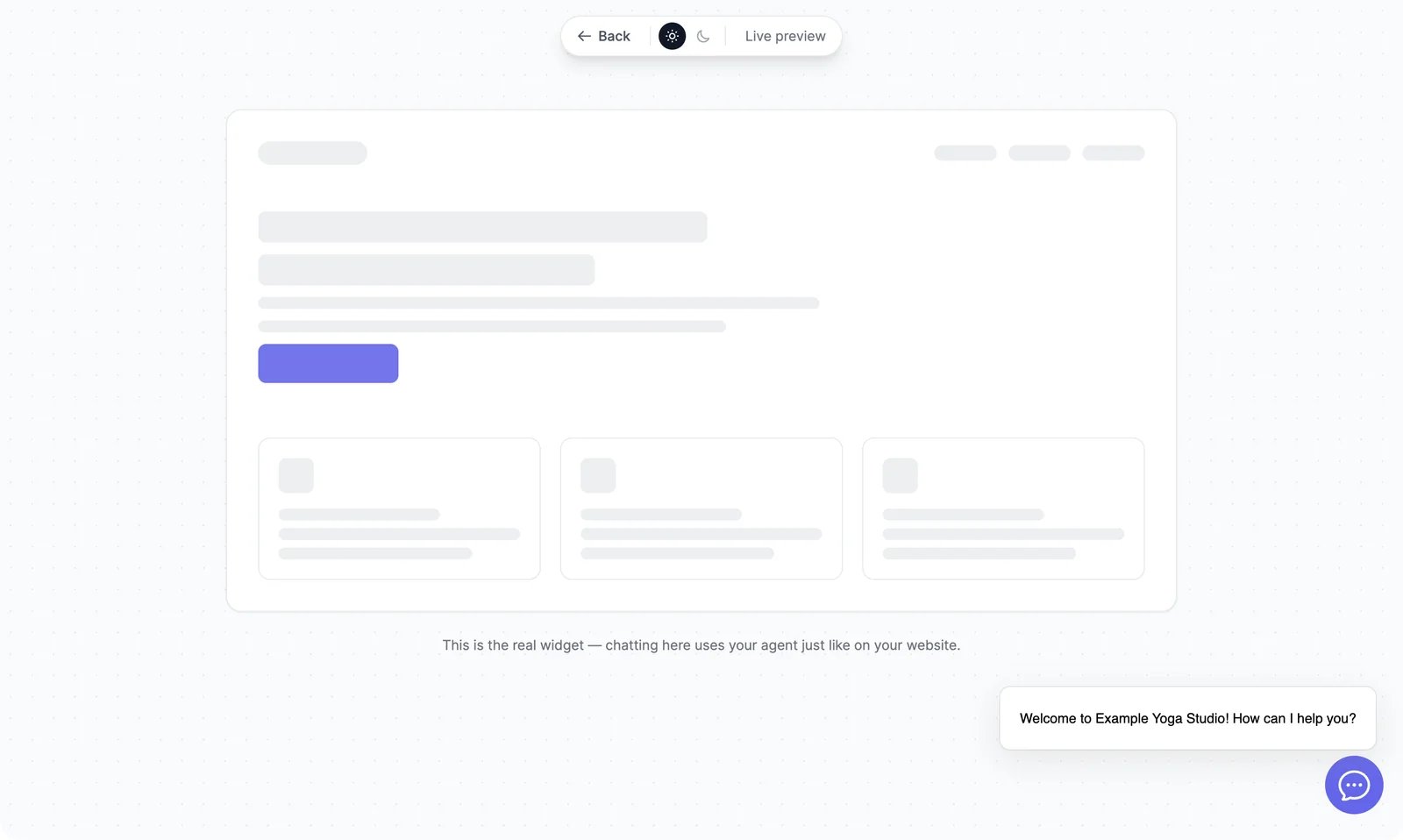
Shareable link
Shareable link is a chat page hosted by Easy-Peasy.AI, athttps://bots.easy-peasy.ai/bot/YOUR_AGENT_ID. Open it or copy it with the buttons next to it. Share it anywhere you’d share a link, or turn it into a QR code.
Iframe embed
Iframe embed puts the chat inside a page instead of floating over it. Copy the code and paste it where the chat should appear. To make it fill its space on every screen size, set the width to 100%:allow="microphone" so visitors can use voice input and voice calls.
Your Agent ID
Your Agent ID identifies your agent in embed codes, the WordPress plugin, Zapier, and the REST API.Control the chat from your website’s code
Developers can open, close, and hide the chat from their own code, and pass the signed-in visitor’s name and email to the agent. See Chat widget for developers.The chat bubble doesn't appear
The chat bubble doesn't appear
- Check that the code is before
</body>and that you published your site. - In Settings, Is agent publicly available? must be on.
- If you set Allowed Domains, your website’s domain must be in the list.
- If your site uses a Content Security Policy, allow
https://bots.easy-peasy.aifor scripts and frames.
The chat opens but says it can't answer
The chat opens but says it can't answer
The agent may be paused because your plan’s allowance ran out. See Limits and usage.
The greeting pop-up stopped showing
The greeting pop-up stopped showing
After a visitor closes the pop-up or opens the chat, it stays hidden for that visitor for 24 hours. To change when it shows, or turn it off, use Auto show initial messages pop-ups after (in seconds) on Appearance.
Website platforms
Steps for WordPress, Wix, Squarespace, and Webflow.
Appearance
Name, greeting, and colors inside the chat.