What if every email your customers send got a helpful, accurate answer in under a minute — day or night, weekends included? With the Email integration for Easy-Peasy.AI Bots, your AI agent gets its own email address. Forward your support mailbox to it (or share the address directly), and the agent reads every incoming email and replies automatically using your knowledge base. No code, no email server, no plugins — setup takes about two minutes.

What Is the Email Integration?
The Email integration turns your Easy-Peasy.AI bot into an autonomous email support agent. When you connect it, your bot receives a unique email address like [email protected]. Any email sent to that address is answered by your bot automatically.
The reply arrives as a normal email in the sender’s inbox — threaded in the same conversation, sent under your chosen display name, with your signature at the bottom. If the customer writes back, the bot answers again, remembering the earlier messages in the thread. To the person on the other side, it feels like writing to a fast, knowledgeable support rep.
It’s the same idea as our phone call integration — one more channel where your agent meets customers where they already are. Email just happens to be the channel where most support requests still live.
Why Give Your AI Agent an Email Address?
- Answer around the clock. Emails that arrive at 2 AM get a reply at 2 AM, not the next business day.
- Cut first-response time to seconds. The average support email waits hours for a first reply. Your agent answers in under a minute.
- Deflect repetitive questions. Pricing, how-tos, shipping policies — the bot handles the questions your team answers ten times a day.
- Answers from your knowledge base. The agent uses the same trained knowledge as your chat widget, so answers stay accurate and on-brand.
- Zero migration. Keep your existing mailbox and address. A simple forwarding rule sends mail to the agent — and you can switch it off any time.
- Full conversation history. Every question and answer is stored with your bot, so you can review exactly what your agent is telling customers.
What You’ll Need
- An Easy-Peasy.AI account on a paid plan (see plans)
- A bot trained on your content — if you haven’t made one yet, create your AI agent and add your website or documents as knowledge first
- Optional: access to your email provider’s forwarding settings, if you want your existing support address to flow to the agent
How to Connect Email to Your Bot (Step-by-Step)
Step 1: Open your bot’s Integrations page
Go to Bots, open your bot, and click Integrations in the left sidebar. Find the Email card and click Connect.

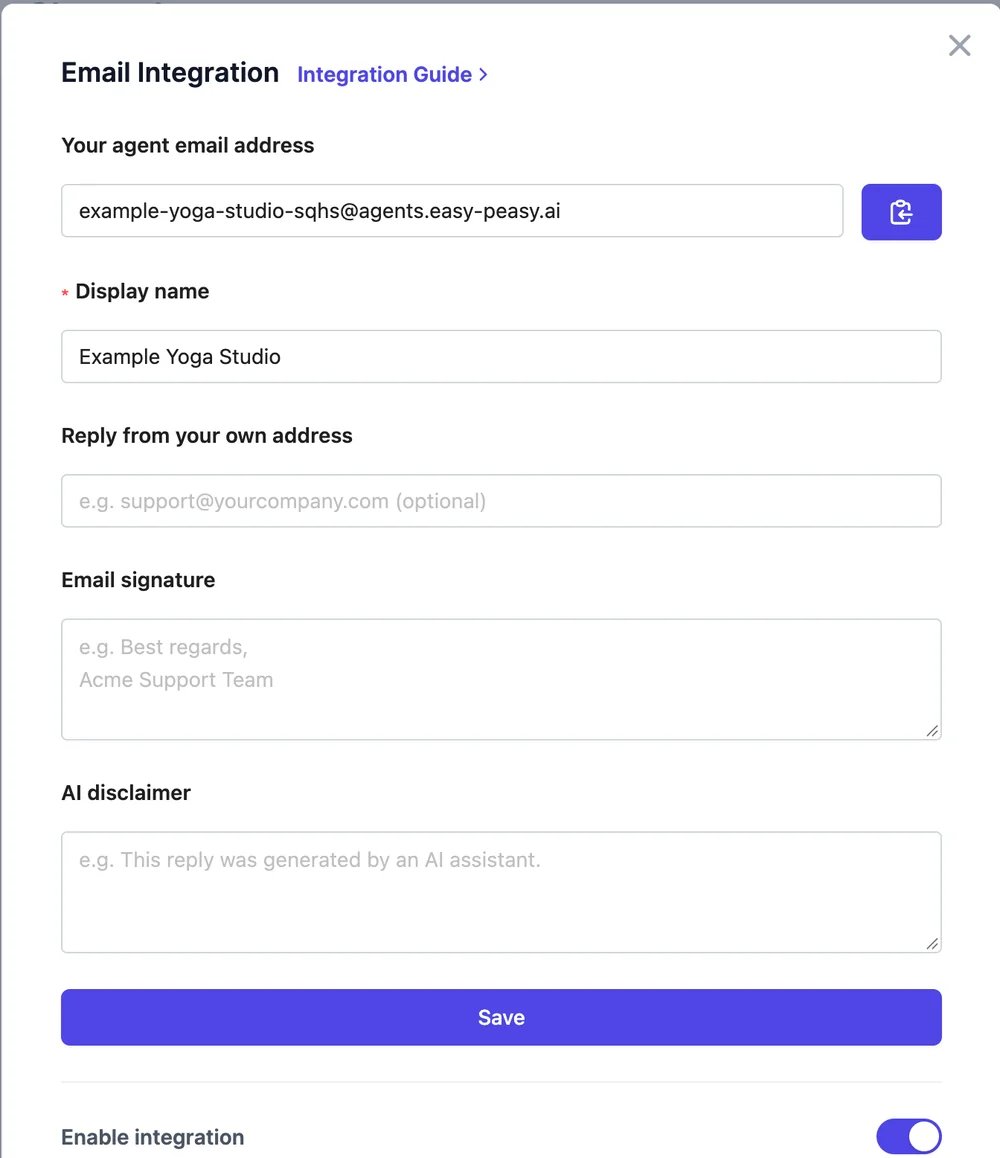
Step 2: Set the display name, signature, and disclaimer
The connect modal has three settings worth a moment of thought:
- Display name — the sender name recipients see in their inbox, e.g.
Acme Support. It defaults to your bot’s name. - Email signature (optional) — appended to the end of every reply. Something like
Best regards, The Acme Teammakes replies feel finished and professional. - AI disclaimer (optional) — a short transparency note below the signature, e.g. “This reply was generated by an AI assistant.” Recommended if your customers expect to know when they’re talking to AI.
Click Save. That’s the whole setup.

Step 3: Copy your agent’s email address
After saving, the modal shows your agent email address — a unique address on agents.easy-peasy.ai, generated from your bot’s name. Use the copy button to grab it. This address is permanent: it never changes, so anything you point at it keeps working.
Step 4: Forward your support mailbox to it
You can share the agent address directly, but most teams keep their existing address (like [email protected]) and simply forward it:
- Gmail / Google Workspace: Settings → Forwarding and POP/IMAP → Add a forwarding address, or set up a routing rule in the Admin console
- Outlook / Microsoft 365: Settings → Mail → Forwarding, or a mail flow rule in the admin center
- Other providers: look for “forwarding” or “redirect” rules in your mailbox settings
Every email that hits your support address now also reaches your agent, which replies to the customer directly.
Step 5: Send a test email
Email your agent from a personal address and ask something your bot knows. The reply typically lands within a minute — threaded in the same conversation, from your display name, with your signature. Reply to it again to see the agent keep context across the thread.
Reply From Your Own Domain (Optional)
By default, replies are sent from Easy-Peasy.AI’s mail servers on your behalf. If you want replies to come from your own address — say [email protected] — open the Email integration again and fill in Reply from your own address.
Because email providers verify who is allowed to send for a domain, you’ll be shown two DNS records to add wherever your domain is managed:
- A TXT record that authorizes signing your emails (DKIM)
- A CNAME record for the return path, which protects deliverability
Add both records at your DNS provider, then click Verify domain. DNS changes can take up to 48 hours to propagate, though it’s usually much faster. Once the badge turns Verified, every reply is sent from your own address with full email authentication — so replies land in the inbox, not the spam folder. Until then, the default sender keeps working, so there’s no downtime while you wait.
How It Works Behind the Scenes
When an email arrives at your agent’s address, the message is parsed and cleaned up — quoted reply chains are stripped so the bot sees only the new question. The agent then searches your bot’s knowledge base for relevant content, writes an answer following your bot’s instructions and personality, and sends it back on the same email thread.
A few safeguards run on every message so your agent behaves like a good citizen of the inbox:
- No mail loops. Auto-replies, out-of-office messages, newsletters, and bounce notifications are detected and ignored — the classic ways email bots get stuck talking to robots.
- Spam filtering. Messages flagged as spam are dropped before they ever reach your bot.
- Rate limiting. A single sender can’t flood your agent and burn through your quota.
- Thread memory. The agent keeps recent history with each sender, so follow-up questions get answers in context.
Every exchange also appears in your bot’s history, and usage counts toward your plan the same way chat conversations do.
Tips for a Great Email Agent
Keep your knowledge base current
Your agent is only as good as what it knows. When prices, policies, or features change, retrain the bot — email customers tend to ask exactly the questions your website answers.
Write instructions with email in mind
In your bot’s instructions, tell it how to handle questions it can’t answer — for example, “If you don’t know the answer, ask the customer to write to a human at [email protected].” A graceful hand-off beats a wrong answer.
Be transparent about AI
Fill in the AI disclaimer field. Customers respond better when they know what they’re talking to, and in some industries disclosure is expected or required.
Test like a customer
Send your agent the five questions your support inbox sees most often. If any answer misses, add the missing content to the knowledge base and try again.
Frequently Asked Questions
Does the email integration cost extra?
No. It’s included on paid plans, and replies consume your plan’s usage just like chat conversations with your bot.
How fast does the agent reply?
Usually well under a minute from the moment the email arrives — most replies land in 20–40 seconds.
Does it remember previous emails from the same person?
Yes. The agent keeps recent conversation history with each sender, so follow-up questions are answered in context, in the same email thread.
Can I change my agent’s email address?
The address is generated once when you connect and stays permanent, so forwarding rules never break. You can update the display name, signature, and disclaimer anytime.
Which emails will the agent ignore?
Auto-replies, out-of-office notices, mailing lists, bounce notifications, and messages flagged as spam are all filtered out automatically to prevent loops and junk replies.
What happens if I pause the integration?
Flip the Enable integration toggle off and the agent stops replying immediately — incoming mail is simply ignored until you turn it back on. Your address stays reserved.
Give Your Agent an Inbox Today
Support email is the highest-volume, most repetitive channel most teams have — and now it’s the easiest one to automate. Connect the Email integration, forward your support address, and let your agent handle the routine questions while your team focuses on the conversations that need a human.
Create your AI agent or open your existing bot’s Integrations page and click Connect on the Email card. Two minutes from now, your bot will have its own inbox.