
What needs approval
Reading never needs approval: an employee can search your inbox, check your calendar, or look up an order in Stripe without asking.
Approve, edit, or reject
The approval card shows what the employee wants to do: for an email, the recipients, the subject, and the message; for a calendar event, its time in the event’s own time zone; for other apps, the action and its details.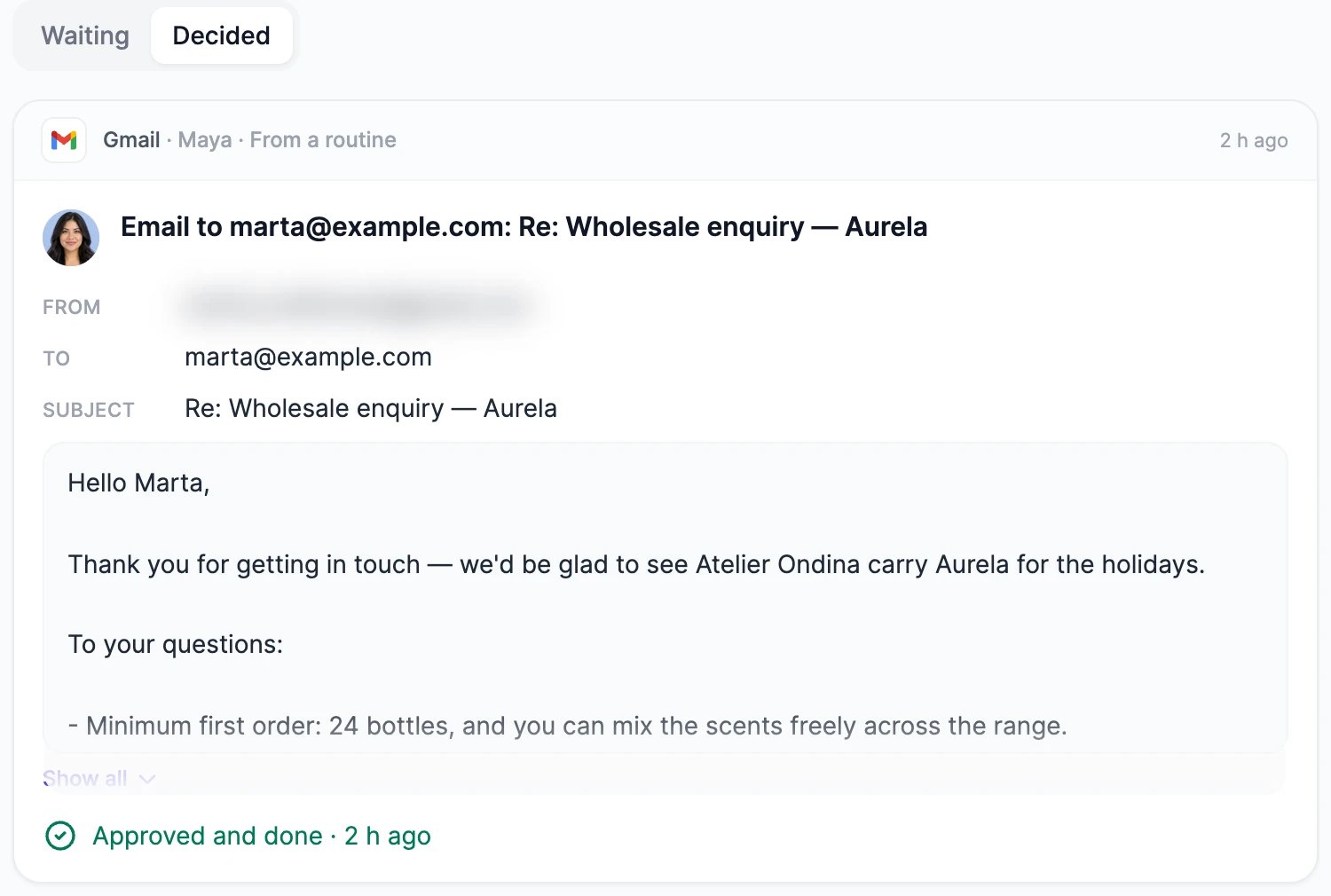
Where you approve
- In a direct message. The card appears at the step where the employee asked. While you’re in the chat, the employee waits for up to 4 minutes, and the card says it’s waiting for your answer. When you decide, it carries on in the same reply. If you don’t answer in time, the request moves to your approvals and the employee finishes without it.
- In a group chat. Requests from employees in the group chat show above the message box. After you decide, the group chat gets a note, such as “Approved and done”.
- In Approvals. Click Approvals in the AI Employees sidebar to see everything waiting from all your employees, under Waiting, and what you already decided, under Decided. The row shows how many are waiting for you.
- In the employee’s workspace. Approvals lists that employee’s requests.
- On a voice call. Requests the employee makes during a call appear on the call screen.
When nobody is watching
Routines, group chats, and Slack conversations run without you watching. There the employee doesn’t wait: the request goes to your Approvals, the work finishes without that action, and you get an email. You get at most one email every 30 minutes for each employee. When you decide later, the approved action runs then, and the employee hears what you decided the next time it works in that conversation. In Slack, a note in the thread says whether the action was approved. A request you don’t answer within 7 days expires, and nothing happens.Choose what needs approval
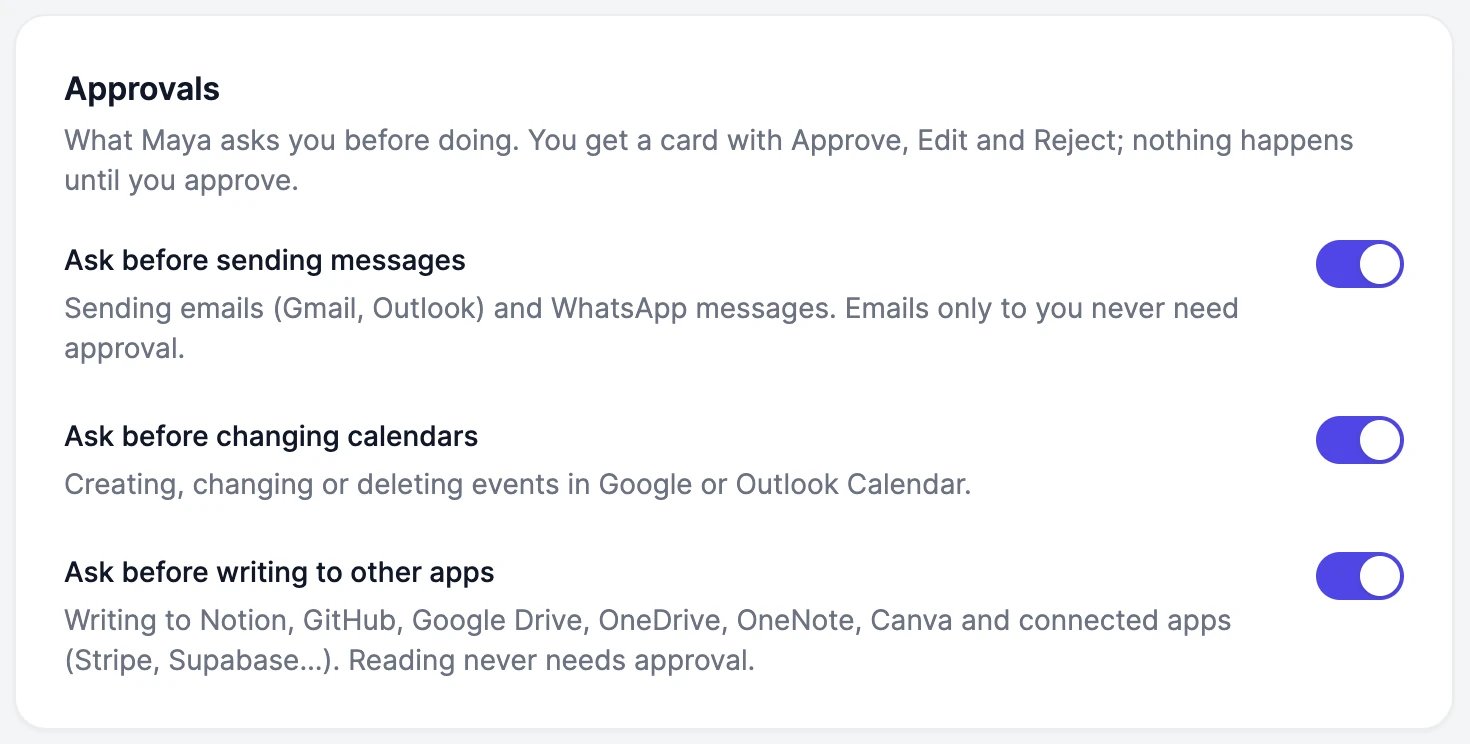
Each employee has its own settings. In its workspace, open Profile and scroll to Approvals, or open Approvals and click What needs approval:- Ask before sending messages
- Ask before changing calendars
- Ask before writing to other apps
Know when something is waiting
- Approvals in the AI Employees sidebar shows how many requests are waiting.
- The Direct messages list shows Waiting for you next to the employee.
- With browser notifications on (the bell in the sidebar), you get a notification.
- When nobody is watching, you get an email.
Did the email go out?
Did the email go out?
Open the request in Approvals under Decided. Approved and done means it was sent. Not approved means it wasn’t. Approved, but it failed shows the reason, such as an expired Gmail connection.
Why didn't my employee ask before emailing me?
Why didn't my employee ask before emailing me?
Emails only to your own addresses, your account email or a mailbox you connected, never need approval.
Do Marky's automations use the same approvals?
Do Marky's automations use the same approvals?
Marky’s automations have their own approval settings on the Automations page. An automation run by an employee uses that employee’s settings.
Apps
Give each employee only the apps it needs.
Routines
Work employees do while you’re away.