
Identity
Instructions
The employee’s standing brief: the job, the tone, and what to always or never do. They apply to every conversation and routine. Employees hired from the gallery start with instructions written for the role; edit them to fit your business. Write what’s specific to the role here. What every employee should know, such as your brand voice and house rules, goes in the company profile. When the two disagree, the employee follows its own instructions.Quality
How well the employee thinks. Pick one: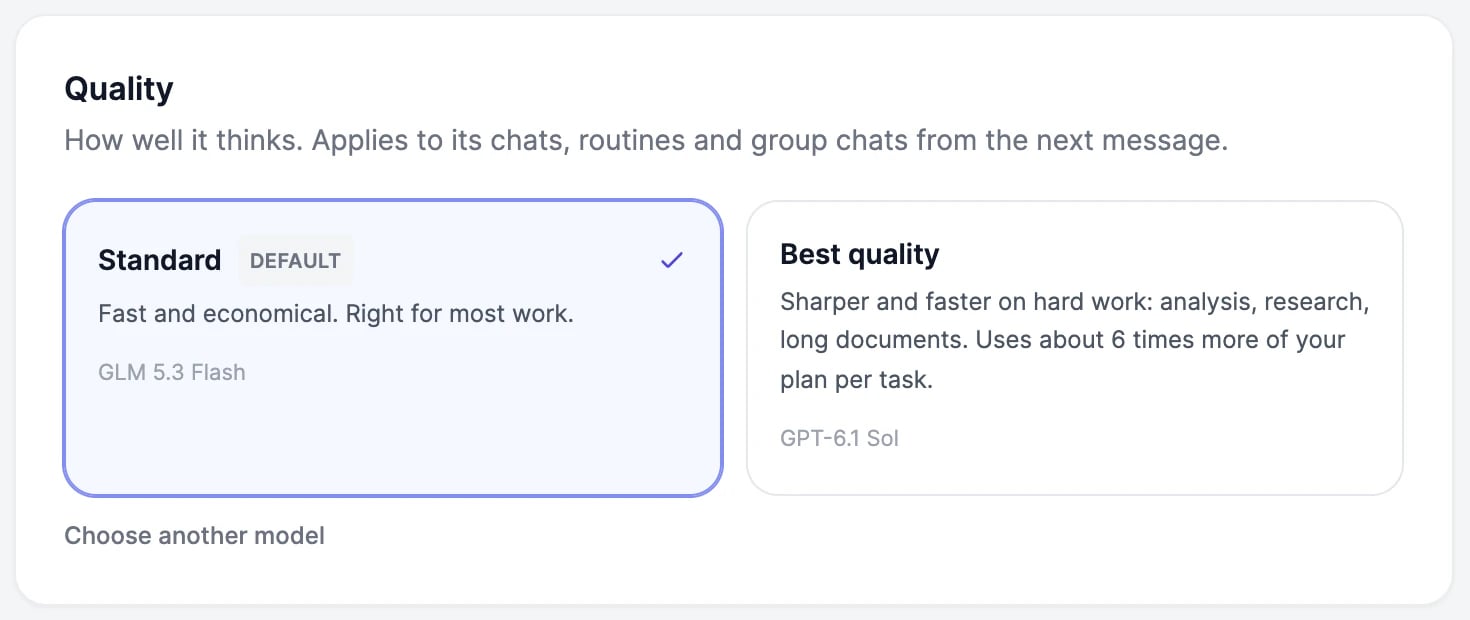
Voice on calls
How the employee sounds when you call it: the voice, the language you speak, the model that writes its spoken answers, and the speaking speed.Knowledge base
The documents and pages the employee searches before it answers. By default, each employee has its own: add sources in Knowledge. To share the knowledge of one of your agents instead, pick that agent here. See Knowledge, memory, and skills.Approvals
What the employee asks you before it acts: Ask before sending messages, Ask before changing calendars, and Ask before writing to other apps. All three are on for new employees. See Approvals.Pause an employee
Under Status, turn the switch off to pause the employee. A paused employee doesn’t answer, and its routines don’t run. Turn it back on to let it work again; routines you paused stay paused until you resume them.Delete an employee
Under Delete employee, click the button, then confirm. Deleting:- removes the employee from your team and its group chats (if it led a group chat, another member takes the lead),
- cancels anything waiting for your approval,
- deletes its own knowledge base and its computer, with every file on it,
- pauses its routines.
Company profile
What every employee knows about your business.
Approvals
Choose what needs your approval.