
Invited people need an Easy-Peasy.AI account, which is free. Every plan can invite people. See How many people you can invite.
Invite someone
Open the group chat and click Invite at the top. Or click the members’ portraits at the top right to open Members, and click Invite people. There are three ways: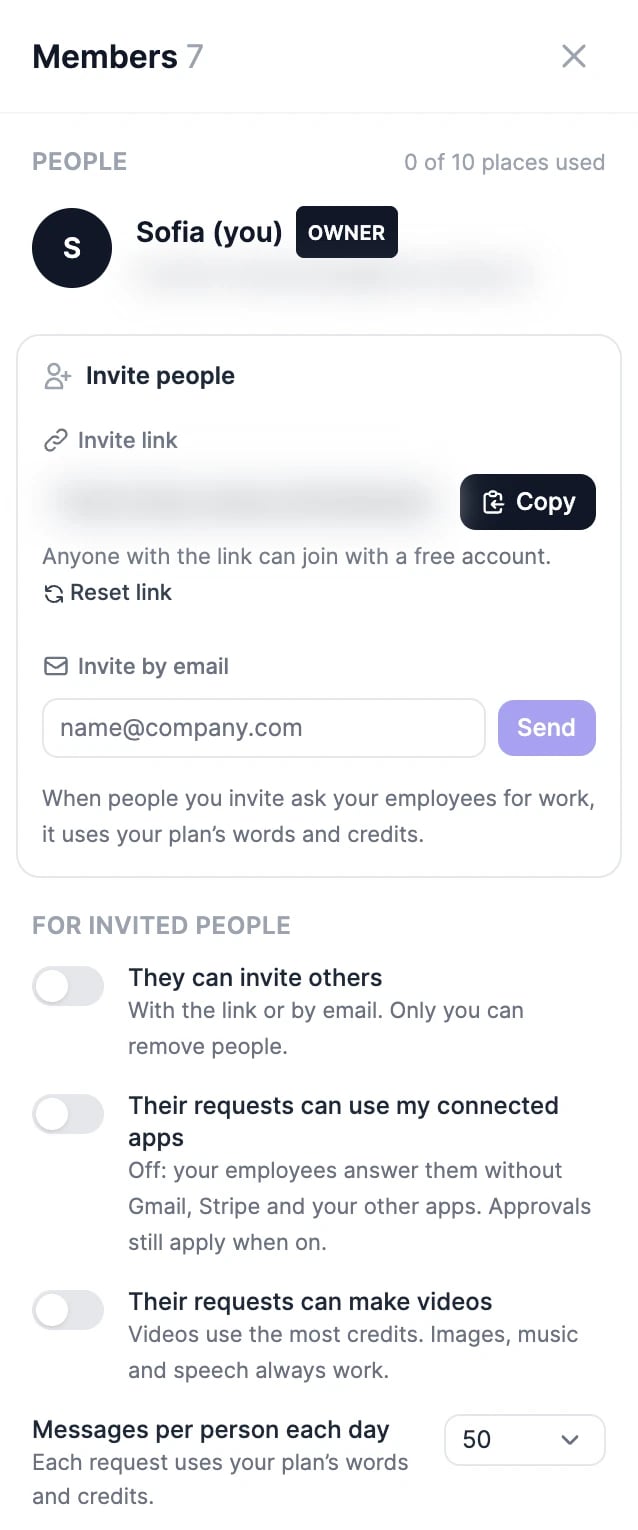
What invited people can do
In the sidebar, the group chat shows under Shared with you, with your name as the team’s owner.
What your employees do for them
Requests from invited people run on your plan: each reply uses your words, and anything generated uses your image & video credits. To keep your accounts and private work safe, your employees work differently for them:- Your apps are off by default. Your employees answer them without your Gmail, Stripe, and other apps, unless you turn on Their requests can use my connected apps. Approvals still apply when it’s on.
- No videos by default. Videos use the most credits, so they’re off unless you turn on Their requests can make videos. Images, music, and speech always work.
- Your private memory stays private. Employees don’t use what they learned in your private conversations, and nothing from these requests is saved to their memory.
- A computer of the group chat’s own. Once anyone is invited, the group chat’s work happens on its own computer, not the employees’ computers that hold your private files.
- Less detail on tools. Invited people see your employees’ replies and which tools they used, but not the tools’ inputs and results.
Settings for invited people
Open Members in the group chat (the members’ portraits at the top right). Under For invited people:
Each invited person can also send up to 30 messages an hour. The group chat gets a note when you change a setting.
Email notifications
People in a group chat with invited people get emails about what they missed, but only when they’re not looking at the chat. Each person picks what they get under Email me about:
An email waits 5 minutes, isn’t sent if you looked at the chat in the last 3 minutes, and shows the newest messages with a link to the chat. You get at most one email every 30 minutes for each group chat, and one every 15 minutes across all of them. Every email has a link to change the setting, which works without signing in.
Remove someone or leave
- To remove someone, open Members, find them under People, and click the remove button. They can’t come back with the link, only with a new email invite or as a teammate. If you shared the link widely, reset it.
- To leave a group chat you were invited to, open Members and click Leave this group chat. You’ll need a new invite to come back.
How many people you can invite
The limit is per group chat, set by the owner’s plan. The owner isn’t counted, and email invites that haven’t been used yet take a place.
You can send up to 20 email invites a day.
The invite says it doesn't work
The invite says it doesn't work
The link was reset, the email invite was already used or is older than 14 days, or the group chat was deleted. Ask the person who invited you for a new one. If it says the group chat is full, the owner’s plan has no room for more people.
Can invited people hire their own employees?
Can invited people hire their own employees?
Yes, on their own account. The group chat shows Hire your own AI team, which starts their own team onboarding. Their employees stay separate from yours.
Group chats
How a group chat works.
Tasks
Assign work to people and employees.