
Create a routine by asking
Tell the employee what you want and when, in its direct message:Every weekday at 8am, check yesterday’s orders in Stripe and send me a three-line summary.The employee sets up the routine with clear instructions and a name, and tells you when it runs next. It runs in your time zone. Ask for a one-time job the same way: “On Friday at 4pm, remind me to send the boutique price list.” Employees can create routines when you ask, but only you can change, pause, or delete them, on the Routines page. For a routine that starts from a webhook or an email, use the page too.
Create a routine on the page
1
Open Routines
Open the employee’s workspace (Manage in its direct message) and click Routines, then New routine.
2
Choose when it runs
Under When should it run?, pick On a schedule, When a webhook is called, or When an email arrives. See What can start a routine.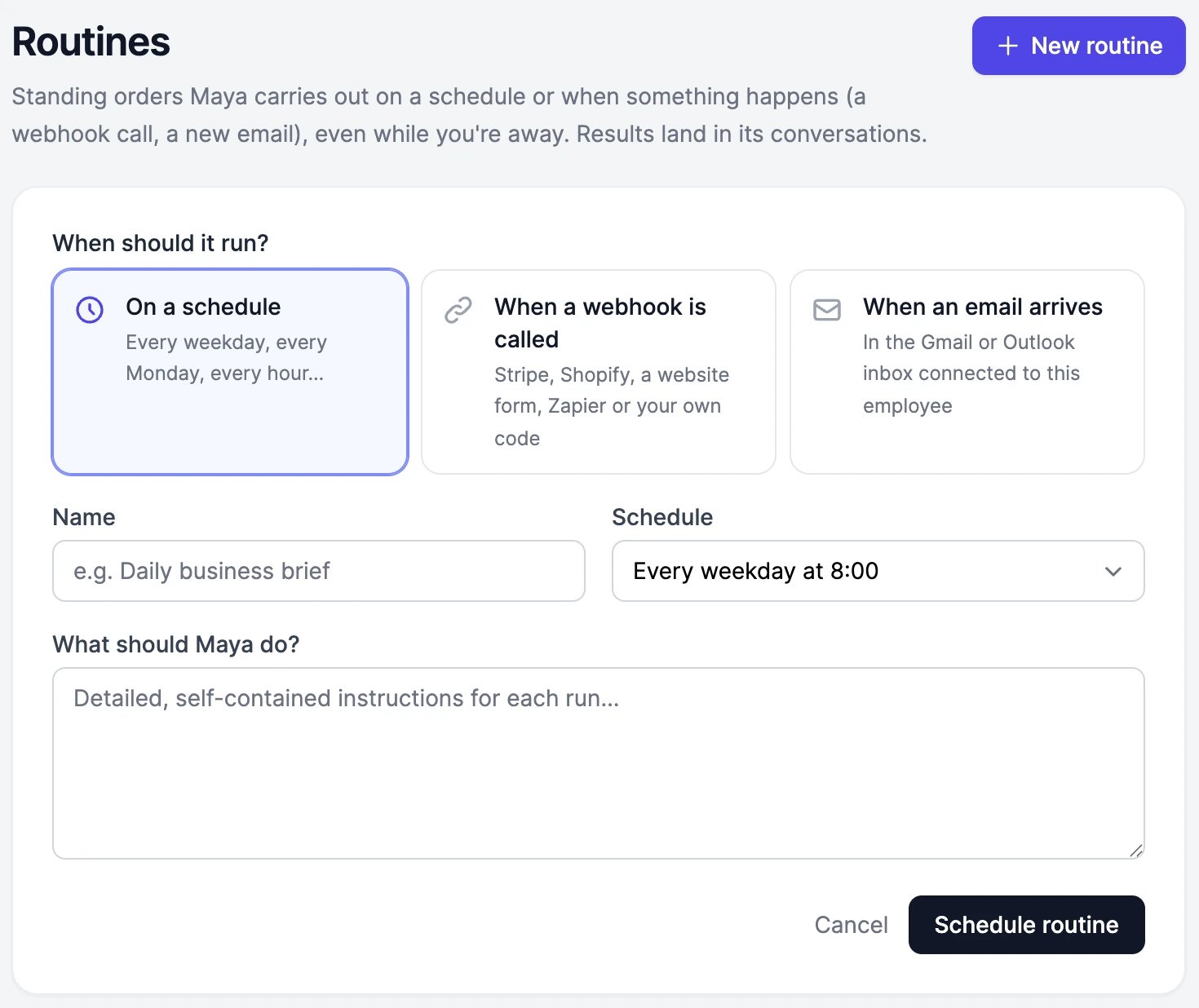
3
Name it and say what to do
Type a Name, then write the instructions in What should, followed by the employee’s name. See Write good instructions.
4
Save it
Click Schedule routine (for a schedule) or Create routine. A webhook routine shows its URL right away.
What can start a routine
On a schedule
Pick Every weekday at 8:00, Every day at 8:00, Every Monday at 9:00, Every hour, or Custom cron…. A custom schedule is a cron expression with six fields: second, minute, hour, day of the month, month, and day of the week.0 30 8 * * 1-5 means 8:30 on weekdays.
Times are in your browser’s time zone when you create the routine. A routine runs at most every 5 minutes.
When a webhook is called
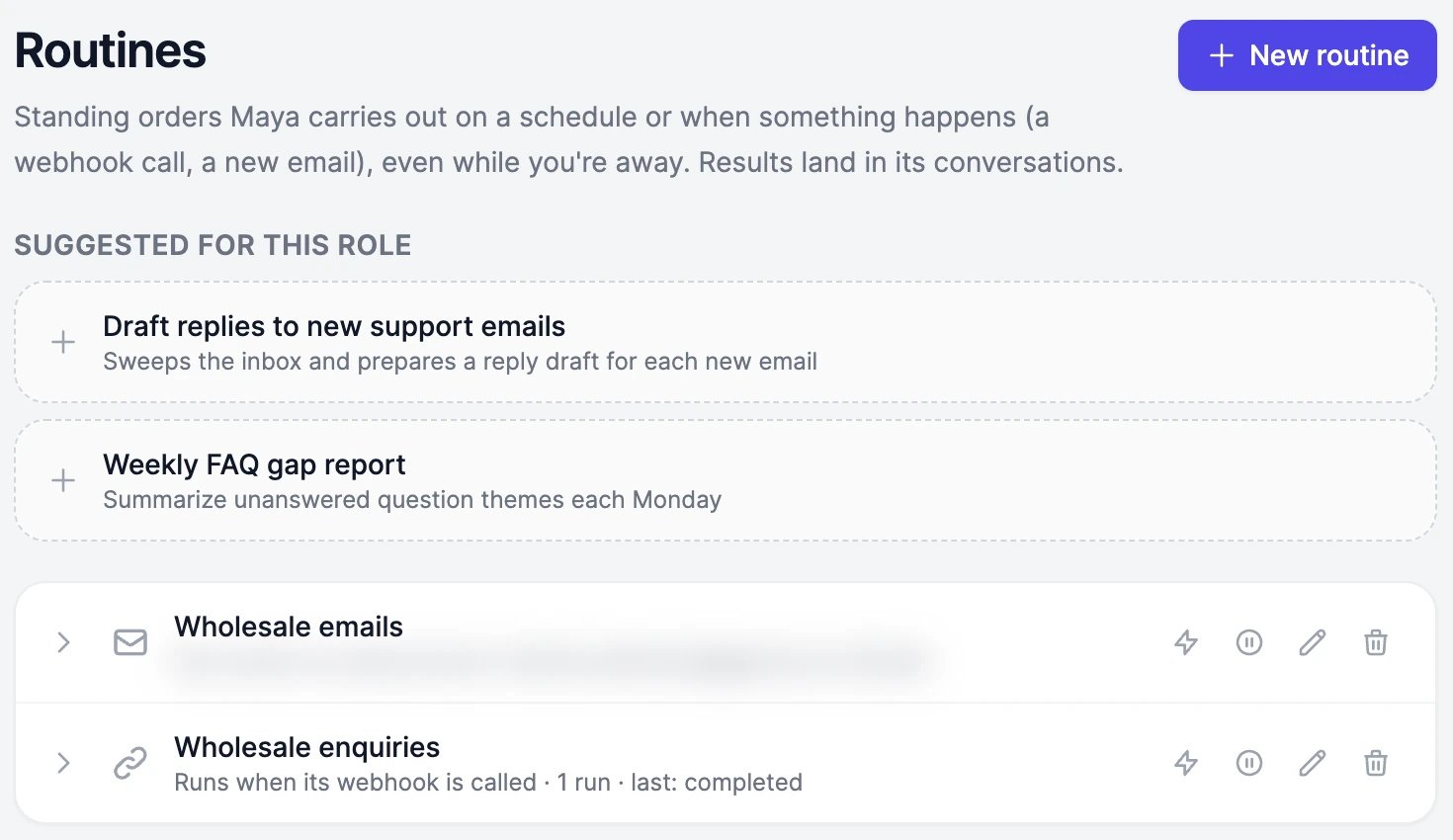
A webhook routine runs each time another service calls its private URL: Stripe when an order is paid, Shopify when an order comes in, a form on your website, Zapier or Make, or your own code. The employee gets the data that was sent, as JSON, form fields, or text, along with its instructions. After you create the routine, its row shows the webhook URL. Copy it with the button next to it and paste it into the other service’s webhook settings. Example request shows a test call you can send from a terminal. Anyone with the URL can start the routine, so keep it private. If it leaks, click Reset URL and confirm. The old URL stops working right away.- A call can carry up to 256 KB.
- A routine takes up to 60 calls a minute, and up to 100 calls can wait their turn. Calls beyond that are refused with a “too many requests” error.
- If the other service sends the same event twice, with the same delivery ID (such as Stripe’s event ID or an
Idempotency-Keyheader), it runs once. - While the routine is paused, calls are refused.
When an email arrives
An email routine runs when a new email arrives in the Gmail or Outlook inbox connected to this employee. Connect the inbox in Apps first, then pick it under Inbox.
The inbox is checked every 2 minutes, and only emails that arrive after you create the routine start a run. Emails that arrive while the routine is paused are skipped. The routine’s row shows when the inbox was last checked.
Grok and DeepSeek models can’t read Gmail, so an employee on one of those models can’t have a Gmail routine.
Write good instructions
Nobody is there to answer questions during a run, so the instructions have to stand on their own. When the employee creates a routine for you, it writes them this way. When you write them yourself, include:- The goal and who it’s for: “Write three Instagram post ideas for Aurela’s Bloom launch.”
- Where to look: the websites, files, or apps to use.
- What to do with what arrives: for a webhook or email routine, say how to use the data. “Read the email. If it’s a question about an order, look it up in Shopify and draft a reply in our tone. If it’s a refund request, tell me who asked and why.”
- How to avoid repeats: “Check the earlier runs and don’t repeat an idea.”
- The format of the result: a table, three bullets, a one-page report.
Test a routine
Each routine’s row has a test button:
The result shows up in a minute or two.
Where results go
- Scheduled routines post their results in the employee’s direct message.
- Webhook and email routines post in a conversation of their own, named “Routine:” followed by the routine’s name, so a burst of events never gets in the way of your chat with the employee. Open it from Conversations in the direct message.
Emails about routines
- After each run of a scheduled routine, you get an email with a link to the result.
- A webhook or email routine emails you only when it starts failing, once, not after every failed run.
Approvals during a run
Nobody watches a run, so when a routine wants to send an email, change your calendar, or change something in an app, the action waits in your Approvals and you get an email. The run finishes without it. See Approvals.Memory during a run
A webhook or email routine reads the employee’s memory but can’t change it, because the data that starts it comes from outside and could be written by anyone. Scheduled routines can update memory like a chat.Manage a routine
The buttons on a routine’s row:
A routine runs on the employee’s current model, so changing the employee’s quality changes its routines too. While the employee is paused, its routines don’t run.
Your employees’ routines also show on Marky’s Automations page, with the employee as Run by.
Limits
- You can have up to 10 routines and automations in all, counting Marky’s automations and paused ones. Delete one to add another.
- A schedule runs at most every 5 minutes.
- A webhook or email routine runs at most 20 times an hour. More events wait their turn, and one run can handle up to 5 that arrived together. An event that waits more than a day is skipped.
- An inbox check takes up to 20 new emails. If more arrive between two checks, the rest are skipped.
- Up to 3 webhook and email runs work at the same time across your account.
Credits
Each run uses words like any other message to the employee, at the rate of its model, plus image & video credits for anything it generates. Test runs count too. Frequent schedules and busy webhooks add up, so check Usage after the first few runs.My email routine didn't run
My email routine didn't run
Only emails that arrive after you create the routine start a run, and newsletters, receipts, and other automated emails are skipped unless you turned them on. Check the filters and the time of the last inbox check on the routine’s row, and that the inbox is still connected in Apps.
A routine ran at the wrong time
A routine ran at the wrong time
Schedules run in the time zone of the browser you created them in. If it’s wrong, check your computer’s time zone, then delete the routine and create it again.
Can a routine ask me questions?
Can a routine ask me questions?
No. Runs happen without you, so the employee works with what it has. Anything that needs your approval waits in Approvals.
Approvals
What routines ask before they act.
Apps
Connect the inbox an email routine watches.