
Send your first message
1
Open the direct message
Click AI Employees in the sidebar, then click the employee under Direct messages.
2
Start with an idea, or write your own
A new employee shows what it can do here as cards. A card that needs details puts its prompt in the message box for you to finish; the others send right away.
3
Send it
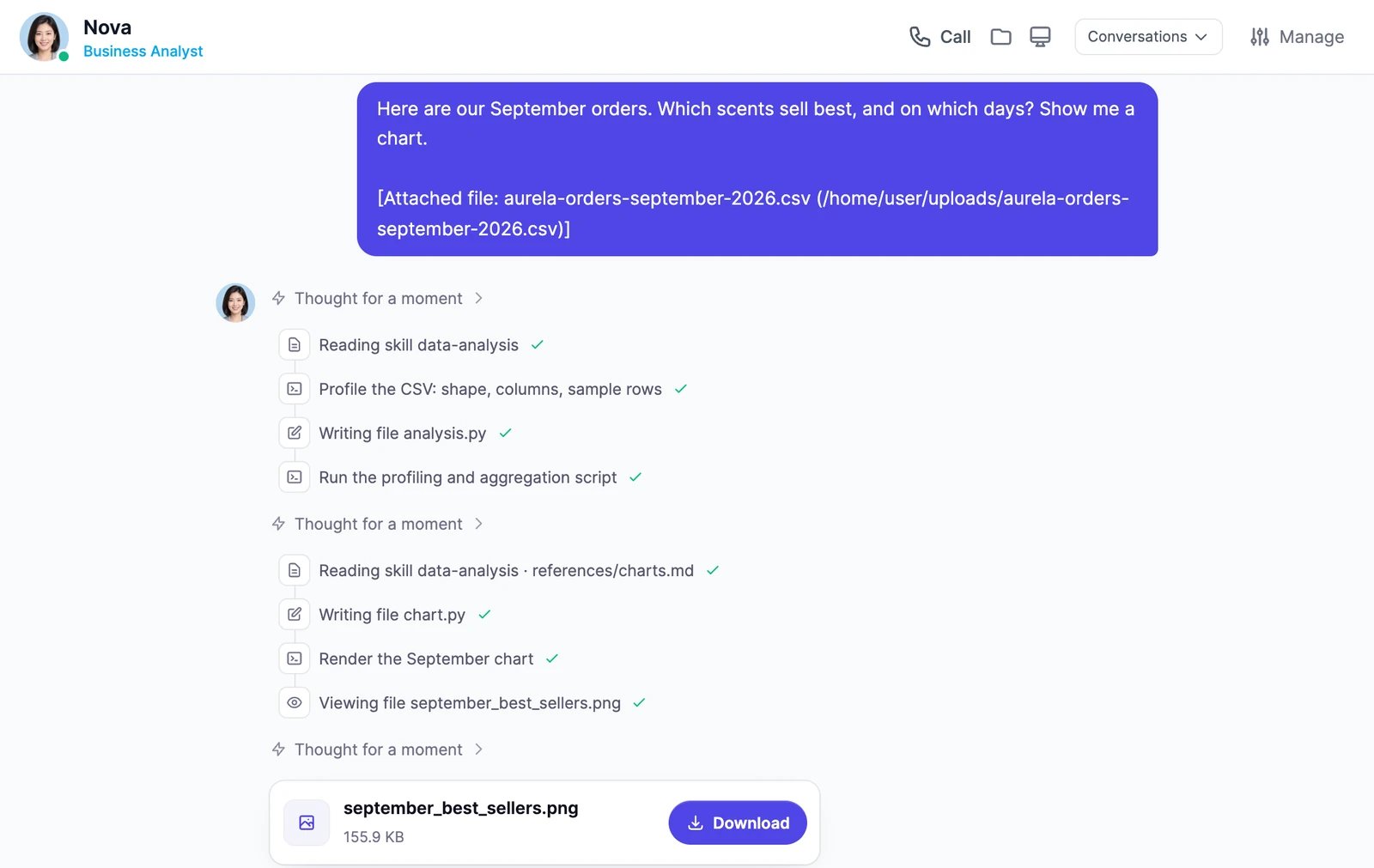
Type your message and press Enter. The employee replies in the chat and shows each step it takes, such as searching the web or writing a file.
What an employee can do
Every employee has the same standing equipment:
Building websites, slide decks, and deep research are Marky’s jobs, so employees don’t do them. Ask Marky instead.
Attach files
Click + next to the message box and pick your files. They’re uploaded to the employee’s computer, so it can read them now and find them again later. To dictate instead of typing, click the microphone and speak, for up to 10 minutes. The text appears in the message box for you to check and send.While the employee works
- Steps. Each tool the employee uses shows as a short line in its reply. Click one to see it on the employee’s computer, the panel that shows what it did, step by step. On a wide screen the panel opens beside the chat by itself; on a smaller one, open it from the button at the top.
- Questions. When it needs a decision, the employee asks with a card. Click an answer, or type your own.
- Apps it needs. If the job needs an app the employee doesn’t have, it asks for it with Connect and Not now buttons, or Allow if you already connected that app. After you connect, it carries on where it stopped.
- Approvals. Before it sends an email, changes your calendar, or changes something in an app, it shows an approval card and waits. See Approvals.
- Files. Documents, images, and other files it delivers show as cards you can open or download.
Conversations
An employee can have several conversations with you. Click Conversations at the top of the chat to switch between them, or New conversation to start a clean one. Conversations get a title from their first message. Your employee remembers what matters across conversations, and its computer keeps its files, so a new conversation can build on earlier work: “Use the price list you made on Tuesday.” Results of scheduled routines also land in the employee’s direct message.The buttons at the top
Know when an employee needs you
The Direct messages list shows each employee’s state:- Working… while it works on something.
- Waiting for you when it asked a question or needs an approval.
- Stopped when its last reply was cut off. Open the chat to continue.
The employee says an app isn't connected
The employee says an app isn't connected
Open Manage > Apps and check that the app is under Connected for, followed by the employee’s name. Connecting an app for Marky doesn’t give it to your employees: each employee gets only the apps you turn on for it. Grok and DeepSeek models can’t use Gmail, Google Calendar, or Google Drive, so switch such an employee to another model. See Apps.
Can my employee build a website or slides?
Can my employee build a website or slides?
No. Websites, slide decks, and deep research are Marky’s jobs. Your employee can write the copy and make the images, and Marky can build the site or the deck from them.
What does a message cost?
What does a message cost?
The same as a message to Marky on the same model: words for what the employee writes and reads, plus image & video credits for anything it generates. See Limits and usage.
Approvals
What employees ask you before they act.
Group chats
Put several employees on one job.