
Which work uses the computer
The computer goes to sleep when nobody uses it and wakes up when the employee needs it. Waking takes a few seconds; the first message of a conversation says “Getting … computer ready” while it does.
Browse the files
Open the employee’s workspace (Manage in its direct message) and click Computer. Or, in the direct message, click the files button at the top to open the same files beside the chat. The header shows the computer’s state: Running, Asleep, or Not started for an employee that hasn’t used it yet. Opening the files wakes the computer. Everything lives in the Home folder. Click a folder to open it, and a file to preview it.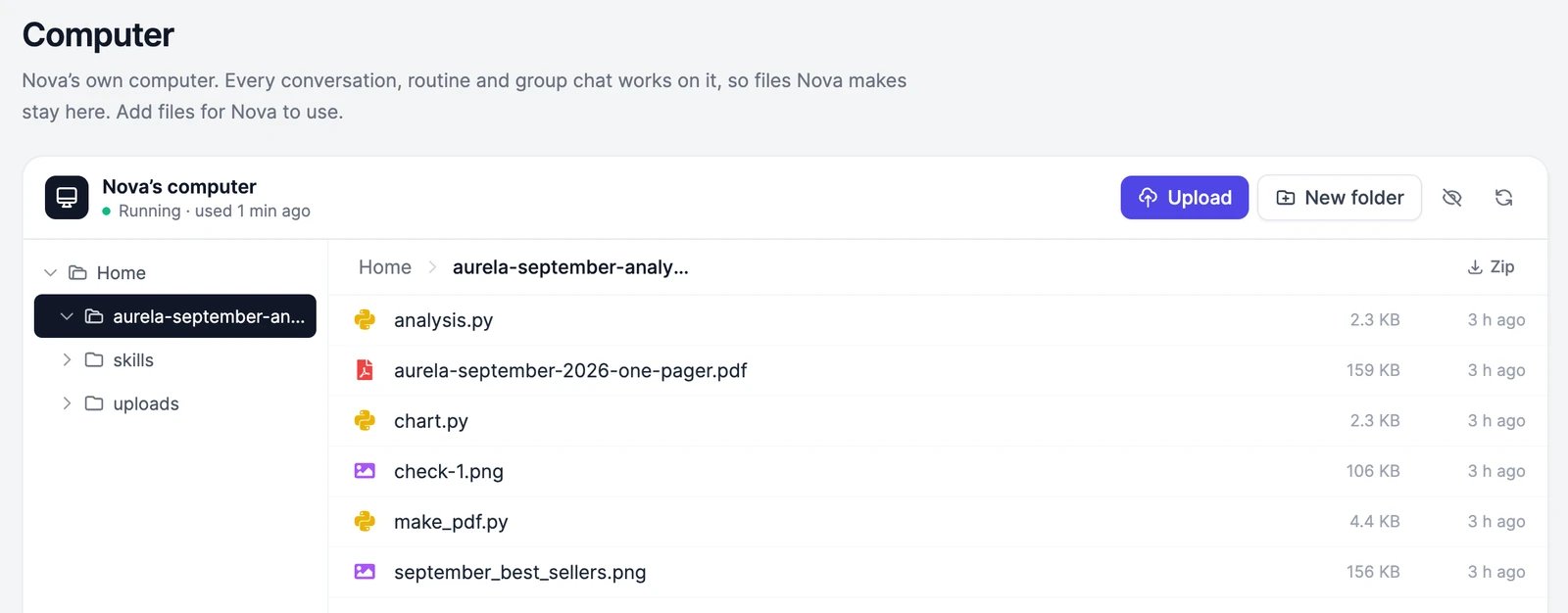
A name that’s already taken gets ” (2)” added. The skills folder is read-only, because Easy-Peasy.AI keeps the skills in it up to date. A folder shows its first 2,000 items.
Good to know
- Only you see your employees’ computers. People you invite to a group chat work on that group chat’s own computer.
- Files your employee delivers in a chat are also on its computer, in the folder for that job.
- Deleting an employee deletes its computer and every file on it. Download what you want to keep first.
- The computer is for the employee’s work. Keep files you need for the long term in your own storage, such as Google Drive or OneDrive, which your employee can also work with.
The computer says it couldn't be reached
The computer says it couldn't be reached
Click Try again. A computer that was asleep for a long time can take a little longer to wake up. If it still fails, send the employee a message: it starts the computer when it needs it.
My employee can't find a file from another conversation
My employee can't find a file from another conversation
Check where it is in Computer, then tell the employee the folder and file name. Files from a group chat with invited people, or from Slack, are on that conversation’s own computer, not the employee’s.
Work with an employee
Attach files and pick up what it delivers.
Apps
Connect Google Drive, OneDrive, and more.