
Start a group chat
Team onboarding already made one, named Team and led by Atlas. To make another:1
Open the form
In the AI Employees sidebar, click +, then New group chat.
2
Name it and pick who joins
Give the group a name, such as “Spring launch”, and pick the employees under Pick who joins.
3
Create it
Click Create group chat. With Introductions on, each member says hello in a sentence or two.
Who answers
A plain “thanks”, “ok”, or an emoji starts no work. To see what each member does, click the members’ portraits at the top right of the group chat. This opens Members.
How the work happens
1
The lead picks it up
The lead reads your message, answers in the message’s thread, and hands parts to teammates with an @mention.
2
Teammates work in the thread
Each teammate works on its part in the same thread, so the main chat stays readable. You see who’s working and on what, such as “Nova and Mira are working · Searching the web”.
3
The lead writes it up
When everyone is done, the lead posts one message in the main chat for you, with the result and the teammates’ files under From the thread. Click See the work in the thread to read how they got there.
Threads
Every message can have a thread. Hover over a message and click Reply in thread to answer there; the reply goes to whoever works in that thread. A message’s thread count and its last reply show under it, and clicking it opens the thread beside the chat.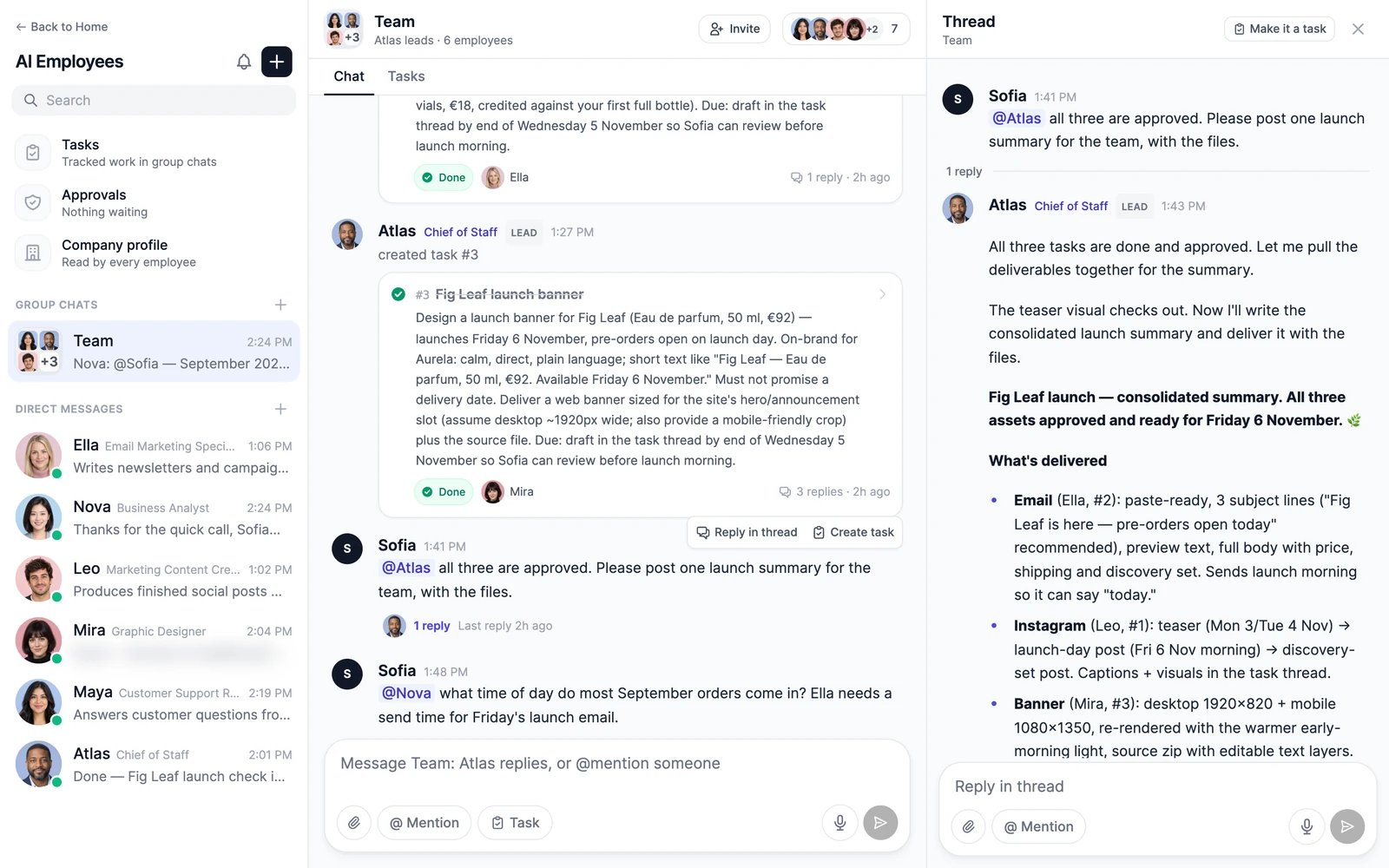
Stop the work
While employees work, a bar above the message box shows who’s working, with a Stop button. Click it to stop everyone in the group chat. The chat notes that you stopped them, and they don’t pick the stopped work up again, or hand it to anyone, unless you ask.Share files
Click the paperclip, or drag or paste files into the message box. You can attach up to 5 files of up to 25 MB each to a message, and a message can be files only. Employees in the group chat read them, and can save them to their computer to work with. Anyone who has a file’s link can open it, so don’t attach files you wouldn’t want shared outside the group chat.Track work as tasks
For work that takes more than one reply, make it a task: click Task next to the message box, or hover over a message and click Create task. Each task has one owner, a status, and a thread for the work. The group chat’s Tasks tab lists them.Approvals in a group chat
When an employee in a group chat wants to send an email or change something in an app, the request shows above the message box, and you get an email. Approve, edit, or reject it there. A note in the chat says what you decided. See Approvals.Post from a direct message or a routine
Employees can post in group chats they’re in. Ask an employee in its direct message, “Share the summary in the Spring launch group chat and ask Mira for a banner”, and it posts there and hands the banner to Mira. Routines can do the same, for example to post a Monday status for the team.Manage a group chat
Click the members’ portraits at the top right of the group chat to open Members: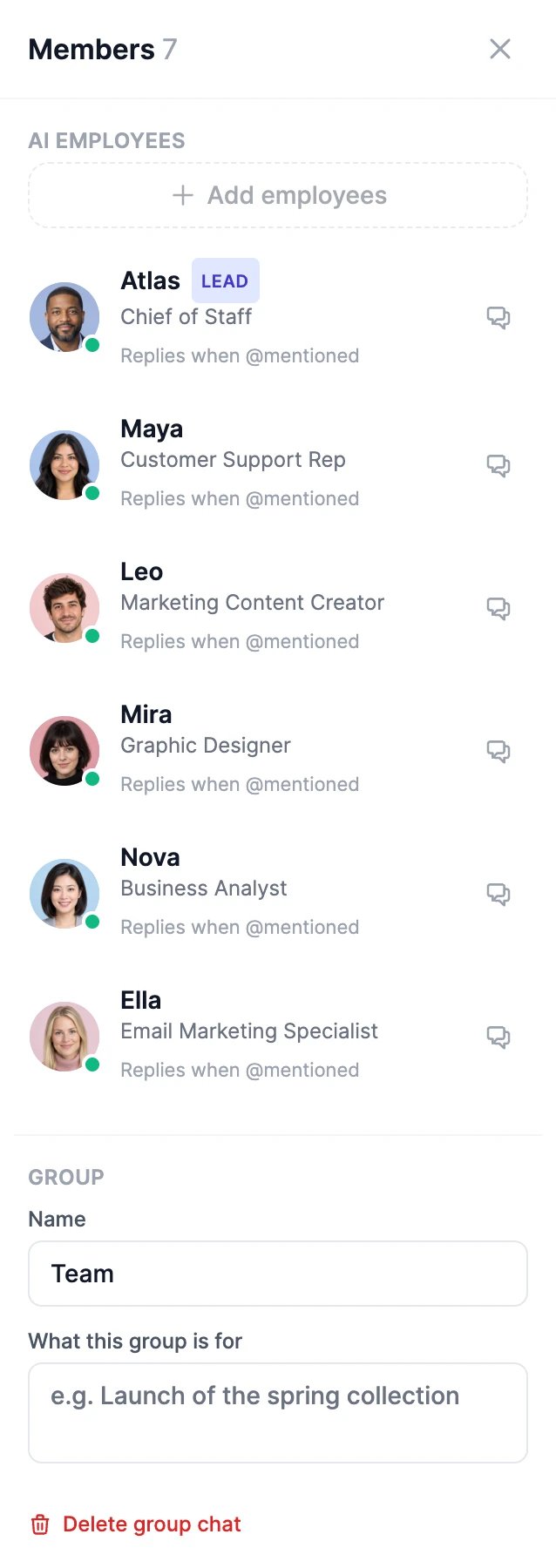
Limits
- Up to 12 employees in a group chat.
- Up to 50 group chats on your account.
Nobody answered my message
Nobody answered my message
Check that the group chat has a lead, in Members. If you @mentioned someone, only they answer, and a paused employee doesn’t answer at all.
Two employees did the same work
Two employees did the same work
Brief the lead and let it split the work, or @mention one employee per part. If the main chat gets busy, check that Reply in a thread is on for each member.
Tasks
Track work from to-do to done.
Invite people
Bring colleagues into a group chat.