
The Free plan includes one employee. Paid plans include more, and their employees can work together in group chats. See Limits and usage.
Hire a team
The first time you open AI Employees, it walks you through hiring a team.1
Tell us what you do
Pick all the kinds of work that apply, such as Founder / CEO, Marketing & growth, Customer support & success, or E-commerce. If none fits, describe it under Something else, for example “I run a small perfume brand and sell to boutiques”.
2
Add your website (optional)
Enter your website, and your team reads it to learn about your business. What they learn goes into your company profile, where you can check it.
3
Meet your team
Click Build my team. We propose a team of up to seven, led by Atlas, the Chief of Staff. Untick anyone you don’t need, and rename their group chat if you like. On paid plans, you can switch the whole team to Best quality here. See Quality.
4
Hire them
Click Hire, for example Hire 5 employees. In a few seconds the team is ready, in a group chat that Atlas leads, named Team unless you renamed it. Atlas says hello there, and a Meet your team card introduces everyone. Ask for anything there and the right people pick it up.
Hire from the gallery
Once you have an employee, + > Hire employees opens the gallery of ready-made roles. Filter by Leadership & planning, Marketing & content, Sales & customers, Research & data, or Finance & people, or search, for example “invoices” or “TikTok”. Roles you already hired show On your team.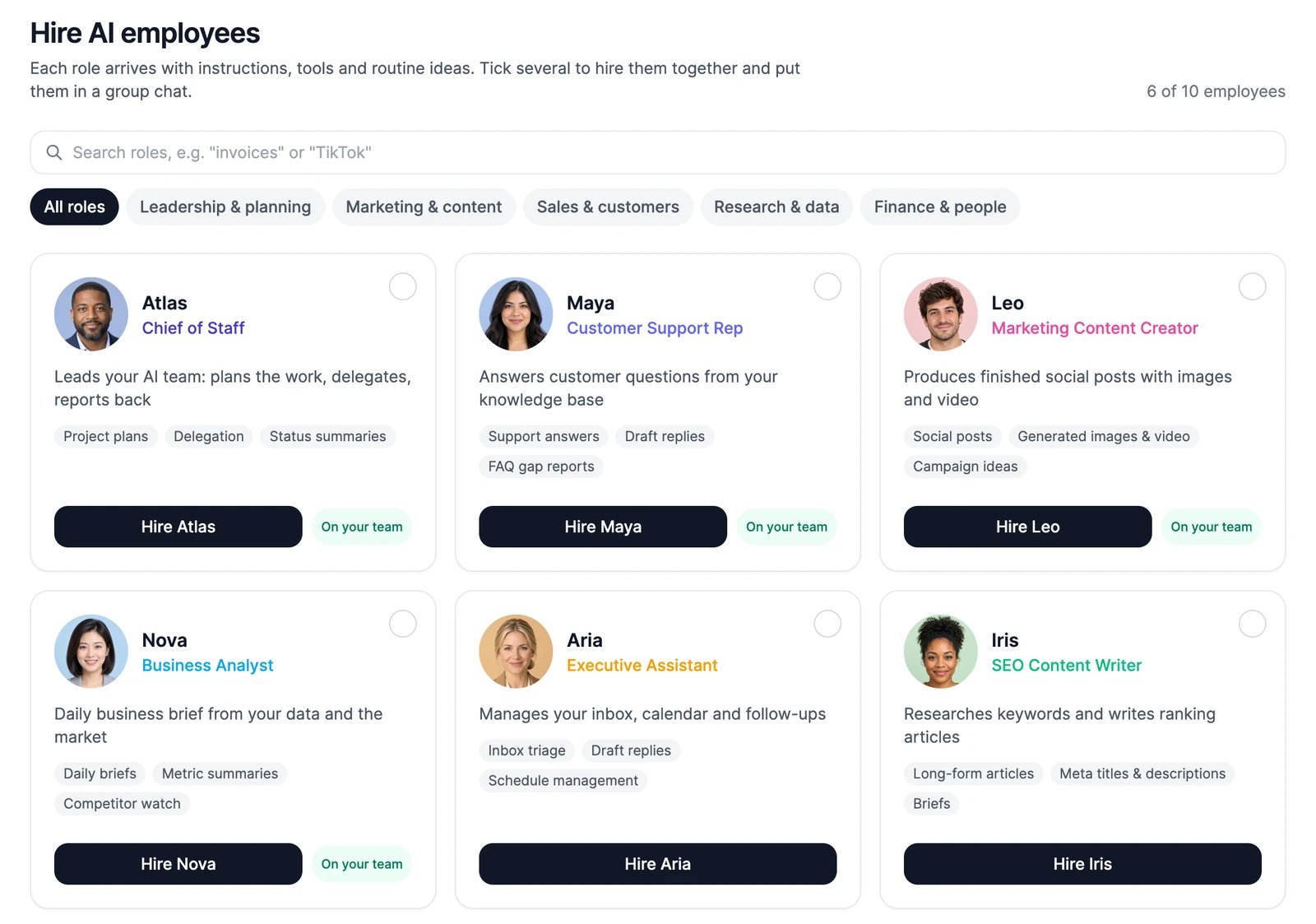
Hire one role
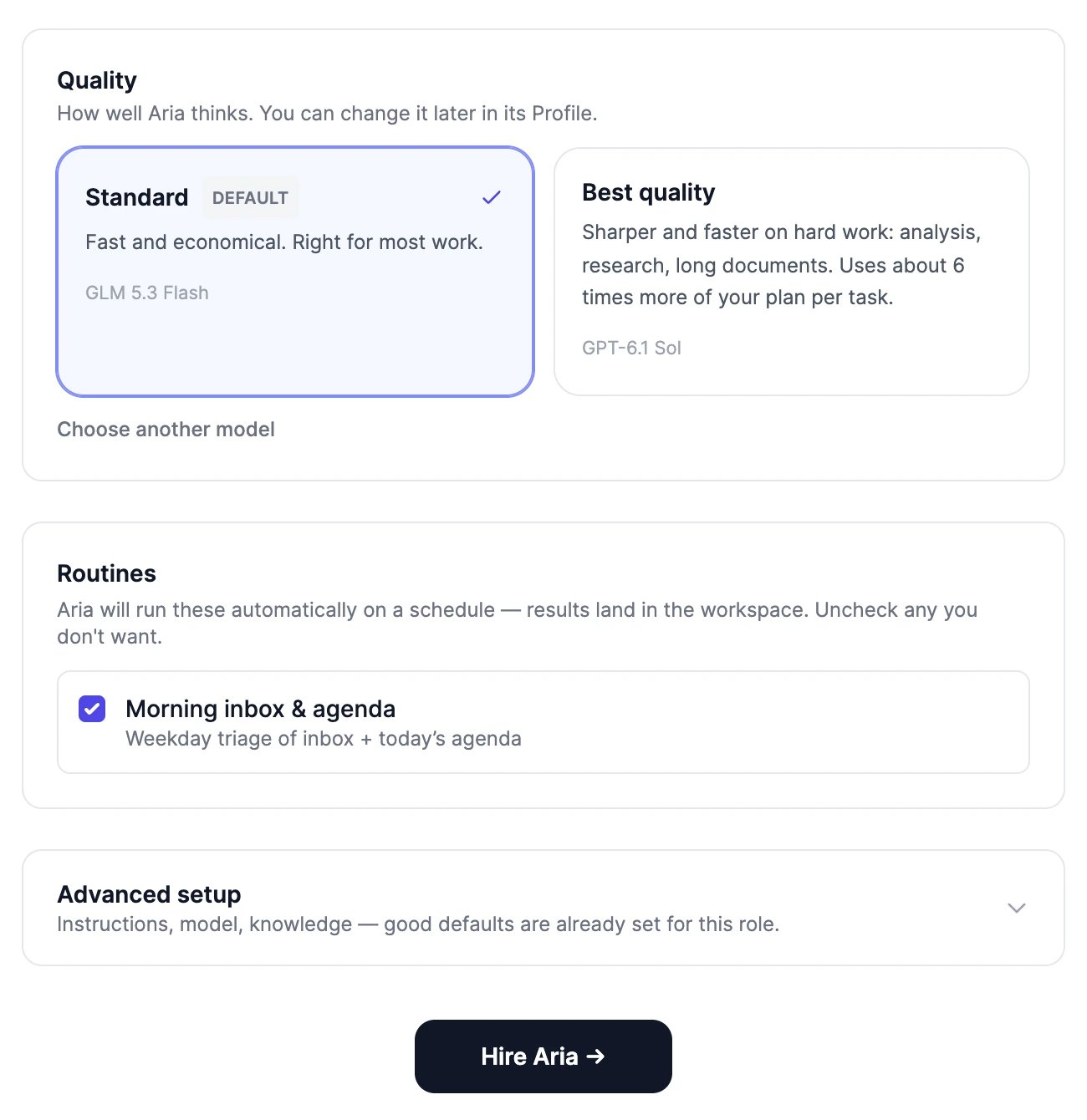
Click Hire on a role’s card. On the next screen, check the employee before you hire:- The name, the role title, and a one-line tagline that teammates see.
- The look: a portrait or an emoji, and an accent color.
- Quality: Standard or Best quality. See Quality.
- Routines: work the role usually does on its own, such as a daily business brief. They’re ticked, so untick the ones you don’t want. They run on a schedule in your time zone. See Routines.
- Advanced setup: the instructions, and under Knowledge, whether the employee gets its own knowledge base or uses one of your agents’. Good defaults are already set.
Hire several at once
Tick the checkbox on each role you want, then choose where they go in the bar at the bottom: a new group chat, an existing group chat, or No group chat. Click Hire. If your plan doesn’t have room for all of them, the ones that fit are hired and you see which didn’t.Describe your own role
Click Describe your own in the gallery, or on the first onboarding screen.1
Describe the role
Write what the employee should take off your plate, in a sentence or two. For example: “Answer questions from boutiques that stock Aurela and send them our price list.”
2
Draft it
Click Draft with AI. We draft a name, a role title, a portrait, and structured instructions. Click Draft again for another version, or edit anything.
3
Hire
Check the instructions under Advanced setup, then click Hire.
After you hire
- Every employee gets a direct message with ideas for a first task.
- If a name is already taken on your team, the new employee gets a number, such as “Nova 2”. Rename it in its Profile.
- Give it the apps and knowledge it needs: Apps, Knowledge, memory, and skills.
I can't hire another employee
I can't hire another employee
You reached your plan’s number of employees. The + menu shows Plan limit reached with the number. Delete an employee in its Profile, or upgrade on the pricing page.
Can I change a role after hiring?
Can I change a role after hiring?
Yes. Rename the employee, change its portrait, instructions, quality, apps, and knowledge at any time. You can also ask it in a chat to update its own profile, for example “From now on, sign your emails as Maya from Aurela”.
Work with an employee
Give your new employee its first task.
Company profile
Tell every employee about your business.